
Product guides
WbizTool AI: write, reply and answer with AI
WbizTool AI helps you write WhatsApp messages and answer customers. It writes, improves, shortens and translates your messages, suggests replies and summarises chats in the inbox, and can answer customers by itself from your own business info. It also checks campaigns before they go out and writes a short weekly summary.
You pay for it with AI credits: each use takes a few, and the dashboard shows what each answer cost. A pack is 20,000 credits for $30 in the US; Billing & plans shows the price in your currency. Credits never expire, and you can buy as many packs as you need. There are no free credits.
Who can use it: any workspace on a paid or lifetime (AppSumo) plan. The inbox features and the AI auto-answer also need the Unibox add-on. AI is off until an Owner turns it on.
| Feature | Needs | Who uses it |
|---|---|---|
| AI writer beside message boxes | Paid plan, credits | Owners and Editors |
| AI in the inbox: suggest, translate, summarise | Paid plan, credits, Unibox | Owners and Editors |
| AI auto-answer | Paid plan, credits, Unibox, an Owner's switch | Runs by itself |
| Campaign check | Free warnings on every plan; Check with AI needs a paid plan and credits | Owners and Editors |
| Weekly summary email | Paid plan, AI on | Owners |
Everything about AI in your workspace is on the AI assistant page: click AI assistant under Inbox in the sidebar, or go to /unibox/ai/. Every member can open it; only Owners can change it.
Turn on WbizTool AI#
AI stays off until an Owner of the workspace turns it on, because the text it works on goes to an outside AI provider.
Open the AI assistant page
Click AI assistant under Inbox in the sidebar.
Read the data notice
The WbizTool AI card says: "When AI is on, the text of the messages you ask it to work on is sent to DeepSeek, an AI provider based in China, to write the answer. Nothing is sent until someone on your team uses an AI button."
Turn it on
Turn on the Turn on WbizTool AI switch. You see "WbizTool AI is on".
Turning it off stops every AI feature at once, including the AI auto-answer. Editors and Analysts see "Only an Owner of this workspace can turn WbizTool AI on or off." While AI is off, the AI buttons say "WbizTool AI is off for this workspace."
Buy AI credits#
Only Owners can buy credits. You can buy them in two places:
- Billing & plans: the AI credits card under Add-ons on /pricing-plans/.
- AI assistant page: the AI credits card at the top.
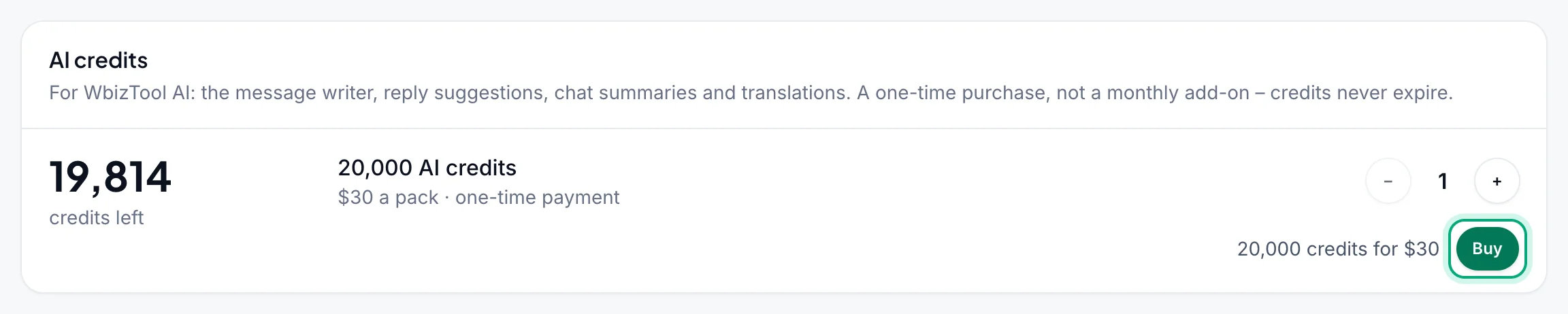
Choose how many packs
Use − and + to pick 1 to 20 packs. The line beside Buy shows the total, such as "20,000 credits for $30".
Pay
Click Buy and pay in the checkout. It's a one-time payment, not a monthly add-on.
Wait for the credits
You see "Payment received – adding your credits…", then "20,000 AI credits added." If it takes longer, refresh the page after a few minutes.
The AI assistant page shows your balance ("credits left") and Recent use: the last 20 changes to your credits, with the date, what they were used for, who used them and how many credits.
When the balance reaches 0, the AI buttons pause and say "Your workspace has no AI credits left." One AI call can take the balance just below 0; the next one is refused until you buy a pack. A refunded pack takes back its credits.
The AI writer#
The ✨ AI button sits under the message box in these places:
- Send a message on the Dashboard
- Reminders and Template messages
- Saved replies and Auto-replies
- Google Sheets triggers and Shopify messages
Campaigns take their messages from your sheet, so they use the campaign check instead.
Click ✨ AI and pick what to do
- Write from a brief: type what the message should say, such as "We're closed on Monday for the holiday, orders ship on Tuesday", and click Write.
- Improve: clearer, friendlier and correct, with the same meaning.
- Shorten: about half as long, keeping what matters.
- Translate: pick a language under Translate into and click Translate.
Improve, Shorten and Translate work on the text already in the box. While it's empty, the menu says "Type a message to improve, shorten or translate it."
Read the answer
The answer appears under a label such as "Improved by AI", with its cost: "Used 0.31 credits · 19,813 left".
Use it or try again
Use this replaces the text in the message box. Try again asks for a new answer, and Close keeps your text as it was. Nothing is sent or saved until you do it yourself, so check the text first.
The writer keeps placeholders such as {first_name}, {name} and {{Order}} exactly as they are. If an answer loses one, you see "The answer lost … Put them back in or try again before you use it." The AI is told not to add prices, dates, links or promises that aren't in your text, and to answer in the language you wrote in (except Translate). The text you give it can be up to 6,000 characters.
AI in the inbox#
In the Unibox inbox, WbizTool AI reads the open chat: its last 30 messages, up to 6,000 characters in all. In group chats it sees members' names, never their numbers.
Suggest a reply#
Open the AI menu
In a chat, click ✨ AI beside the reply box and choose Suggest a reply.
Say what it should say (optional)
Under What should the reply say? (optional), add a hint such as "Offer free gift wrapping", up to 500 characters. If you've already started typing a reply, it builds on your words. Click Suggest.
Use it
The suggestion appears under "Reply suggested by AI", in the customer's language. Click Use this to put it in the reply box, change it if you like, then click Send.
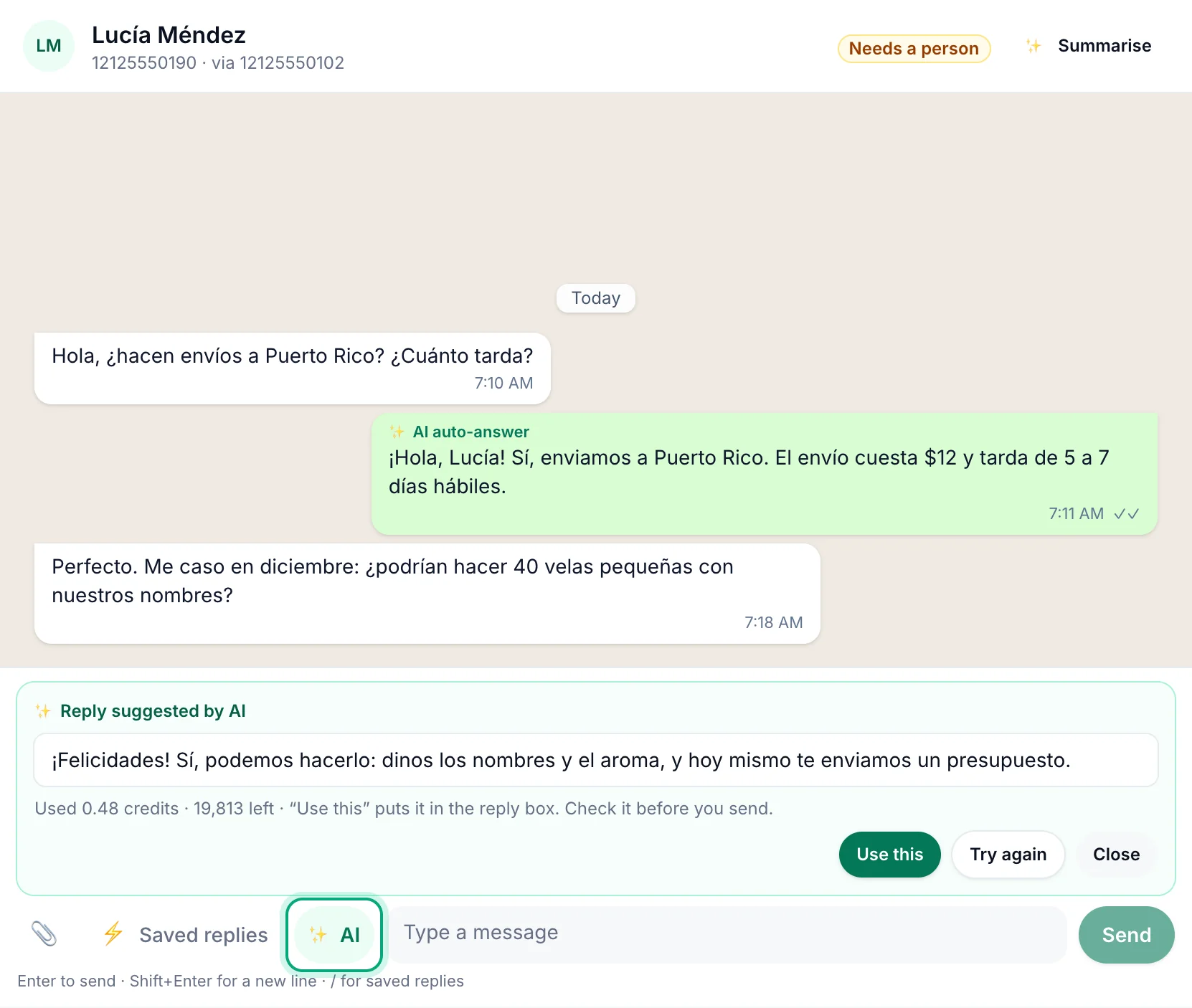
Suggestions use the chat and your business info. When the answer isn't in either, the AI asks the customer or says your team will confirm, rather than making something up.
Translate my draft#
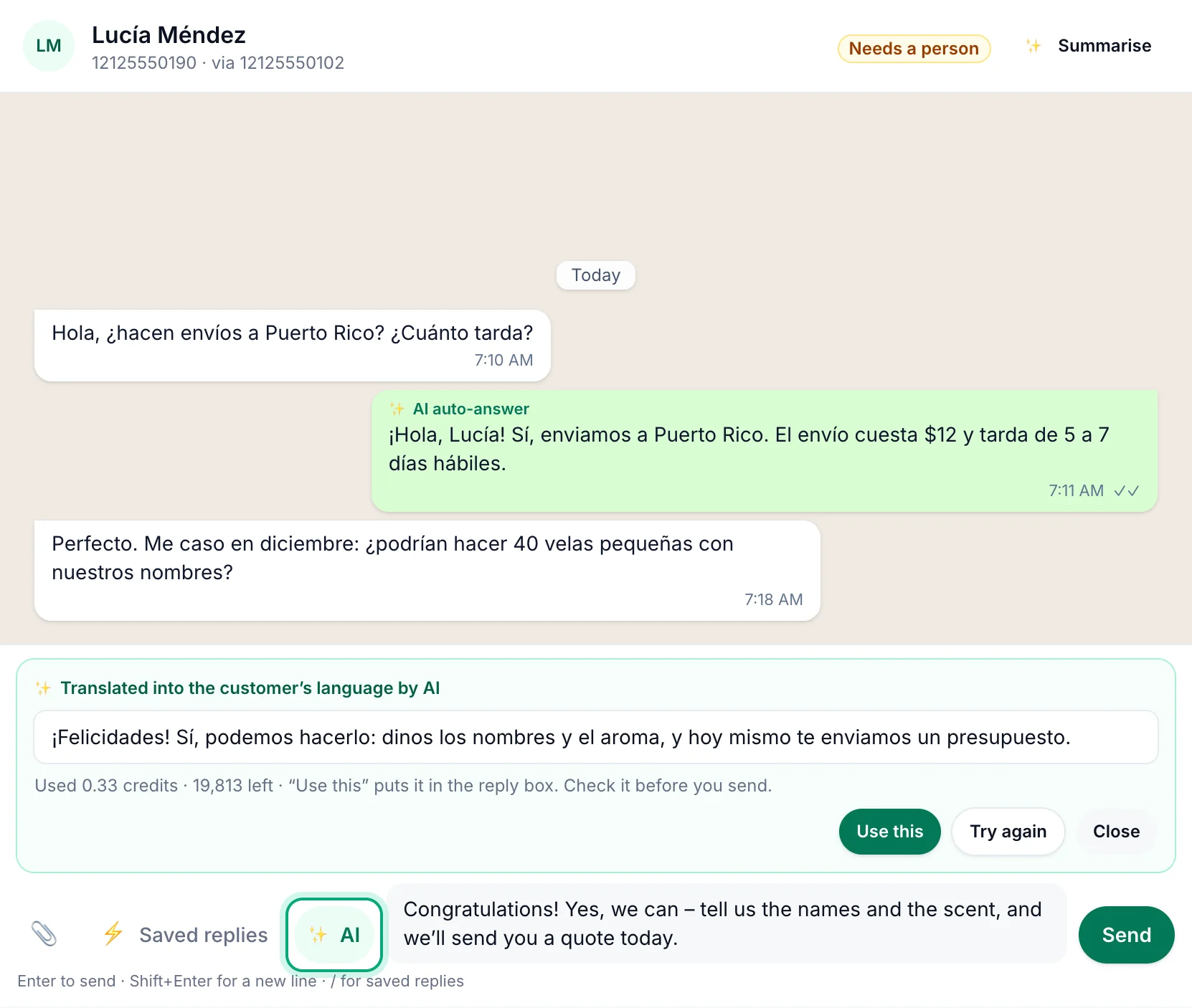
Type your reply in your own language, click ✨ AI and choose Translate my draft. Under Translate into, keep The customer’s language or pick another, then click Translate. Use this puts the translation in the reply box. WbizTool AI tells the customer's language from their last messages; if they haven't written any text yet, pick the language yourself.
Summarise a chat#
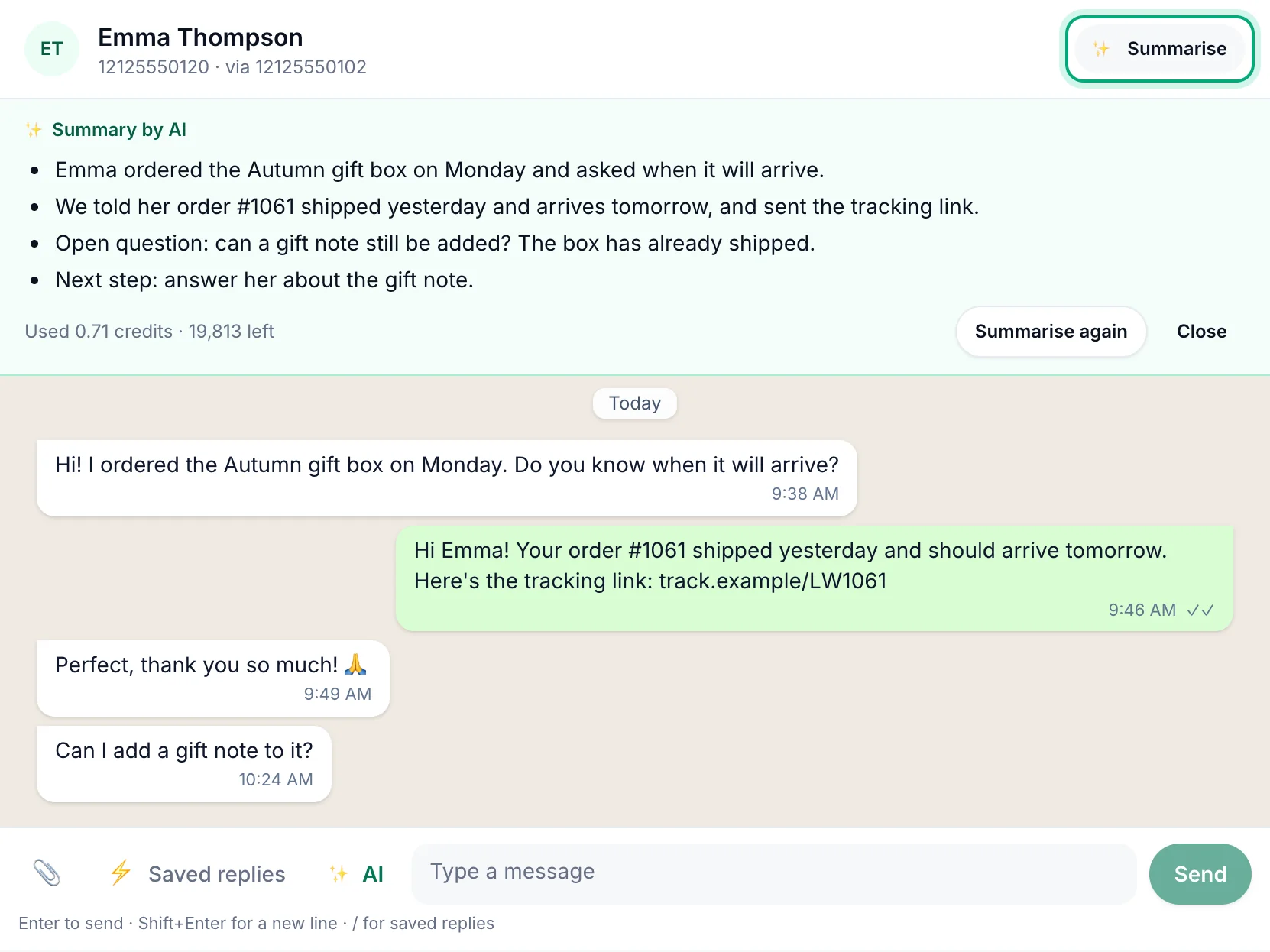
Click ✨ Summarise in the chat's header. The Summary by AI panel shows a few short lines in your dashboard's language: what the customer wants, what your team said, open questions and the next step. Summarise again makes a new one; Close hides it.
Translate a message#
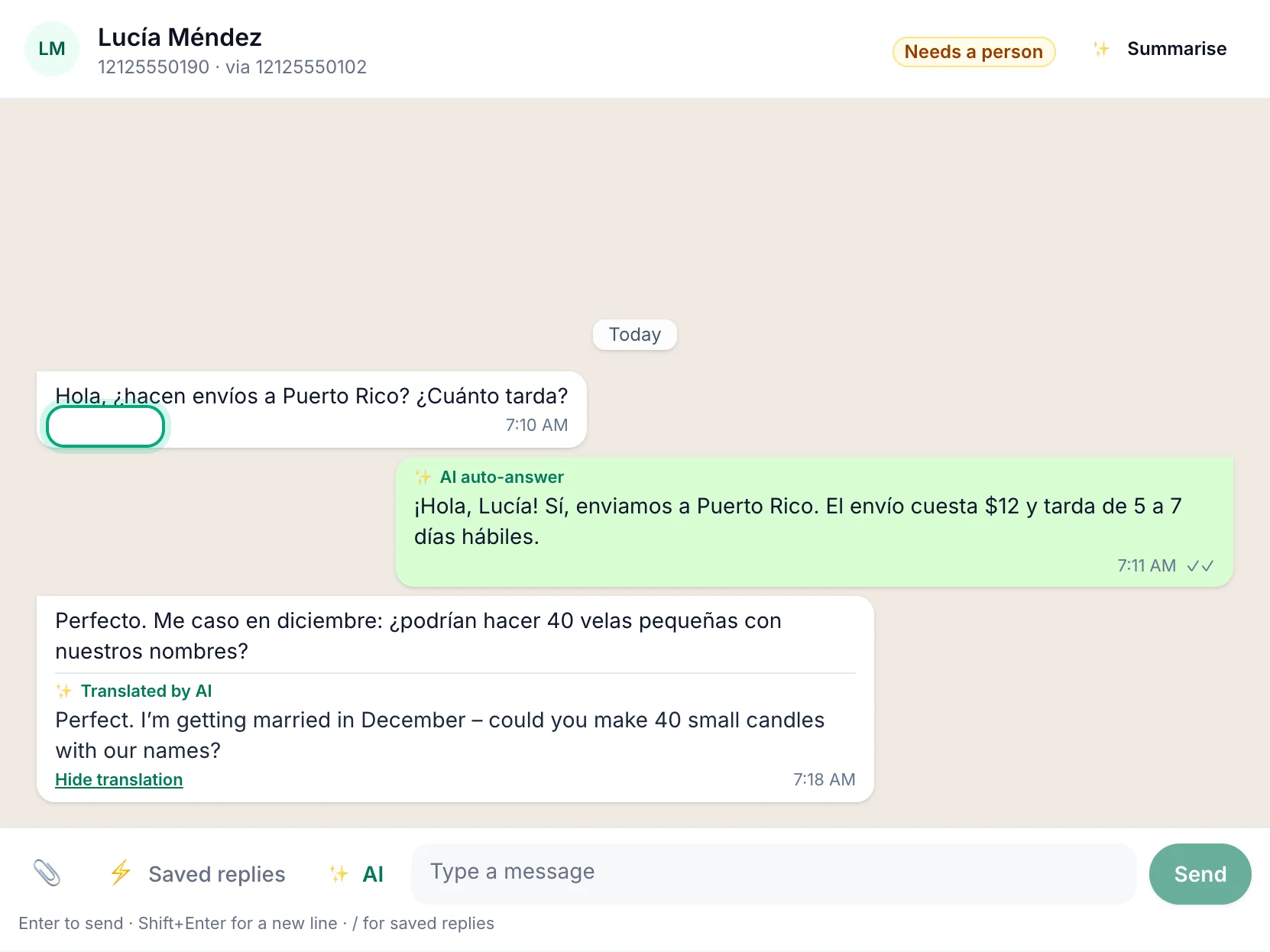
Click Translate under a customer's message. The translation into your dashboard's language appears under it, marked "Translated by AI". Hide translation hides it again.
AI auto-answer#
The AI auto-answer replies to customers by itself, from your business info, without anyone on your team reading the answer first. When it isn't sure, it doesn't reply. It marks the chat Needs a person instead, so your team can answer.
It needs three things, set up once:
- Business info on the AI assistant page (Owners).
- The AI auto-answer switch on the AI assistant page (Owners).
- An AI answer on the Auto-replies page, which chooses the inbox numbers it answers on (Owners and Editors).
Business info#
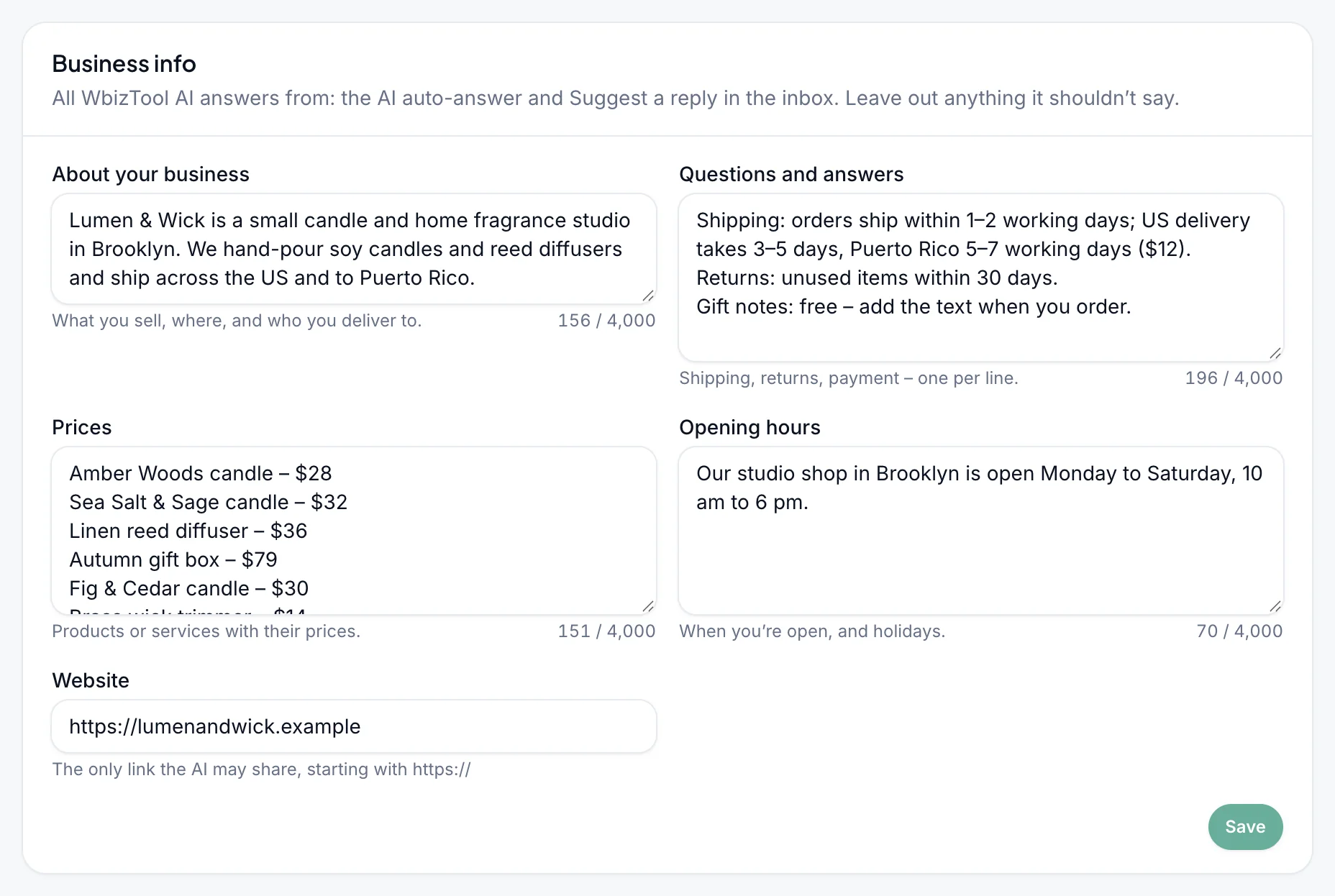
The Business info card holds everything the AI may answer from, for both the AI auto-answer and Suggest a reply. Leave out anything it shouldn't say.
| Field | What to write | Up to |
|---|---|---|
| About your business | What you sell, where, and who you deliver to. | 4,000 characters |
| Questions and answers | Shipping, returns, payment – one per line. | 4,000 characters |
| Prices | Products or services with their prices. | 4,000 characters |
| Opening hours | When you're open, and holidays. | 4,000 characters |
| Website | The only link the AI may share, starting with https:// | 200 characters |
Click Save. You see "Business info saved".
Turn on the AI auto-answer#
Turn on the switch
On the AI assistant page, turn on Turn on AI auto-answer in the AI auto-answer card. WbizTool AI has to be on first.
Choose the numbers
The card says "Choose the numbers it answers on: add an “AI answer” on Auto-replies." Click Auto-replies, click Add auto-reply, choose AI answer, then All inbox numbers or Only these numbers, and click Save. See AI answer in the Auto-replies guide.
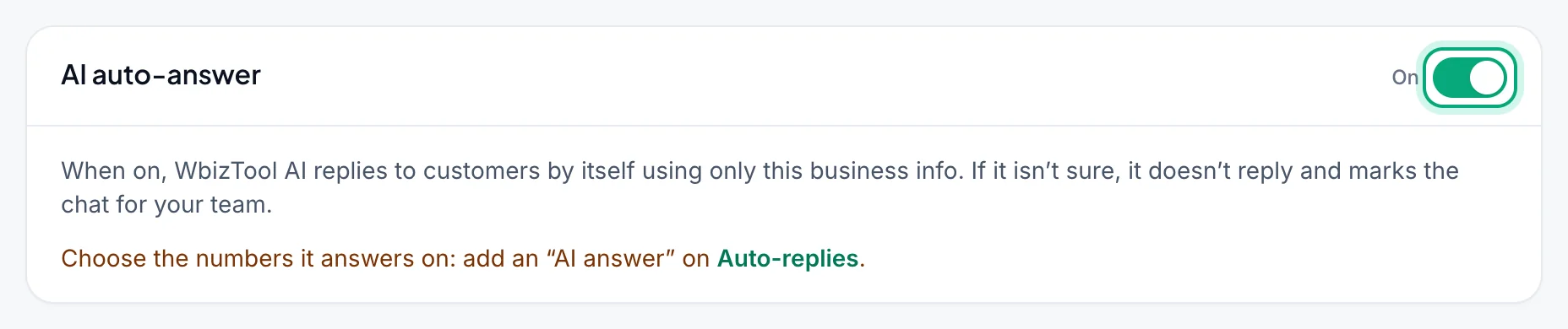
A workspace has one AI answer. Its switch on the Auto-replies page turns it off and on, and the Owner's switch on the AI assistant page turns the whole AI auto-answer off at once.
When it answers#
- Last. It answers only text messages that no keyword rule, welcome message or away message answers.
- Only the latest message of a chat, so several messages sent close together get one answer.
- Never groups, and never your own numbers writing to each other.
- In the customer's language, short, and only from your business info and the chat.
In the inbox, its answers show ✨ AI auto-answer above them.
Needs a person#
The AI hands a chat to your team when:
- it can't answer from your business info and the chat, or
- its answer has a link or price that isn't in your business info or your own messages, or a phone number that isn't in your business info or the chat, or
- its answer is cut short or too long (over 1,000 characters).
Then nothing is sent. The chat gets a Needs a person badge in the list and in its header, and stays marked until someone on your team replies. Click the Needs a person button above the conversation list to see only those chats. After a handover, the AI stays quiet in that chat for 30 minutes.
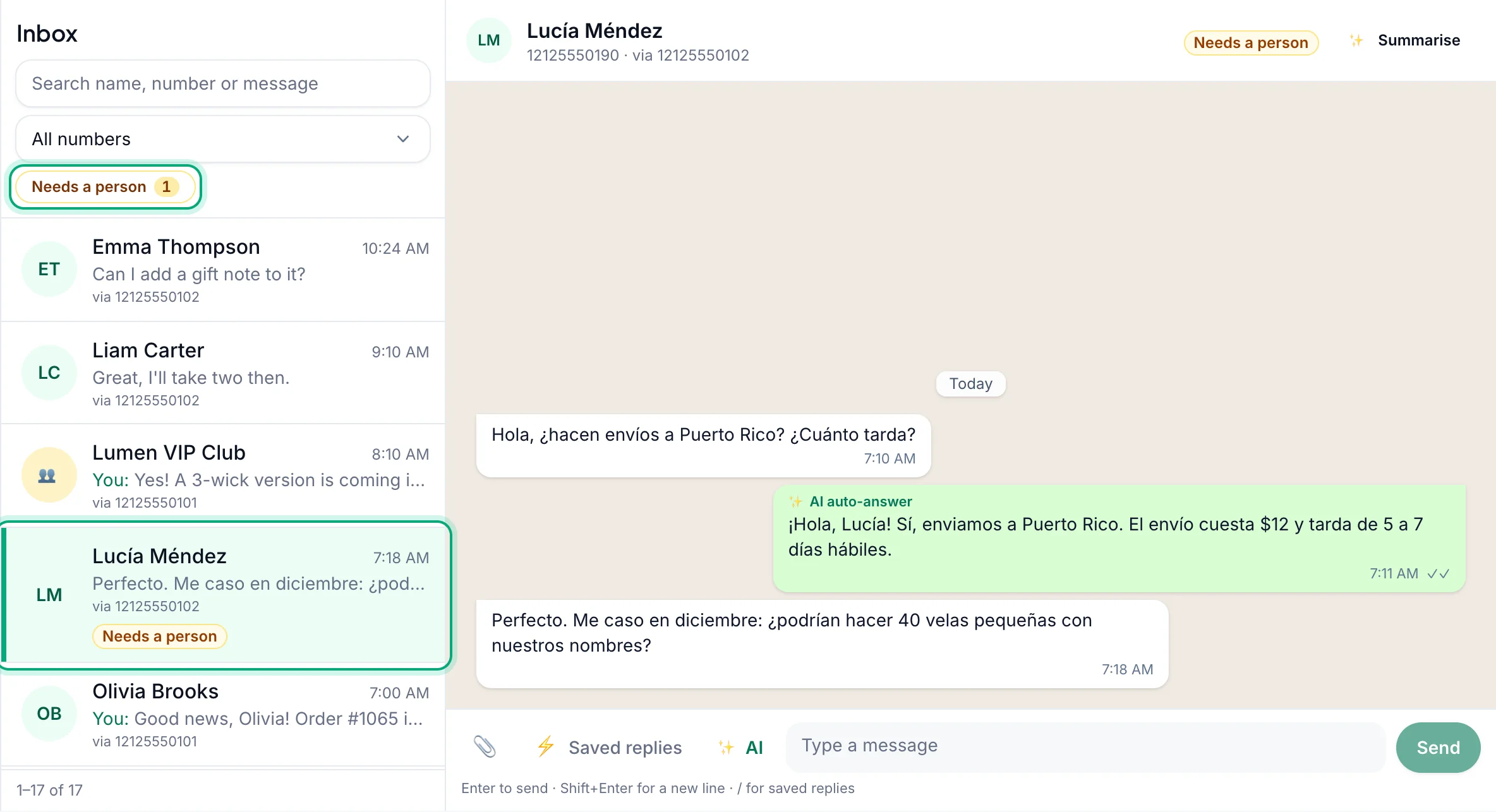
A handover still uses the credits of the AI call. A call that fails costs nothing.
Safety limits#
The AI auto-answer follows the same rules as all auto-replies, because it sends from your own WhatsApp number:
- Only new messages: a message more than 10 minutes old when it reaches the inbox gets no answer.
- Your team comes first: no answer for 30 minutes after someone on your team wrote in the chat.
- One at a time: a contact gets at most one auto-reply every 5 minutes, so two bots can't keep answering each other.
- At most 30 an hour from one number, handovers included.
- Not late: an answer that isn't sent within 30 minutes is dropped.
On the Auto-replies page, "Matched but not sent in the last 7 days" counts what the AI answer held back, such as "WbizTool AI handed it to your team", "out of AI credits" or "no business info".
Campaign check#
When you start a campaign and click Check sheet, the check has a Before you send section. It never sends anything, and you can still send the campaign whatever it says.
Free warnings#
The free warnings come at once, use no credits and work on every plan. They read the sheet's first messages (up to 20) and the numbers and pace under How it sends, and update when you change those. When nothing is wrong, you see "No common problems found in the first … messages." Otherwise each problem gets a line:
| Warning | What to do |
|---|---|
| "None of the … messages checked tells people how to stop getting your messages. Add a line like “Reply STOP to unsubscribe” – people who can't opt out are more likely to report the number as spam." (or "… of the … messages checked don't tell people …") | Add an opt-out line to the Message column. |
| "… messages are written largely in capital letters (up to …). They read like shouting and look like spam – use normal case." | Rewrite them in normal case. |
| "… messages are only a link, with no words around them. Say who you are and why you're writing – a bare link looks like spam." | Add a sentence around the link. |
| "Short links (…) hide where they lead, so spam filters and people distrust them. Use the full link to your own site." | Replace bit.ly and other short links with your own. |
| "No connected WhatsApp number to send from – connect one on Numbers first." | Connect a number. |
| "That's … messages for one number – more than the fair-use limit of 1,000 per number in 24 hours. Tick more numbers under How it sends, or split the sheet." | See Fair use. |
| "At about 200 a day per number, this campaign takes … days. Tick more numbers under How it sends to finish sooner …" | Tick more numbers, or accept the longer run. |
| "The Quick pace for … messages makes WhatsApp more likely to block the number. Pick Normal or Careful for more than 100." | Pick a slower pace. |
Check with AI#
Click Check with AI ("WbizTool AI reads the messages, points out risks and suggests a better version. Uses a few AI credits."). It needs WbizTool AI on, a paid plan and credits.
- WbizTool AI’s notes lists up to five risks, in your dashboard's language, or says "WbizTool AI found nothing to change."
- Suggested message (or "Suggested version of row …" for a sheet with different messages per row) is a better version. It keeps your placeholders, adds an opt-out line and invents nothing.
- Click Copy message. The campaign sends what's in your sheet, so, as the note says: "The campaign sends what's in your sheet's Message column: paste this there, save the sheet and check it again."
- The cost shows beside the button, such as "0.38 AI credits used · 19,812 left". Check again with AI asks for a new review.
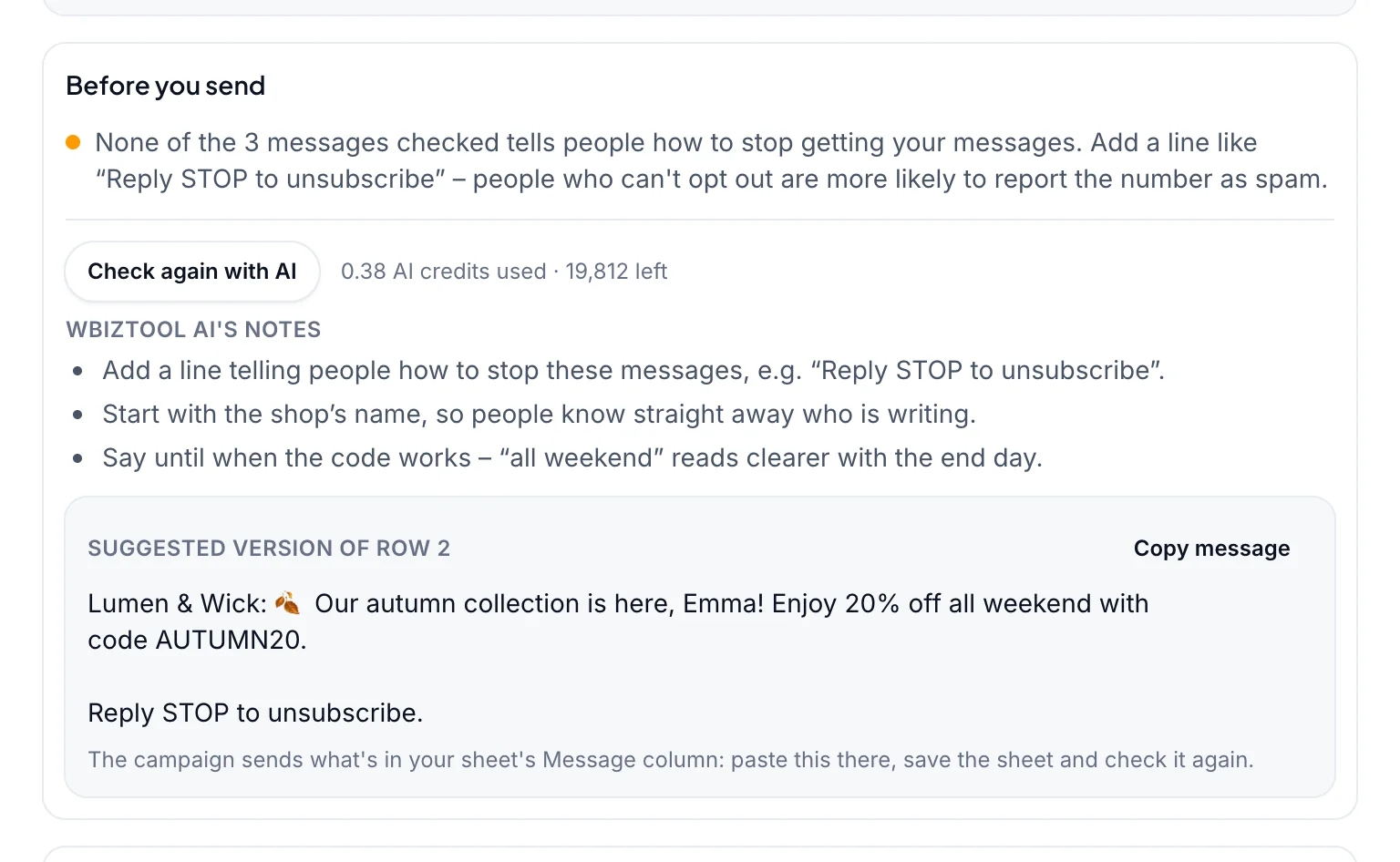
If a suggestion drops or adds a placeholder, it says so: add it back or remove it before you use the text.
Weekly summary email#
Every Monday (around 05:00 UTC), the Owners of a workspace with AI turned on and a paid plan get a short email about the last 7 days: messages sent and failed per number, the main reasons for failures, disconnections, inbox messages in and out, AI auto-answers and handovers, and AI credits used. WbizTool AI adds a few plain sentences about them.
- Only the counts go to the AI, never a message or a customer's number.
- With no credits left, the email has the numbers only.
- A week without any activity gets no email.
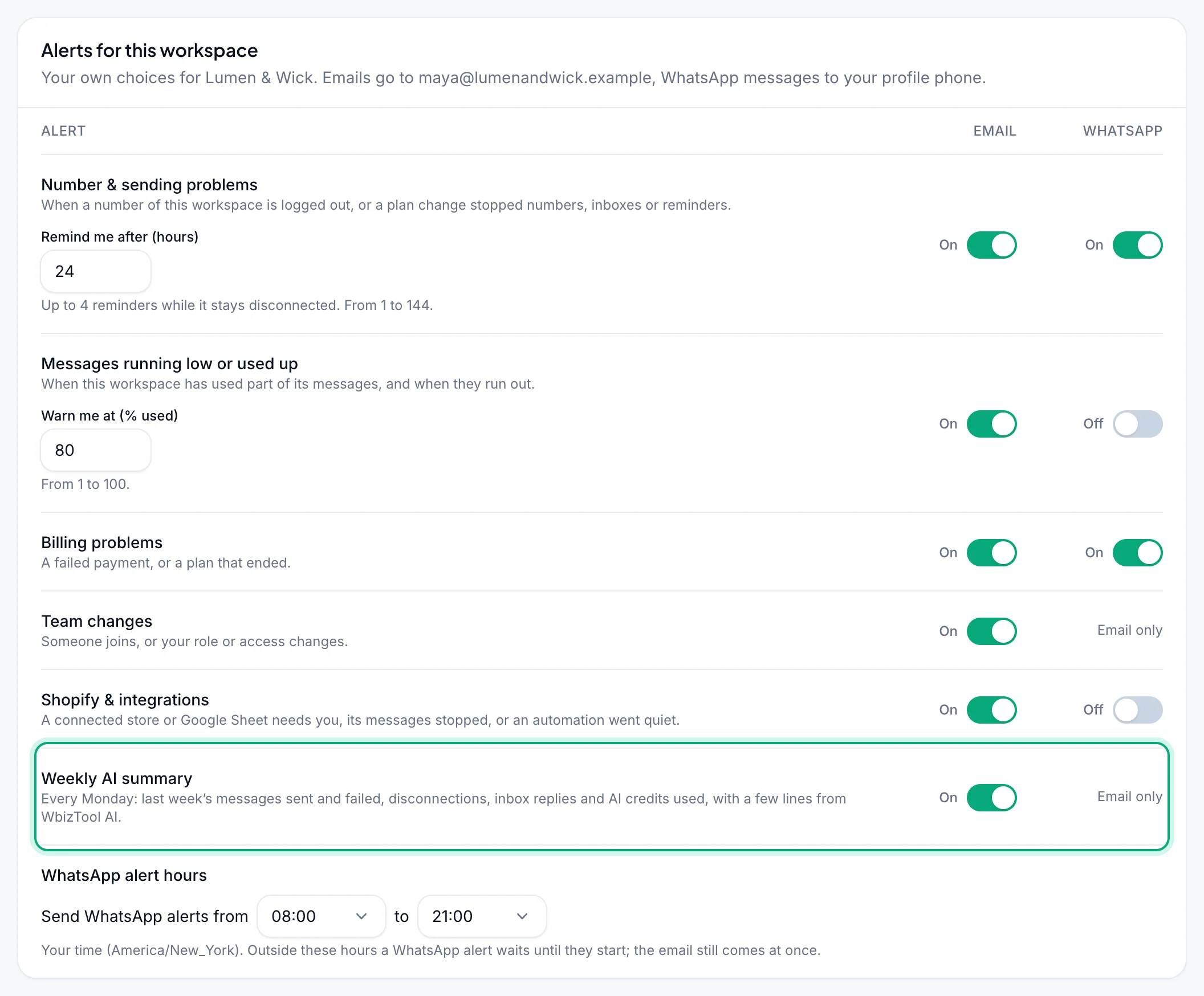
- It's on by default. To turn it off, open Settings → Notifications and turn off the Email switch of Weekly AI summary. It's email only, and Owners see the row while WbizTool AI is on. The unsubscribe link in the email turns it off too.
What it costs#
Each answer shows the credits it used, such as "Used 0.48 credits · 19,813 left". The cost depends on how much text the AI reads and writes. Typical costs:
| Action | About |
|---|---|
| Write, improve, shorten or translate a message | 0.2–0.5 credits |
| Translate a message or your draft in the inbox | 0.2–0.5 credits |
| Suggest a reply | 0.5–1 credit |
| Summarise a chat | 0.5–1 credit |
| One AI auto-answer (or handover) | 0.5–1 credit |
| Check with AI (campaign) | 0.3–1 credit |
| Weekly summary email | about 0.5 credits |
So a pack of 20,000 credits covers tens of thousands of typical actions. Long chats, long business info and languages such as Arabic or Hindi cost more, up to 2–3 credits for one reply suggestion. Free campaign warnings and failed AI calls cost nothing.
Limits and errors#
| Message | What to do |
|---|---|
| "WbizTool AI is off for this workspace." | An Owner turns it on: see Turn on WbizTool AI. |
| "Your workspace has no AI credits left." | An Owner buys a pack. |
| "WbizTool AI needs a paid plan." | An Owner chooses a plan on Billing & plans. |
| "The inbox needs the Unibox add-on." | An Owner adds Unibox Phone Number: see Add-ons. |
| "Only Owners and Editors can use WbizTool AI." | Analysts can't use AI. Ask an Owner to change your role. |
| "That’s too long for AI – up to 6,000 characters." | Shorten the text, or work on it in parts. |
| "The instruction is too long – up to 500 characters." | Shorten your hint for Suggest a reply. |
| "There’s no text in this chat yet for AI to work with." | Wait for a text message; photos and files alone can't be read. |
| "The customer hasn’t written any text yet, so their language isn’t known. Pick a language." | Pick the language under Translate into. |
| "Your team asked AI a lot in the last minute. Wait a moment and try again." | A workspace can make 60 AI calls a minute, auto-answers included. |
| "The AI service is busy right now. Try again in a moment – no credits were used." | Try again shortly. |
| "The AI took too long to answer. Try again – no credits were used." | Try again; shorter text helps. |
| "The AI service isn’t available right now. Try again later – no credits were used." | Try again later. |
| "The answer was cut off because it got too long. Try again, or shorten your text first." | Try again, or start from shorter text. |
| "The answer lost … Put them back in or try again before you use it." | Add the placeholders back, or click Try again. |
| "Choose between 1 and 20 packs." | One purchase buys at most 20 packs; buy again for more. |
| "Another purchase is still being completed. Wait a minute, then try again." | Wait a minute, then click Buy again. |
| "Buying credits opens soon." | Buying isn't open yet. Try again later or contact support. |
| The AI auto-answer didn't answer | Check the AI assistant page (AI on, auto-answer on, business info) and the AI answer on Auto-replies, then "Matched but not sent in the last 7 days". See When it answers and Safety limits. |
Privacy#
- Off by default. Nothing goes to the AI provider until an Owner turns AI on, and then only when someone uses an AI button, or when the AI auto-answer answers a message.
- What is sent: the text you ask AI to work on. In the inbox, that's the chat's last 30 messages (up to 6,000 characters), group members by name only, and your business info for Suggest a reply and the AI auto-answer. The weekly summary sends counts only.
- Where it goes: DeepSeek, an AI provider based in China, writes the answers.
- What we keep: WbizTool doesn't store the text sent to the AI or its answers, except what you use: a message you send or save stays like any other. For AI use we keep only the date, the feature, who used it, the amount of text (tokens) and the credits.
Related#
- Unibox inbox and Auto-replies
- Plans & billing and Add-ons
- Campaigns from a spreadsheet
- Workspace & team for roles and notifications