
Product guides
Connect your WhatsApp number
WbizTool sends messages from your own WhatsApp number. You link it once, the same way as WhatsApp Web, and it stays linked until WhatsApp logs it out. Messages go out from your real number, and people see them as normal WhatsApp messages from you.
This guide covers the WhatsApp numbers page: Numbers in the sidebar.
Who can do it: Owners and Editors connect and manage numbers. Analysts can see the numbers and copy their IDs, but not change them. Every plan includes at least one number, the free trial and free plan too. See Number limits.
Before you start#
- WhatsApp or WhatsApp Business installed and working on your phone.
- A confirmed email address. Until you confirm it, the page says "Verify your email to connect a number." Click Verify email.
- A plan that's paid up and has a free number slot. See Number limits.
Connect a number#
There are two ways to link a phone: scan a QR code, or type a pairing code on the phone. Both give the same result.
Or use the Browser extension tab: the number then sends from WhatsApp Web in your own Chrome browser through the WbizTool extension, without linking the phone here. See Send from your browser with the Chrome extension.
With a QR code#
Use this when your phone is next to the computer.
Open Add number
On the WhatsApp numbers page, click Add number. The Add a WhatsApp number window opens with Scan QR code selected.
Show the QR code
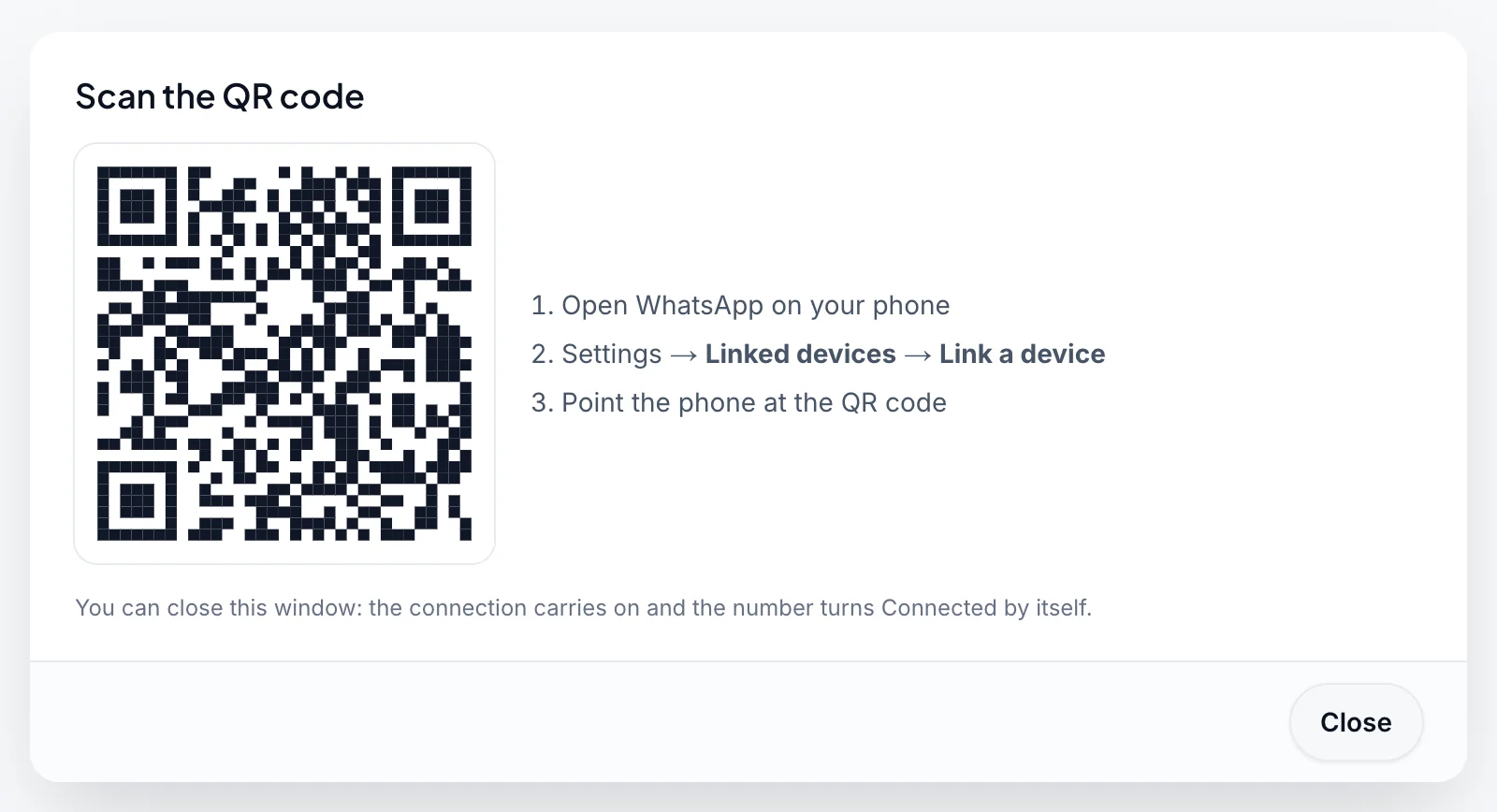
Click Show QR code. You see "Starting your WhatsApp server – the QR code appears in about 20 seconds…", then the QR code.
Open Link a device on your phone
Open WhatsApp on your phone. On iPhone, tap Settings. On Android, tap ⋮ at the top right. Then tap Linked devices and Link a device.
Scan the code
Point the phone at the QR code. The window then says Linking… while WhatsApp loads your chats: keep WhatsApp open on your phone until they have loaded, which can take a minute or two. When the link works, the window shows WhatsApp connected and "… is connected and ready to send."
The QR code renews by itself while the window is open. You can close the window: the connection carries on, and the number's card turns Connected by itself. To see the code again, click Show QR code on the card.
If nobody scans the code in about 2 minutes, the attempt ends with Connection failed: "WhatsApp didn’t link in time. Start again to get a new QR code or pairing code." Click Start again.
With a phone number (pairing code)#
Use this when you can't scan a QR code, for example when the phone is your only device or its camera doesn't work. WhatsApp shows an 8-character code that you type on the phone.
Open Add number
On the WhatsApp numbers page, click Add number.
Choose Use phone number
Click the Use phone number tab.
Enter your number
Check your country under Country code. It's usually chosen for you. Under WhatsApp number, type the number without the country code, for example
9876543210. Spaces, dashes and a leading 0 are fine; don't type+.The code only works on the phone with exactly this number, so check it carefully. If the number isn't valid for the country, the window says so, for example "+44 6590177155 isn't a valid number for United Kingdom. Check the country and the number.", and when the digits are a number of another country it adds "Did you mean +65 9017 7155?" with a Use +65 9017 7155 button. Send it anyway sends the number as you typed it. A country code typed again in the number, such as
919876543210with India selected, is removed for you.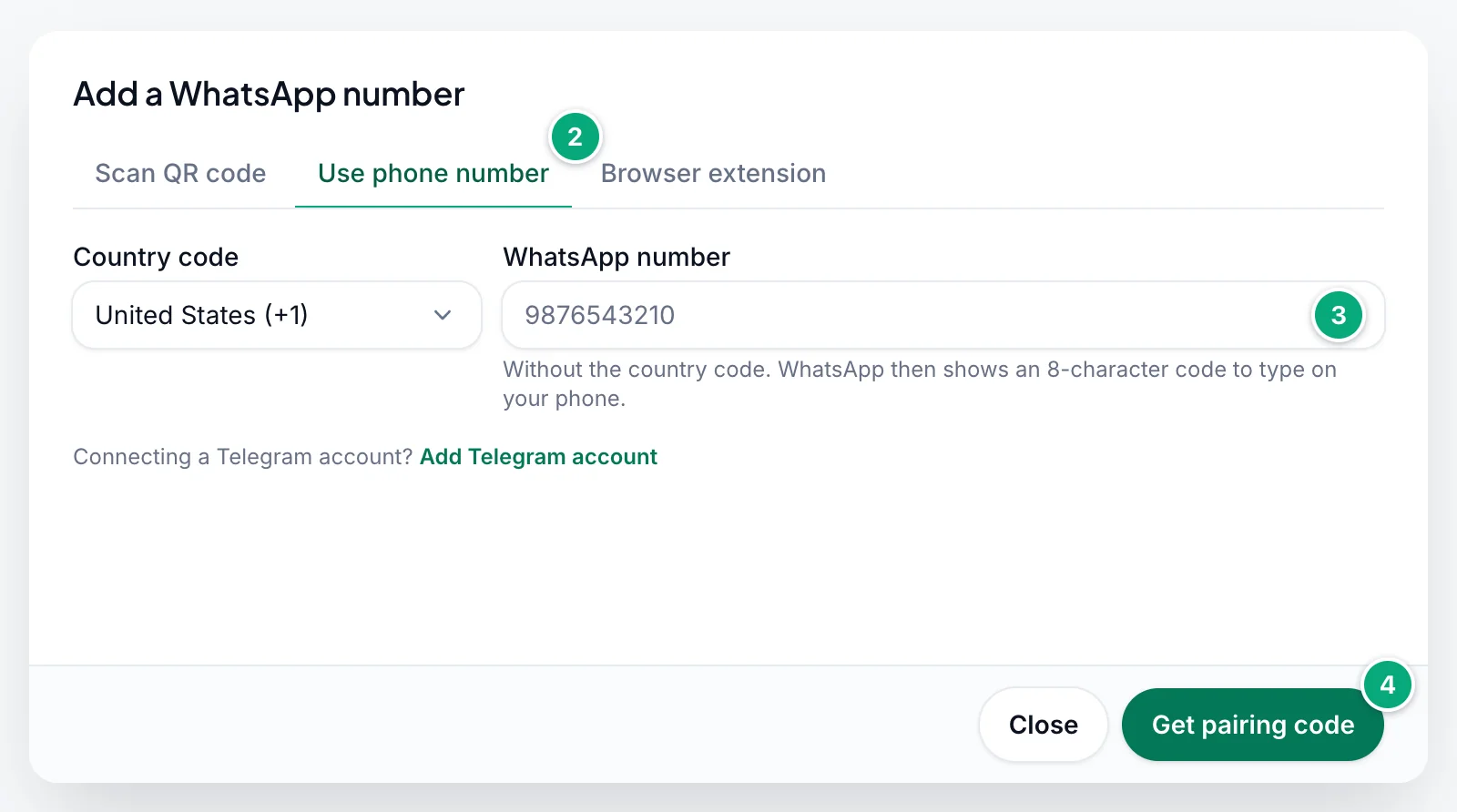
Get the code
Click Get pairing code. The window Enter this code on your phone shows "Getting your code – this takes about 10 seconds…", then a code such as
K7QM-4XZP. Copy code copies it.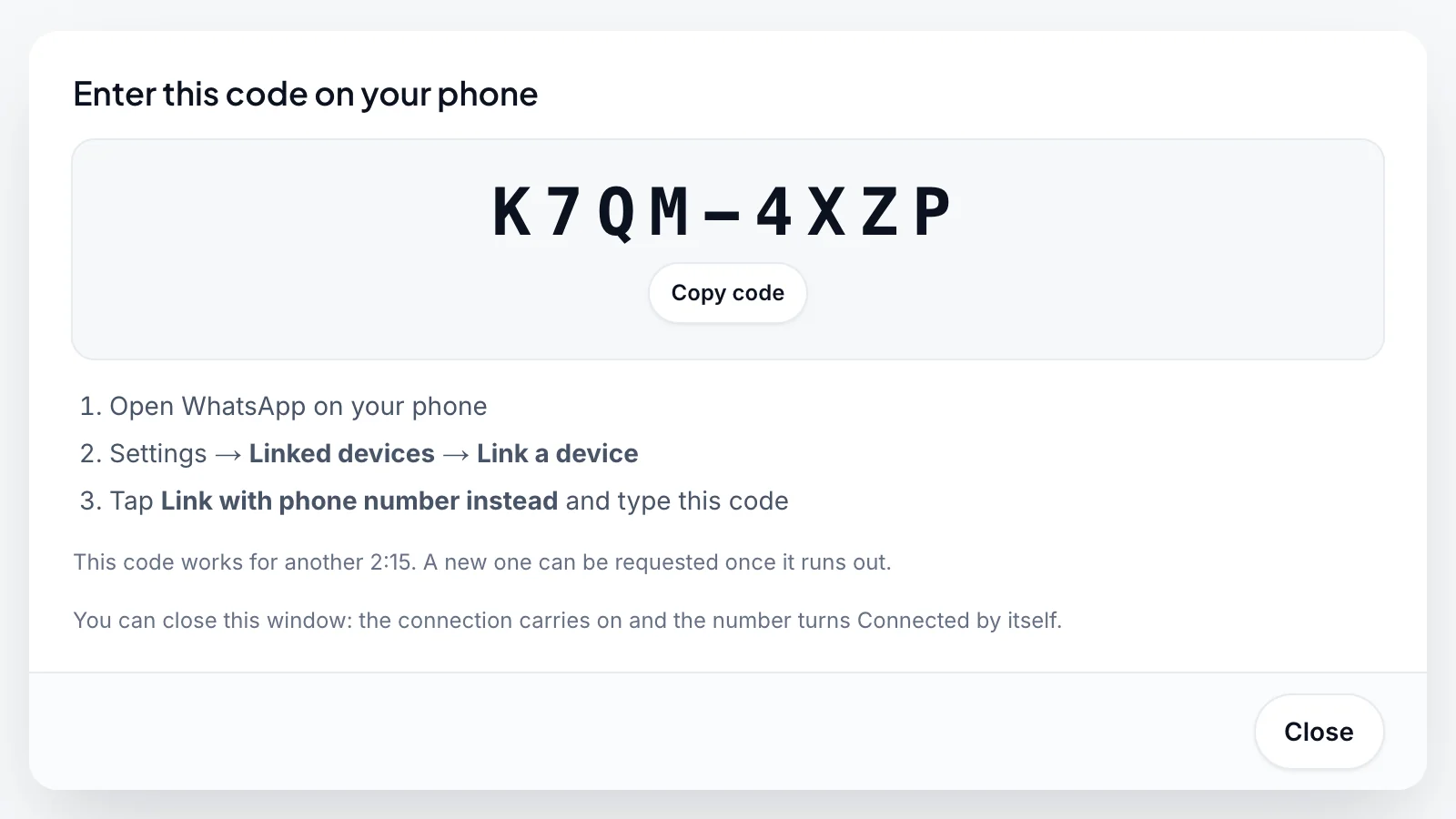
Type the code on your phone
In WhatsApp on that phone, go to Linked devices → Link a device, tap Link with phone number instead and type the code. The window then says Linking…: keep WhatsApp open on your phone until your chats have loaded. Then it shows WhatsApp connected.
A code works for about 3 minutes, and the window counts down: "This code works for another 2:15. A new one can be requested once it runs out." If it runs out, you see The code ran out. Click Get a new code and type the new one within about 3 minutes.
After connecting#
- The number's card shows Connected, with the number WhatsApp reports for that phone.
- Click Send test message in the WhatsApp connected window to check that it sends. See Send a test message.
- The first time a number connects, the workspace's creator gets an email, "WhatsApp number … is connected", with the number's ID for the API.
The WhatsApp numbers page#
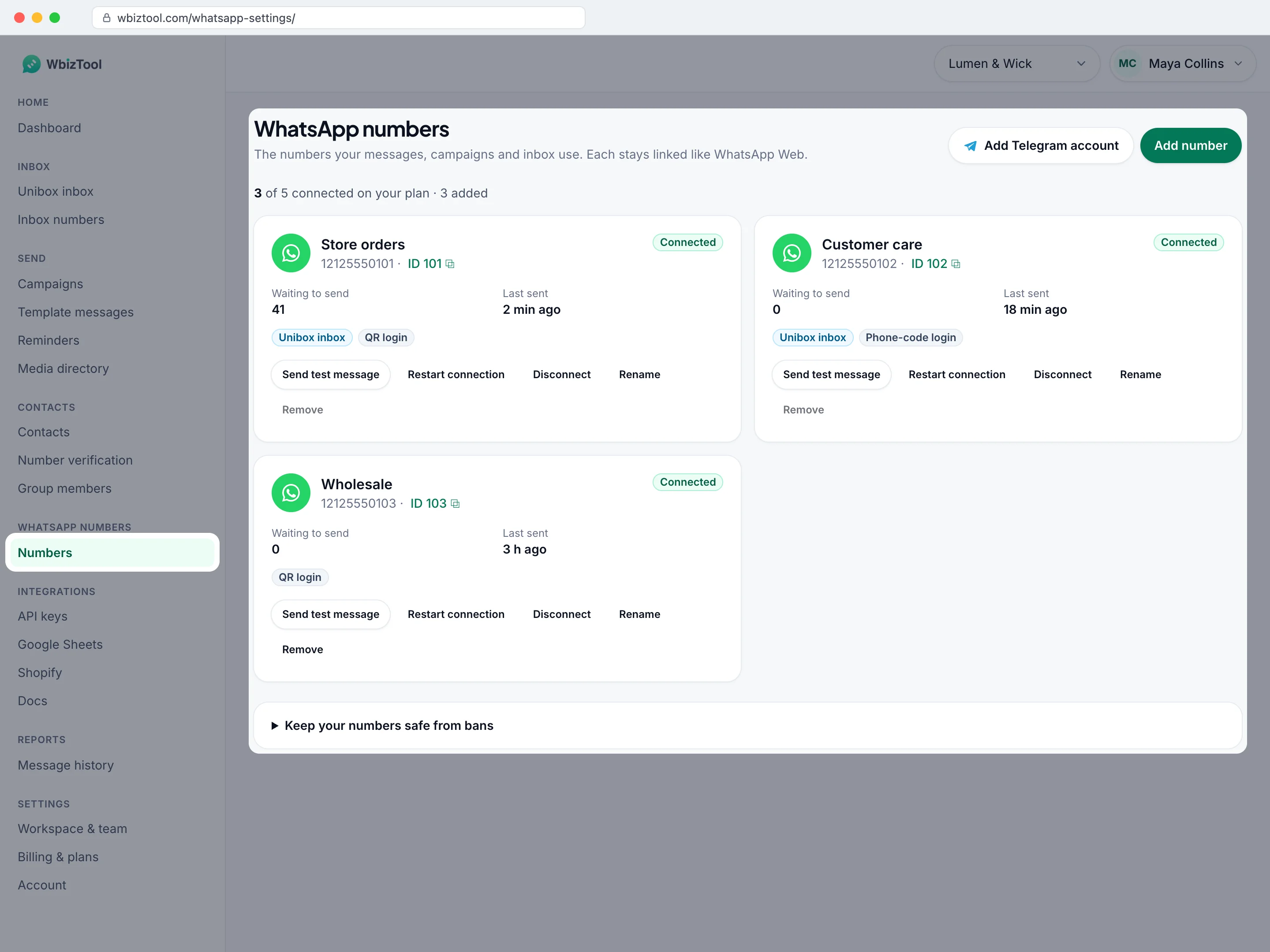
Under the title, a line shows how many numbers your plan allows, for example "3 of 4 connected on your plan · 3 added". Each number has a card:
| On the card | What it shows |
|---|---|
| Name | The number's label, else the number. Waiting for login until a QR code is scanned for the first time. |
| ID | The number's ID, for example ID 101 ⧉. Click it to copy it, and use it as whatsapp_client in the API, Zapier or n8n. |
| Status | Connected, Connecting… (a QR code or pairing code is waiting), Linking… (the phone accepted it and WhatsApp is loading your chats) or Not connected. |
| Waiting to send | Messages queued for this number and not sent yet. |
| Last sent | When it last sent a message. |
| Badges | QR login, Phone-code login or Browser extension: how it was linked. Unibox inbox: the number is in the Unibox inbox. |
The buttons depend on the status:
- Connected: Send test message, Restart connection, Disconnect, Rename and Remove.
- Connecting…: Show QR code or Show pairing code (back to the running attempt), Rename and Remove.
- Linking…: Rename and Remove. The card turns Connected by itself once your chats have loaded.
- Not connected: Reconnect, Rename and Remove.
- Browser extension numbers: Send test message (when connected), Disconnect (not once the extension is disconnected), Rename and Remove. They have no Reconnect: they connect again by themselves when WhatsApp Web is open in that browser. See When it isn't sending.
Keep your numbers safe from bans, at the bottom of the page, opens four tips: warm up new numbers, message only people who expect it, stay under about 150–200 messages per number per day, and make messages personal and useful.
Reconnect a number#
When WhatsApp logs a number out, its card shows Not connected. If messages are waiting, it also says, for example, "14 messages wait for this number – reconnect to send them." The Home page shows "A WhatsApp number is disconnected – …" with a Reconnect button that opens this page.
Click Reconnect
On the number's card, click Reconnect. The Reconnect … window opens.
Pick QR code or phone number
Choose Scan QR code or Use phone number. With a phone number, the country and number are filled in from the card.
Link the phone
Click Show QR code or Get pairing code, and link the phone as when you first connected.
Reconnecting keeps the number's card and ID, so your API calls, campaigns, reminders, Google Sheets, Shopify and inbox keep working. Waiting messages go out once it's connected again. Adding a number with a pairing code when it already has a Not connected card reconnects that card and keeps its ID.
Reconnect is greyed out when you can't connect another number right now, for example when all your plan's numbers are connected. Point at it to see why.
Restart a stuck connection#
If a Connected number doesn't send, click Restart connection, then Yes, restart. This disconnects the number from WbizTool, and the Reconnect … window opens so you can link the phone again. Messages wait until it's reconnected.
Keep your number connected#
- Keep WhatsApp on the phone and open it regularly. WhatsApp logs out linked devices when the phone has been offline for about 14 days.
- Don't log out the WbizTool session under Linked devices on your phone. Reinstalling WhatsApp or moving it to a new phone also logs it out.
- Follow the tips under Keep your numbers safe from bans, especially for new numbers.
When a number is logged out, Owners and Editors get an email ("WhatsApp number … is disconnected") and a WhatsApp alert to the Phone in their profile. Both switches start on. The first alert comes about 10 minutes after the logout, then reminders follow, at most 5 alerts in all. You aren't alerted about a number someone disconnected or removed on purpose. Turn the alerts on or off with Number & sending problems in Settings → Notifications. See WhatsApp disconnect alerts.
What happens to waiting messages#
Messages only go out while their number is connected (and inside the workspace's sending hours, if they're on). While it isn't connected:
- Its messages wait and show under Waiting to send. They go out once you reconnect the number.
- Messages sent through the API with an expiry time are marked Expired if the number isn't back in time.
- Waiting messages count towards the number's daily limit (and the free plan's messages). To free them, cancel them on Reports: choose the number under From number and click Cancel … waiting.
Manage a number#
Send a test message#
On a connected number, click Send test message. Type a number under Send to, for example +91 98765 43210, change the Message if you like and click Send. A number without its country code gets the country of the number you're testing (or, if its country can't be told, the workspace's country for numbers without a country code), and the line under the field shows where it goes, for example "Will send to +91 98765 43210 (India)". You see "Test message queued. It usually goes out within a minute – its status shows in Reports." Open reports shows its status. If an Owner has turned on sending hours with Quick Send ticked, a test message sent outside those hours waits until they start.
A test message counts as one message. To send to several people, groups or with files, see Send messages from the dashboard.
Rename a number#
Click Rename, type a Label (up to 100 characters), for example Store orders, and click Save. The label is shown instead of the number across the dashboard. Leave it empty to show the number again.
Disconnect a number#
Click Disconnect, then Disconnect again. The number stops sending until you reconnect it, and messages already waiting for it are kept. A disconnected number doesn't use a slot on your plan. Bring it back with Reconnect.
Remove a number#
Click Remove, then Remove again. The number leaves the workspace, and its ID stops working in the API, Zapier and n8n. If you add the same number again later, it gets a new ID.
- A number in the Unibox inbox can't be removed: Remove is greyed out ("In the Unibox inbox – remove it on Inbox numbers first"). Remove it on Inbox numbers first.
- WhatsApp may still list the session under Linked devices on your phone. Log it out there if you no longer need it.
Number limits#
How many numbers can be connected at the same time depends on the plan:
| Plan | WhatsApp numbers |
|---|---|
| Free trial or Free plan | 1 |
| Lite | 1 |
| Standard | 3 |
| Advanced | 10 |
| Enterprise | Custom |
AppSumo lifetime plans include the numbers of their tier. Owners can add more with the Extra WhatsApp Number add-on (one number each) on Billing & plans, next to a paid or lifetime plan. The line under the page title always shows your current limit.
- Only connected numbers count. A Not connected number doesn't use a slot, so "… added" can be higher than your limit. When all slots are used, Add number and Reconnect are greyed out and the page says "All your plan’s numbers are connected. Disconnect one or upgrade to connect another." Disconnect or remove a number, or click See plans.
- Moving to a smaller plan (or removing Extra WhatsApp Number add-ons) removes the numbers above the new limit. Here every number counts, connected or not: WbizTool keeps the connected ones first and removes the rest, with their inbox listeners. Billing & plans warns you before you confirm.
- Payments: you can't connect a number while a payment is overdue ("Your plan payment is overdue. Numbers can’t be connected until it’s paid.") or without a plan ("Your workspace has no active plan. Pick a plan to connect a WhatsApp number.").
See Plans and billing.
Troubleshooting#
| Problem | What to do |
|---|---|
| "Verify your email to connect a number." | Click Verify email, or open the link in the email WbizTool sent when you signed up. |
| A yellow banner says why numbers can't be connected: all your plan's numbers are connected, a payment is overdue or there's no active plan | Click its button: Open billing to pay the overdue invoice, else See plans. If all numbers are connected, you can also disconnect or remove one you don't use. See Number limits. |
| No Add number button and no buttons on the cards, or "Only the workspace owner or an editor can change numbers." | You're an Analyst in this workspace. Ask an Owner to do it or to change your role. |
| "Choose your country code.", "Enter your WhatsApp number." or "Enter a valid WhatsApp number." | Pick your country under Country code, and type the number without the country code and without +. |
| The phone doesn't accept the code | Check the country and number: the code only works on the phone with exactly that number. Type it within about 3 minutes, or click Get a new code. |
| "This code has run out. A new one can be requested in a few seconds, once WhatsApp closes this attempt." | Wait a few seconds: the window changes to The code ran out. Click Get a new code. |
| Connection failed or The code ran out | The QR code wasn't scanned, or the code wasn't typed, in time. Click Start again or Get a new code. |
| Connection failed: "WhatsApp didn’t finish linking. Keep WhatsApp open on your phone, check it’s online, and try again." | The phone accepted the QR code or pairing code, but WhatsApp stopped before your chats loaded, usually because WhatsApp was closed on the phone or the phone went offline. Keep WhatsApp open on the phone, check that it's online, and click Start again or Get a new code. |
| "Starting your WhatsApp server – the QR code appears in about 20 seconds…" doesn't go away | Wait up to a minute. If nothing appears, close the window and try again once the card no longer says Connecting… (at most 10 minutes). |
| "This number is already connecting – showing its code." | An attempt for this number is still running. The window shows its QR code or code: use it. |
| Your phone can't link another device | WhatsApp allows up to 4 linked devices per phone. Log one out under Linked devices, then try again. |
| A card says Waiting for login | A QR connect that was never scanned. Click Show QR code or Reconnect, or Remove it. A new QR connect reuses this card instead of adding another. |
| "This number is already connected." | That number is already connected in this workspace, or it connected while you were reconnecting it. Reload the page. |
| "This number can’t be reconnected. Reload the page and try again." or "This number was removed. Reload the page." | Someone removed the number meanwhile. Reload the page. |
| The number changed after reconnecting | You linked a different phone. See Reconnecting with a different phone. |
| Remove is greyed out, or "This number is in the Unibox inbox – remove it on Inbox numbers first." | Remove the number on Inbox numbers first. |
| Messages stay in Waiting to send | Check that the card says Connected. If not, reconnect it. If it's connected, check whether sending hours are holding them. If not, use Restart connection. |
| No disconnect alerts | Check the list in Workspace settings → Troubleshooting. |