
Product guides
WhatsApp contacts: tag them, then message a whole tag
The Contacts page lists every phone number and WhatsApp group your workspace has sent a message to, and the contacts you add yourself. Use it to look someone up, give contacts tags such as VIP or Wholesale, send a campaign or a reminder to everyone with a tag, and export the list to a CSV file.
Who can do it: Owners and Editors of the workspace, on every plan, including the free trial. Analysts don't see Contacts in the sidebar, and opening the page shows "Contacts are for owners and editors". Owners and Editors of a workspace see the same list. Each workspace has its own contacts: switch workspace to see another one.
Click Contacts in the sidebar, or go to /contacts/.
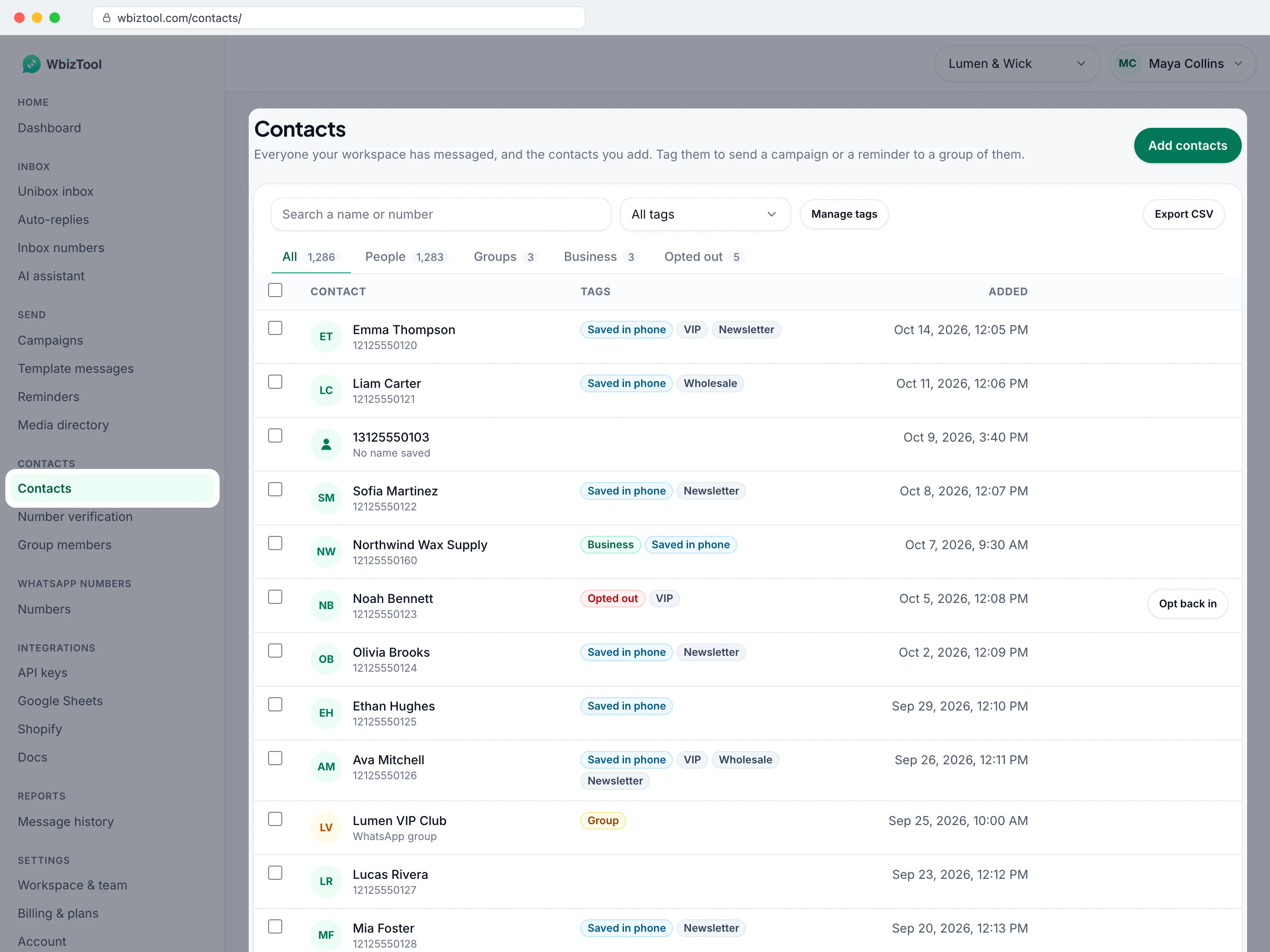
Find a contact#
Open Contacts
Click Contacts in the sidebar. The list shows 25 contacts per page, the most recently added first.
Search
Type in Search a name or number: a name, a group's name or any part of a number. The list updates as you type.
Pick a type
Click People, Groups or Business to see only those, or All to see everyone. The count on each tab is for your current search.
Pick a tag (optional)
Choose a tag in the box next to the search, such as VIP (146), to see only the contacts with it. All tags shows everyone again.
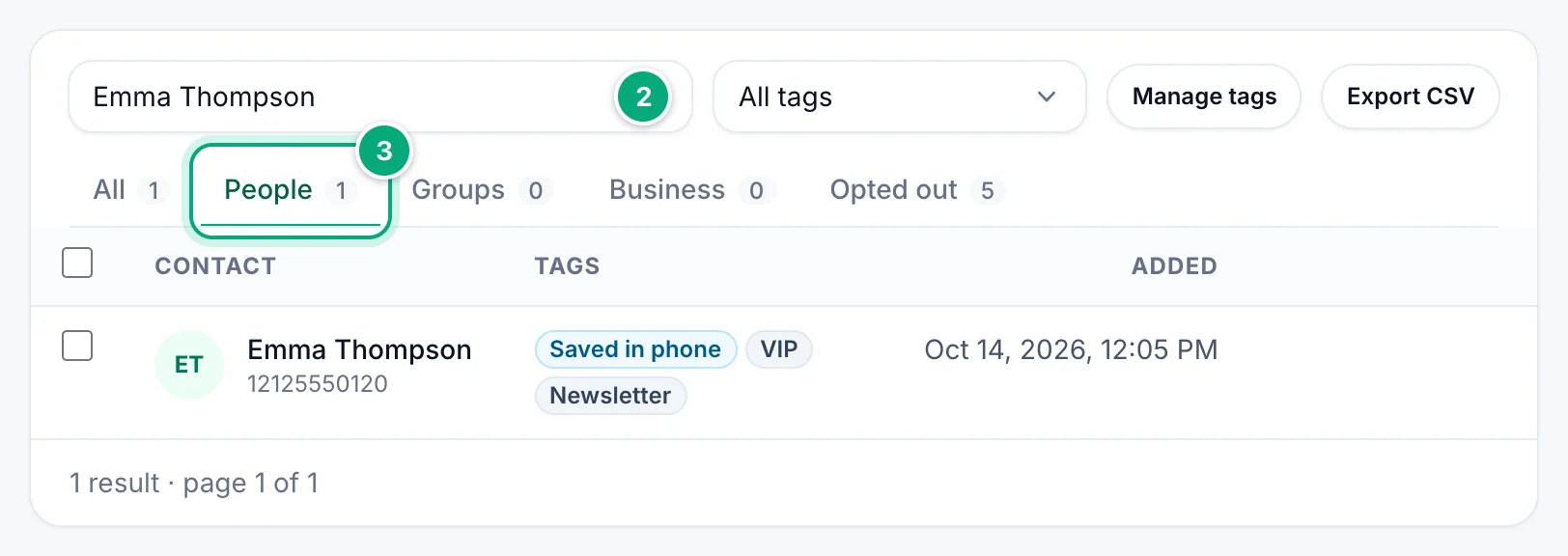
- Numbers can be typed any way. Only the digits count, and leading zeros are ignored:
+91 98765 43210,(91) 98765-43210,43210and the local098765 43210all find919876543210. - Anything with letters finds that text anywhere in a name or a group's name, in upper or lower case.
- People is everyone who isn't a group, WhatsApp Business numbers included. Business lists only the numbers marked as WhatsApp Business (see Names, Business and Saved in phone).
- The list is sorted by when each contact was added, not by your last message to it.
- Move between pages with Previous and Next under the list (with more than 3 pages, « and » jump to the first and last page). The line beside them shows, for example, "1,286 results · page 1 of 52".
- Your search, tab, tag and page are kept in the page's address, so reloading, or coming back with the browser's Back button, keeps your list, and you can bookmark it.
What each row shows#
| On the page | What it shows |
|---|---|
| Contact | The contact's name with its number below. A contact without a name shows its number, with No name saved below. A group shows its name, with WhatsApp group below. |
| Tags, such as VIP | The contact's tags, see Tags. |
| Group | A WhatsApp group you've sent messages to. |
| Business | The number uses WhatsApp Business. |
| Saved in phone | The number is saved in the phone contacts of the WhatsApp number whose sync last read it. |
| Opted out | The person doesn't want your messages: nothing is sent to them, see Opted-out numbers. |
| Edit | Change the name and tags, see Edit a contact. Shown when you point at the row. |
| Opt out / Opt back in | Opts the person out, or back in. Not shown for groups. |
| Added | When the contact was saved: when your workspace first queued a message to it, even if that message later failed or was cancelled. Shown in your computer's time zone. |
A name that only repeats the number, such as +91 98765 43210 or Sheet Contact 919876543210, counts as no name: the page shows the number with No name saved. The CSV keeps the name as it was saved.
Add contacts#
Click Add contacts at the top right of the page.
One contact: type the WhatsApp number with its country code, such as +91 98765 43210 (without it, the workspace's Country for numbers without a country code is used), a Name if you like, and tick its tags. Click Add contact.
Many contacts: click From a CSV file, then Choose a CSV file.
- The first row of the file names its columns. The number column is found by its name (
Phone,WhatsApp,Number,Mobile…), or else it's the first column. ANamecolumn and aTagscolumn are read too, with several tags in a cell separated by commas, such asVIP, Wholesale. - The line under the button shows how many rows were read and which columns were used, such as "Numbers from: Phone · Names from: Name · Tags from: Tags". Check it before you import.
- Under Tags for every contact in the file, tick tags to give everyone in the file, or type a new one and click Add.
- Click Import … rows. Up to 20,000 rows at once.
When it's done, you see how many contacts were added, updated and skipped, with the first skipped rows and why ("not a phone number", "needs its country code"). A number that's already in the list keeps its place: it gets the file's name (when the file has one) and the new tags, and keeps its other tags. A tag in the file that doesn't exist yet is made.
Adding contacts doesn't send them anything.
Edit a contact#
Point at a row and click Edit. Change the Name, tick or untick Tags, or type a new tag and click Add. Click Save.
The name you save is the one {name} and {first_name} put into messages to a tag. A later contact sync doesn't run again for numbers already synced, so it won't overwrite it (see Names, Business and Saved in phone).
Tags#
A tag is a label for a group of contacts, such as VIP, Wholesale or Delhi customers. A contact can have any number of tags; a tag can have up to 50 characters, and a workspace up to 200 tags. VIP and vip are the same tag.
Tag many contacts at once:
Tick the contacts
Tick the box at the start of each row, or the box in the header to tick the whole page. To take every contact in the list (with your search, tab and tag), click Select all … in this list in the bar that appears.
Choose a tag
In the bar over the list, choose a tag under Choose a tag…, or choose + New tag… and type its name.
Add or remove it
Click Add tag or Remove tag. You see, for example, "Tag added to 25". Clear unticks everyone.
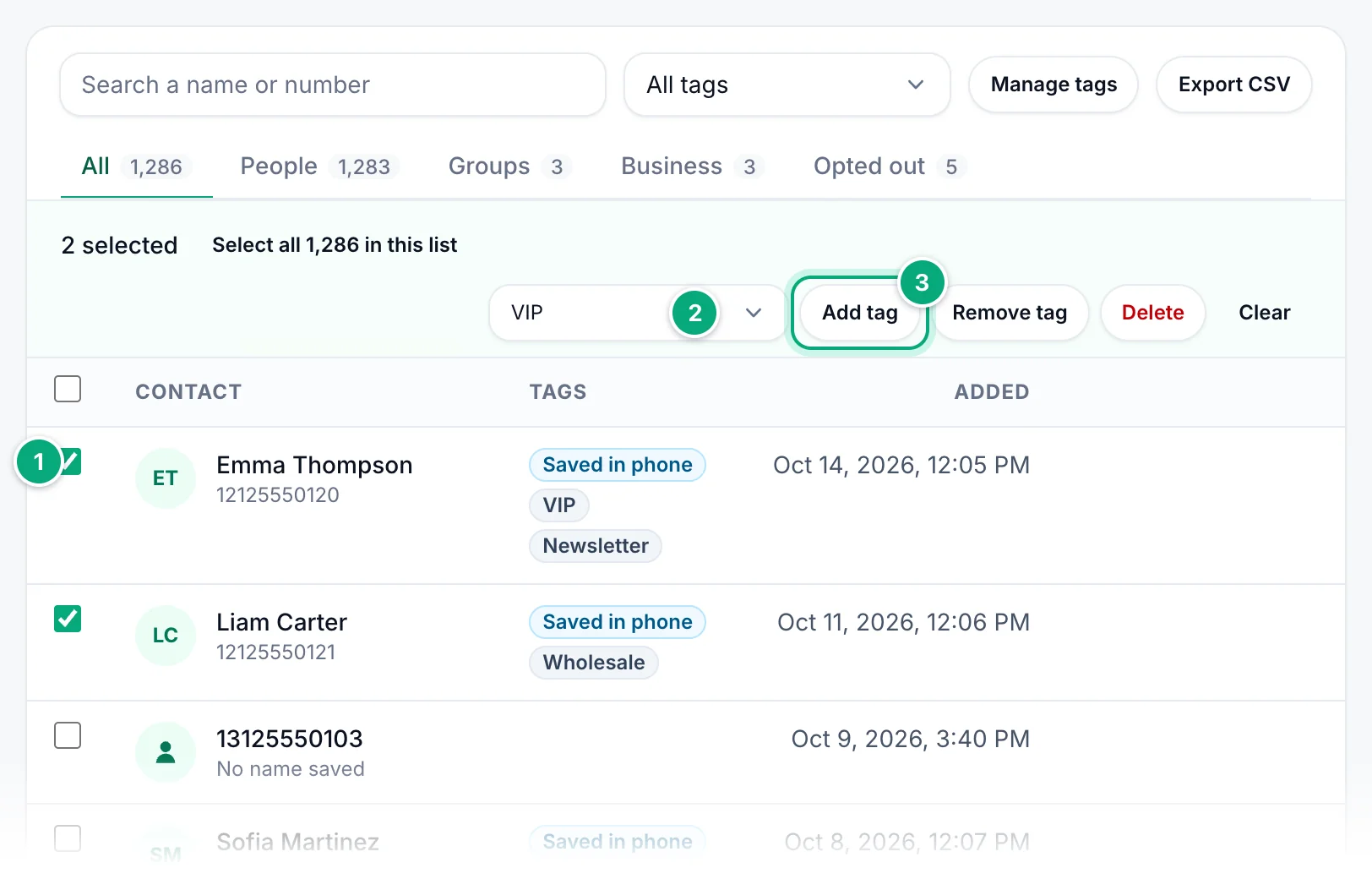
Rename or delete a tag: click Manage tags. Type a new name in a tag's box (it's saved when you leave the box or press Enter), or click Delete, then Delete tag. Deleting a tag takes it off every contact; the contacts stay. Each tag shows how many contacts have it.
New tags are made in the bar over the list (+ New tag…), when you add or edit a contact (type a name and click Add), or by a file's Tags column.
Delete contacts#
Tick the contacts, click Delete in the bar, then Delete again. They leave the list and lose their tags.
- Their messages stay in Reports.
- If your workspace messages a deleted number or group again, it comes back in the list, without its old tags.
- To stop messaging someone for good, opt them out instead: deleting doesn't stop messages.
Send to a tag#
Everyone with a tag can get one message, with their name filled in:
- Once: in Campaigns, click New campaign, then Contacts with a tag.
- Again and again: in Reminders, choose Contacts with a tag under Send to.
In the message, {name} becomes the contact's name and {first_name} its first word, so Hi {first_name}, reaches Emma Thompson as Hi Emma,. A contact without a name gets the text without it (Hi , becomes Hi,). Groups with the tag get the message in the group. Opted-out contacts are skipped.
Export contacts to CSV#
Narrow the list (optional)
Pick a tab or a tag, or type a search. The file holds exactly the contacts the list shows, from every page, newest first. With All and no search, that's every contact.
Click Export CSV
Click Export CSV at the top right of the list. Your browser downloads a file named like
contacts_20261015_1430.csv.Open the file
Open it in Excel, Google Sheets or any spreadsheet app. Names in any alphabet show correctly.
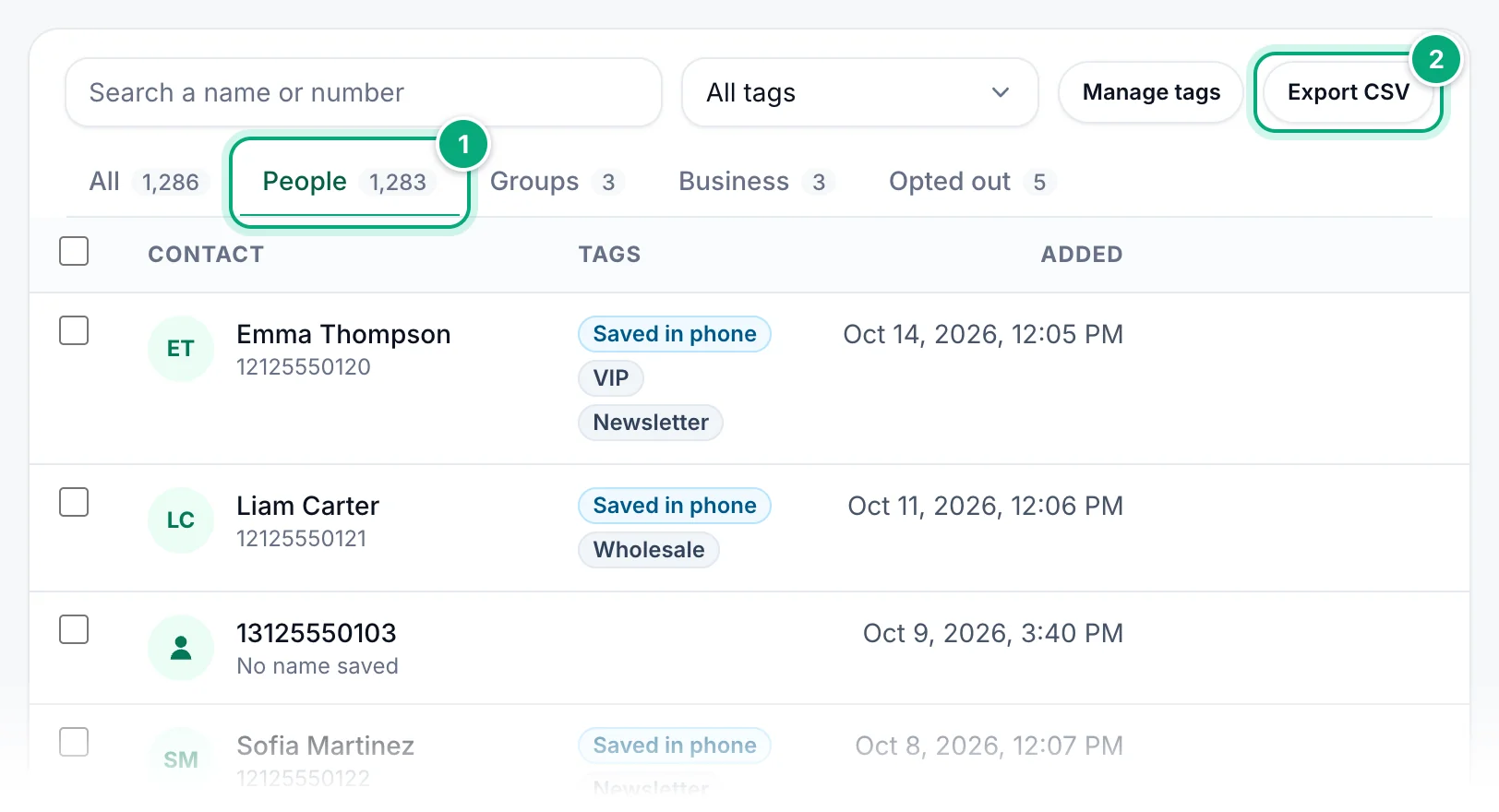
The file has these columns:
| Column | What it holds |
|---|---|
Name | The contact's name. A contact without one has its number here, or Sheet Contact followed by the number if a Google Sheets trigger messaged it first. |
Number | The number as saved, digits only (without a country code if it was saved without one, see Where contacts come from). For a group, the group's name. |
Type | Contact or Group. |
Tags | The contact's tags, separated by commas. |
Business | Yes for WhatsApp Business numbers, otherwise No. |
Saved in phone | Yes or No, as the badge on the page. |
Added | When the contact was saved, such as 2026-10-15 14:30, in your computer's time zone, as on the page. The time in the file name is in your time zone too. |
- A cell that starts with
=,+,-or@, such as a name saved as+91 98765 43210, gets a'in front, so the spreadsheet doesn't run it as a formula. - Export CSV isn't shown on phone-sized screens. Use a computer or a wider window.
Use the file#
- Check which numbers are on WhatsApp: add the file as it is in Number verification, on the Standard plan and above, within your plan's limit per list. It reads the
Numbercolumn and skips the groups. - Message your contacts by name: export the People tab and add the file in Template messages.
Numberis picked as the Send to (column), and{{Name}}in your message puts in each name. Check theNamecolumn first: a contact without a name has its number there (sometimes with a'in front), orSheet Contactand the number. Replace or clear those cells, or{{Name}}puts them into your message. To skip numbers that aren't on WhatsApp, check the file in Number verification first. Template messages need a paid plan.
Reuse a contact in a quick message#
In the Send a message card on the Dashboard, type at least two letters of a contact's name or two digits of its number under Numbers, then click it in the list that opens. With Send to set to Groups, your saved groups are suggested instead. See Send a quick message.
Campaigns and reminders can send to everyone with a tag, see Send to a tag. Template messages take the numbers from your sheet.
Where contacts come from#
A contact is saved the first time your workspace sends a message to a number or group that isn't in the list yet. The name it starts with depends on where the message came from:
| Sent from | Saved with the name |
|---|---|
| Send a message on the Dashboard, or Send test message on Numbers | The number |
| Campaigns | The number, or the group's name |
| Template messages | The number |
| Reminders, when one first sends | The number or group name in the reminder |
| The send message APIs, also used by Zapier, Make, n8n and WordPress | The number, or the group's name |
| Google Sheets triggers | Sheet Contact and the number |
| Shopify order notifications | The number |
| Your replies in the Unibox inbox | The chat's name in the inbox |
| Add contacts, one or from a CSV file | The name you typed or the file's, else the number |
- Each number and each group name is saved once per workspace, however often you message it.
- A number stays in the list even if the message to it failed (for example, the number isn't on WhatsApp) or was cancelled. Contacts isn't a list of numbers that are on WhatsApp: use Number verification for that.
- Numbers are saved as digits with the country code, without
+, spaces, brackets or leading zeros. A number without its country code in Send a message, Send test message, campaigns, template messages, reminders or Google Sheets triggers gets the country code of the WhatsApp number chosen to send it (or else, and for reminders from any connected number, the workspace's Country for numbers without a country code), and is saved with it. When no country is known, it's saved as it was written. - A number sent through the API's send endpoints without its country code is saved without it, as a separate contact. Reminders created with the API are completed when they run.
- A group is saved under its name exactly as it was typed, so
Family Groupandfamily groupare two contacts. - People who write to your inbox numbers appear in the Unibox inbox, not here, until you reply to them from the inbox.
- Your phone's address book isn't imported: people you've never messaged from WbizTool aren't in the list until you add them.
Names, Business and Saved in phone#
Shortly after you connect a WhatsApp number (not one connected through the browser extension), WbizTool reads that number's WhatsApp contacts once and updates the matching contacts that are already in your list:
- Name: the name saved for them in that phone's contacts, or else their WhatsApp profile name.
- Business: added when the number uses WhatsApp Business.
- Saved in phone: added when the number is saved in that phone's contacts.
The sync never adds contacts. It runs once for each WhatsApp number, and again only if you reconnect that number with a different phone. So someone you message for the first time later keeps their number as their name, and names you change in your phone afterwards aren't picked up. With several numbers, each one's sync can change the name, Business and Saved in phone, and the last sync wins.
Opted-out numbers#
When someone asks you to stop messaging them, opt them out. Nothing is ever sent to an opted-out number from this workspace: quick messages, campaigns, template messages, reminders, Google Sheets, Shopify and the API all skip it. A message to them fails with the reason Opted out instead of going out, and a campaign's Retry failed leaves it alone.
Opt someone out:
- On the All or People tab, click Opt out on their row. The row then shows Opted out and an Opt back in button.
- Or open the Opted out tab, click Add numbers, and type or paste numbers with their country code, one per line or separated by commas. To add many, click Choose a CSV file: the numbers in its first column are read. Add a note for your team if you like, then click Opt out. A number that had opted out already stays as it was.
They can do it themselves: someone who replies only STOP (or Unsubscribe, Baja, Parar, Stopp, Arrêt, Basta, Стоп, Berhenti, Dur, توقف, עצור and similar) to one of your numbers with the Unibox inbox is opted out automatically. Replying only START opts them back in.
- The message must be just the word, in any capitals: "please stop calling" doesn't count.
- It works on numbers with the inbox, because only those read incoming messages. Replies older than 7 days don't count.
- Nothing is sent back to them, and your auto-replies don't answer it.
The Opted out tab lists everyone, newest first, with how they opted out (Replied “STOP” and the number they wrote to, Added by a team member, Imported from a file or Added through the API) and when. Search a number or a note, click Export CSV to download the list, or click Opt back in when someone asks for your messages again. Messages that already failed stay failed.
Developers can manage the same list with the Opt-outs API.
Troubleshooting#
| Problem | What to do |
|---|---|
| No Contacts in the sidebar, or "Contacts are for owners and editors" | You're an Analyst in this workspace. Ask an Owner to make you an Editor, see Roles and permissions. |
| "No contacts yet" | Nothing has been sent from this workspace yet, or another workspace is selected: check the workspace picker at the top of the dashboard. |
| "No contacts match “…”" | Check the spelling, or search a part of the number instead. Click Clear search to see everyone. |
| "No groups yet", "No people match “…”" or similar on a tab | Nothing of that type matches. Click Show all types. Business stays empty until the contact sync has marked a number. |
| A number you messaged is missing | Check that the right workspace is selected, and search only the last digits: a number sent through the API may be saved without its country code. Messages people send you don't add them until you reply from the Unibox inbox. |
| No name saved under a number | You first messaged this number after the one-time sync of your connected numbers, it isn't in those phones' WhatsApp contacts, a Google Sheets trigger messaged it first, or WhatsApp didn't share its number with the sync. Click Edit to type a name. |
| A name is wrong or out of date | Names come from a phone's contacts or the person's WhatsApp profile at the time of the sync and aren't updated afterwards. Click Edit to change it. |
| A row was skipped in an import with "needs its country code" | The number has no country code and the workspace has no Country for numbers without a country code. Add + and the code in the file, or set the country, then import again. |
| The import read the wrong column as the number | Name the number column Phone or Number in the file's first row, or put it first. |
| "There's already a tag with that name" | Tags are the same in any capitals: use the existing tag. |
| A deleted contact is back | Your workspace messaged it again. Delete it again, or opt it out to stop messages. |
| The same group is listed twice | It was sent to with different capitals or spaces in its name, and each spelling is saved separately. |
The same person is listed twice, such as 9876543210 and 919876543210 | A message went out without the country code: through the API, or an older message from the dashboard. Include the country code in API requests. |
| No Export CSV button | Your screen or window is too narrow. Use a computer or widen the window. |
A name in the CSV starts with ' | It's added on purpose to names starting with =, +, - or @, so the spreadsheet doesn't run them as formulas. |
A contact called redacted-… | A customer of your Shopify store asked for their data to be erased, and WbizTool removed their number. |
Numbers look like 91xxxxxxxx10 and searching a number finds nothing | You're in the demo account, which hides numbers. Search by name. |
| A message failed with Opted out | The person opted out, by replying STOP or from the Opted out tab. If they asked for your messages again, click Opt back in and send it again. |
| A STOP reply didn't opt someone out | The reply had more than the word, it came to a number without the inbox, or it's older than 7 days. Add them on the Opted out tab. |
| A red bar with Try again | The list couldn't load. Click Try again, or reload the page. |
Related#
- Send a quick message
- Campaigns and Reminders to a tag
- Template messages
- Number verification
- Group members export to export the members of a WhatsApp group
- Unibox inbox
- Connect your WhatsApp number
- Workspace settings, team members and roles