
Integrations
Shopify integration: WhatsApp order notifications
Connect your Shopify store to WbizTool, and your customers get a WhatsApp message when they order and when their order ships, sent from your own WhatsApp number. You and your team can also get an alert for every new order.
| Message | Sent to | When |
|---|---|---|
| Order confirmation | The customer | Once per order, when it's placed. |
| Shipping update | The customer | Once per order, when the whole order is fulfilled. |
| New order alert | Up to 20 numbers you choose, such as yours and your team's | When an order is placed. |
All three are off until you turn them on. Every order triggers them, including orders you create yourself in the Shopify admin. Customer messages need a phone number on the order, so require one at checkout (see Customer phone numbers).
Who can do it: Owners and Editors, on the Shopify page under Integrations in the sidebar; Analysts don't see it, and opening it says "Shopify is for owners and editors". Inside your Shopify admin, anyone who can open the WbizTool app can change the same settings, as the WbizTool account the store is linked to. It works on every WbizTool plan, including the free trial.
Connect your store#
From the Shopify App Store#
Install the app
Open WbizTool on the Shopify App Store, install it and approve the permissions Shopify shows. If WbizTool asks you to log in, do so (see Which account and workspace).
Open the app
You land in the WbizTool app in your Shopify admin; later, open it from Apps → WbizTool. It shows your WhatsApp number, the three messages and recent orders.
From the WbizTool dashboard#
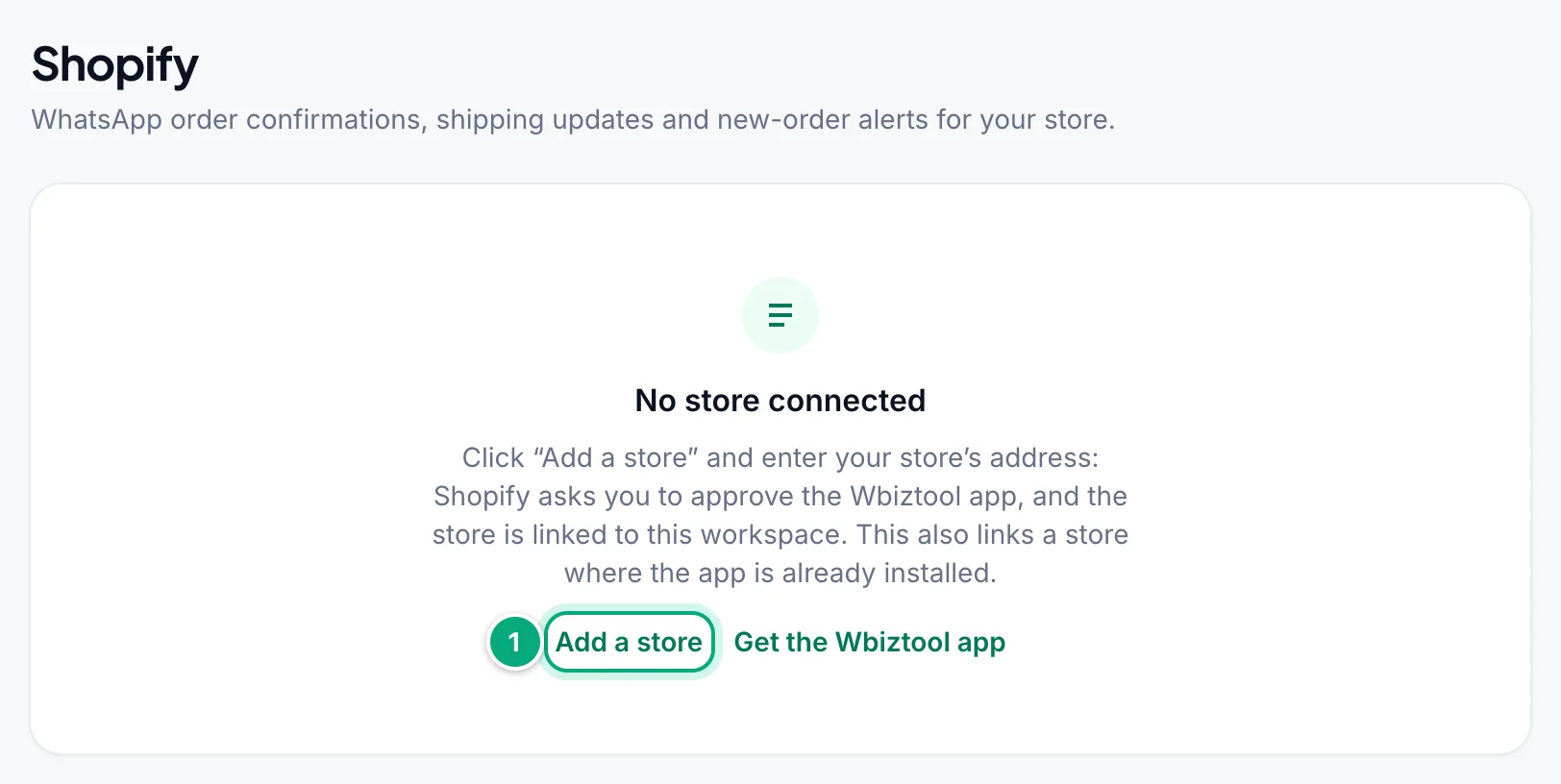
Click Add a store
On the Shopify page, click Add a store: at the top right, or under No store connected before you have a store.
Enter the store's address
In Add a Shopify store, type it under Store address:
mystoreormystore.myshopify.com. Your own domain, such asmystore.com, andadmin.shopify.comlinks aren't accepted ("Enter your store’s .myshopify.com address, for example mystore.myshopify.com."). The.myshopify.comaddress is in your Shopify admin under Settings → Domains.Continue to Shopify
Click Continue to Shopify and approve the app. You come back to the Shopify page with the store in the workspace you're working in.
Which account and workspace#
- Logged in to WbizTool in that browser: the store joins the workspace you're working in, so switch to the right workspace first. A store that was in another workspace moves to this one.
- Logged out, and your Shopify store's email already has a WbizTool account: you're asked to log in to WbizTool; then the store is linked to the account you log in with, in the workspace you're working in. If you open the app in Shopify before that, it says Finish connecting your store: click Continue.
- Logged out, and the email is new to WbizTool: a WbizTool account is created with that email and you go straight into the app. To use the dashboard, set a password with Forgot password.
A store belongs to one workspace. A workspace can have several stores, each with its own messages.
Connect your WhatsApp number#
Messages go out from a number connected in the store's workspace. If one shows Connected on WhatsApp numbers, you're ready. Otherwise connect one there (how) or in the WbizTool app in Shopify, where WhatsApp number says Connect a WhatsApp number to start sending:
- Scan QR code: click it; the code appears in about 20 seconds. On your phone, open WhatsApp → Settings → Linked devices → Link a device and point the phone at it.
- Use phone number: pick your Country code, enter your WhatsApp number without it and click Get pairing code. On the phone's Link a device screen, tap Link with phone number instead and type the 8-character code. It works for about 3 minutes; after that, click Get a new code.
The number turns Connected by itself. If it's logged out later, the app says Your WhatsApp number is disconnected: link it again the same way. If the workspace can't connect a number (for example, all of your plan's numbers are in use), the app says why instead.
Turn on and edit a message#
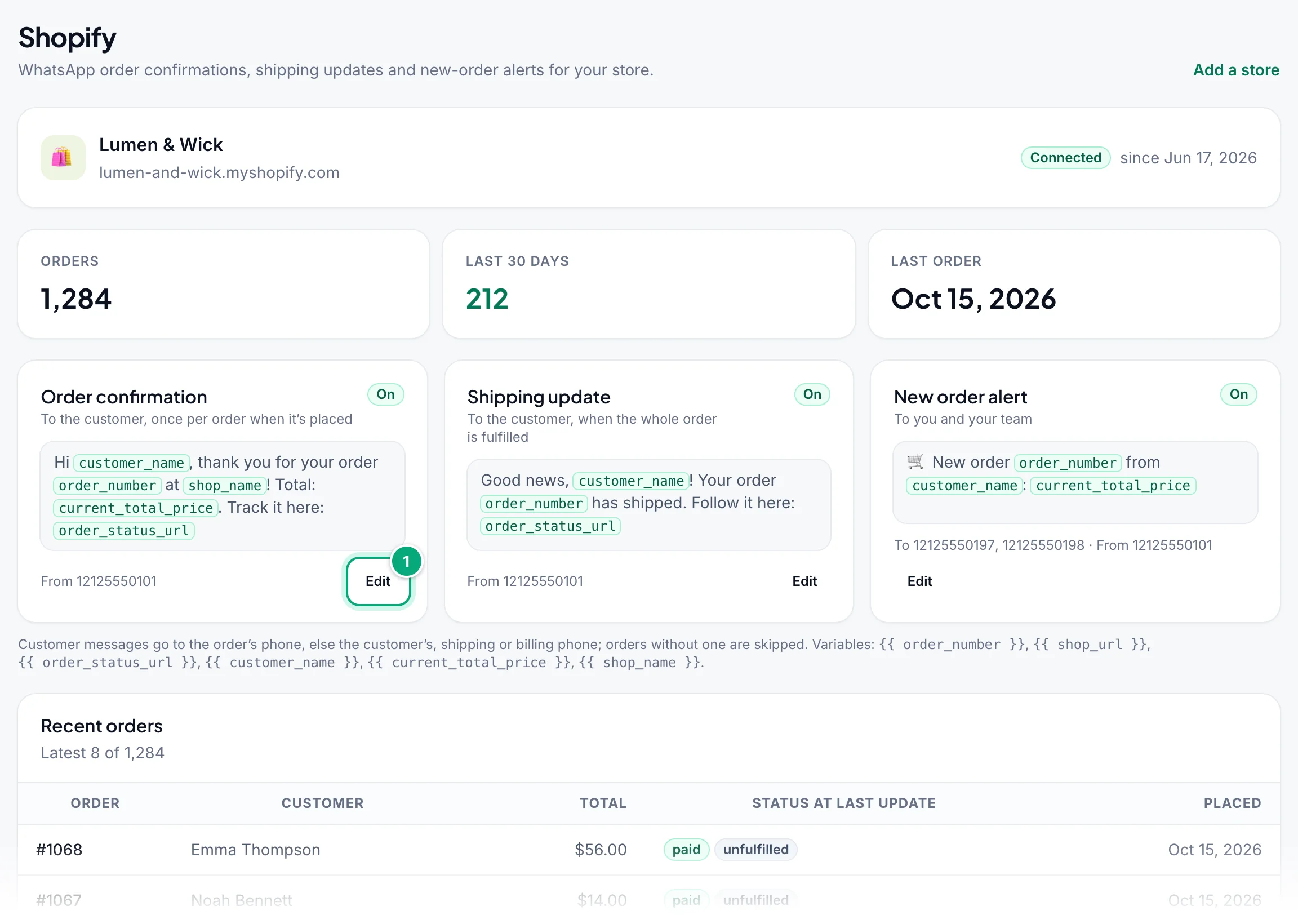
Click Edit
On the message's card on the Shopify page, click Edit.
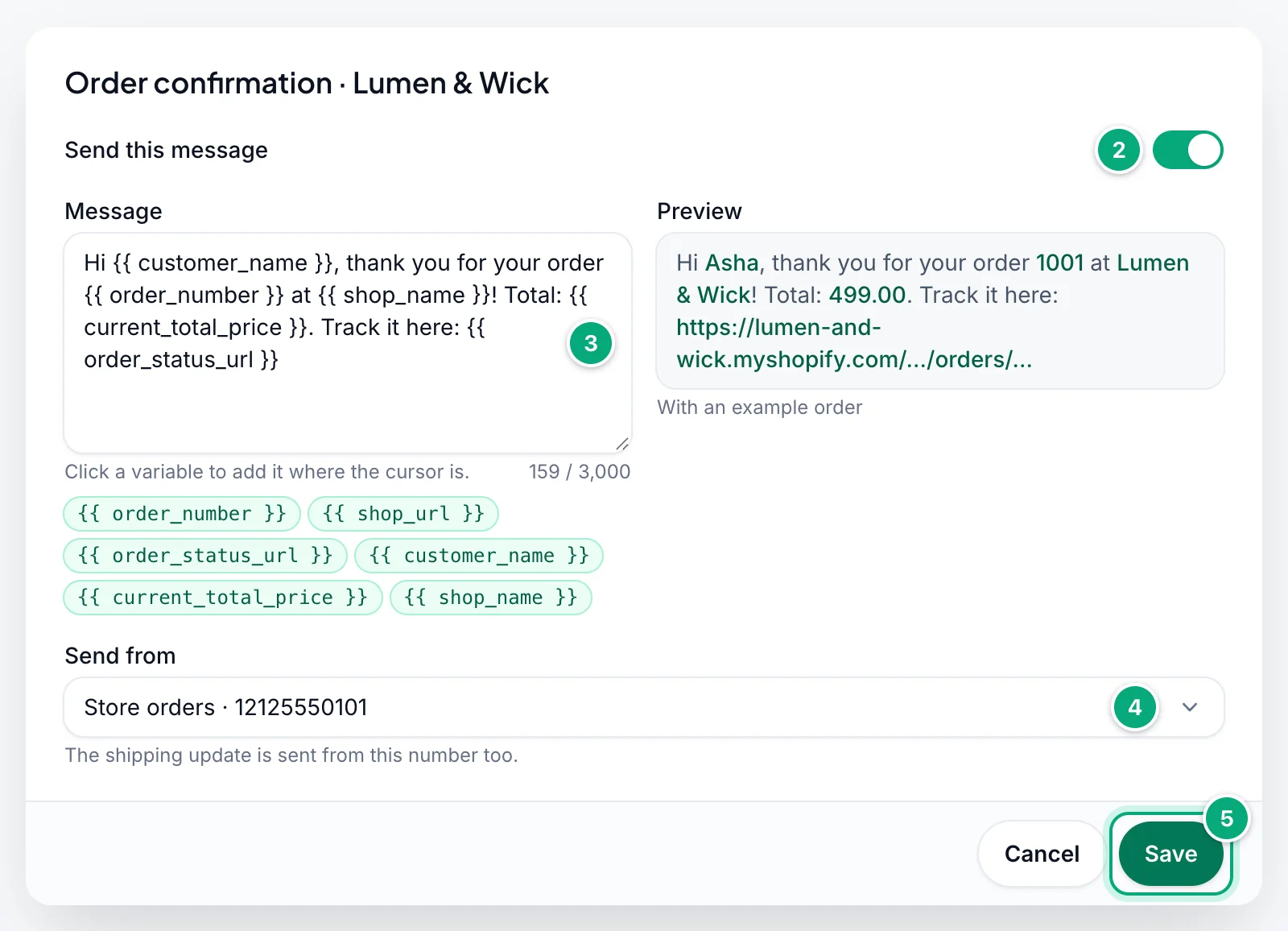
Turn it on
Switch on Send this message (order confirmation and shipping update).
Write the message
Edit the Message, up to 3,000 characters. Click a variable, such as
{{ customer_name }}, to add it where the cursor is, or at the end if you haven't clicked in the message yet. Preview shows the message for an example order.Choose the number
For the order confirmation, pick Send from: one of your connected numbers, or Any connected number. The shipping update goes out from the same number.
Save
Click Save. You see, for example, "Order confirmation saved".
Save refuses a message that's on but empty ("Write the message, or turn this notification off.") and variables WbizTool can't fill in (see Variables).
New order alert#
The alert has no switch: it's on while at least one number is saved.
Open it
Click Edit on the New order alert card.
Add the numbers
Under Send to, click Add a number and type a WhatsApp number with its country code, such as
+91 98765 43210. Add up to 20; ✕ removes one. Remove them all to turn the alert off.Save
Choose Send from if you like, edit the Message and click Save.
A number typed without its country code, such as 098765 43210, gets the country of the Send from number, or with Any connected number the workspace's country for numbers without a country code, and is saved with it. A number that starts with 0 when no country is known is refused: "… starts with 0 and no country is set to complete it – …".
Default messages#
| Message | Default text |
|---|---|
| Order confirmation | Hi, We have received your order #{{ order_number }}. We will get back to you soon. |
| Shipping update | Hi, Your order #{{ order_number }} has been shipped. You can track your order at {{ order_status_url }}. |
| New order alert | Hi, New order #{{ order_number }} has been placed at {{ shop_url }}. |
Which number sends#
The Send from number sends while it's connected; otherwise, or with Any connected number, the workspace's first connected number does (the card says so), never a number of another workspace. With none connected, the order's messages are skipped for good, and Owners and Editors get the alert "An order message for … wasn’t sent" (at most once a day per store).
Edit the messages inside Shopify#
In the WbizTool app in Shopify, Messages lists the three with On or Off. Edit opens Send this message (not for the alert), the Message and Insert a variable, which adds the variable at the end of the message. For the alert, type the numbers under WhatsApp numbers that get the alert, one per line with the country code (a number without it is completed as on the dashboard). Click Save. Send from can only be changed on the dashboard.
Variables#
| Variable | Value |
|---|---|
{{ order_number }} | Shopify's order number, such as 1042, without the # or any prefix or suffix you set in Shopify. |
{{ customer_name }} | The customer's first name, else the first name on the shipping or billing address. With none, it's left out together with the space before it: Hi {{ customer_name }}, thanks becomes Hi, thanks. |
{{ current_total_price }} | The order total, without a currency symbol, such as 499.00. Type the symbol yourself, such as Total: ₹{{ current_total_price }}. |
{{ shop_name }} | Your store's name in Shopify; a new name is picked up when you open the Shopify page or the app (at most every 12 hours). Your .myshopify.com address while the name isn't known. |
{{ shop_url }} | Your .myshopify.com address. |
{{ order_status_url }} | The order status page. In the shipping update: the tracking link of the latest fulfilment, or the order status page when it has none. |
For example, Hi {{ customer_name }}, thanks for your order #{{ order_number }} of ₹{{ current_total_price }} at {{ shop_name }}. reaches Aman, ordering at My Store, as:
Hi Aman, thanks for your order #1042 of ₹499.00 at My Store.When a message isn't sent#
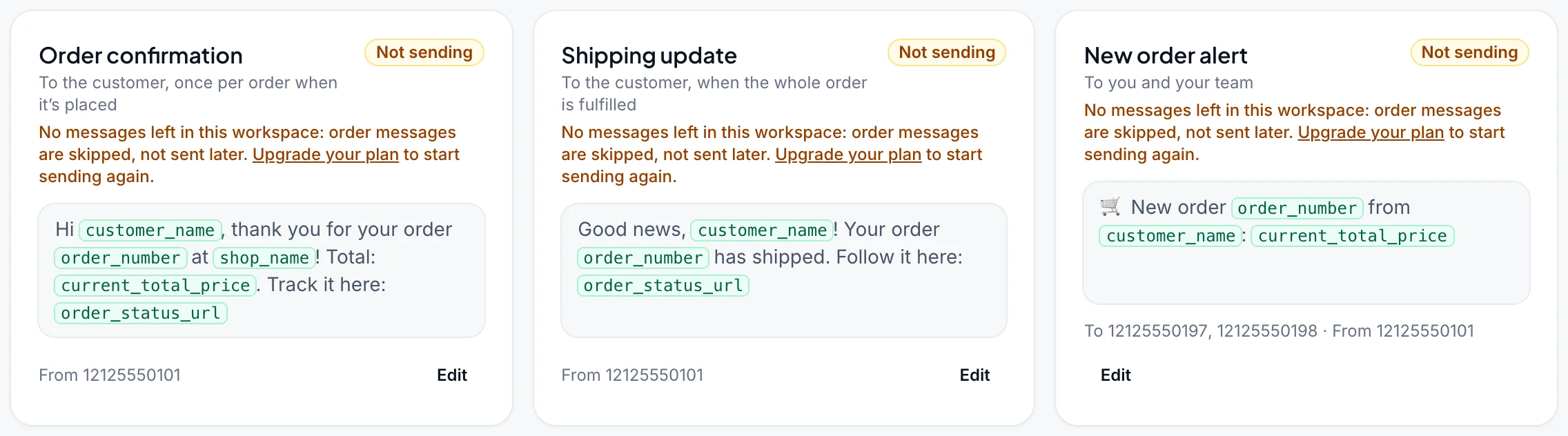
Each card's badge says whether its message goes out: On, Off, or Not sending with the reason under the title.
| On the card | What to do |
|---|---|
| "The app was removed from this store" | Reinstall the app. |
| "No WhatsApp number is connected – connect one" | Connect a number. Orders meanwhile get no messages. |
| "No messages left in this workspace: order messages are skipped, not sent later. Upgrade your plan to start sending again." | Orders meanwhile get no messages. See Messages, plans and sending hours. |
| "The message is empty" | Click Edit and write the message. |
Customer phone numbers#
Customer messages go to the first phone number on the order: the order's phone, else the customer's, the shipping address phone, then the billing address phone. Orders without one get no customer messages.
A number without a country code gets the one of the order's country (the shipping address, else the billing address, else the customer's address) and loses its local leading 0: 098451 06244 on an order to India becomes 919845106244. Numbers that already start with a country code are kept.
Each order gets at most one order confirmation and one shipping update, even when Shopify sends the same event twice. An order placed before you installed the app still gets the shipping update when it's fulfilled. Partial fulfilments don't send it.
Messages, plans and sending hours#
- Messages: every customer message and alert is a normal message. Paid plans send them without a monthly limit, under the number's daily fair-use limit; on the free plan each uses one of its 50. They show in Reports, and each number they go to is saved in Contacts.
- Out of messages (free plan): orders that arrive while the workspace has none left get no messages, not even later. The app in Shopify shows No messages left ("… are skipped – not sent later – …") with Upgrade plan, and Owners get the email "… is out of messages", at most every 3 days. See When you run out of messages.
- Sending hours: if the workspace's sending hours are on with Shopify order messages ticked under Applies to, order messages created outside the hours stay Waiting until the hours start. Untick it to send them at once.
- Number disconnected after an order: messages already queued go out once you reconnect it.
Remove or reinstall the app#
When you uninstall the app, nothing more is sent. The store stays on the Shopify page as Disconnected: "The WbizTool app was removed from this store, so Shopify no longer sends its orders here and nothing is sent." If any message was on, Owners and Editors get the email "WbizTool was removed from …".
To start again, install the app again (Reinstall the app links to the App Store). The store returns to the same workspace with its messages, unless you're logged in to another workspace. 48 hours after an uninstall, WbizTool deletes the store's orders and Shopify details and the new order alert's numbers; message texts, switches and Send from stay. Reinstalling within those 48 hours erases nothing; after that, add the alert's numbers again.
Customer data and privacy#
WbizTool keeps the orders Shopify sends it (with the customer's name, email, phone and addresses) and the messages it sent. It handles the privacy requests Shopify passes on automatically:
| Request | What WbizTool does |
|---|---|
| A customer asks for their data | Emails the WbizTool account linked to your store "Customer data request from Shopify – …" with a file of that customer's orders and WhatsApp messages, for you to send them. |
| A customer asks to be erased | Removes the customer's details from the stored orders and replaces their order messages' text with "[Removed: Shopify customer data erasure]". A contact WbizTool created for them and you don't use otherwise is anonymised (redacted-…). |
| 48 hours after you uninstall | Deletes the store's orders and removes its order messages' text the same way (see Remove or reinstall the app). |
Troubleshooting#
| Message or problem | What to do |
|---|---|
| "Enter your store’s .myshopify.com address, for example mystore.myshopify.com." | Enter the .myshopify.com address from Settings → Domains in Shopify, not your own domain. |
| The app in Shopify says Finish connecting your store | Click Continue and log in (see Which account and workspace). |
| "No Shopify store was waiting to be linked in this browser. …" after logging in | The install happened in another browser, or the store is already linked. Click Add a store in the right workspace, enter the store's address and approve the app. |
| "This store isn’t connected to WbizTool. Reinstall the app from the Shopify App Store." | Install the app again from the Shopify App Store. |
| The store isn't on the dashboard's Shopify page | It's in another workspace: switch workspace at the top of the dashboard. To move it here, click Add a store in this workspace and enter its address. |
| No customer message for an order | The card says On, the order has a phone number, and sending hours aren't holding it. Look for it in Reports. |
| No shipping update | It's sent only when the whole order is fulfilled while the message is on. |
| New order alert not received | The numbers have their country code, and a number of the workspace is connected. |
| "An order message for … wasn’t sent" | Connect a number; see Which number sends. |
| The email "Your Shopify store … needs to be reconnected" | Shopify no longer accepts WbizTool's access to the store. Order messages still go out, but WbizTool can't read the store's details. In the store's workspace, click Add a store, enter its address and approve the app; opening the app in Shopify doesn't renew the access. |
| "… isn’t a WhatsApp number – …" or "… starts with 0 and no country is set to complete it – …" | Type the alert number with its country code; see New order alert. |