
Product guides
Plans and billing
Your plan sets how many WhatsApp numbers and team members a workspace can have and which features it includes. Every paid plan sends unlimited messages, under fair use. Every workspace has its own plan and add-ons: what you buy applies only to the workspace selected at the top of the page. Payments go through Paddle, WbizTool's payment provider.
Who can do it: the workspace's Owners. Only they see Billing & plans in the sidebar; an Editor or Analyst who opens the page sees "Only the workspace owner can manage billing." (see Roles and permissions). Before you buy, check which workspace is selected (Switch workspace).
Open Billing & plans under Settings in the sidebar, or go to /pricing-plans/.
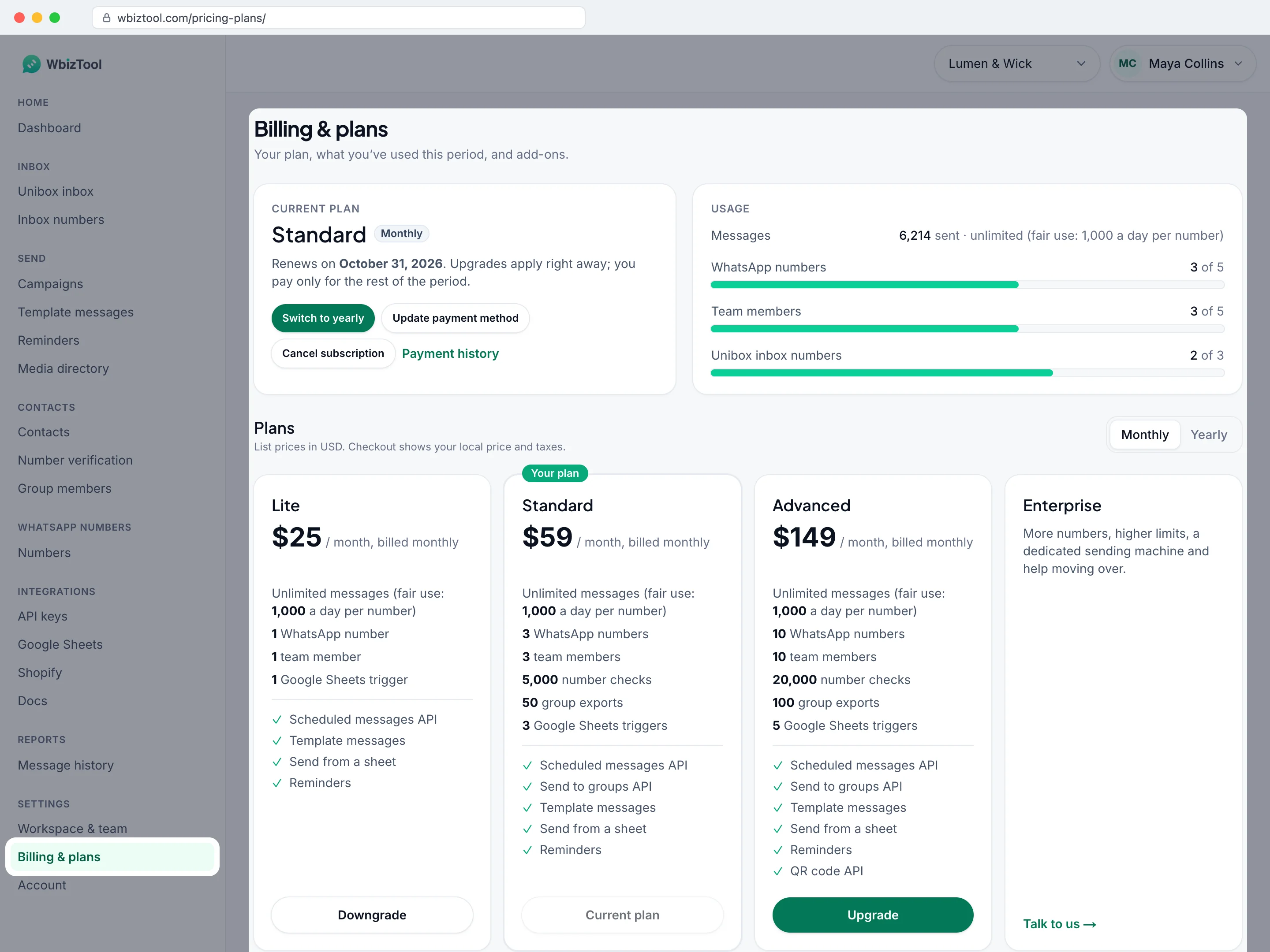
- Current plan: your plan, its Monthly, Yearly or Lifetime badge, when it renews or ends, and its buttons.
- Usage: Messages ("… sent · unlimited" on a paid plan, "… of 50" on the free trial), WhatsApp numbers, Team members and, with the Unibox add-on, Unibox inbox numbers, each as "… of …".
- Plans and Add-ons below them. Lifetime plans see only the add-ons.
A red banner at the top means a payment failed, or says "Your subscription has lapsed. Choose a plan below to continue."; a green one is a personal offer.
Plans and prices#
Prices are regional. The table shows US list prices. Billing & plans switches to your own currency once Paddle has loaded it, and checkout adds tax where it applies.
| Lite | Standard | Advanced | Enterprise | |
|---|---|---|---|---|
| Monthly billing | $25 a month | $59 a month | $149 a month | Talk to us |
| Yearly billing | $250 a year | $590 a year | $1,490 a year | |
| Messages | Unlimited | Unlimited | Unlimited | Custom |
| WhatsApp numbers | 1 | 3 | 10 | Custom |
| Team members | 1 | 3 | 10 | Custom |
| Number checks | – | 5,000 | 20,000 | 100,000 |
| Group exports | – | 50 | 100 | 500 |
| Google Sheets triggers | 1 | 3 | 5 | 10 |
| Media storage | 1 GB | 2 GB | 5 GB | 10 GB |
Every paid plan includes unlimited messages under fair use, reminders, template messages and sending from a sheet. Bigger plans add WhatsApp numbers, team members and features. A year costs the same as 10 months. Your price on a card means you keep the older price you signed up at.
Fair use#
Paid and lifetime plans have no monthly message limit. Each WhatsApp number can take up to 1,000 new messages in any 24 hours – sent or still waiting; failed, cancelled and expired ones don't count. That's far above normal use, and it stops a number being used to blast messages, which gets numbers banned by WhatsApp.
- One message over the limit (Send a message, the API, a reminder, an integration) isn't queued: it shows as failed with "Daily limit reached: a number can send 1,000 messages in 24 hours (fair use). Send the rest tomorrow."
- A campaign or template messages that would take a number over the limit isn't started at all: "Over the daily limit: … Nothing was sent". Send it the next day, split it, or spread it over more numbers.
- The API answers HTTP 429 with
"code": "daily_limit_reached"(the message id is kept, so you can look it up); bulk requests are refused as a whole. - Need more on one number? Talk to us about Enterprise.
Free trial and free plan#
- The first workspace you created starts on the Free trial: 50 messages in any 30 days, 1 WhatsApp number and 250 MB of media storage. Each message counts for 30 days after it was created, then frees up again.
- Every other workspace starts on the Free plan: 1 number and no messages. You can set it up, but it can't send until you buy a plan: "This workspace has no messages yet – the free trial is only for your first workspace. Choose a plan below to start sending."
Campaigns, Send a message and the API work on the free trial; reminders, template messages, Google Sheets triggers, number checks, group exports and add-ons need a paid plan. Deleting a workspace never gives you a new free trial.
Buy a plan#
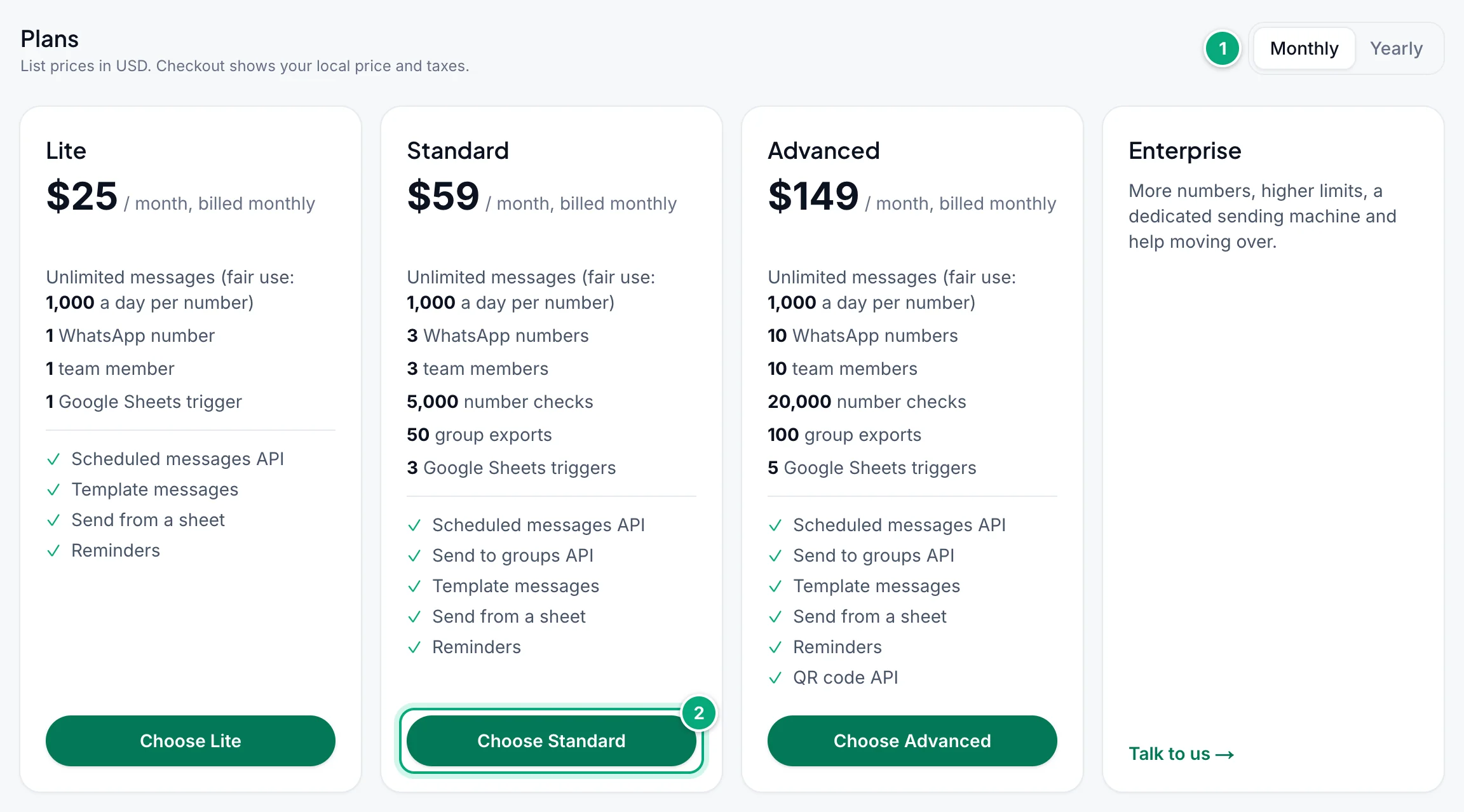
Pick monthly or yearly billing
Under Plans, choose Monthly or Yearly. Yearly cards show the price per month and the year's total.
Choose the plan
Click Choose and the plan's name, such as Choose Standard.
Check the review
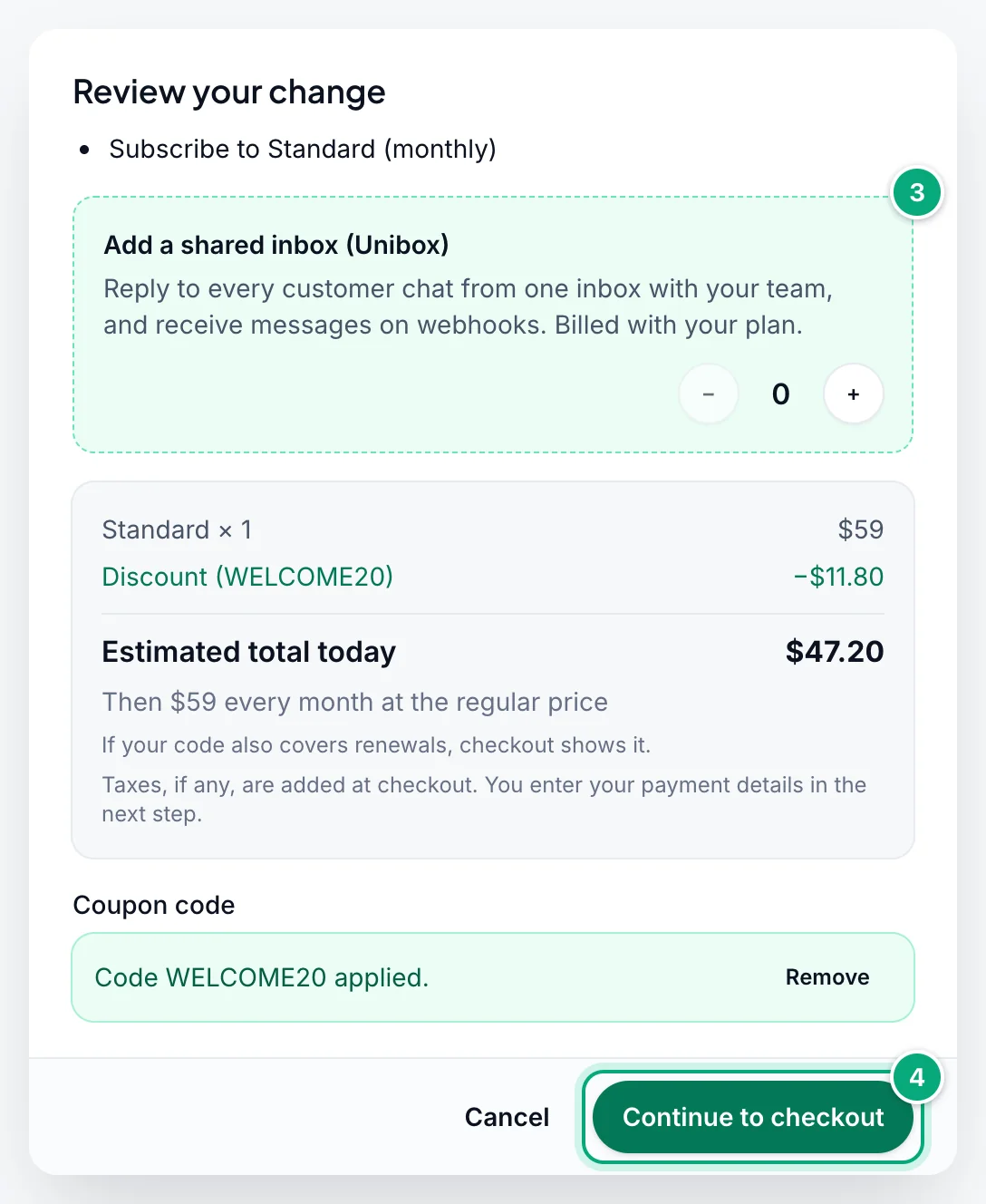
Review your change shows "Subscribe to Standard (monthly)" and Paddle's estimate: Estimated total today and "Then … every month". To add the Unibox inbox, pick how many numbers under Add a shared inbox (Unibox): up to the plan's number of WhatsApp numbers, $20 a month each at list price, billed with the plan. For a coupon, click Have a coupon code? (Coupon codes and offers).
Pay
Click Continue to checkout. Paddle's checkout opens in your dashboard language (English for Hebrew, Indonesian and Malay). Closing it without paying changes nothing.
Wait for activation
Keep the page open: "Activating your subscription…", then "Your plan is active."
Owners get the email "Your … plan is active", and Paddle emails the receipt. While a checkout is open or a payment is being activated, another one for the workspace is refused with "Your purchase is still being activated. Please wait a minute and refresh the page.", so you can't pay twice.
Change your plan#
On a paid plan, each card's button says what it does: Upgrade or Downgrade, Switch to yearly on your own plan (also on the Current plan card), or Upgrade (yearly) / Downgrade (yearly) when you pay monthly and look at yearly prices. Your plan shows Current plan.
Pick the new plan
Click the button on the plan you want.
Review the change
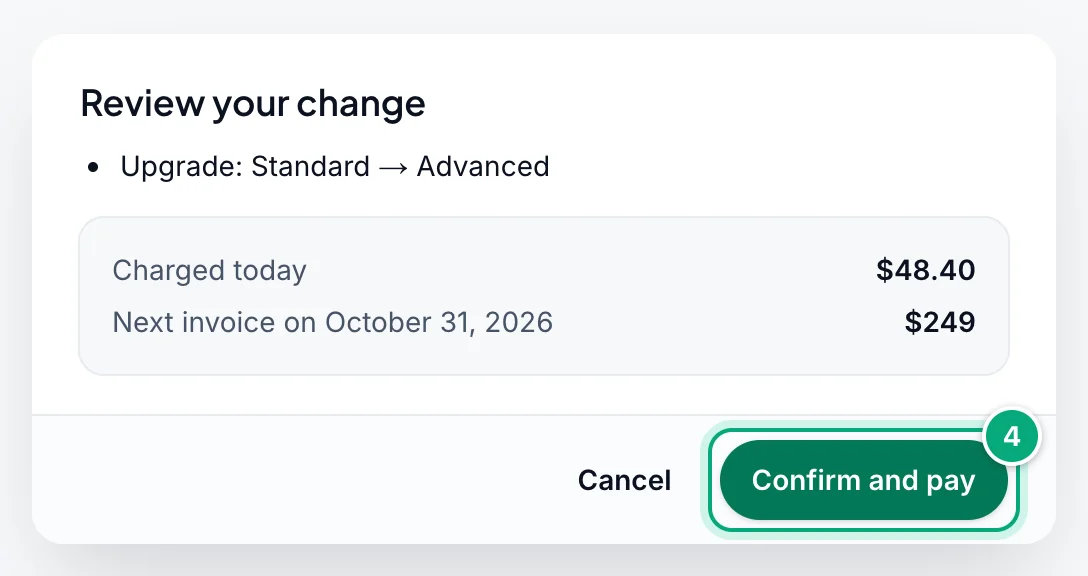
Review your change shows, for example, "Upgrade: Standard → Advanced" and Paddle's figures: Charged today, or Credit for unused time for a downgrade, and Next invoice on with its amount.
Confirm what will be removed
If the new plan allows fewer WhatsApp numbers or team members than you use, the dialog says so and lists the numbers that will be removed, disconnected ones first; extra members you remove yourself. Tick I understand what will be removed.
Confirm
Click Confirm and pay or Confirm change. After "Updating your subscription…" you see "Your subscription was updated."
- Changes apply at once. Your renewal date stays and Paddle charges or credits the difference for the rest of the period. A credit goes to your next invoices, not back to your card.
- Switching to yearly starts a yearly period today: you pay the yearly price minus a credit for the unused month, and your add-ons move to yearly billing too.
- Yearly to monthly isn't possible here: "You’re billed yearly. To move to monthly billing at your renewal, contact support."
- If confirming takes over 90 seconds: "Your change was accepted. It can take a minute to show here – refresh shortly." Click Refresh before trying again.
Changes are paused while a payment has failed or a cancellation is scheduled.
Add-ons#
Add-ons extend a paid or lifetime (AppSumo) plan; on the free trial and free plan the card says "Available once you’re on a paid plan."
| Add-on | Each one adds | US list price |
|---|---|---|
| Extra WhatsApp Number | One more WhatsApp number | $10 a month or $100 a year |
| Extra Team Member | One more team member | $10 a month or $100 a year |
| Unibox Phone Number | One number in the Unibox inbox, with webhooks | $20 a month or $200 a year |
On a paid plan they're billed with it, on its cycle ("Added to your Standard plan and billed monthly with it."). Add-ons WbizTool gave you show "(… included)" and are never charged or removed here.
Set the quantity
Under Add-ons, click + or − (0 to 100 of each).
Review the change
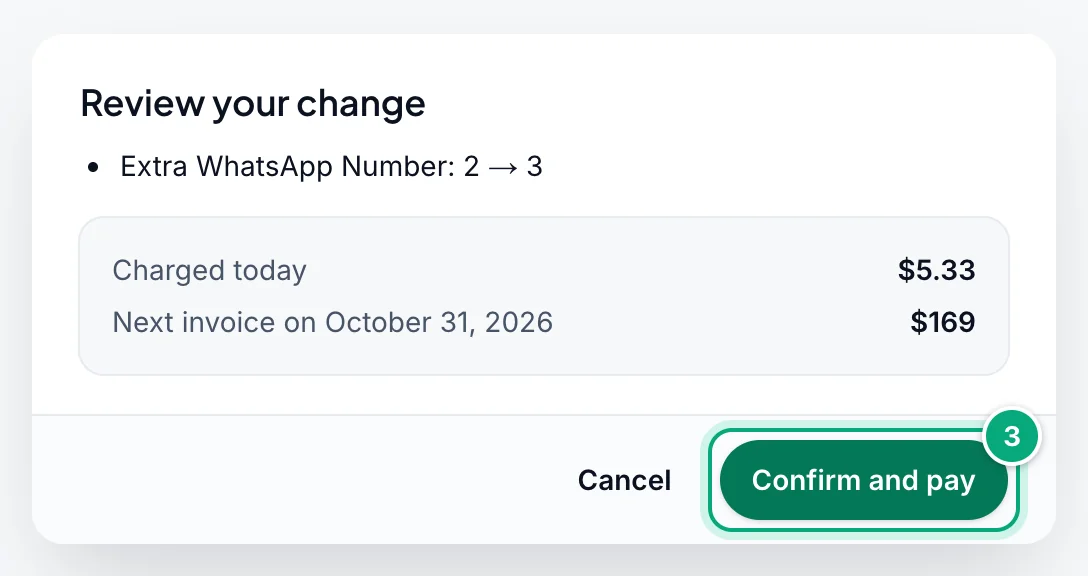
Click Review changes. Review your change shows, for example, "Extra WhatsApp Number: 2 → 3", Charged today for the rest of this period and Next invoice on with its amount.
Confirm
Click Confirm and pay (or Confirm change when you get a credit), then wait for "Your subscription was updated."
- Extra WhatsApp Number: removing some when you'd be over the limit lists the numbers that will be removed, disconnected ones first; tick I understand what will be removed.
- Unibox Phone Number: with fewer than you use, the newest inbox numbers stop; with none, all of them.
- Lifetime plans: choose Monthly or Yearly on the card for your first add-ons and pay in Paddle's checkout. They get their own subscription, with Cancel add-ons and Keep my add-ons.
AI credits#
AI credits pay for WbizTool AI: the message writer, reply suggestions, chat summaries, translations and the AI auto-answer. A pack is 20,000 AI credits for $30 at the US price (the card shows yours). It's a one-time payment, not a monthly add-on, and credits never expire. You need a paid or lifetime plan to buy them.
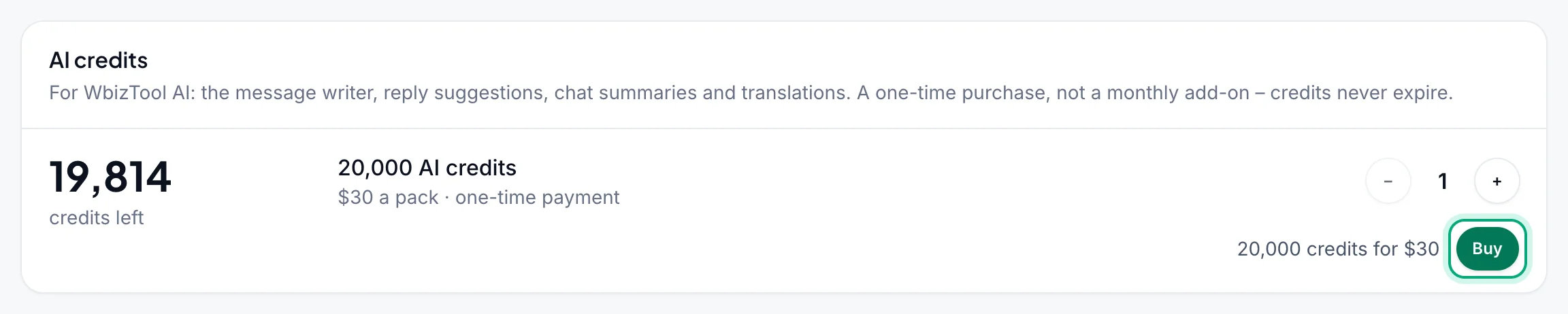
On the AI credits card, pick 1 to 20 packs with − and +, click Buy and pay in the checkout. You see "Payment received – adding your credits…", then "20,000 AI credits added." See Buy AI credits and What it costs.
Usage and when it resets#
Messages in Usage counts the messages sent and still waiting: this period on a paid or lifetime plan ("… sent · unlimited (fair use: 1,000 a day per number)"), the last 30 days on the free trial ("… of 50"). Failed, cancelled and expired ones never count. WhatsApp numbers counts every number, connected or not, and Team members everyone including you and pending invitations.
Number checks and group exports reset with the period:
| Plan | Period |
|---|---|
| Monthly | From each renewal (the date under Current plan). |
| Yearly | Every 30 days. The date under Current plan is the yearly renewal. |
| Lifetime | Every 30 days: "Usage limits reset on …". |
| Free trial | Its 50 messages count the last 30 days: each one frees up 30 days after it was created. |
When you run out of messages#
Only the free trial and the free plan run out of messages; paid plans have the daily fair-use limit instead.
- Dashboard: "No free messages left." with Get more messages. Messages already waiting still go out.
- API: requests are refused with
Not enough credits(bulk requests say how many were requested and how many are left). See API errors. - Elsewhere: campaigns, Send a message, template messages and Unibox replies are refused, reminders and Shopify order messages are skipped, and Google Sheets triggers stop at the first row that can't be sent (the rest go on a later change to the sheet).
- Alerts: Owners get "… has used …% of its messages" when usage crosses their Warn me at (% used) (80% by default), and "… is out of messages" when the API, a Google Sheet, Shopify or a reminder is refused (at most every 3 days). See Messages running low or used up in Notifications.
To send again right away, buy a plan; otherwise wait until older messages free up (30 days after each was created).
Coupon codes and offers#
Coupon codes work only on a new purchase: a plan bought from the free trial or free plan, or a lifetime plan's first add-ons. In Review your change, click Have a coupon code?, type it under Coupon code and click Apply: you see "Code … applied." and a "Discount (…)" line.
- A link ending in
?coupon=and a code, such as/pricing-plans/?coupon=YOURCODE, fills the code in. - A code that doesn't cover the plan or cycle you picked shows "This code doesn’t apply to what you’re buying." and isn't used.
- You can also type a code in Paddle's checkout.
Personal offers. Owners sometimes get a time-limited discount: an Offer badge in the top bar and a green banner here with the days left.
- "Your offer: …% off": click Choose a plan; the code is filled in for the first month of the plans named, billed monthly.
- "Your offer: an extra …% off yearly": click Switch to yearly; it comes off your first yearly invoice.
- "Keep your plan for …% less", while your plan is set to end: Keep my plan for …% less keeps it, with the discount from your next invoice.
Lifetime and AppSumo plans get no offers. Offer emails follow Product tips and offers in Notifications.
Payment failed#
When Paddle can't charge your card for a renewal, a red banner says "The last payment for your plan failed. Update your card to keep your plan – plan changes are paused until then." (or "The last payment for your add-ons failed."). The Dashboard shows Fix payment, and Owners get the email "Payment failed for your … plan", with reminders ("Reminder: update your card to keep your … plan") on days 3 and 6.
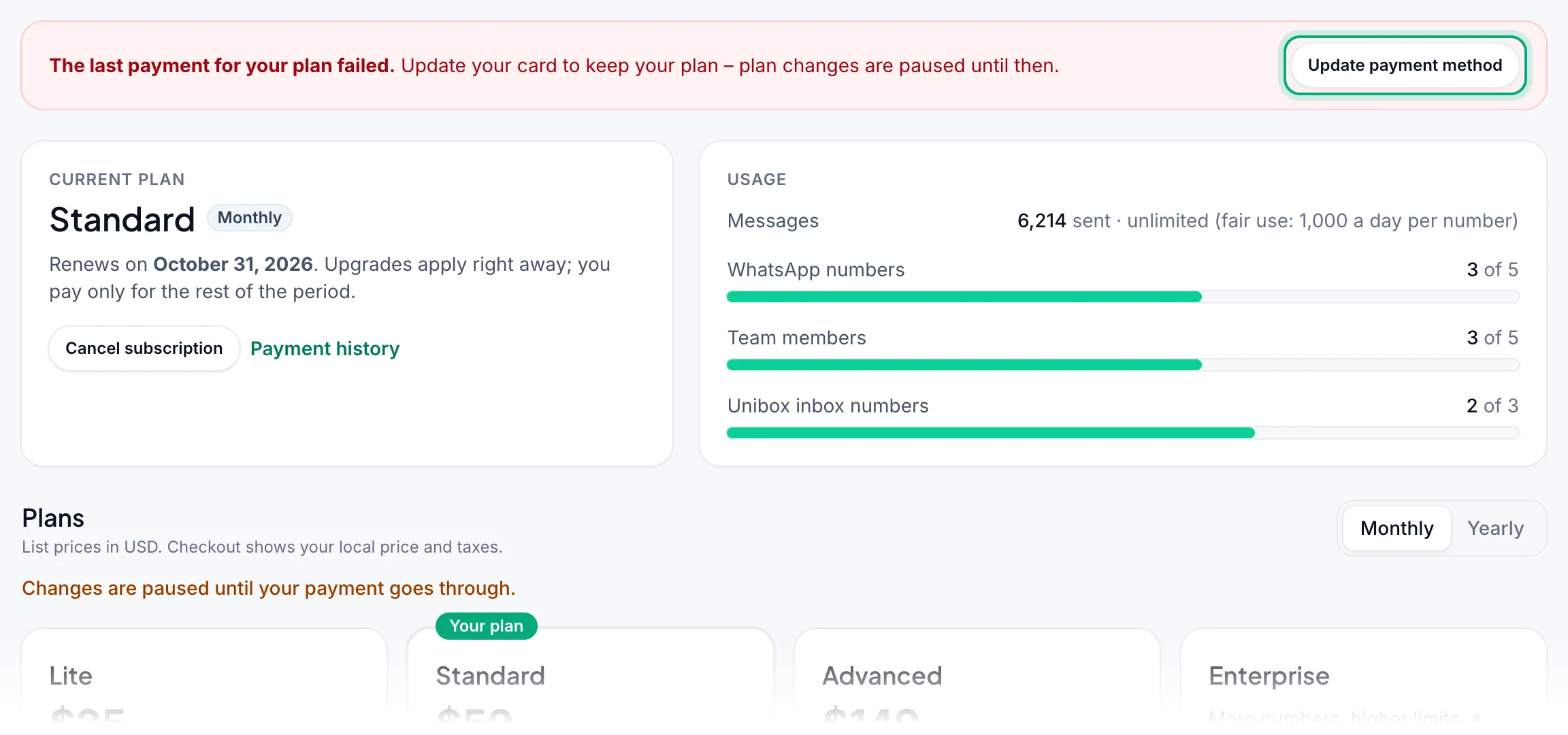
Click Update payment method: Paddle's card page opens in a new tab. Paddle keeps retrying meanwhile. Your plan, its unlimited messages and your numbers stay meanwhile, but changes are paused ("Changes are paused until your payment goes through.") until a payment goes through. If every retry fails, the plan ends as if cancelled.
To change your card at any other time, use Update payment method on the Current plan card. It appears once the workspace pays through Paddle.
Cancel your subscription#
Cancel
On the Current plan card, click Cancel subscription.
Confirm
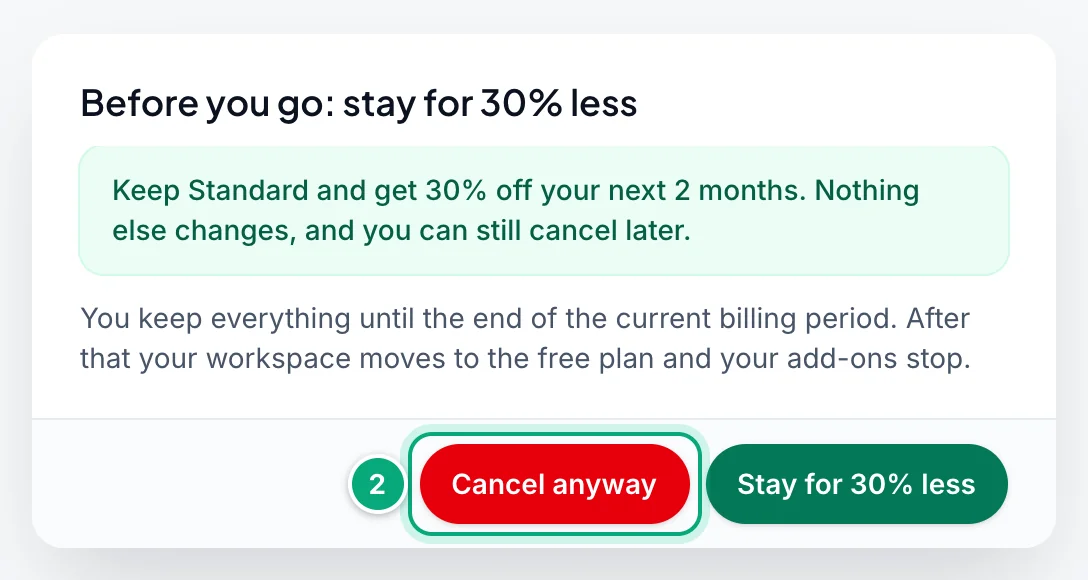
In "Cancel …?", click Yes, cancel. On a monthly plan the dialog may say "Before you go: stay for …% less" instead (for example 30% off your next 2 months, at most once every 6 months): Stay for …% less keeps your plan with the discount, Cancel anyway cancels.
You see "Cancellation scheduled. Your subscription stays active until the end of the current billing period." The plan and add-ons stay until then and aren't charged again; the card says "Ends on … – it won’t renew." and Owners get "Your … plan ends on …". To undo it, click Keep my plan.
When the period ends, Owners get "Your … plan has ended" and:
- The first workspace you created moves to the Free trial (50 messages in 30 days), any other to the Free plan (no messages).
- One WhatsApp number stays: a connected one first, and the most recently added among them. The others are removed and their waiting messages are cancelled.
- Inbox numbers stop and reminders pause. Contacts, campaigns, reports and settings stay.
Cancelling doesn't refund the current period: see the Refund policy. To delete a workspace, cancel first and wait for the period to end.
Invoices and billing emails#
- Invoices: Paddle emails a receipt for each payment. Settings → Payments (Payment history on the Current plan card) lists the last 20 with their invoice PDFs. Your business name, tax ID and address go in Billing details.
- Emails: Owners also get "Your plan changed: …" and, a week before a yearly plan renews, "Your … plan renews on …". Failed payments and ended plans always reach the workspace's creator, even with Billing problems turned off.
AppSumo and lifetime plans#
You activate an AppSumo license from AppSumo; WbizTool has no field for a license key.
Pick the workspace
If you have an account, log in and switch to the workspace that should get the lifetime plan. You must be its Owner.
Activate on AppSumo
Activate the license in your AppSumo account. AppSumo sends you back to WbizTool; if you aren't logged in, log in or sign up and the license is applied right after.
Check the plan
Billing & plans says "Your AppSumo license is active on this workspace." and shows a Lifetime badge with "Lifetime access. Usage limits reset on …".
| Message | What to do |
|---|---|
| "Only a workspace owner can activate an AppSumo license. …" | Switch to a workspace you own and activate again from AppSumo. |
| "This workspace has a paid plan, so the license wasn’t applied. …" | Cancel the plan and wait for it to end, or use another workspace. |
| "This workspace already has an AppSumo license. …" | Change tier with Manage on AppSumo, or use another workspace for a second license. |
| "This AppSumo license is already active on another workspace. …" | Contact support to move it. |
| "This AppSumo license isn’t active. …" | Check the license in your AppSumo account. |
A lifetime plan never expires and sends unlimited messages under fair use; its number checks and group exports reset every 30 days, and you can add add-ons. Manage on AppSumo changes the tier for the same workspace. If AppSumo refunds or deactivates the license, the workspace goes back to the free plan. AppSumo purchases aren't in Payments.
Troubleshooting#
| Problem | What to do |
|---|---|
| No Billing & plans, or "Only the workspace owner can manage billing." | Ask an Owner of the workspace. |
| A new workspace shows Free plan and can't send | Only your first workspace gets the free trial. Buy a plan for this one. |
| Paid, but the plan didn't change | Wait a minute and refresh; don't pay again. Then contact support with the transaction from Payments. |
| "You already have a subscription at our payment provider that is …" | A subscription with a payment problem exists: update your payment method or contact support instead of buying again. |
| "The checkout could not be opened. Check your connection or ad blocker, then try again." | Allow Paddle in your ad blocker and try again. |
| Buttons greyed out with "Changes are paused until your payment goes through." | A payment failed: click Update payment method. |
| "This subscription is set to cancel. Choose “Keep my plan” first, then change it." | Click Keep my plan, then make the change. |
| "Your payment was declined. Update your payment method and try again." | Update your card, then try again. |
| "Your add-ons are billed monthly on a separate subscription. Contact support and we will move them into your yearly plan." | Contact support before switching to yearly. |
| "This code doesn’t apply to anything you can buy here." | The code is for something else. Ask whoever gave it to you. |
| "Coupon codes apply to a new purchase only." | Codes work only in the checkout for a new plan (from the free trial or free plan) or for a lifetime plan's first add-ons. They don't work on changes to a plan you already pay for. |
| "This coupon code isn’t valid.", "This coupon code has expired." or "This coupon code has already been used." | Check the spelling, or ask whoever gave you the code. |
| "Too many tries. Please wait a while and try again." | Codes can be checked 20 times an hour per workspace. |
Not enough credits from the API | See When you run out of messages. |
daily_limit_reached (HTTP 429) from the API, or "Daily limit reached: …" on a failed message | The number took 1,000 messages in 24 hours: see Fair use. Send the rest the next day or from another number. |
| Usage shows more messages than you sent | Waiting messages count until they're sent, cancelled or expire. |
| "We couldn’t check your license with AppSumo. Activate it again from your AppSumo account." | Activate the license again from your AppSumo account. |
| Bought add-ons but the limit didn't change | It changes once Paddle confirms the payment: wait a minute and refresh. |