
Product guides
Send a quick message
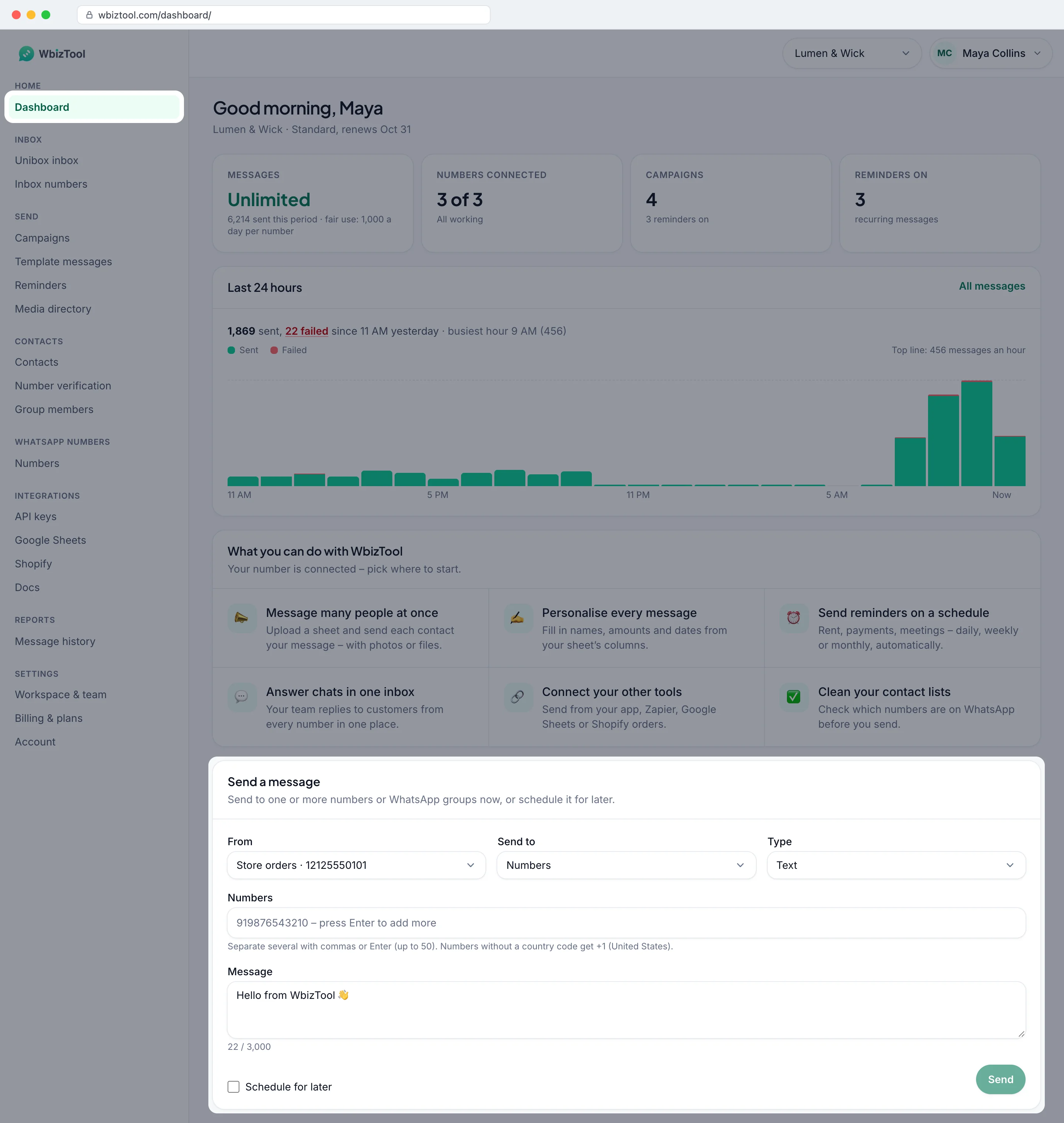
The Send a message card on the Dashboard sends a WhatsApp text, image or file to up to 50 numbers or groups at once, straight away or at a time you choose. You don't need a spreadsheet or any code.
Who can do it: Owners and Editors of the workspace. Analysts don't see the card. It works on every plan; on the free trial, as long as the workspace has messages left.
Open Dashboard in the sidebar. The Send a message card is at the bottom of the page.
Before you start#
- A connected WhatsApp number. Without one, the card only says "Connect a WhatsApp number to send messages from here." Click Connect a number, or see Connect your WhatsApp number.
- Messages. Each recipient is one message, and a group counts as one recipient. Paid plans send unlimited messages under fair use (1,000 a day per number); on the free trial the Messages left tile at the top of Home shows how many of its 50 are left.
Send a message#
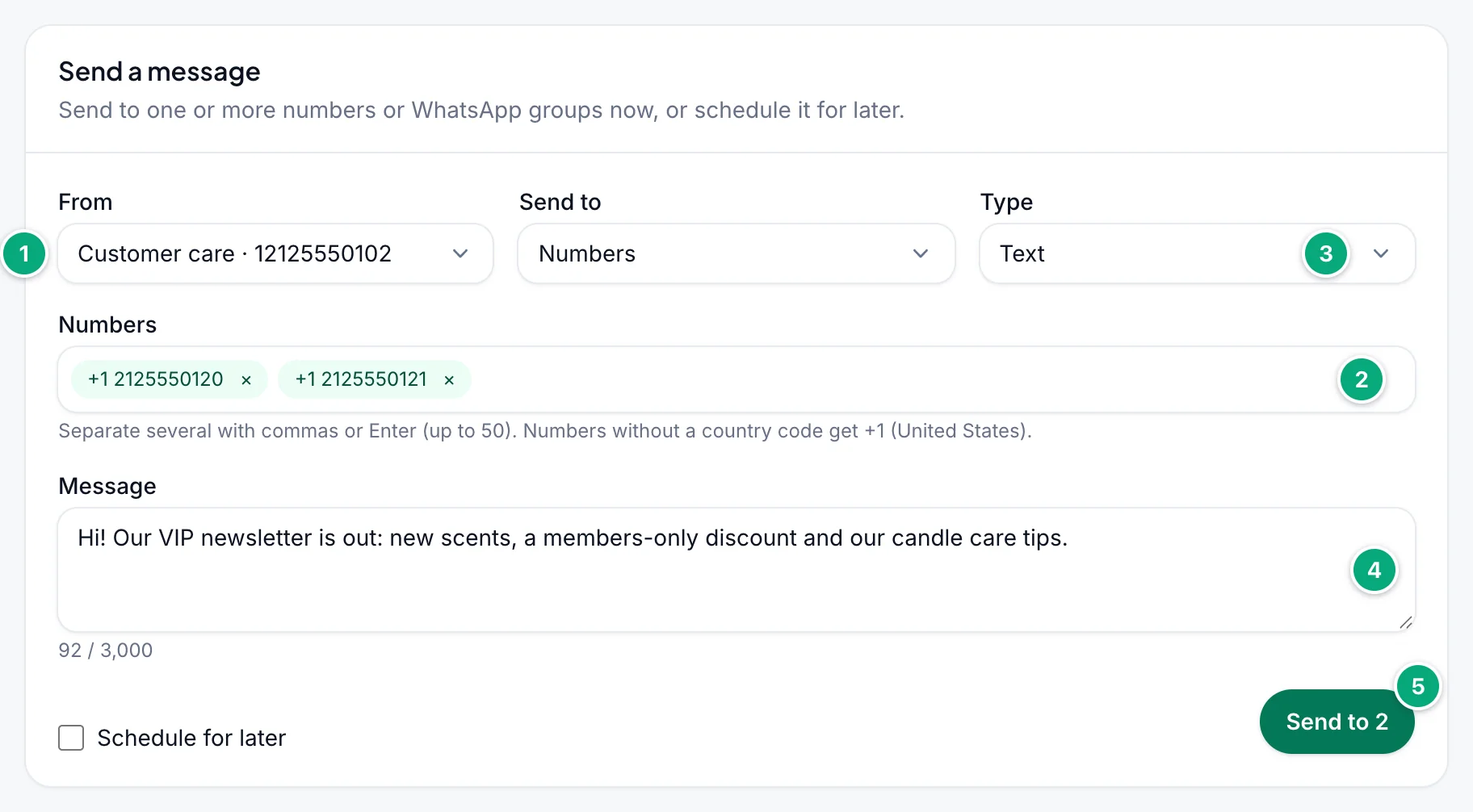
Pick the number to send from
Under From, choose which of your connected numbers sends the message. The first one is already selected. If only one number is connected, the list can't be changed.
Add the recipients
Under Numbers, type a number, for example
919876543210, and press Enter. It becomes a chip that shows the number as it will be sent, such as+91 98765 43210. A number without its country code gets the country of the number under From (see Recipient rules). Add more the same way, or paste a list separated by commas or new lines (a column copied from a spreadsheet works). To reuse a saved contact, type at least two letters of its name or digits of its number and click it in the list that opens.Add an image or a file (optional)
Under Type, choose Image or File, then paste its link. See Images and files.
Write the message
Type your text under Message (for an image or a file, under Caption (optional)). The box starts with "Hello from WbizTool 👋": replace it. Up to 3,000 characters; the counter under the box shows how many you've used. WhatsApp formatting such as
*bold*and_italic_, and emoji, work as usual.Send
Click Send. With several recipients the button shows how many, for example Send to 3. You see "Message queued – it goes out in a moment." (or "3 messages queued – they go out in a moment.").
Each recipient gets their own message from the number you picked. Messages usually go out within a minute while that number is connected. Click See in Reports under the button to follow them (see Follow or cancel a message).
After it's sent or scheduled, the recipients are cleared and Schedule for later is unticked; the number, type, link and message stay. To send the same message to others, add them and click Send (tick Schedule for later again to schedule it).
Recipient rules#
- Spaces, brackets, dots and dashes are removed for you, and a
+or00at the start means the number has its country code:+91 98765-43210and0091 98765 43210both go to+91 98765 43210, and+44 (0)20 7946 0018goes to+44 20 7946 0018. With its country code, a number has 7 to 15 digits. - A number without its country code, such as
98765 43210or09876543210, gets the country code of the number under From. If that number's country can't be told, the workspace's Country for numbers without a country code is used. The hint below the field names the country, for example "Numbers without a country code get +91 (India).", and while you type it shows where the number goes, for example "Will send to +91 98765 43210 (India)". - A number that already starts with a valid country code is never changed. If it could also be a local number of the From number's country, its chip turns amber and the hint says so, for example "It starts with the country code of Singapore. For a number in India, write +91 6581 234 567."
- A number that doesn't fit turns red and the hint below the field says why, for example "Not a phone number – use 7 to 15 digits." Send stays grey until you fix it or remove it with the × on its chip.
- The same number twice gets one message.
- Up to 50 recipients per send: anything past 50 isn't added. To reach more people, use a campaign.
- Changing Send to between Numbers and Groups clears the recipients.
- A number you message for the first time is saved to Contacts, with the number as its name.
- With a Telegram account under From, you can also add an
@username, at.me/usernamelink ortg:<id>, and the hint adds "From a Telegram account you can also send to @usernames." Usernames work only from a Telegram account.
Images and files#
Set Type to Image or File. The card then asks for a link instead of an upload:
- Image: paste the Image link, a public link to a JPG or PNG. The text below becomes the caption.
- File: paste the File link and, if you like, a File name (optional) such as
invoice-1042.pdf(up to 100 characters).
The link must open the file directly, without a login. The easiest way to get one: upload the file in the Media directory and click Copy link on it. See Media directory.
What the recipient gets:
- The file's name is the File name you typed, or else the last part of the link, in lower case. It keeps its extension if the Media directory accepts that type, such as
.pdf,.docx,.xlsx,.pptx,.csv,.zipor.mp4, and for.webm,.mpga,.xlsm,.xlsb,.docmand.pptmtoo (full list on Send message). A name with no extension, or another one, gets.pdfadded:invoice-1042arrives asinvoice-1042.pdf. So include the right extension. - Size limits: images up to 16 MB, videos up to 64 MB, other files up to 100 MB.
- Long captions: an image caption over 1,000 characters arrives as a separate message right after the image.
- Audio: send it as a File. MP3, M4A and AAC files arrive as audio, and the caption follows as a separate message. WAV and OGG files arrive as documents, with the caption.
WbizTool downloads the file from the link when the message goes out, not when you click Send. Keep the file at that link until the message shows Sent, especially for a scheduled message.
Schedule a message#
Fill in the card
Choose From, add the recipients and write the message as for sending now.
Tick Schedule for later
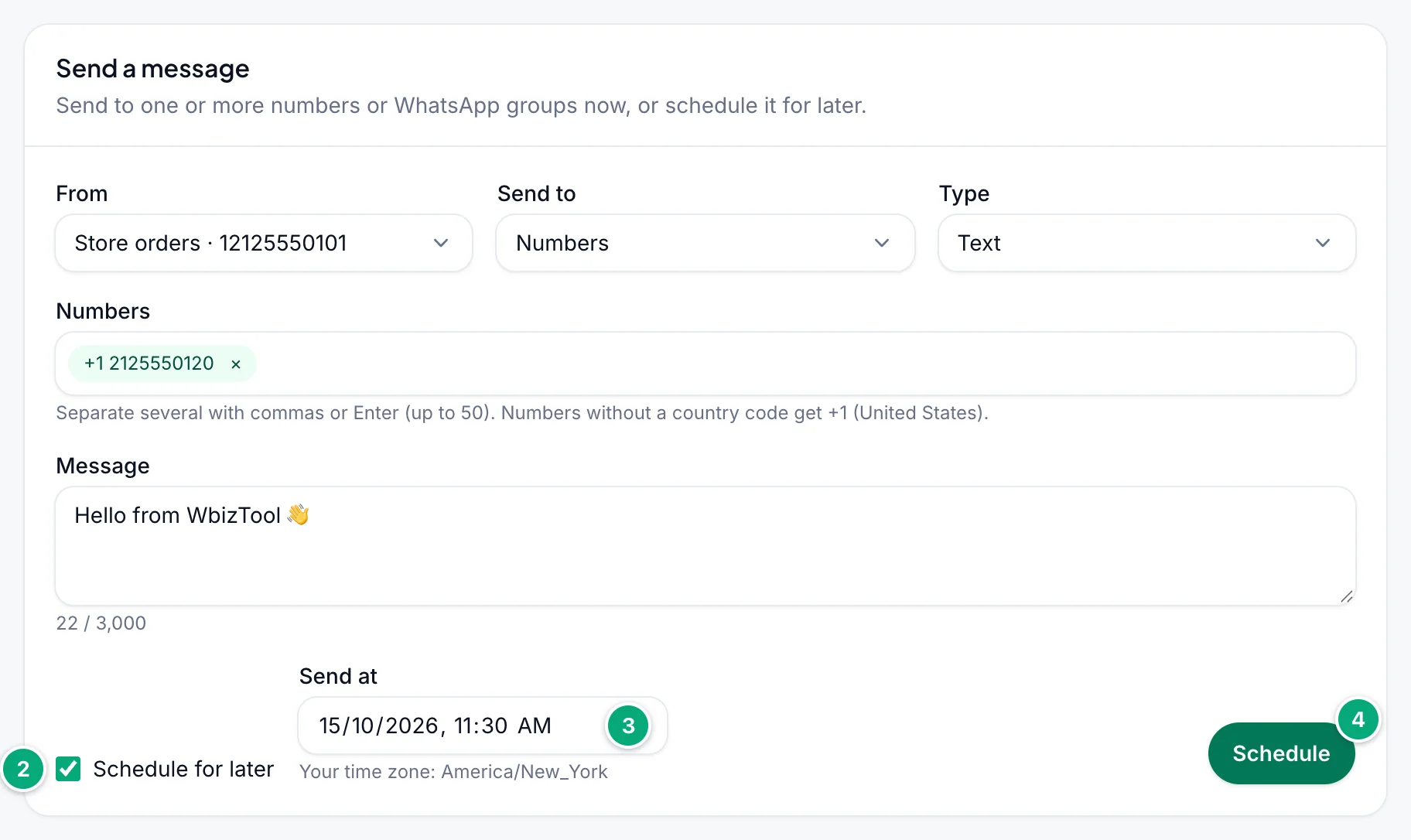
Tick Schedule for later. The Send at field appears, set to one hour from now.
Pick the date and time
Choose when to send under Send at. The time is in your computer's time zone, shown under the field, for example "Your time zone: America/New_York". If your recipients live in another time zone, convert the time first.
Click Schedule
Click Schedule (or Schedule 3 for three recipients). You see "Message scheduled for Oct 15, 2026, 11:30 AM." with your chosen time.
- The time must be in the future. Your browser won't accept a past one, and if the time passes before you click, you see "Pick a time in the future."
- A scheduled message shows as Waiting in Reports, with its scheduled time. It counts as a message straight away (towards the number's daily limit and the free plan's messages); cancelling it gives it back.
- It goes out at that time if the sending number is connected. If the number is disconnected then, the message waits until you reconnect it.
- You can't edit a scheduled message. To change it, cancel it and schedule a new one.
Send to a WhatsApp group#
Choose Groups
Under Send to, choose Groups. The recipient field becomes Group names.
Type the group's name
Type the group's name exactly as WhatsApp shows it on the sending number, and press Enter. Groups saved in your Contacts, such as ones you've messaged before, appear in a list as you type.
Write and send
Write the message and click Send, or schedule it.
- The sending number (From) must be a member of the group. If only admins can send messages in the group, it must be an admin.
- From a Telegram account, the hint says "From a Telegram account: a group's @username or t.me link, or the exact name of a group it's in." Upper and lower case don't matter, and the account must be allowed to post there. See Groups.
- Numbers and groups can't be mixed in one send: send to them separately.
Follow or cancel a message#
See in Reports opens Reports on the Waiting tab. You can also open Message history in the sidebar. Each message shows one of these statuses:
| Status | Meaning |
|---|---|
| Waiting | Queued or scheduled, not sent yet. |
| Sent | It went out from your number. Reports doesn't show whether it was delivered or read. |
| Failed | It couldn't be sent. The row shows why (see Troubleshooting). |
| Cancelled | Someone cancelled it before it went out. |
| Expired | Its expiry time passed before it could go out. Messages from this card never expire; API messages can. |
To cancel one message, find it on the Waiting tab (search by the recipient's number), click Cancel on its row, then Cancel message. A message that is already being sent may still go out. Owners and Editors can cancel.
For filters, the export and failure screenshots, see Reports & message history.
Send a test message from Numbers#
To check that a number works, open Numbers and click Send test message on a connected number. Type a number under Send to, keep or change the message and click Send. It's text only, to one number, from that number. See Connect your WhatsApp number.
The Home page at a glance#
Banners at the top of Home tell you when something stops your messages:
| Banner | What to do |
|---|---|
| A WhatsApp number is disconnected – … Its messages wait until you reconnect. | Click Reconnect. See Connect your WhatsApp number. |
| Connect your WhatsApp number to start. | Click Connect a number. |
| No free messages left. | Click Get more messages to pick a plan with unlimited messages, or wait until older messages free up (30 days after each was sent). See Plans and billing. |
| No plan yet. Pick a plan to start sending. | Click See plans. |
| Your last payment failed. | Click Fix payment and update your card. |
| Verify your email address to keep your account secure … | Click Verify email. |
Below them, Messages shows Unlimited and what was sent this period on a paid plan (Messages left of the 50 on the free trial) and how many are waiting, Numbers connected how many numbers work, Campaigns how many campaigns you have and how many reminders are on, and the last tile shows Reminders on. Once something has been sent, the Last 24 hours chart shows sent and failed messages per hour: click the failed count to open those messages in Reports, or All messages for the full history. New workspaces also see a Get set up checklist until each step is done.
Troubleshooting#
| Problem | What to do |
|---|---|
| No Send a message card | Scroll to the bottom of Home. If it isn't there, you're an Analyst in this workspace: ask an Owner to make you an Editor. |
| "Connect a WhatsApp number to send messages from here." | No number in the workspace is connected. Connect or reconnect one on Numbers. |
| From can't be changed | Only one number is connected, so it's always used. |
| Send stays grey | Add at least one recipient, fix or remove red chips, write a message (or paste the link for Image or File), keep it under 3,000 characters, and pick a time if Schedule for later is ticked. |
| "Not a phone number – use 7 to 15 digits." | With its country code, the number needs 7 to 15 digits, e.g. 919876543210. |
| "Add the country code – no country is set to complete numbers that start with 0." | The number starts with 0 and couldn't be completed: no country is known for the number under From, or the number isn't valid there. Type it with its country code. An Owner can set the country for numbers without a country code. |
| "Excel rounded this number (9.19877E+11) – type it in full." | The number was copied from Excel in its short form, which has lost the last digits. Type the full number. |
| "Up to 50 recipients at a time – use a campaign for more." | Send to 50 or fewer, or use Campaigns. |
| "That WhatsApp number isn’t connected any more. Pick another one." | The number under From disconnected after the page opened. Reload the page and pick a connected number. |
| "No WhatsApp number is connected." | Reconnect a number on Numbers. |
| "Pick a time in the future." | The time under Send at has passed. Choose a later one. |
| "You’re out of credits." | The free trial's messages are used up. If it adds "2 messages were queued before that.", the first recipients got the message and the rest didn't. The recipients stay in the card: remove the first ones (those that got it) with the × on their chips before you send again, or they get the message twice. Pick a plan on Billing & plans or wait until older messages free up, then send to the rest. |
| A recipient fails with "Daily limit reached: a number can send 1,000 messages in 24 hours (fair use). Send the rest tomorrow." | The number under From took 1,000 messages in the last 24 hours (fair use). Send later or from another number. |
| Message stays Waiting | The sending number is disconnected (Home shows a banner), its scheduled time hasn't come, sending hours are holding it, or other messages from the same number, such as a campaign, are going out first. |
| Failed with "Phone number invalid" | The number is wrong or isn't on WhatsApp. Check the country code. |
| Failed with "Group not found" | The sending number isn't in a group with exactly that name, a contact has the same name, or only admins can send in it. |
| Failed with "Image Url Error" or "File Url Error" | WbizTool couldn't download the link: it isn't public, it's wrong, or the file is over 100 MB. Open it in a private browser window to check. |
| Failed with "File exceeds WhatsApp size limit (16MB max)", "(64MB max)" or "(100MB max)" | The file is too big for its kind: images up to 16 MB, videos up to 64 MB (also a video sent as an image), other files up to 100 MB. Use a smaller file. |
| Failed with "The file is empty" | The link gives an empty file. Check the link in a browser and upload the file again. |
| Failed with "File type not supported" | A .wav or .ogg file was sent as an Image. Send it as a File. |
| Failed with "Blocked Contact" or "Phone Number Blocked" | The sending number has blocked this contact in WhatsApp. Unblock it on your phone and send again. |
The recipient's file ends in .pdf although it isn't a PDF | Its name had no extension, or one that isn't kept. Type a File name with the right extension, see Images and files. |