
Integrations
Google Sheets integration
A Google Sheets trigger sends a WhatsApp message by itself for each row added to a worksheet, such as a new lead, order or booking. The message is filled in from the row's columns and goes to the number in its phone column. No other automation tool is needed.
Who can do it: Owners and Editors, on a paid plan (Lite 1 trigger, Standard 3, Advanced 5, Enterprise 10). Only Owners can disconnect the Google account. Analysts don't see Google Sheets in the sidebar; opening the page shows "Only the owner or an editor can do this" (see Roles and permissions).
Open Google Sheets under Integrations in the sidebar, or go to /google-sheets/.
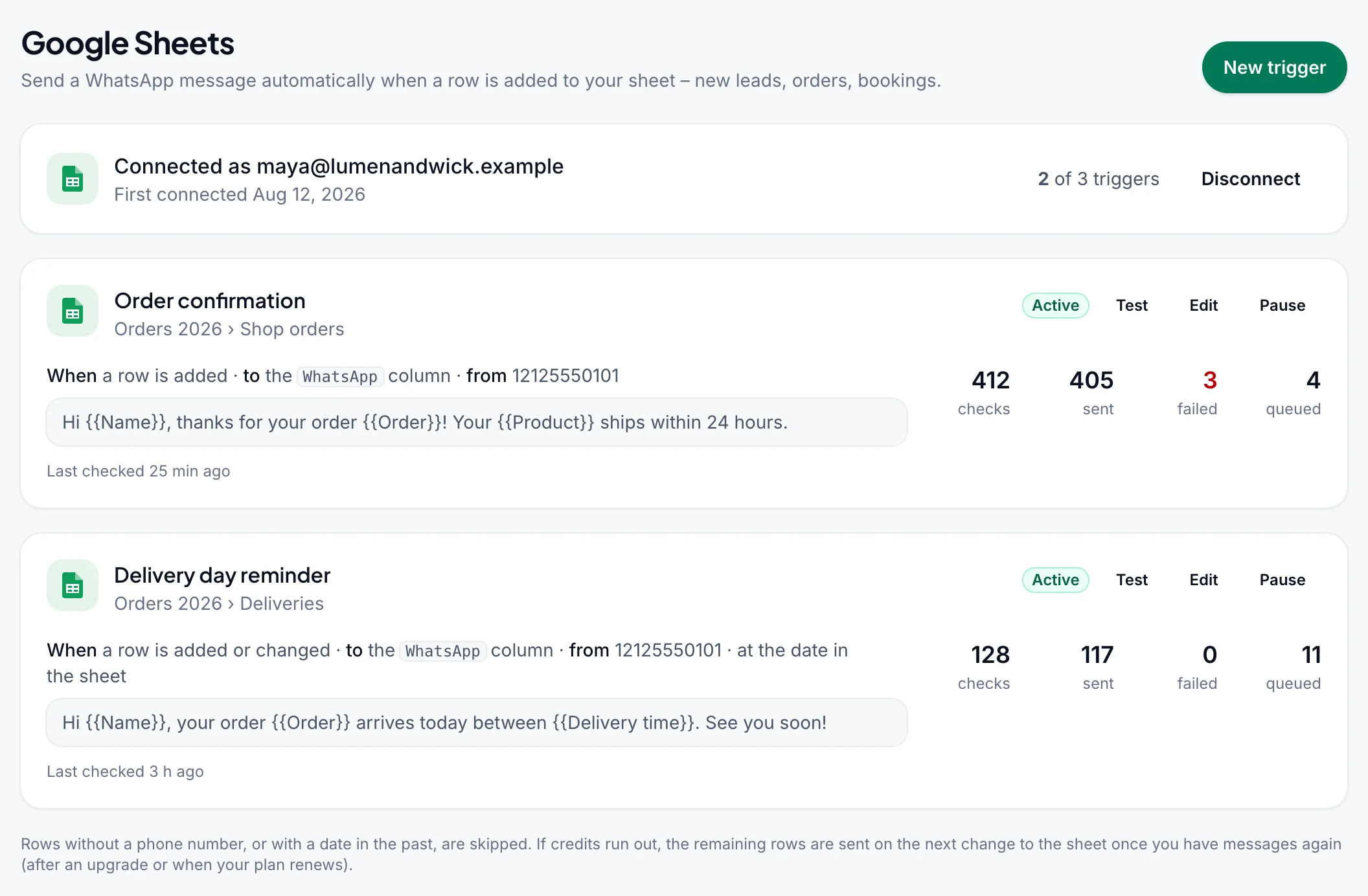
You need a connected WhatsApp number and a Google Sheet whose row 1 holds the column names, such as WhatsApp, Name and Order, with one row per message below. Only columns A to Z are read.
Connect your Google account#
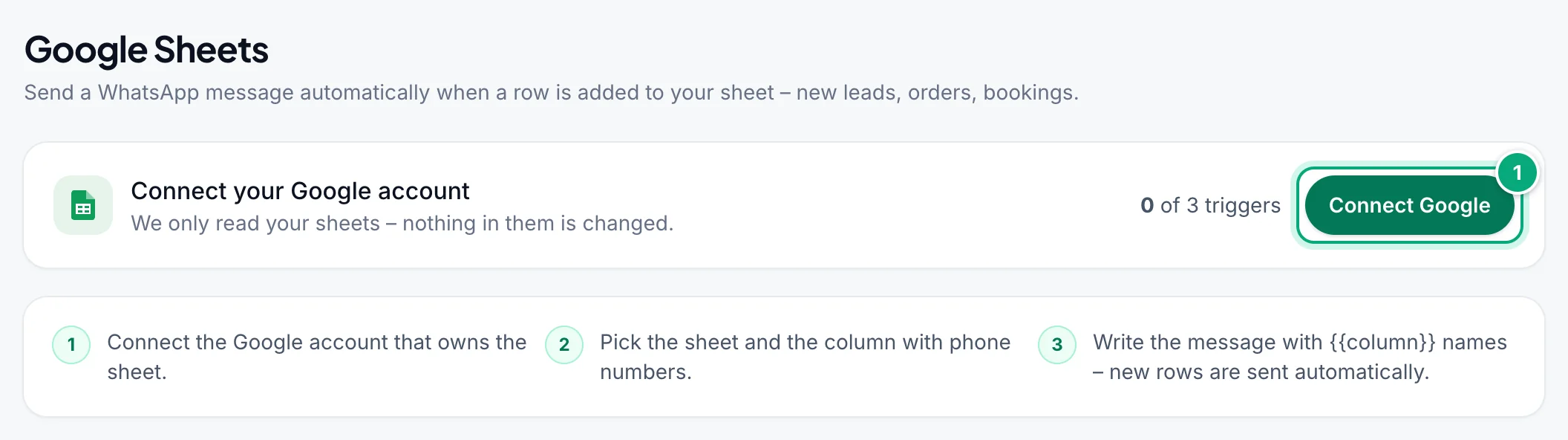
Click Connect Google
On the Google Sheets page, click Connect Google.
Choose the Google account
Sign in with the Google account that owns the sheet.
Allow access
Google asks you to let WbizTool see your spreadsheets and the Drive files you choose with it. If it shows tick boxes, tick them all. You're back on the page with "Google account connected".
Each workspace connects one Google account, and WbizTool only reads its sheets.
Create a trigger#
Click New trigger
At the top right of the page.
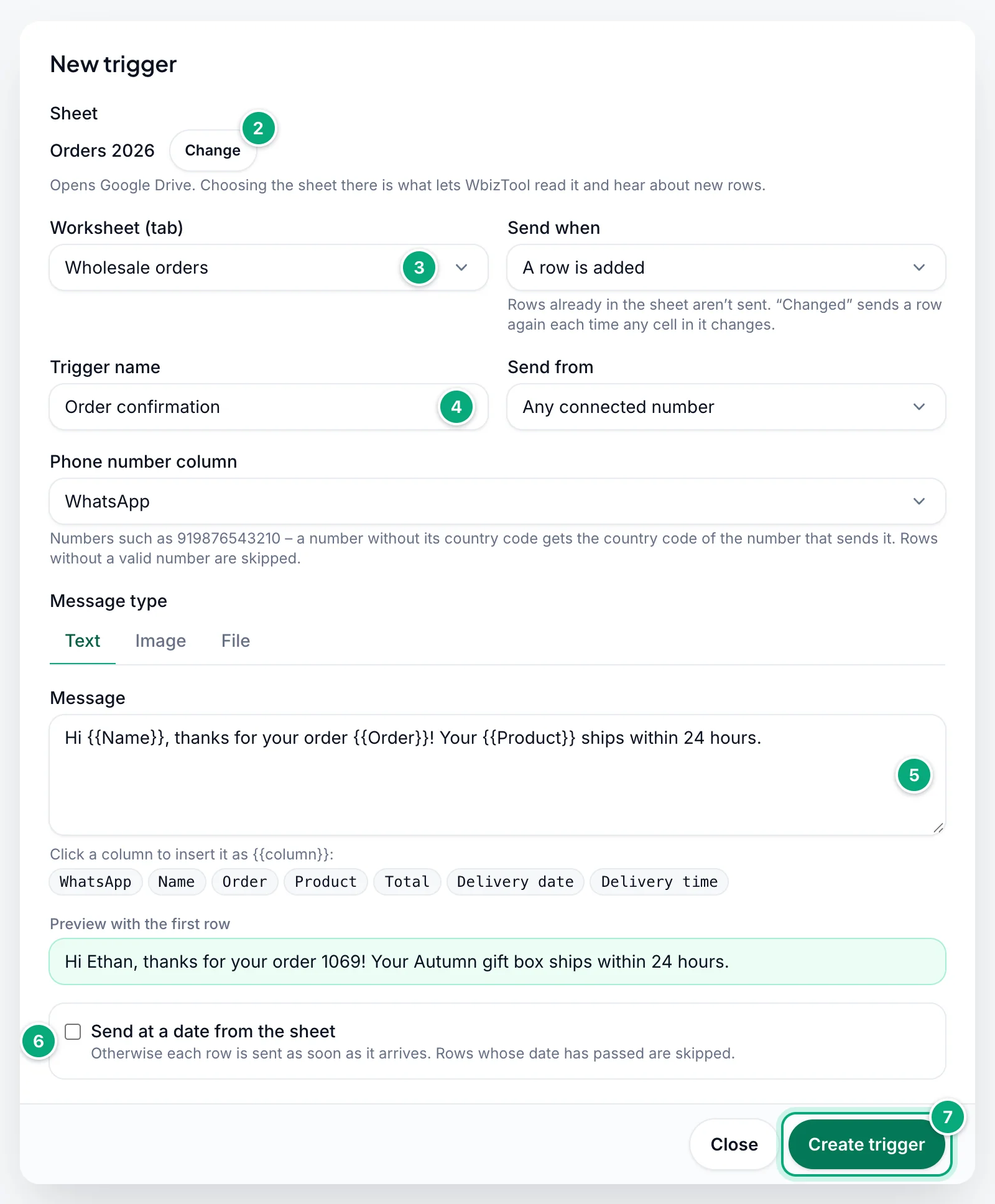
Choose the sheet
Click Choose a sheet and pick the spreadsheet in Google Drive, which opens over the page. Choosing it there is what lets WbizTool read it and hear about new rows, so there's no field for pasting a link.
Pick the worksheet and when to send
Choose the Worksheet (tab), then under Send when: A row is added, or A row is added or changed (see Which rows are sent). Each worksheet can have one trigger.
Name it, pick the number and the phone column
Type a Trigger name. Under Send from, choose a number, or Any connected number. Check the Phone number column: a column named like
WhatsAppis picked for you, else one likePhoneorMobile, else one likeNumberorContact, also in the dashboard's other languages (Telefon,Celular,No HP…). Make sure it isn't one likeOrder number.Write the message
Type the Message, clicking a column name below the box to insert it, such as
{{Name}}. Preview with the first row shows it filled in from row 2. For a picture or document, see Images and files.Schedule it (optional)
To send each row at a date from one of its columns, tick Send at a date from the sheet (see Send at a date from the sheet).
Create it
Click Create trigger. You see "Trigger created – new rows are sent from now on".
New rows are usually sent within a few minutes. Test the trigger to check the message first.
Which rows are sent#
| Send when | What is sent |
|---|---|
| A row is added | Each row added after you created the trigger. Rows already there aren't sent. |
| A row is added or changed | New rows, and a row again each time it changes. Rows already there aren't sent until they change. |
- Add rows at the bottom, by typing, pasting or a Google Form. With A row is added, a row inserted higher up isn't sent (the last row is sent again instead), and after deleting rows, new ones are sent only once the sheet is longer than before.
- Fill in the phone last, or paste whole rows: a row is sent at the first check after its phone cell is filled, with the cells it has then. With A row is added, once a row below it has been sent, change only its phone (and date) cells: if its other cells change too, it isn't sent.
- With A row is added or changed, every edit sends the row again: a cell filled, changed or cleared, even in a column the message doesn't use, such as a Status column you update by hand. Don't sort the sheet or insert or delete rows either: rows that move count as changed. Adding a column doesn't resend anything; renaming one counts as a change for each row with a value in it.
- Rows without a valid phone number are skipped and don't count as errors. With A row is added, a skipped row is remembered for 7 days (up to 500 rows per trigger): correct its phone number and it's sent at the next check, even if rows below it were sent meanwhile. It's recognised by its other cells, so it isn't sent if those changed too, if rows were inserted or deleted above it, or if it has nothing but a phone and a date. Rows skipped before 13 October 2026 aren't tried again.
Write the message#
Write column names in double braces, exactly as in row 1: capitals and spaces count.
Hi {{Name}}, thanks for your order {{Order}}!With Name Ethan and Order 1069, the message is "Hi Ethan, thanks for your order 1069!" Values are inserted as the sheet shows them, such as $24.00; an empty cell leaves a gap (the preview shows [Name]). A {{…}} that isn't a column is sent as typed, and the dialog warns: "Not columns of this worksheet, sent exactly as typed: …". Messages can have up to 3,000 characters.
Phone numbers#
- Best with the country code, such as
919876543210or+91 98765 43210. Spaces, dashes, brackets, dots,+and a leading00don't matter. - A number without it, such as
98765 43210or09876543210, gets the country code of the number that sends it, else the workspace's Country for numbers without a country code. A number starting with0is skipped when no country is known. - Rows whose phone isn't 7 to 15 digits are skipped, and so are numbers Excel rounded, such as
9.19877E+11. Format the phone column as plain text (Format → Number → Plain text).
Images and files#
Under Message type, choose Image or File, then fill in Link to the image or file: a public link, or a column that holds one, such as {{Photo}} or https://example.com/{{SKU}}.jpg. The Media directory gives you links for your files. The message becomes the Caption (optional). A file is named after the end of its link, with .pdf added when that isn't a supported file type.
Send at a date from the sheet#
With Send at a date from the sheet ticked, choose:
- Date column:
YYYY-MM-DD(best),DD/MM/YYYY,MM/DD/YYYY,DD-MM-YYYYorDD.MM.YYYY. A date that fits two of them, such as03/04/2026, is read the way your spreadsheet's locale writes dates (File → Settings → Locale): month first for United States, day first for most other locales. - Time column:
HH:MMorHH:MM:SS, 24-hour. With None – use the date only, a row is due at 00:00 on its date, so a row dated today is already past. - Time zone of those dates: the time zone of your sheet's dates. The list has UTC, nine common time zones and your browser's, which is selected to start with.
The phone, date and time columns are found by name: the last column whose name contains the one you chose, in any capitals. With Phone and Phone 2, choosing Phone reads Phone 2 if it's further right.
Rows whose date and time have passed are skipped. The others wait in Reports as Waiting until their time. With A row is added, correct the date within 7 days and the row is sent at its new time (see Which rows are sent).
Test a trigger#
Click Test
On the trigger's card, click Test. Test trigger shows the message made from the sheet's last row and the number that row would go to.
Enter your own number
Under Send the test to, type your own number with its country code. The test goes only there, never to the people in your sheet.
Send it
Click Send test. You see "Test queued for … – it usually goes out within a minute", or "… – it goes out when your sending hours start (…)" while sending hours that include Google Sheets hold it. The message starts with
[TEST].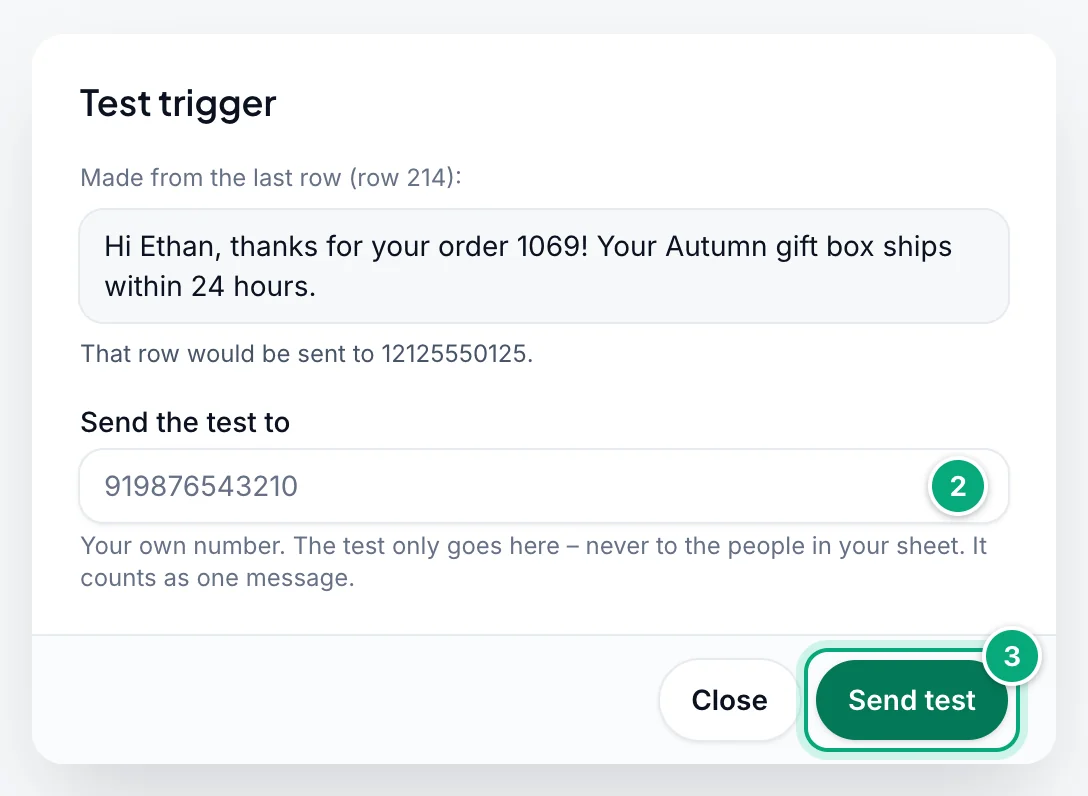
A test counts as one message, isn't counted on the card, and works while the trigger is paused. "That row has no valid number in the … column, so the trigger would skip it." means that row's phone needs fixing (see Phone numbers).
Check, edit, pause or delete a trigger#
Each card shows the spreadsheet (a link to it) and worksheet, a badge (Active, Paused, Can’t send or Not receiving changes), the rule, the message and the counts: checks (times the sheet was read after a change) and the messages sent, failed (or expired) and queued. Below are "Last checked …" and any problem, such as "Last reported problem (may be resolved): …".
WbizTool writes nothing back to the sheet: each message's status and failure reason are in Reports, and each new number is saved in Contacts as Sheet Contact and the number.
- Edit changes the name, Send from, the phone column, the message and its type, or the schedule; click Save changes. New rows use the changes. The sheet, worksheet and Send when can't be changed; create a new trigger for that.
- Pause stops the trigger ("Paused – the sheet isn’t checked and no rows are sent."), Resume starts it again. Rows added meanwhile (and, with A row is added or changed, rows changed meanwhile) are sent at the first change after you resume. To skip them, delete the trigger and create it again.
- Delete: click Edit, then Delete trigger at the bottom left, and confirm. The trigger "stops sending and frees its place in your plan. Messages already queued are still sent." To stop those, cancel them in Reports.
When messages go out#
- No timer: when Google reports a change to the spreadsheet (any tab), its active triggers read their worksheet. Without a change, nothing is read.
- Number not connected: messages wait until the Send from number is reconnected. With Any connected number and no number connected, rows aren't lost either: they're sent at the first change after a number connects.
- Number removed: a trigger that sent from it switches to Any connected number. Its messages still waiting are cancelled with the number.
- Sending hours: if an Owner ticked Google Sheets under Sending hours, messages made outside them wait, tests included.
- Out of messages (free plan): the trigger stops at the first row it can't send ("Not enough credits: some rows were not sent. …"). Once you have messages again, edit something in the spreadsheet, such as another tab, to send the rest.
- Daily limit: a row over the number's daily fair-use limit (1,000 messages in 24 hours) fails in Reports with "Daily limit reached: …".
- Alerts: when a trigger stops receiving changes, loses its phone column or fails 3 times in a row, Owners and Editors get the email "A Google Sheets trigger in … needs you", and a WhatsApp alert too if their WhatsApp switch is on. Both follow Shopify & integrations in Notifications. Rows added while a trigger was stopped aren't lost: once it works again, they're sent at the next change to the sheet.
Limits#
- The free trial and the free plan have no triggers. Paused triggers count; deleting one frees its place.
- At the limit, New trigger is greyed out ("Your plan’s trigger limit is reached"): delete a trigger, or an Owner can change the plan.
- If your plan changes to one with fewer triggers, yours aren't removed or paused, but you can't add new ones.
Disconnect Google#
Only Owners see Disconnect on the "Connected as …" card. Confirm with Disconnect: "Every trigger is paused and Google stops sending changes. Connecting again later keeps your triggers, paused – resume them one by one."
- Until you connect again, the triggers are hidden but still count against your plan, so delete the ones you don't need first.
- To switch Google accounts, disconnect and connect the other one. If it can't open the triggers' sheets, delete them and create new ones.
- WbizTool stays in your Google account's connected apps until you remove it there.
Troubleshooting#
| Message or problem | What to do |
|---|---|
| Connect Google greyed out, or "Google Sheets triggers aren’t in your current plan." | An Owner can buy or change the plan. |
| "Google access wasn’t allowed – nothing was connected" or "Couldn’t connect the Google account. Please try again." | Click Connect Google again and allow access, with every box ticked. |
| "Google Drive couldn’t be opened. Allow pop-ups and scripts from apis.google.com, then try again." | A blocker stopped Google Drive. Allow apis.google.com, or try another browser. |
| "The worksheet … already has a trigger. Edit that one, or choose another worksheet." | Each worksheet can have one trigger, paused ones included. Edit that trigger, or choose another worksheet. |
| "This worksheet has no header row. Add column names in row 1, then choose it again." | Type the column names in row 1, then choose the worksheet again. |
"Google no longer accepts the saved access. Disconnect and connect the Google account again.", or invalid_grant | An Owner clicks Disconnect, then Connect Google, then Resume on each trigger. |
| Can’t send: "Phone column '…' not found." | The phone column was renamed or deleted. Name it back, or Edit the trigger and choose it. |
| Not receiving changes, or "Trigger created, but Google didn’t accept the change notifications: …" | Click Pause, then Resume. |
| "Google says WbizTool can’t open that sheet. …" or "… can’t open this sheet, so new rows aren’t sent. …" | WbizTool opens only sheets chosen in Google Drive. Delete the trigger and create it again, choosing the sheet with Choose a sheet. |
| No messages for new rows | Check the badge, "Last checked" and the phone values; see Which rows are sent. A renamed worksheet isn't found: rename it back or create a new trigger. |
| Old rows were messaged | See Which rows are sent and Pause. |
{{…}} or a gap in the message | See Write the message. |
| Scheduled rows go out at once, or never | See Send at a date from the sheet. |
| Messages stay Waiting in Reports | See When messages go out; scheduled rows wait until their time. |
| "The trigger’s WhatsApp number isn’t connected. …" | Reconnect it, or Edit the trigger and choose another number. |