
Product guides
Campaigns: bulk WhatsApp messages from a spreadsheet
Upload a CSV or Excel sheet where each row is one WhatsApp message, check what WbizTool read from it, and send the rows as a campaign. It's the quickest way to message a list of customers or groups when every row already has its own text. You can also send one message to everyone with a contact tag, with each person's name filled in.
Who can do it: Owners and Editors start, cancel and archive campaigns. Analysts can see campaigns, open their messages and download reports. Campaigns work on every plan. Paid plans send unlimited messages under fair use; on the free trial each row you send uses one of its 50 messages.
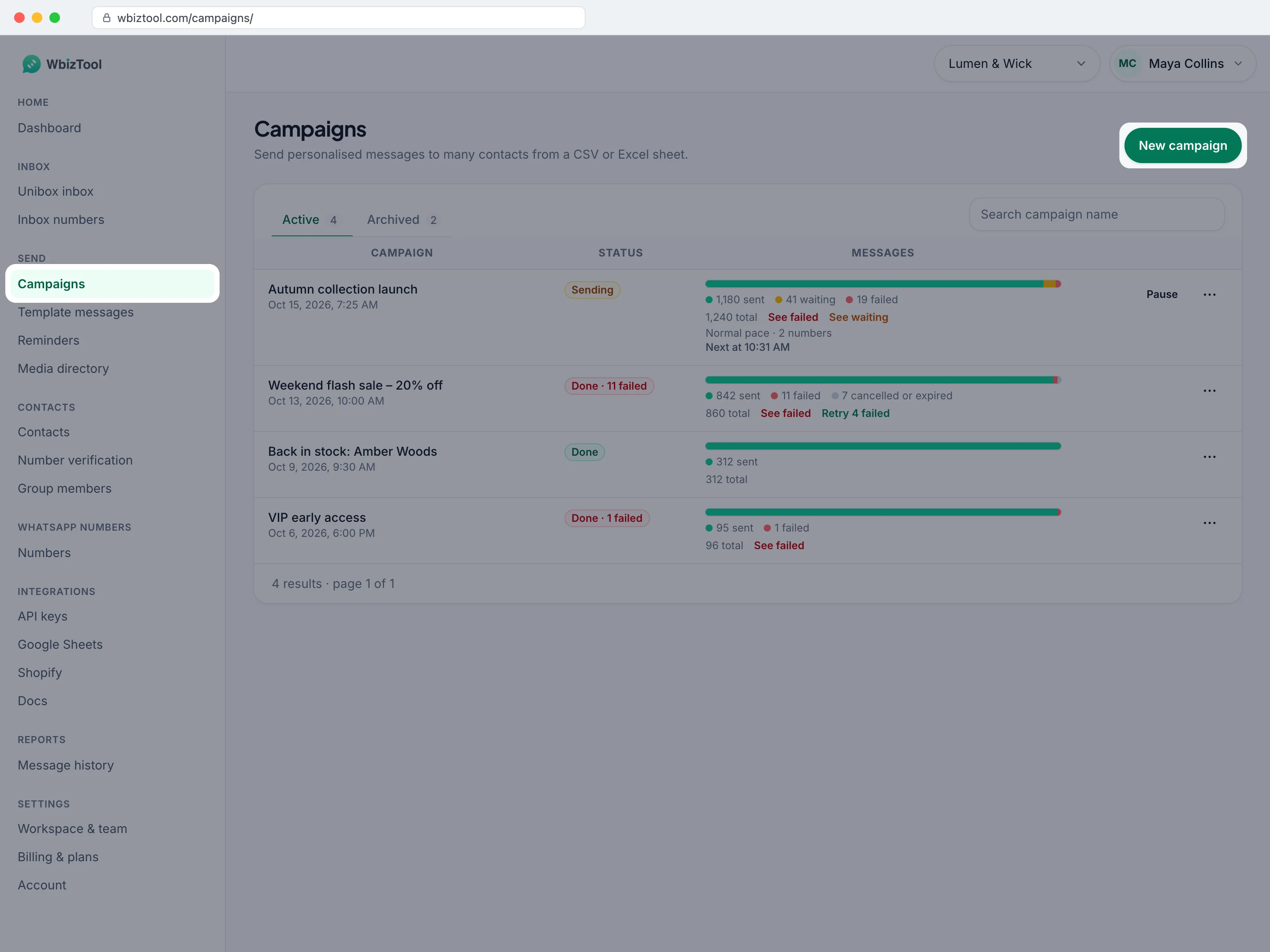
Open Campaigns under Send in the sidebar, or go to /campaigns/.
Before you start#
- A WhatsApp number showing Connected on WhatsApp numbers. See Connect your WhatsApp number.
- Room for every row: a number can take 1,000 messages in 24 hours (fair use), and on the free trial the New campaign dialog shows how many messages are left. See Plans and billing for what each plan includes.
- Plan for about 150–200 messages per number per day: see Sending pace.
- A
.csv,.xlsor.xlsxfile of up to 10 MB with the columns below. The dialog has a Sample CSV and a Sample Excel to start from.
Start a campaign#
Open the dialog
On Campaigns, click New campaign.
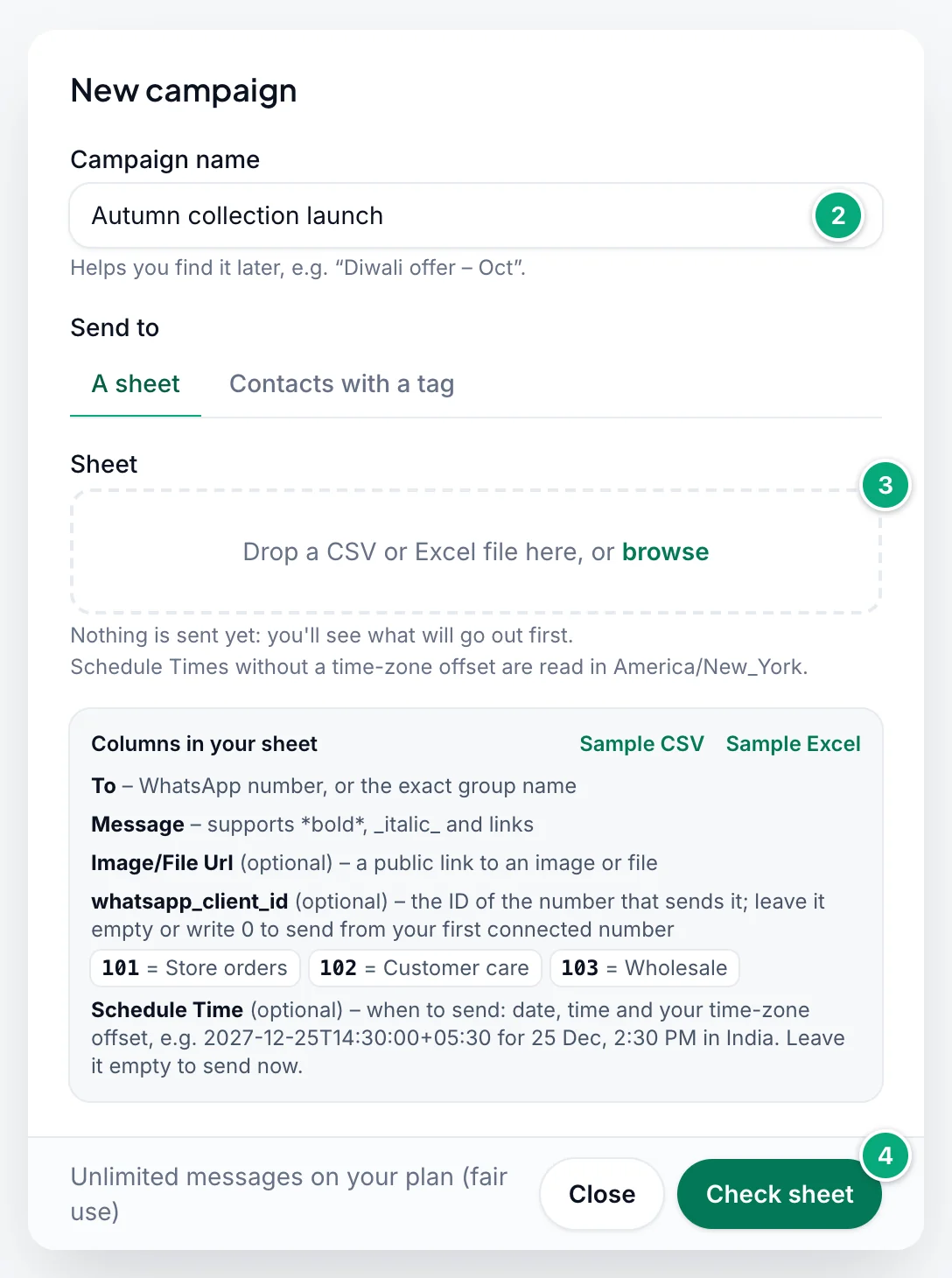
Name the campaign
Type a Campaign name that helps you find it later. If a campaign with that name already exists, a number is added, such as
Diwali offer (1).Add your sheet
Drop your file on the box under Sheet, or click browse and choose it. To pick another file, click Remove.
Check the sheet
Click Check sheet. Nothing is sent yet: WbizTool reads every row and shows what will go out. See What the check shows.
Choose how it sends
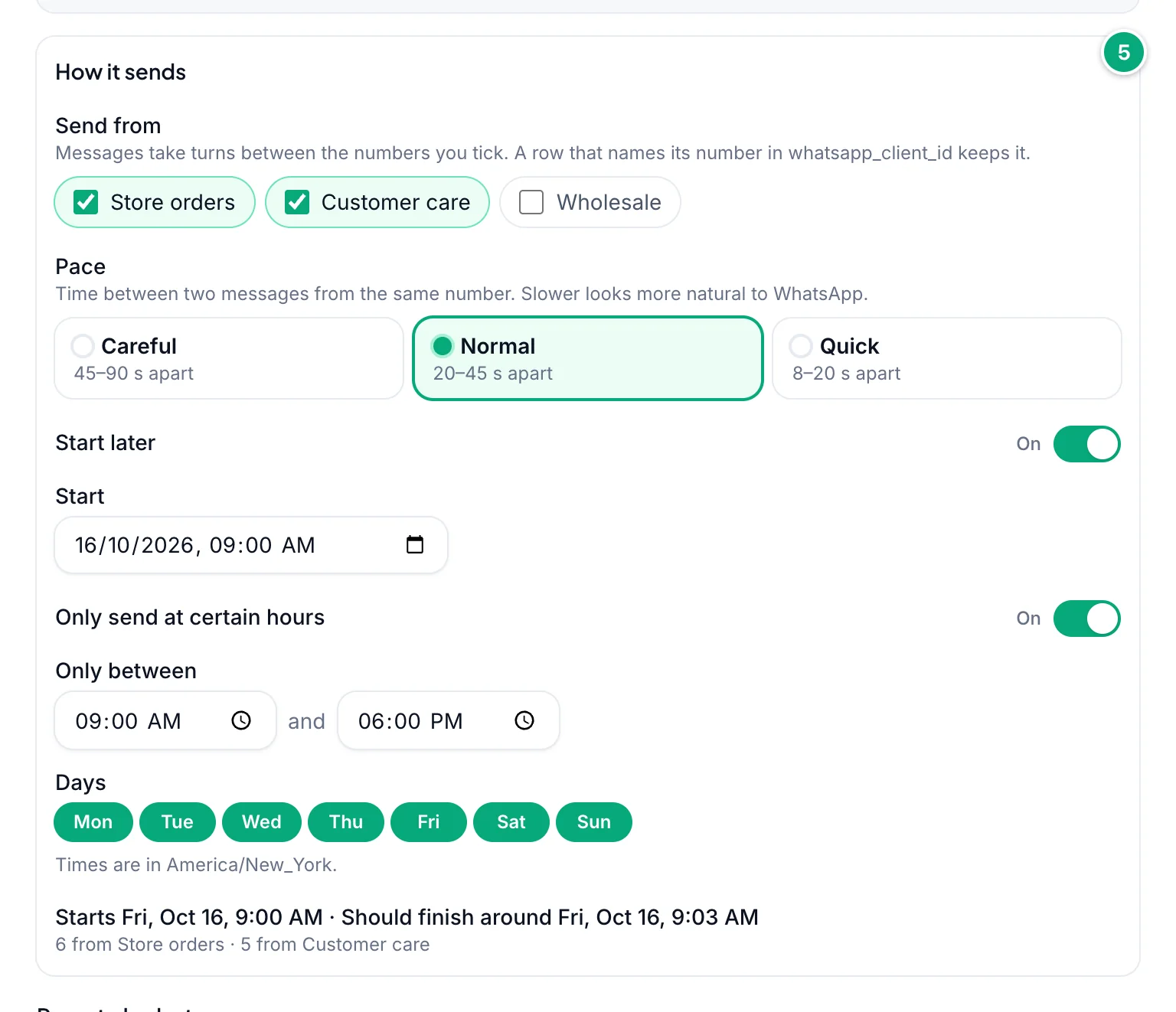
Under How it sends, tick the numbers to send from (the first connected one is ticked) and pick a Pace. If you like, turn on Start later to pick when it starts, or Only send at certain hours to choose daily hours and days. The last line says when it should finish. See Sending pace.
Send
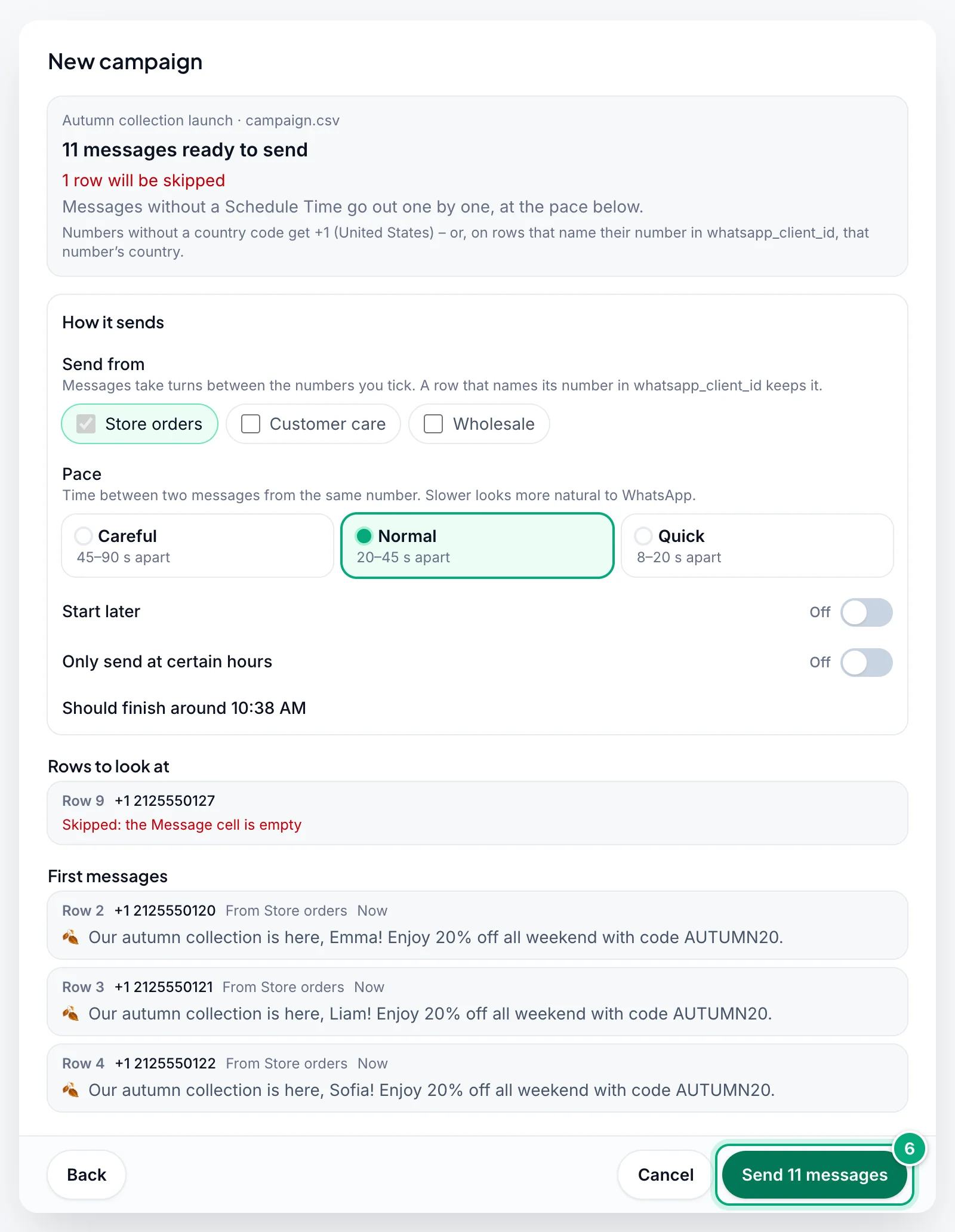
If the check looks right, click Send … messages, for example Send 11 messages. You see "Campaign started: 11 messages queued", and the campaign appears at the top of Active.
What the check shows#
- The summary: how many messages are ready to send, how many rows will be skipped (in red), how many go to groups and how many go out at their own
Schedule Time. Below it, how many messages are left on your plan now and afterwards, and the country code that numbers without one get, such as "+91 (India)" (see Numbers and groups). - Rows to look at: the rows that will be skipped, with the reason in red, and rows that will be sent but have a warning, in amber. Up to 100 are listed; when there are more, you see "Showing 100 of … rows to look at." Each starts with its row in the sheet, such as "Row 9", and the number as it will be sent, such as
+91 98765 43210. - First messages: the first few rows as they'll go out, with the number they're sent from and when ("Now" or "At …"). Rows to a group have a Group badge, rows with a link an Image or File badge.
- How it sends: the numbers it goes from, the pace, optional sending times, and "Should finish around …". See Sending pace.
Empty rows are ignored. To fix a row, correct the sheet and save it, click Back, then Remove, choose the file again and click Check sheet. The campaign name is kept.
Before you send#
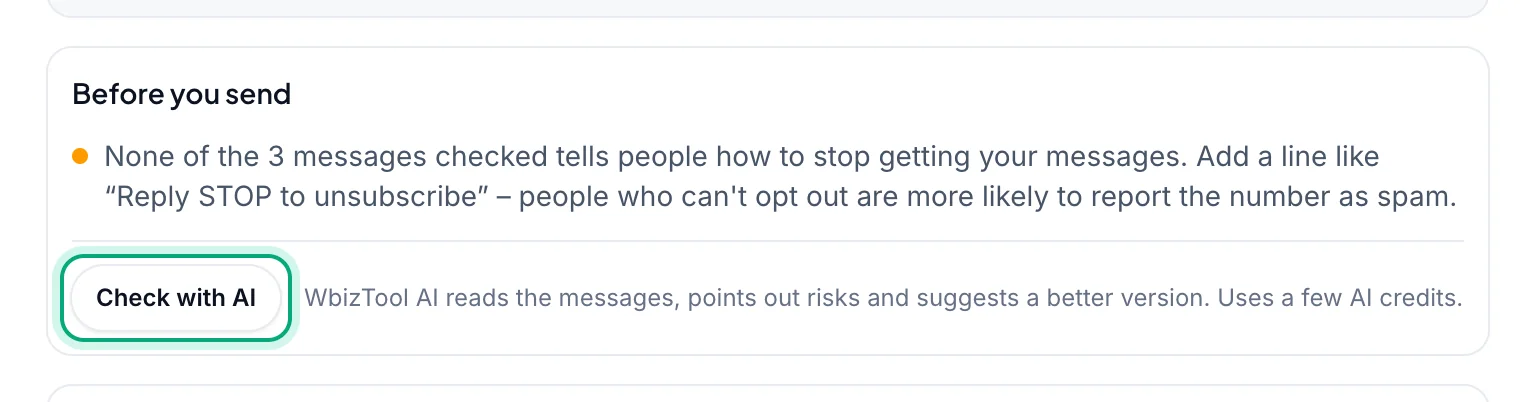
Under the check, Before you send looks for common problems that get numbers reported or blocked: no opt-out line such as "Reply STOP to unsubscribe", messages in capital letters, bare or shortened links, no connected number, more than the fair-use limit for one number, a campaign that takes many days, or the Quick pace for more than 100 messages. These warnings are free and never stop you from sending.
Check with AI has WbizTool AI read the messages too: it lists risks and suggests a better version to paste into your sheet's Message column. It uses a few AI credits and needs a paid plan with WbizTool AI on.
Send to contacts with a tag#
Instead of a sheet, send one message to everyone with a tag on the Contacts page, such as VIP.
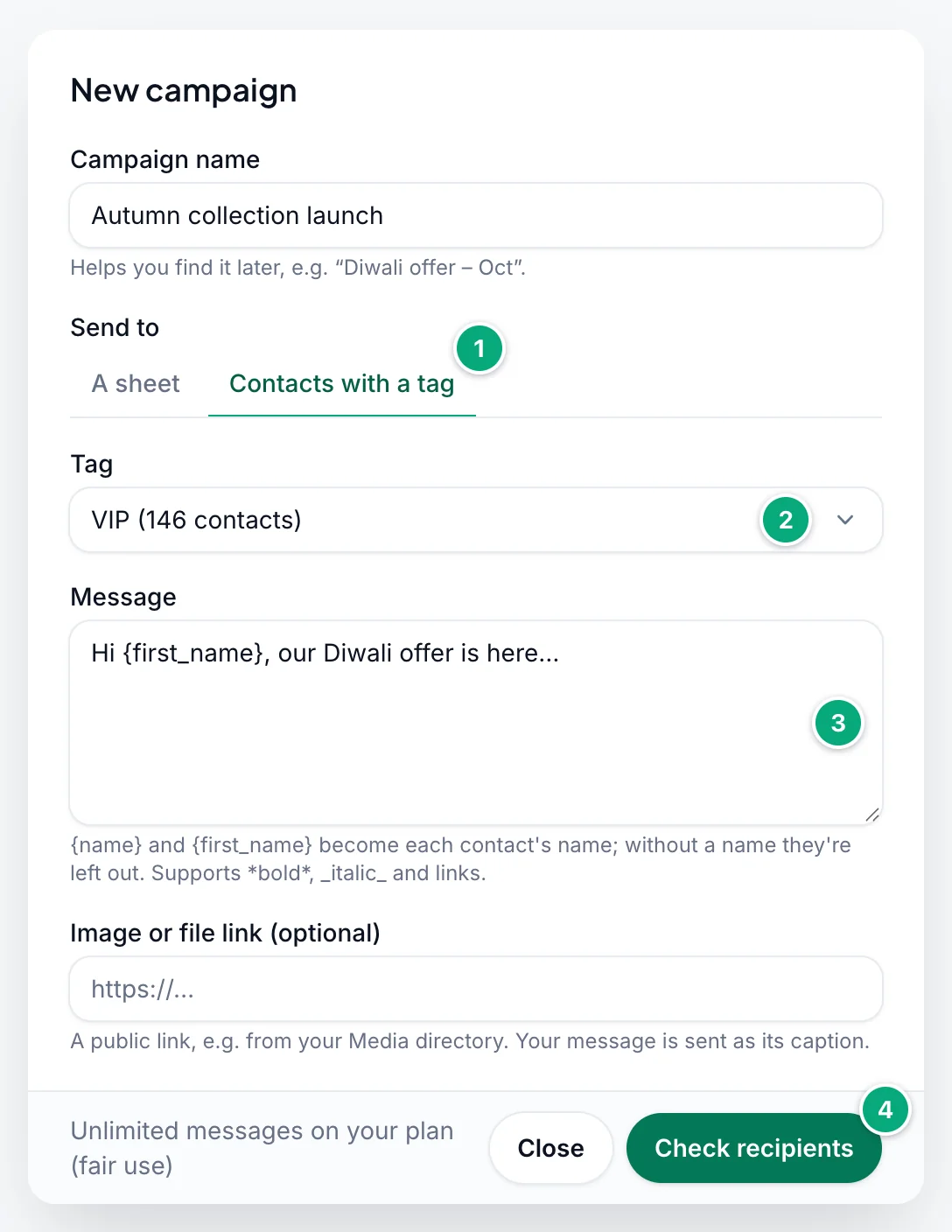
Choose Contacts with a tag
Click New campaign, type a Campaign name, and under Send to click Contacts with a tag.
Pick the tag
Choose it under Tag. Each tag shows how many contacts have it, such as VIP (146 contacts). With no tags yet, the dialog sends you to Contacts to tag people first.
Write the message
Type the Message (up to 3,000 characters).
{name}becomes each contact's name and{first_name}its first word:Hi {first_name}, our Diwali offer is herereaches Emma Thompson asHi Emma, our Diwali offer is here. A contact without a name gets the message without it. To send an image or a file, paste its public link under Image or file link (optional): the message is its caption.Check and send
Click Check recipients. The check is the same as for a sheet: how many messages are ready, the first ones as they'll go out, and How it sends. Then click Send … messages.
- The campaign goes to the contacts that have the tag when you click Send; tagging someone afterwards doesn't add them.
- Groups with the tag get the message in the group. Opted-out contacts fail with Opted out and nothing is sent to them.
- In the list, the campaign shows "To tag VIP" under its name. A run of a reminder to a tag shows "Reminder to tag VIP".
Sheet columns#
The first row of the sheet holds the column names. Spell them exactly as below, in English, whatever language your dashboard uses. The dialog lists them under Columns in your sheet.
| Column | Required | What to put in it |
|---|---|---|
To | Yes | A WhatsApp number, such as 919876543210 (one without its country code is completed, see Numbers and groups), or the exact name of a WhatsApp group, such as Family Group. |
Message | Yes | The message text. WhatsApp formatting such as *bold* and _italic_ works, and so do links. |
Image/File Url | No | A public link to an image or file. The row's Message goes with it as the caption. |
whatsapp_client_id | No | The ID of the number to send from. Leave it empty or write 0 to send from the numbers ticked under Send from (your first connected number unless you tick more). |
Schedule Time | No | When to send the row, such as 2026-12-25T14:30:00+05:30 (25 Dec 2026, 2:30 PM in India). Leave it empty to send now. |
Example:
| To | Message | Image/File Url | whatsapp_client_id | Schedule Time |
|---|---|---|---|---|
| 919876543210 | Hi Aman, your order has shipped. | |||
| Family Group | Happy holidays everyone! | 1234 | 2026-12-25T16:00:00+05:30 | |
| 919876543211 | This week's offers | https://example.com/offer.jpg | 1234 |

- In Excel,
Whatsapp NumberorContact phone Numberalso work instead ofTo. In a CSV without aTocolumn, the first column is read as the number and the second as the message, whatever their names, so keep them in that order. Image/File Url (Optional)andSchedule Time (Optional)work too, as in the sample files. Other columns are ignored.- CSV files can use commas or semicolons, in UTF-8 or a Windows encoding.
Numbers and groups#
- Write numbers with the country code where you can. Spaces, dashes, dots and brackets are removed, and a
+or00at the start means the number has its country code, so+91 98765-43210,0091 98765 43210and+44 (0)20 7946 0018work. - A number without its country code, such as
98765 43210or09876543210, gets the country code of the number that sends the row: the one inwhatsapp_client_id, else your first connected number. If that number's country can't be told, the workspace's Country for numbers without a country code is used. A number that already starts with a valid country code is never changed. - A number that already reads as one with a country code is sent as it is: from an Indian number,
6581234567goes to Singapore (+65 8123 4567). The check doesn't flag these, so write such local numbers with91first. - These rows are skipped, and the check lists them so you can fix the sheet: a number with fewer than 7 or more than 15 digits (with its country code), a number Excel rounded (see below), and a number that starts with
0and can't be completed, for example because no country is known for it. - A
Tocell with letters is read as a group name. Digits with dashes, dots or brackets, such as98765-43210, are a number, unless they have fewer than 7 digits, such as2024-25, or match the name of a group already in your Contacts, such as2024-2025(only for fewer than 10 digits: 10 to 15 digits are always a number). Check the "go to groups" count in the check. - Group names must match the WhatsApp group exactly, and the sending number must be a member that's allowed to send. WbizTool sends only to a group named exactly like the
Tocell: a partial name, or a contact with the same name, doesn't match and the message fails with "Group not found".
Images and files#
- A link ending in
.jpg,.jpeg,.png,.gif,.bmp,.tiffor.svgis sent as an image. Any other link is sent as a file. MP3, M4A and AAC files arrive as audio, with the text as a separate message; WAV and OGG files arrive as documents, with the text as caption. - The link must open the file directly, without a login. Upload your files in Media directory to get one (see Media directory).
- The recipient sees the file name from the end of the link, in lower case. It keeps its extension if the Media directory accepts that type, such as
.pdf,.docx,.xlsx,.csvor.zip(and a few more, such as.webmor.xlsm: full list on Send message). A link with no extension, or another one, gets.pdfadded to the name. - Images can be up to 16 MB, videos 64 MB and other files 100 MB.
Choose the sending number#
With more than one connected number, tick them under Send from in How it sends: rows that don't name a number take turns between the ticked numbers, so each number sends a share at its own pace and the campaign finishes sooner. Your first connected number is ticked to start with.
To send a row from one particular number, write its ID in whatsapp_client_id. The Columns in your sheet box lists your numbers with their IDs, such as 1234 = Orders. On WhatsApp numbers, each number shows its ID on a button, such as ID 1234 ⧉: click it to copy the ID.
- Empty or
0: the row goes from the numbers ticked under Send from. - An ID that isn't one of your numbers (for example a removed one): the row goes from the ticked numbers, with a warning in the check.
- A disconnected number: the row waits until that number is connected again, with a warning.
- If no number is connected and the row names none that exists, it's skipped.
Schedule rows#
- Write the date, time and your time-zone offset:
2026-12-25T14:30:00+05:30. UseZfor UTC, such as2026-12-25T09:00:00Z. - A time without an offset, such as
2026-12-25 14:30, is read in your browser's time zone. The dialog shows which one, for example "Schedule Times without a time-zone offset are read in Asia/Kolkata." - Write the year first. A date like
05/12/2026is read as 12 May. - A time in the past, or one WbizTool can't read, skips the row. In Excel, a cell formatted as a date can't be read: format the column as Text and type the time.
Track a campaign#
The Active tab lists your campaigns, newest first, 25 to a page, with when each was created. Search by name in Search campaign name.
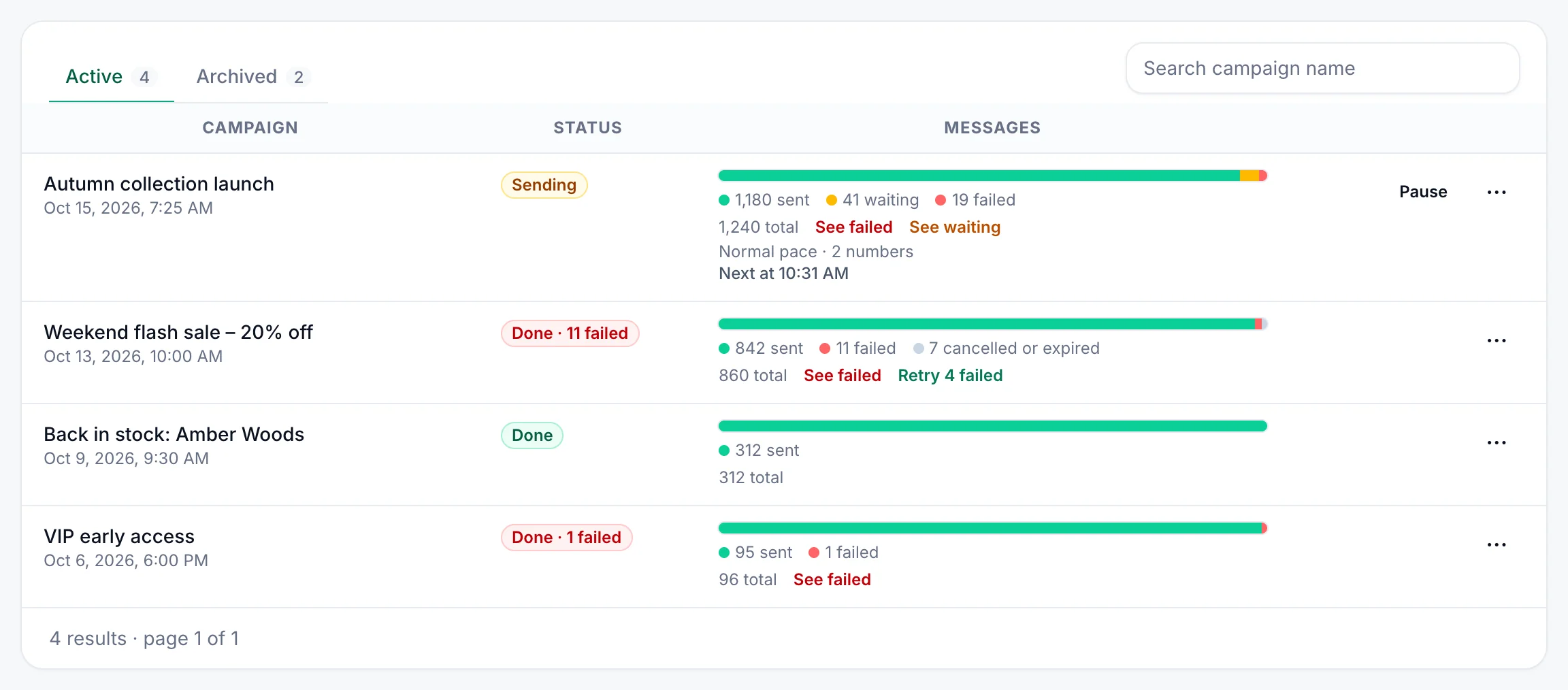
The Status column says where each campaign stands:
| Status | Meaning |
|---|---|
| Waiting | Nothing has been sent yet. |
| Scheduled | Nothing has been sent yet: it starts at the start time you chose. |
| Sending | Some messages are sent, others still waiting. |
| Paused | You paused it: nothing more is sent until you resume it. |
| Outside its hours | Its messages wait for the daily hours or days you chose. |
| Done | Every message was sent. |
| Done · … failed | Finished, but some messages failed. |
| Done · … cancelled | Finished, and some messages were cancelled or expired. |
| Stopped | Every message was cancelled or expired before any went out. |
| Old campaign | Its messages were deleted after 90 days ("Its messages are no longer kept"). |
The Messages column shows a bar and the count of sent, waiting, failed, and cancelled or expired messages. Click See failed or See waiting to list those messages, or Retry … failed to send failed ones again (see Pause, resume and retry). While messages are waiting, a line below says the pace, how many numbers send it and when the next message goes, such as "Normal pace · 2 numbers · Next at 10:32".
On each campaign:
- Messages: opens Reports with this campaign's messages, their status, times and why any failed.
- Pause / Resume: shown while messages are waiting. See Pause, resume and retry.
- ⋯ (More actions): Download report (see Download a report), Cancel waiting while messages are waiting (see Cancel waiting messages) and Archive (see Archive and restore).
Campaigns sent from Template messages are listed here too, named Template Messages - with the date and time (UTC).
Download a report#
Download report, under ⋯ on the campaign, saves an Excel file named after the campaign, one row per message, newest first: Whatsapp Number (sent from), Customer Number, Msg, Created Time, Sent Time (N/A if not sent) and Status (Created for waiting, Sent, Failed, Cancelled or Expired). Times are in your browser's time zone. The file doesn't say why a message failed: use Messages for that.
Messages are deleted 90 days after they're sent, failed or cancelled. The campaign then shows Old campaign and has nothing to download, so save reports you want to keep.
Cancel waiting messages#
Find the campaign
In Active, click ⋯ on the campaign, then Cancel waiting.
Confirm
In "Cancel … waiting messages?", click Cancel messages. You see, for example, "41 messages cancelled".
Cancelling can't be undone. Messages already sent aren't affected, and cancelled messages don't count against your plan. A message that's being sent at that moment may still go out; it then shows as Sent. To stop for a while instead, pause the campaign. To cancel single messages, open Messages and cancel them in Reports.
Pause, resume and retry#
- Pause: click Pause on the campaign. You see "Campaign paused – nothing more is sent until you resume it." and its status turns to Paused. A message that's being sent at that moment still goes out.
- Resume: click Resume. The waiting messages go out again at the campaign's pace, not all at once.
- Retry failed: when failed messages can be sent again, Retry … failed next to See failed shows how many, such as Retry 4 failed. Click it, then Retry. They go back in the queue at the campaign's pace. Messages that can't succeed are left out: numbers not on WhatsApp, invalid or blocked numbers, groups that weren't found, unsupported files or message content, and a send that was interrupted and may already have arrived.
Sending pace#
The Pace is the time between two messages from the same number:
| Pace | Time between messages |
|---|---|
| Careful | 45 to 90 seconds |
| Normal | 20 to 45 seconds |
| Quick | 8 to 20 seconds |
Each gap is picked at random within its range, which looks more natural to WhatsApp. The dialog starts on the pace of your last campaign. Sending also takes a few seconds per message, so at Normal 100 messages from one number take about 80 minutes; "Should finish around …" in the check estimates it for your choices.
- The pace always holds. Messages that waited (a disconnected number, sending hours, the campaign's own hours, a pause) don't go out back to back when sending resumes: they keep the pace.
- Several numbers send side by side, each at the pace, so two numbers finish in about half the time. See Choose the sending number.
- Start later: pick a Start; nothing goes out before it, and the status says Scheduled until then.
- Only send at certain hours: choose daily hours (Only between … and …) and days (Days). An end before the start, such as 22:00 to 06:00, runs past midnight. Messages outside those hours wait and go out when the hours start; the status then says Outside its hours.
- Times are in your browser's time zone, shown under the switches.
- Rows with a Schedule Time are due at that time, but still wait for the hours you chose and keep the pace from the number's other campaign messages.
- If Sending hours are on with Campaigns ticked, they apply too.
- Stay under about 150–200 messages per number per day (Keep your numbers safe from bans on WhatsApp numbers). Spread a large list over several days with Only send at certain hours or
Schedule Time, or over several numbers with Send from.
Archive and restore#
Archiving moves a finished campaign out of Active, with its full message history. Click ⋯ on it, then Archive, and Archive again to confirm. To bring one back, open the Archived tab, click ⋯, then Restore, and Restore to confirm.
Troubleshooting#
| Message or problem | What to do |
|---|---|
| "The file is larger than 10 MB. Split it into smaller sheets." | Send it as two or more campaigns. |
| "This file couldn't be read. Save it as CSV or Excel (.xlsx) and try again." | Re-save the file as .xlsx or UTF-8 .csv. |
| "The first row of your sheet has no … column, so no row can be read." | Compare the names under "Columns found" with Sheet columns: spelling, capitals and spaces must match. |
| "No row can be sent. Fix the rows below and check the sheet again." | Read the reasons under Rows to look at. |
| "This needs … messages but your plan has … left." | The free trial's messages don't cover the sheet. Remove rows, or choose a plan on Billing & plans. |
| "No messages left – upgrade your plan on Billing, or wait for it to renew." | The free trial's messages are used up. See Plans and billing. |
| "Over the daily limit: it needs … messages, but the number can take … more today (fair use: 1,000 a day per number). Nothing was sent – send it tomorrow or split it." | Send the campaign the next day, or split it into smaller campaigns on different days or numbers. |
| New campaign is grey: "Only the owner or an editor can do this" | You're an Analyst in this workspace. Ask an Owner. |
| "Skipped: the number starts with 0 and no country is set to complete it – …" | Write the number with its country code, such as 919876543210, or ask an Owner to set the country for numbers without a country code. If a country is set, check that the number is valid in that country. |
| "Skipped: the number in To is too short – …" or "… has more than 15 digits" | Check the number: with its country code it has 7 to 15 digits. |
| "Skipped: Excel rounded the number (it reads like 9.19877E+11) – …" | In Excel, format the To column as Number or Text and save the sheet again, or upload the .xlsx file. |
| "Skipped: Schedule Time is in the past" | Set a future time or clear it. |
| "Skipped: Schedule Time couldn't be read – …" | Write it like 2026-12-25T14:30:00+05:30. In Excel, format the column as Text. |
| "Skipped: no connected WhatsApp number to send from" | Connect a number, then check the sheet again. |
| Messages stay Waiting | The sending number isn't connected (see WhatsApp numbers), the rows are scheduled for later, or it's outside the workspace's sending hours. |
| Scheduled rows went at the wrong time | Add the offset, such as +05:30, and write the year first. |
| "Something went wrong: …" right after editing the sheet | Click Remove, choose the file again and check it again. |
| Failed with "Phone number invalid" | The number isn't on WhatsApp, or its country code is missing or wrong. |
| Failed with "Group not found" | WbizTool sends only to a group named exactly like the To cell. Check the name, that no contact has the same name, and that the sending number is in the group and allowed to send. |
| Failed with "Image Url Error" or "File Url Error" | The link must be public and open the file directly. |
| Failed with "File exceeds WhatsApp size limit (… max)" | Use a smaller file: images 16 MB, videos 64 MB, other files 100 MB. |
| Failed with "The file is empty" | The link gives an empty file. Check the link in a browser and upload the file again. |
| Failed with "Sending was interrupted and may have been delivered. Check WhatsApp before resending." | Look at the chat in WhatsApp before you send it again. |
Related#
- Contacts and tags
- Template messages
- Media directory
- Reports & message history
- Connect your WhatsApp number
- Google Sheets integration for rows that keep arriving
- API: Send to multiple numbers and Schedule message