
Product guides
Inbox numbers and incoming message webhooks
On the Inbox numbers page you choose which of your WhatsApp numbers sync into the Unibox inbox, where your team reads and answers their chats. Give a number a webhook URL, and WbizTool also posts each new message it receives or sends to your server as signed JSON: log conversations in a CRM, alert your team or run an auto-reply.
Building the receiver? Go to How webhooks are delivered, Verify the signature and Payload.
Who can do it: Owners and Editors add numbers, change webhooks and see the webhook secret. Analysts don't see Inbox numbers in the sidebar. It needs the Unibox add-on: $20 a month or $200 a year at US list prices for each number in the inbox (your price shows on Billing & plans), added to a paid or lifetime plan by an Owner on Billing & plans (see Add-ons). Its quantity is how many numbers can be in the inbox at once.
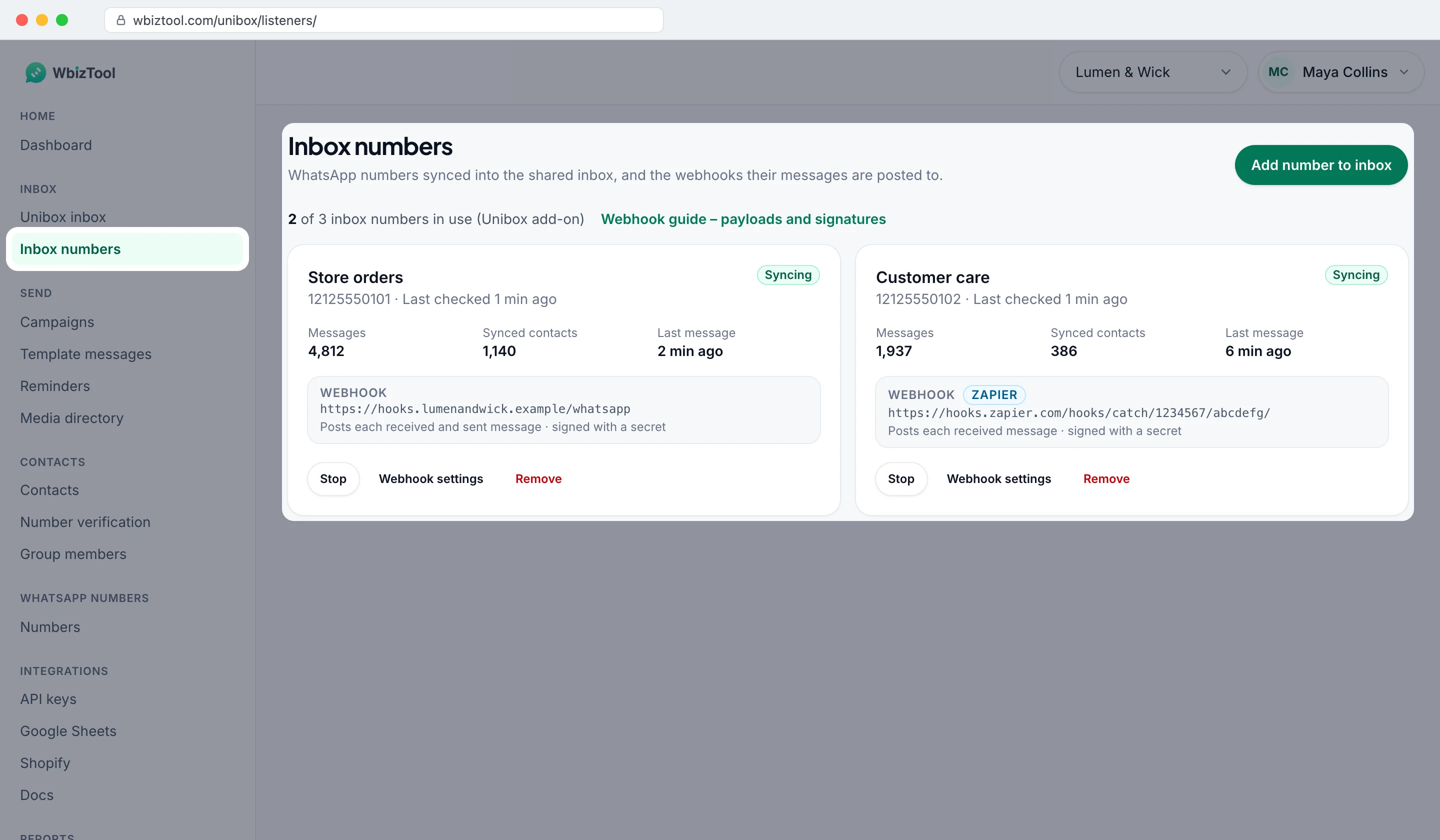
Open Inbox numbers under Inbox in the sidebar, or go to /unibox/listeners/.
Before you start#
- The Unibox add-on with an inbox number free: the line under the page title says, for example, "2 of 3 inbox numbers in use (Unibox add-on)", or "No Unibox add-on" (see Without the Unibox add-on).
- A WhatsApp number connected with a QR code or pairing code, showing Connected on WhatsApp numbers. Numbers connected through the browser extension can't be added. A connected Telegram account can be added like a number.
- For a webhook: an
https://address of at most 500 characters on the public internet (notlocalhostor a private network) that acceptsPOSTrequests with a JSON body and answers2xxwithin 8 seconds.
Add a number to the inbox#
Open the dialog
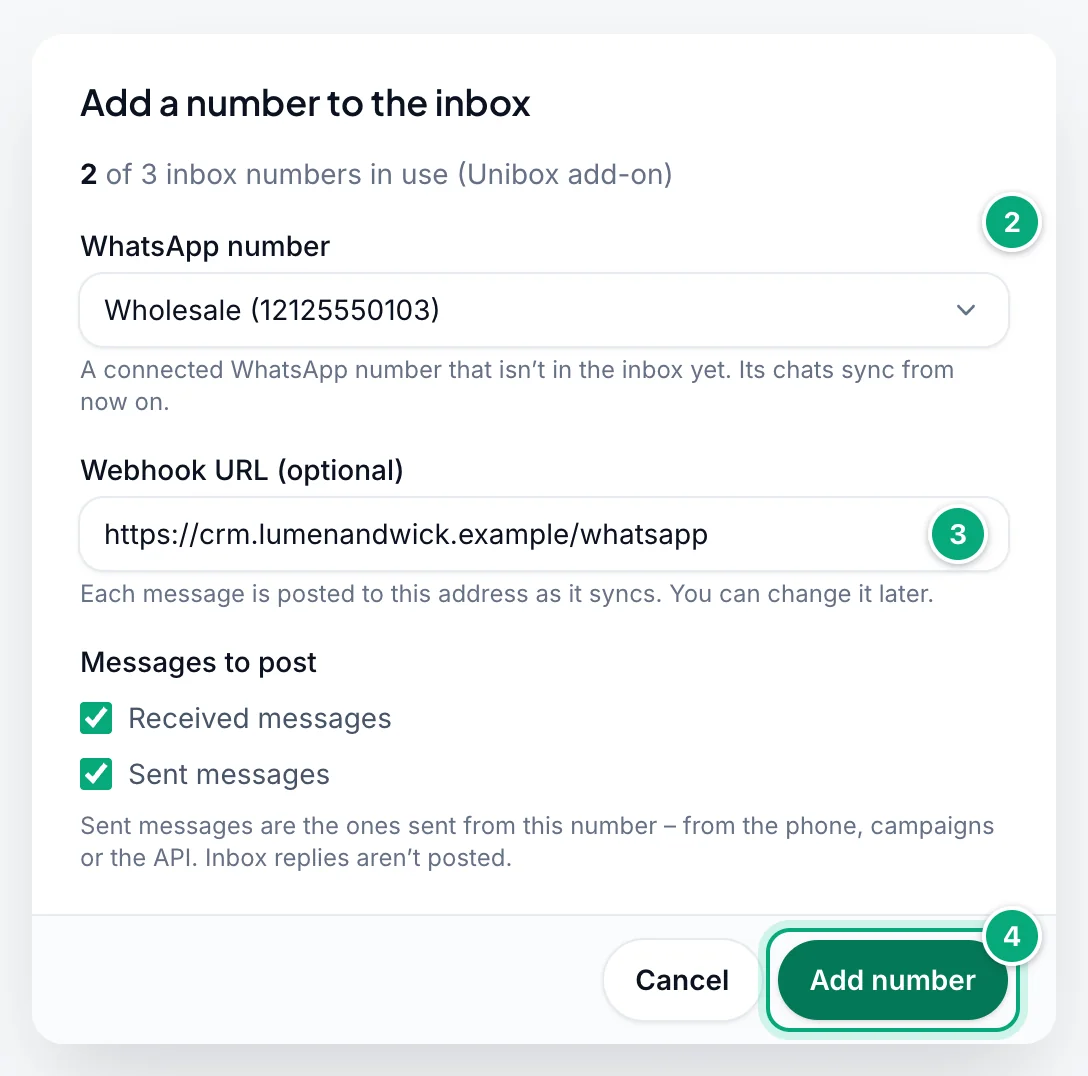
Click Add number to inbox at the top right of the page.
Choose the number
Pick it under WhatsApp number. The list shows your connected numbers that aren't in the inbox yet.
Add a webhook (optional)
Type your address under Webhook URL (optional). Messages to post then appears: keep Received messages, Sent messages or both ticked. You can add or change the webhook later.
Add it
Click Add number. You see "Number added – its chats start syncing within a few minutes." If you entered a webhook URL, Your webhook secret opens: click Copy and store the secret where your server can read it. You can show it again later in Webhook settings.
- Only new messages. A number syncs from the moment you add it: older messages aren't imported or posted.
- All numbers in use? The dialog says "All your inbox numbers are in use. Stop or remove one, or add more to the Unibox add-on." Stop or remove a number, or ask an Owner to raise the add-on's quantity (See add-ons).
- Adding back a removed number brings back its inbox ("Number added back – its chats sync again from now on."); messages from while it was removed aren't picked up. With a webhook URL it keeps its earlier secret if it had one (use Show in Webhook settings); otherwise Your webhook secret opens with a new one.
What a number's card shows#
Each card shows the number, when WbizTool last checked it for messages ("Last checked 1 min ago", or Never checked), its Messages and Synced contacts (every chat synced from it, including ones without messages in the inbox), its Last message, and its Webhook: the URL and what it posts, such as "Posts each received and sent message · signed with a secret", or "None – messages only show in the inbox." A Zapier badge means a Zap receives the messages (see Zapier and inbox numbers).
The badge at the top right says what the number is doing:
| Badge | Meaning |
|---|---|
| Syncing | Checked about once a minute; new messages reach the inbox and your webhook. |
| Not checked lately | "Not checked in the last 15 minutes – for example while the number is sending a campaign, which pauses inbox checks. If it lasts, contact support." Messages are picked up after the sending ends. |
| Number disconnected | "The WhatsApp number is disconnected, so nothing new arrives." Click Reconnect it. |
| Stopped | Stopped by you, or by WbizTool when the add-on ended or covers fewer numbers (see When the add-on ends). Nothing syncs or is posted. |
| Pending | "Added (e.g. by Zapier) while the number was offline. It doesn’t sync until it’s started." Reconnect the number if needed, then click Start. |
Change the webhook URL or the messages posted#
Open the webhook settings
Click Webhook settings on the number's card.
Change the settings
Edit the Webhook URL (optional) and the ticks under Messages to post. To turn the webhook off, clear the URL.
Save
Click Save. You see "Webhook settings saved."
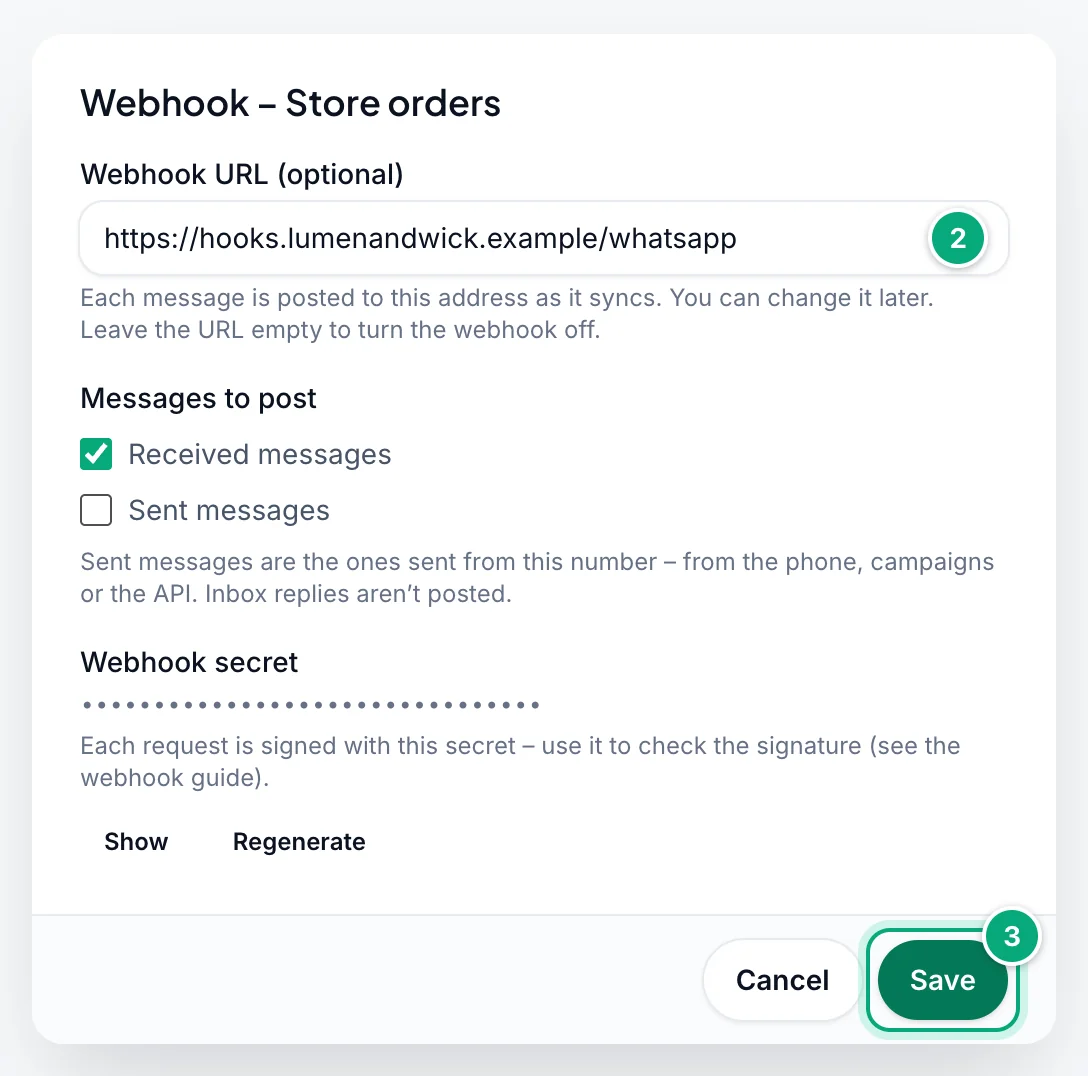
- Changing the URL keeps the secret. Clearing the URL deletes it; a URL added later gets a new secret, shown once in Your webhook secret.
- With neither box ticked, the card says "No events selected – nothing is posted".
Show or regenerate the secret#
The secret is 32 letters and digits. In Webhook settings, under Webhook secret, Show reveals it with Copy next to it. Regenerate asks "Generate a new secret? The current one stops working right away – update it wherever you check signatures." Click Generate new secret: it's saved at once ("New secret generated."), without Save, and every request from then on is signed with it, retries of earlier messages included.
Stop, start or remove a number#
| Button | What happens |
|---|---|
| Stop | After you confirm, its chats stop syncing and nothing is posted. It no longer uses one of your inbox numbers; its settings are kept. |
| Start | It syncs and posts again, using one of your inbox numbers. Messages that arrived while it was stopped are added to the inbox, up to 30 days back, but not posted: only messages from the moment you click Start reach your webhook. After a stop of less than an hour, they're posted too. Start is grey without the add-on ("Needs the Unibox add-on") or a free inbox number ("All your inbox numbers are in use – stop or remove another number first"). |
| Remove | Asks "Remove … from the inbox?" Its chats stop syncing and its webhook is turned off; conversations already synced stay in the inbox. Add it again to bring it back. |
Webhooks waiting to be retried are dropped when you stop or remove the number or change its URL.
How webhooks are delivered#
- When: each inbox number is checked about once a minute while it's connected; checks pause while it sends messages, such as a campaign. A message is posted after the check that finds it, usually within a minute or two. There's no test button: send the number a message from another phone.
- One request per message:
message_receivedfor Received messages;message_sentfor Sent messages, sent from the phone, WhatsApp Web or by WbizTool (campaigns, the API, reminders). Replies sent from the Unibox inbox are usually not posted: the inbox already has them. - Success: any
2xxstatus within 8 seconds. Redirects aren't followed: a3xxcounts as a failure. - Retries: a timeout, a connection error,
429or a5xxis retried 3 times, after 30 seconds, 1 minute and 2 minutes. Other answers, such as400or404, and an invalid TLS certificate aren't retried. 410 Gone: WbizTool turns the number's webhook off (URL and secret removed; for a Zapier hook, your own earlier webhook comes back). The number keeps syncing into the inbox.- Order and repeats: requests can arrive out of order and, rarely, twice. Sort by
message.whatsapp_timestampand skip amessage.idyou've handled for the samewhatsapp_client_id. Two of your numbers in one group each post their own copy. - Late messages: a message picked up late, for example after the number reconnects or a pause in checks, is still posted, with
replayedset totruewhen it's more than 10 minutes old. Messages that arrived while the number was stopped aren't posted after Start (see Stop, start or remove a number). - Address checks: the URL is checked again before each request; a host that now points to a private network, or doesn't resolve, isn't posted to, and that message isn't retried.
Headers#
| Header | Value |
|---|---|
Content-Type | application/json |
X-Wbiztool-Event | message_received or message_sent |
X-Wbiztool-Timestamp | When the request was made, in ISO 8601 UTC. Same as timestamp in the body. |
X-Wbiztool-Webhook-Id | The number's inbox ID. Same as webhook_id in the body. |
X-Wbiztool-Signature | sha256= followed by the signature (see Verify the signature). |
Verify the signature#
Each request is signed with the number's webhook secret using HMAC-SHA256 over the raw request body exactly as received. The lowercase hex digest is sent in X-Wbiztool-Signature as sha256=<digest>. A webhook set on the Inbox numbers page always has a secret, so the header is always there.
Compute the signature from the raw bytes before you parse the JSON. Parsing and re-encoding the body changes it (spacing, escaped characters), and the signature won't match.
// Express: register this route before app.use(express.json()), or the raw body is lost
import crypto from "node:crypto";
import express from "express";

const app = express();
const SECRET = process.env.WBIZTOOL_WEBHOOK_SECRET;

app.post("/wbiztool/webhook", express.raw({ type: "application/json" }), (req, res) => {
  const expected = "sha256=" + crypto.createHmac("sha256", SECRET).update(req.body).digest("hex");
  const received = req.get("X-Wbiztool-Signature") || "";

  const a = Buffer.from(received), b = Buffer.from(expected);
  const valid = a.length === b.length && crypto.timingSafeEqual(a, b);
  if (!valid) return res.status(401).send("Invalid signature");

  const data = JSON.parse(req.body.toString("utf8"));
  if (data.event === "message_received") {
    console.log(`New message from ${data.contact.phone}: ${data.message.content}`);
  }
  res.sendStatus(200); // answer quickly; do slow work in the background
});

app.listen(3000);
# Flask
import hashlib
import hmac
import json
import os
from flask import Flask, abort, request
app = Flask(__name__)
SECRET = os.environ["WBIZTOOL_WEBHOOK_SECRET"].encode()
@app.post("/wbiztool/webhook")
def wbiztool_webhook():
raw_body = request.get_data() # raw bytes, before parsing
expected = "sha256=" + hmac.new(SECRET, raw_body, hashlib.sha256).hexdigest()
received = request.headers.get("X-Wbiztool-Signature", "")
if not hmac.compare_digest(expected, received):
abort(401)
data = json.loads(raw_body)
if data["event"] == "message_received":
print(f"New message from {data['contact']['phone']}: {data['message']['content']}")
return "", 200<?php
$secret = getenv('WBIZTOOL_WEBHOOK_SECRET');
$rawBody = file_get_contents('php://input');
$expected = 'sha256=' . hash_hmac('sha256', $rawBody, $secret);
$received = $_SERVER['HTTP_X_WBIZTOOL_SIGNATURE'] ?? '';
if (!hash_equals($expected, $received)) {
http_response_code(401);
exit('Invalid signature');
}
$data = json_decode($rawBody, true);
if ($data['event'] === 'message_received') {
error_log('New message from ' . $data['contact']['phone'] . ': ' . $data['message']['content']);
}
http_response_code(200);To test your receiver before a real message arrives, sign a body yourself and post it:
BODY='{"event":"message_received","message":{"content":"Test"},"contact":{"phone":"12125550120"}}'
SIG=$(printf '%s' "$BODY" | openssl dgst -sha256 -hmac "$WBIZTOOL_WEBHOOK_SECRET" | sed 's/^.* //')
curl -X POST https://your-server.example/wbiztool/webhook -H 'Content-Type: application/json' -H "X-Wbiztool-Signature: sha256=$SIG" -d "$BODY"
The signature covers the body, including its timestamp, which is new on every attempt. To refuse replayed requests, reject a timestamp more than 5 minutes old and skip a message.id you've handled.
Payload#
{
  "event": "message_received",
  "timestamp": "2026-10-15T10:30:31.482913+00:00",
  "replayed": false,
  "webhook_id": 51,
  "whatsapp_client_id": "101",
  "whatsapp_phone": "12125550101",
  "platform": "whatsapp",
  "message": {
    "id": "[email protected]_3EB0C1A2B3D4E5F60718",
    "type": "chat",
    "content": "Can I add a gift note to it?",
    "from": "12125550120",
    "from_name": "Emma Thompson",
    "to": "12125550101",
    "timestamp": "2026-10-15T10:30:04+00:00",
    "whatsapp_timestamp": 1792060204,
    "direction": "incoming",
    "status": "pending",
    "is_forwarded": false,
    "forwarding_score": 0
  },
  "contact": {
    "whatsapp_id": "[email protected]",
    "phone": "12125550120",
    "lid": null,
    "phone_hidden": false,
    "name": "Emma Thompson",
    "is_group": false,
    "is_business": false
  },
  "organisation": {
    "id": "10314",
    "name": "Lumen & Wick"
  }
}
{
"event": "message_sent",
"timestamp": "2026-10-15T10:34:22.117205+00:00",
"replayed": false,
"webhook_id": 51,
"whatsapp_client_id": "101",
"whatsapp_phone": "12125550101",
"platform": "whatsapp",
"message": {
"id": "[email protected]_3EB0F9E8D7C6B5A40312",
"type": "chat",
"content": "Of course! Send us the text and we'll print it on a card.",
"from": "12125550120",
"from_name": "Emma Thompson",
"to": "12125550101",
"timestamp": "2026-10-15T10:33:40+00:00",
"whatsapp_timestamp": 1792060420,
"direction": "outgoing",
"status": "pending",
"is_forwarded": false,
"forwarding_score": 0
},
"contact": {
"whatsapp_id": "[email protected]",
"phone": "12125550120",
"lid": null,
"phone_hidden": false,
"name": "Emma Thompson",
"is_group": false,
"is_business": false
},
"organisation": {
"id": "10314",
"name": "Lumen & Wick"
}
}{
"event": "message_received",
"timestamp": "2026-10-15T10:35:48.904311+00:00",
"replayed": false,
"webhook_id": 51,
"whatsapp_client_id": "101",
"whatsapp_phone": "12125550101",
"platform": "whatsapp",
"message": {
"id": "[email protected]_3EB0A7B6C5D4E3F20109",
"type": "image",
"content": "📸 Image",
"from": "12125550122",
"from_name": "Sofia Martinez",
"to": "12125550101",
"timestamp": "2026-10-15T10:34:51+00:00",
"whatsapp_timestamp": 1792060491,
"direction": "incoming",
"status": "pending",
"is_forwarded": false,
"forwarding_score": 0,
"media": {
"filename": "",
"mimetype": "image/jpeg",
"size": 245760,
"url": "https://wbiztool-static.s3.ap-southeast-1.amazonaws.com/unibox/10314/media/false_12125550122%40c.us_3EB0A7B6C5D4E3F20109.jpg?X-Amz-Algorithm=AWS4-HMAC-SHA256&X-Amz-Credential=…&X-Amz-Date=20261015T103548Z&X-Amz-Expires=604800&X-Amz-SignedHeaders=host&X-Amz-Signature=…"
}
},
"contact": {
"whatsapp_id": "[email protected]",
"phone": "12125550122",
"lid": null,
"phone_hidden": false,
"name": "Sofia Martinez",
"is_group": false,
"is_business": false
},
"organisation": {
"id": "10314",
"name": "Lumen & Wick"
}
}{
"event": "message_received",
"timestamp": "2026-10-15T10:39:40.330187+00:00",
"replayed": false,
"webhook_id": 51,
"whatsapp_client_id": "101",
"whatsapp_phone": "12125550101",
"platform": "whatsapp",
"message": {
"id": "[email protected][email protected]",
"type": "chat",
"content": "Will there be a larger size?",
"from": "120363041234567890",
"from_name": "Lumen VIP Club",
"to": "12125550101",
"timestamp": "2026-10-15T10:39:02+00:00",
"whatsapp_timestamp": 1792060742,
"direction": "incoming",
"status": "pending",
"is_forwarded": false,
"forwarding_score": 0,
"sender": {
"phone": "12125550126",
"name": "Olivia Brooks",
"phone_hidden": false
}
},
"contact": {
"whatsapp_id": "[email protected]",
"phone": "120363041234567890",
"lid": null,
"phone_hidden": false,
"name": "Lumen VIP Club",
"is_group": true,
"is_business": false
},
"organisation": {
"id": "10314",
"name": "Lumen & Wick"
},
"group": {
"name": "Lumen VIP Club"
}
}The numbers, IDs and names above are examples. The real body is one line of compact JSON, and every non-ASCII character (accented letters, other scripts, emoji) arrives as a \uXXXX escape, such as \ud83d\udcf8 for 📸. More fields may be added; ignore ones you don't use.
Top-level fields#
| Field | Type | Description |
|---|---|---|
event | string | message_received or message_sent. |
timestamp | string | When the request was made (ISO 8601, UTC). |
replayed | boolean | true when the message is more than 10 minutes older than the request: a catch-up, such as after the number reconnects. Otherwise false. timestamp is still the time of the request. |
webhook_id | integer | The number's inbox ID. |
whatsapp_client_id | string | The ID of your WhatsApp number, as on WhatsApp numbers and in the API. |
whatsapp_phone | string | Your WhatsApp number, digits only. |
platform | string | whatsapp, or telegram for a Telegram account's chats. |
message | object | The message, see below. |
contact | object | The person or group the chat is with, see below. |
organisation | object | Your workspace: id (string) and name. |
group | object | Only for group chats: name, the group's name. |
message fields#
| Field | Type | Description |
|---|---|---|
id | string | WhatsApp's ID for the message. Use it to skip repeats. |
type | string | chat for text. Otherwise WhatsApp's type, such as image, video, audio, ptt (voice note), document, sticker, location, vcard (contact card), poll_creation, call_log (a call) or revoked (a deleted message). |
content | string | The text of a chat message. Otherwise a label: 📸 Image, 🎥 Video, 🎵 Audio, 🎤 Voice Message, 😊 Sticker, Document: and the document's text (Document without one), or the type in title case, such as Location or Call_Log. Photo and video captions aren't included. |
from | string | Always the contact's number (or the group's ID), in both directions. Empty when WhatsApp hides the number. |
from_name | string | The contact's or group's name. Can be empty. |
to | string | Always your WhatsApp number, in both directions. |
timestamp | string | When the message was sent on WhatsApp (ISO 8601, UTC). |
whatsapp_timestamp | integer | The same time in Unix seconds. |
direction | string | incoming or outgoing. Use this, not from and to, for the direction. |
status | string | Always pending: not a delivery or read status. |
is_forwarded | boolean | Whether the message was forwarded. |
forwarding_score | integer | Currently always 0. |
media | object | For photos, videos, audio, voice notes, documents and stickers: filename (often empty for photos), mimetype, size in bytes and, when WbizTool stored a copy, url. |
media.url | string | A signed download link that expires – after 3½ to 7 days – so download the file when the webhook arrives. Use it exactly as sent. Missing when the file couldn't be stored, such as files over 15 MB. |
sender | object | Group chats only: who wrote the message – name, phone (empty when WhatsApp hides their number) and phone_hidden (true when it does). |
contact fields#
| Field | Type | Description |
|---|---|---|
whatsapp_id | string | The chat's WhatsApp ID: …@c.us for a person, …@g.us for a group, or a privacy ID such as 62337239240946@lid. |
phone | string | The number without +, or the group's ID. Empty when WhatsApp hides the number. |
lid | string or null | WhatsApp's privacy ID for the contact, when WhatsApp uses one, otherwise null. |
phone_hidden | boolean | true when WhatsApp doesn't share the contact's number. WbizTool fills the number in when WhatsApp makes it available. |
name | string | The contact's name or the group's name. Can be empty. |
is_group | boolean | true for group chats. |
is_business | boolean | true for WhatsApp Business accounts, when known. |
Zapier and inbox numbers#
The WbizTool Incoming WhatsApp Message trigger in Zapier uses these webhooks. Turning on a Zap adds the number to the inbox if needed (using one of your inbox numbers) and points its webhook at Zapier, for received messages only, with its own secret; the card shows a Zapier badge. Your own webhook URL, secret and ticks come back when the Zap is turned off.
Webhook settings then warns: "This webhook belongs to a Zapier Zap. Changing or removing the URL stops the Zap from receiving messages." Stop and Remove warn too: the Zap stays on in Zapier but receives nothing, so turn it off in Zapier instead. See How the trigger works with your inbox numbers.
Without the Unibox add-on#
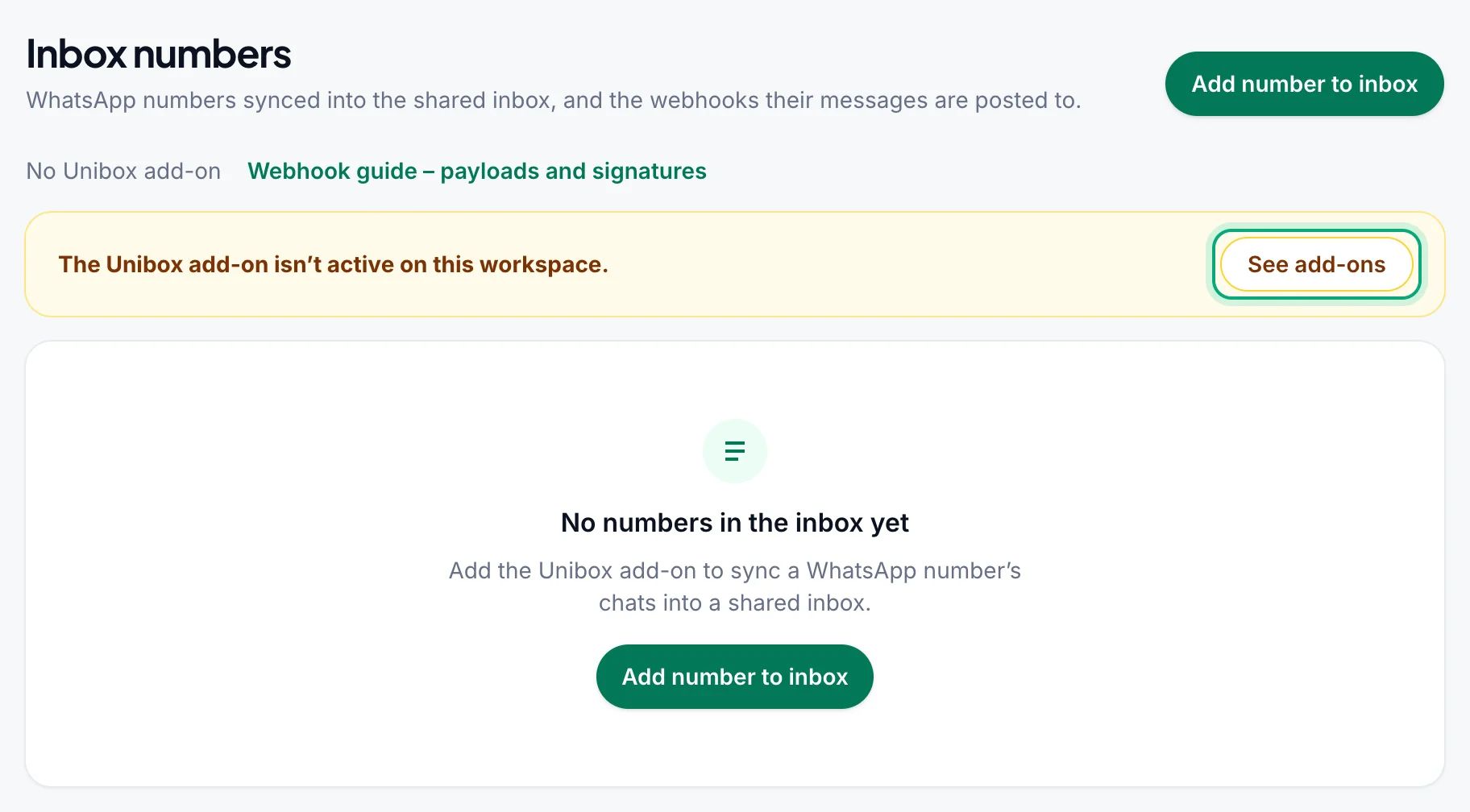
The page says "No Unibox add-on" and "The Unibox add-on isn’t active on this workspace.", and Add number to inbox opens Unibox add-on required: "To add WhatsApp numbers to the shared inbox and get their messages by webhook, subscribe to the Unibox add-on." An Owner clicks See add-ons and adds the Unibox Phone Number add-on on Billing & plans, on a paid or lifetime plan (not the free trial).
When the add-on ends or a number disconnects#
- The add-on ends: every inbox number is stopped, at once or within about an hour. The cards show Stopped with "Stopped because the Unibox add-on isn’t active on this workspace." Owners and Editors are told which inboxes stopped, in the billing email or the alert "Some numbers or features of … stopped" (Number & sending problems in Notifications). Conversations, webhook URLs and secrets are kept: once the add-on is back, click Start on each number. Messages from while it was stopped are then added to the inbox, up to 30 days back, but not posted to your webhook.
- The add-on covers fewer numbers than are on: "More numbers are on than your add-on allows. The newest extra ones are stopped automatically within about an hour."
- The number disconnects: the card shows Number disconnected and nothing is synced or posted. After you reconnect it, messages that arrived meanwhile are picked up and posted too; those more than 10 minutes old have
replayedset totrue. - It's reconnected with a different phone: the inbox number and its webhook carry on for the new number (same
whatsapp_client_id, newwhatsapp_phone) from that moment; the old chats stay in the inbox as history.
Troubleshooting#
| Message or problem | What to do |
|---|---|
| Unibox add-on required, or "This needs the Unibox add-on." | Ask an Owner to add the Unibox add-on, see Without the Unibox add-on. |
| "All your inbox numbers are in use. Stop or remove one first, or add more to the Unibox add-on." | Stop or remove a number you don't need, or raise the add-on's quantity. Stopped numbers don't count. |
| "No connected WhatsApp number is free to add." | Every connected number is already in the inbox, or none is connected with a QR or pairing code. Click Connect a number. |
| "This number isn’t connected any more. Reconnect it, or choose another one." | Reconnect it on WhatsApp numbers, then try again. |
| "Enter a full address that starts with https://" or "The webhook URL must start with https://" | Use an https:// address; http:// isn't accepted. |
| "The address can be at most 500 characters." | Use a shorter URL, for example without a long query. |
| "The webhook URL must point to a public internet address." | The host is localhost, a private network address, or doesn't resolve. Use a public address, or a tunnel while testing. |
| No Inbox numbers in the sidebar, or "Only the workspace owner or an editor can do this." | You're an Analyst. Ask an Owner to make you an Editor, see Roles and permissions. |
| No webhooks arrive | Check that the card shows Syncing, the URL is right and the box is ticked under Messages to post. Your server must answer 2xx within 8 seconds, with a valid certificate. Inbox replies aren't posted. |
| Some webhooks are missing | Your server answered 4xx or 3xx, failed all 3 retries, or its host didn't resolve. Check its logs at the time of the missing message. Messages that arrived while the number was stopped aren't posted: read them in the inbox. |
| The signature doesn't match | Use the raw body, not re-encoded JSON, and the current secret. While a Zap uses the number, requests go to Zapier with Zapier's secret. |
| A media link returns an error | It has expired. Download files when the webhook arrives. |
Related#
- Unibox inbox: read and answer the chats of your inbox numbers
- Zapier integration
- Connect your WhatsApp number
- Plans and billing
- Send message API: its
webhookfield reports whether a message you send went out (a different webhook)