
Product guides
Template messages
Write one message with variables such as {{Name}}, add a CSV or Excel sheet, and WbizTool sends every row its own WhatsApp message with that row's details filled in. Use it for order updates, payment reminders or offers that mention each customer's name, order or amount.
These templates live only in WbizTool. They aren't the Meta-approved message templates of the WhatsApp Business API, and they don't need approval.
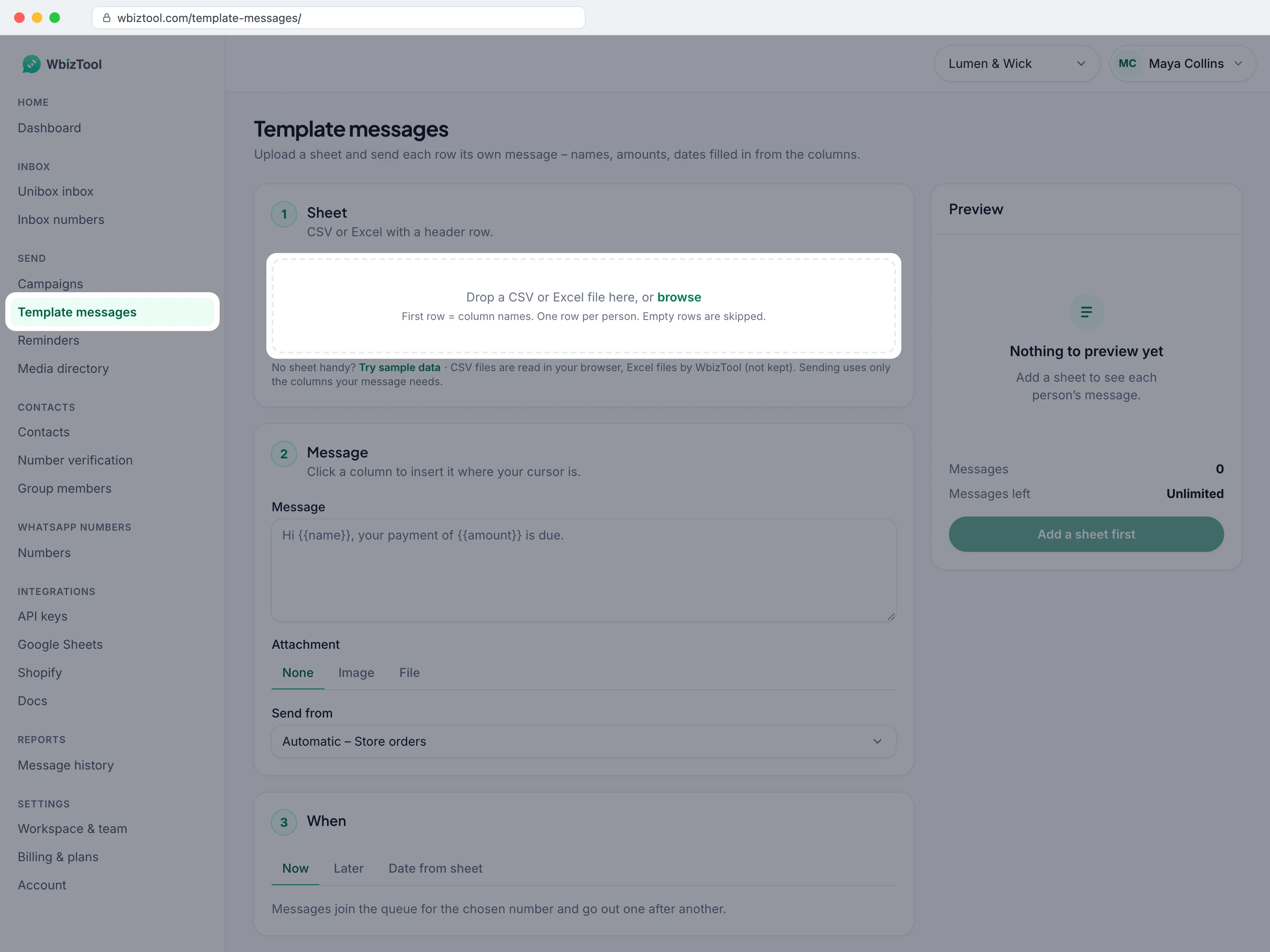
Open Template messages under Send in the sidebar, or go to /template-messages/.
Before you start#
- Role: Owners and Editors can send. Analysts can open the page and preview a CSV file, but the send button stays off with "Only the workspace owner or an editor can send." See Roles and permissions.
- Plan: a paid plan. Template messages are part of every paid monthly and yearly plan, and of a lifetime (AppSumo) plan only if it lists Template messages on Billing & plans. Without one, the page says "Template messages need a paid plan." You can try it, but not send.
- A connected number: at least one number showing Connected on Numbers.
- Messages: a paid plan sends unlimited messages under fair use (Messages left shows Unlimited), but the whole sheet must fit in the sending number's daily limit of 1,000 messages in 24 hours.
Send template messages#
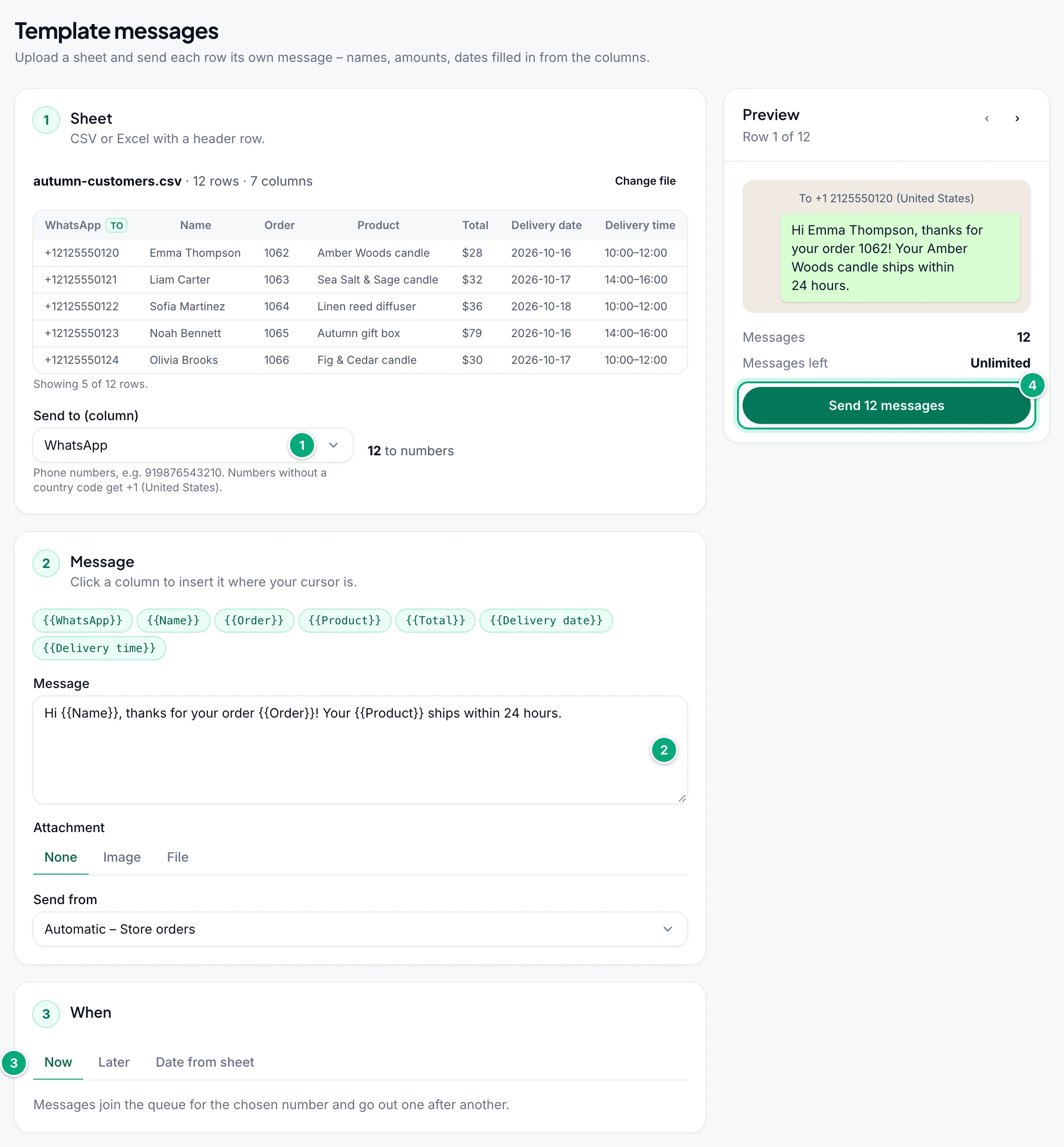
The page has three numbered cards, Sheet, Message and When, and a Preview on the right that shows each person's message while you type.
Add your sheet
In Sheet, drop a CSV or Excel file on the box, or click browse. The first row must hold the column names, and every other row is one person. The card shows the first 5 rows. To try the page without a file, click Try sample data.
Under Send to (column), check the column with the phone numbers. A column whose name contains
whatsappis picked for you, else one withphone,mobile,cellortel, else one withnumberorcontact, also in the dashboard's other languages (Telefon,Celular,No HP…). Next to it, the page counts the rows that go to numbers and the rows it skips (why).Write the message
In Message, type your text. Click a column, such as
{{Name}}, to put it where your cursor is. See Variables.To send an image or a file, choose Image or File under Attachment and paste its link. See Images and files.
Under Send from, keep Automatic – … (your first connected number) or pick another connected number. All the messages go from this one number.
Choose when
In When, choose Now, Later (one date and time for everyone) or Date from sheet (each row at its own time). See Scheduling.
Check the preview and send
Click › and ‹ on the Preview to see other rows. A row that won't be sent says why, and Next row to check takes you to the next one. Below, Messages is how many will be sent.
Click Send 12 messages (it shows your own count; with Later or Date from sheet it says Schedule 12 messages). Check the summary in Send these messages? (Schedule these messages?) and click the same button again.
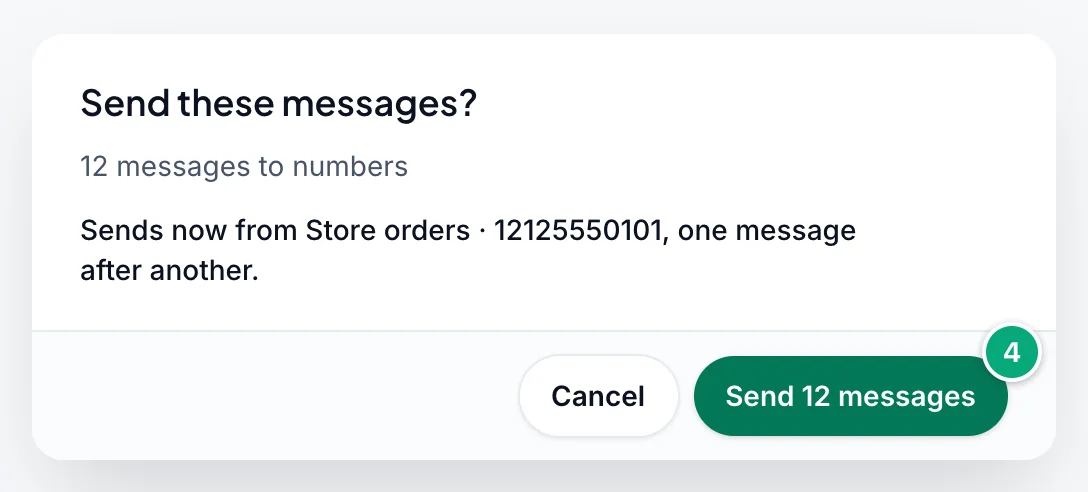
The page then shows "12 messages queued." (or "12 messages scheduled for …", or with Date from sheet "12 messages queued, each at its row’s date."), lists the rows that were skipped and why, and links to See them in Reports. Click Send another sheet to start again.
If the send button is grey, the line under it says why, for example "Choose the column to send to." See Troubleshooting.
After you send#
- Messages join the queue of the sending number and go out one after another. While it's disconnected, they wait.
- Stay under about 150–200 messages per number per day (Keep your numbers safe from bans on Numbers). Spread a big sheet over several days with Date from sheet, or split it and send the parts from different numbers.
- If an Owner has set sending hours for Template messages, messages due outside those hours wait and go out when the hours start, scheduled ones too.
- Each send is a campaign named
Template Messages -plus the date and time in UTC, such asTemplate Messages - 2026-10-15 14:30. Sends in the same minute share one campaign. On Campaigns you can follow it, Download report, or click Cancel waiting to stop the messages that haven't gone out yet. - See them in Reports opens Reports with just these messages: what was sent, what's waiting and why anything failed. See Reports & message history.
- Waiting and sent messages count towards the number's daily limit; scheduled ones count on the day you send the sheet. Cancelled and failed messages don't.
- Numbers that aren't in Contacts yet are added there, named after their number.
Variables#
Put a column name in double braces, exactly as it's written in the first row:
Hi {{Name}}, thanks for your order {{Order}}! Your {{Product}} ships within 24 hours.For a row where Name is Emma Thompson, Order is 1062 and Product is Amber Woods candle, the message is:
Hi Emma Thompson, thanks for your order 1062! Your Amber Woods candle ships within 24 hours.- Names are case-sensitive, and spaces inside the braces count:
{{name}}and{{ Name }}don't match a column calledName. For the spaces, the page says "Remove the spaces:{{Name}}." - A variable that isn't a column is sent exactly as typed. The page warns under the box, for example "Not a column:
{{Adress}}. These are sent exactly as typed.", but still lets you send. - An empty cell puts nothing in.
- Two columns with the same name become
NameandName.1: use{{Name.1}}for the second. - Variables work in the image or file link too.
- Line breaks and WhatsApp formatting such as
*bold*are kept.
Phone numbers and skipped rows#
The Send to (column) must hold phone numbers, best with the country code, such as 919876543210 or +1 212 555 0101. Spaces, dashes, brackets and dots are removed, and a + or 00 at the start means the number has its country code. A number without it, such as 98765 43210 or 09876543210, gets the country code of the number under Send from, or, if that number's country can't be told, the workspace's Country for numbers without a country code. The hint under Send to (column) names the country, for example "Numbers without a country code get +91 (India)." With its country code, a number must have 7 to 15 digits. The Preview shows each number as it will be sent, such as "To +91 98765 43210 (India)". Each row is one message: a number that's in three rows gets three messages.
Rows that can't be sent are skipped, never sent somewhere else. The sheet marks them, and the preview names the problem:
| The preview says | Why | What to do |
|---|---|---|
| "Skipped – empty" | The cell is empty, or says null, None or undefined. | Add the number, or leave the row out. |
| "Not a phone number – skipped" | Text, or too few or too many digits. A WhatsApp group name is skipped too: template messages only go to numbers. | Fix the number. To message groups, use Campaigns. |
| "Starts with 0 – add the country code; skipped" | The number starts with 0 and couldn't be completed, for example because no country is known for it. | Write it with its country code, or ask an Owner to set the country for numbers without a country code. |
| "Number rounded by Excel" | Excel showed the number as 9.19833E+11 and saved it like that in a CSV file, so its last digits are lost. | In Excel, format the column as Text and save again, or upload the .xlsx file itself: it keeps every digit. |
| "Date missing or unreadable – skipped" or "Date already past – skipped" | Only with Date from sheet. | See Scheduling. |
Scheduling#
- Now: the messages are queued at once.
- Later: choose the Date and time and the Time zone (yours is preselected). Every message is due at that time. The time must be in the future, or you see "Pick a time in the future."
- Date from sheet: each row goes at the date, and time, in its own cells.
Date from sheet#
| Field | What to choose |
|---|---|
| Date column | Required. The column with the date, or with the date and time. |
| Date format | How the dates are written: Automatic, DD/MM/YYYY, MM/DD/YYYY, YYYY-MM-DD, or Date and time in one cell (YYYY-MM-DD HH:MM). |
| Time column | Optional. A column with times such as 09:30 or 14:30. Without one, rows go at midnight (00:00). Not used with Date and time in one cell. |
| Time zone column | Optional. A column with a time zone name per row, such as America/New_York or Asia/Kolkata (see the Timezone reference). With Default, every date is read in your own time zone. |
- The first column whose name contains
dateis picked as Date column, and the first one withtimeas Time column (a time-zone column is skipped), also in the dashboard's other languages (Fecha,Datum,Hora,Uhrzeit…). Check both: a column likeDelivery timethat holds10:00–12:00can't be read, so every row would be skipped. - Automatic reads
03/04/2026month first, as 4 March. If your sheet writes the day first, pickDD/MM/YYYY. - With a fixed format, dates must be written exactly that way. Write times in 24-hour form, such as
14:30. - Your own time zone is your browser's, as the page says: "Dates without a time zone are read in America/New_York – your time zone." A name the page doesn't know in the Time zone column, such as
ISTor+05:30, skips that row: the preview says "Time zone “IST” unknown – skipped". Use names likeAsia/Kolkata(see the Timezone reference). - The preview shows each row's time, such as "Sends Fri, Oct 16, 2026, 2:30 PM (America/New_York)".
Images and files#
Under Attachment, choose Image or File and paste the link in Image link or File link. The message becomes the caption, and it may be empty.
- The link must open the file itself, without a login. Upload the file to the Media directory and click Copy link to get one.
- Use the same link for everyone, such as
https://example.com/autumn-offer.jpg, or a link per row with a variable, such ashttps://example.com/invoices/{{Order}}.pdf. - The file name the recipient sees comes from the end of the link, in lower case. It keeps its extension if the Media directory accepts that type, such as
.pdf,.docx,.xlsx,.csvor.zip(and a few more, such as.webmor.xlsm: full list on Send message). A link with no extension, or another one, gets.pdfadded, so use links that end in the file name. - Size limits: images 16 MB, videos 64 MB, other files 100 MB.
- A row whose filled-in link is longer than 1,000 characters is skipped ("link too long").
- Links aren't opened before sending. If one doesn't work, that message fails, and Reports shows a reason such as "File Url Error".
Your sheet#
- A
.csv,.xlsor.xlsxfile. The first row holds the column names. Empty rows are skipped. - Up to 5,000 rows per send. Split longer lists into several files.
- CSV files are read in your browser, with commas between the columns. Quoted cells may contain commas and line breaks. Save as CSV UTF-8 so accents and emoji stay intact.
- Excel files are read by WbizTool and not kept: up to 5 MB, first worksheet only. Reading Excel needs a paid plan; without one, save the sheet as CSV to try the page.
- When you send, only the phone column and the columns your message, link and dates use are sent to WbizTool.
Template messages, campaigns or Google Sheets?#
- Template messages: one message with
{{column}}variables for a sheet you upload, sent to phone numbers from one of your numbers. - Campaigns: every row brings its own finished message. Rows can go to WhatsApp groups and from different numbers.
- Google Sheets: sends a message by itself whenever a row is added or changed in a Google Sheet.
- API: Send to multiple numbers from your own software.
Troubleshooting#
| Message or problem | What to do |
|---|---|
| "Template messages need a paid plan." | An Owner can choose a plan on Billing & plans. |
| "Only the workspace owner or an editor can send." | You're an Analyst in this workspace. Ask an Owner to change your role. |
| "The demo account can’t send template messages." | Sign up for your own account. |
| "No WhatsApp number is connected. Connect one to send." | Connect a number on Numbers. See Connect your WhatsApp number. |
| "That WhatsApp number isn’t connected any more. Pick another one." | Pick a connected number under Send from, or reconnect that one. |
| "That file has no header row or no data rows." | Put the column names in the first row and at least one row under them. |
| "The file is larger than 5 MB." | Save the sheet as CSV, or split it. |
| "Couldn’t read that file. Check it opens in Excel, or save it as CSV." | Open it in Excel, save it again, or save it as CSV. |
| "Reading Excel files needs a paid plan – save the sheet as CSV to try the editor." | Save the sheet as CSV, or choose a plan. |
| "None of these look like phone numbers." | Pick the right Send to (column). If the column holds whole rows, see Semicolons in CSV files. |
| "Over the daily limit: a number can take 1,000 messages a day (fair use). Nothing was sent – send the rest tomorrow or from another number." | Send part of the sheet the next day or from another number. Nothing is sent until the whole sheet fits. |
| "Pick a time in the future." | Under Later, choose a later Date and time, and check the Time zone. |
| The button says No one to send to | No row has a valid number, or with Date from sheet every date is empty, unreadable or past. |
| An Excel file's dates show "Date unreadable – skipped" | Real Excel date cells work with Date format on Automatic and no Time column, or on Date and time in one cell. With a Time column or another format, format the date column as Text (2026-10-16) or save the sheet as CSV. |
{{Name}} appears in the sent message | The variable doesn't exactly match a column name. See Variables. |
| Messages stay waiting | The sending number must show Connected on Numbers. Scheduled messages wait for their time, and all of them wait for the workspace's sending hours if those are on for Template messages. |
| A message failed with "Phone number invalid" in Reports | The number isn't on WhatsApp, or it lacks its country code. |