
Product guides
Send from your browser with the Chrome extension
The Wbiztool extension for Google Chrome adds a Wbiztool panel to WhatsApp Web. You can use it in two ways:
- As a sending number. Connect it to your workspace and it shows up under Numbers like any other number. Messages from the API, campaigns, reminders and integrations then go out from WhatsApp Web in your browser.
- For its own free tools. Campaigns from a list or a file, templates, and exports of contacts and groups, all inside WhatsApp Web. They're free and unlimited and need no Wbiztool account.
Who can do it: anyone can install the extension and use its free tools. Connecting it to a workspace as a sending number needs an Owner or Editor of that workspace.
Before you start#
- Google Chrome on a computer.
- WhatsApp or WhatsApp Business on your phone, and WhatsApp Web logged in with the number you want to send from.
- For a sending number: a confirmed email address, a plan with WhatsApp numbers that's paid up, and a free number slot – the extension's number counts like any other (see Number limits). If the same number is already connected to the workspace by QR code or pairing code, remove it from Numbers first.
Install the extension#
Add it to Chrome
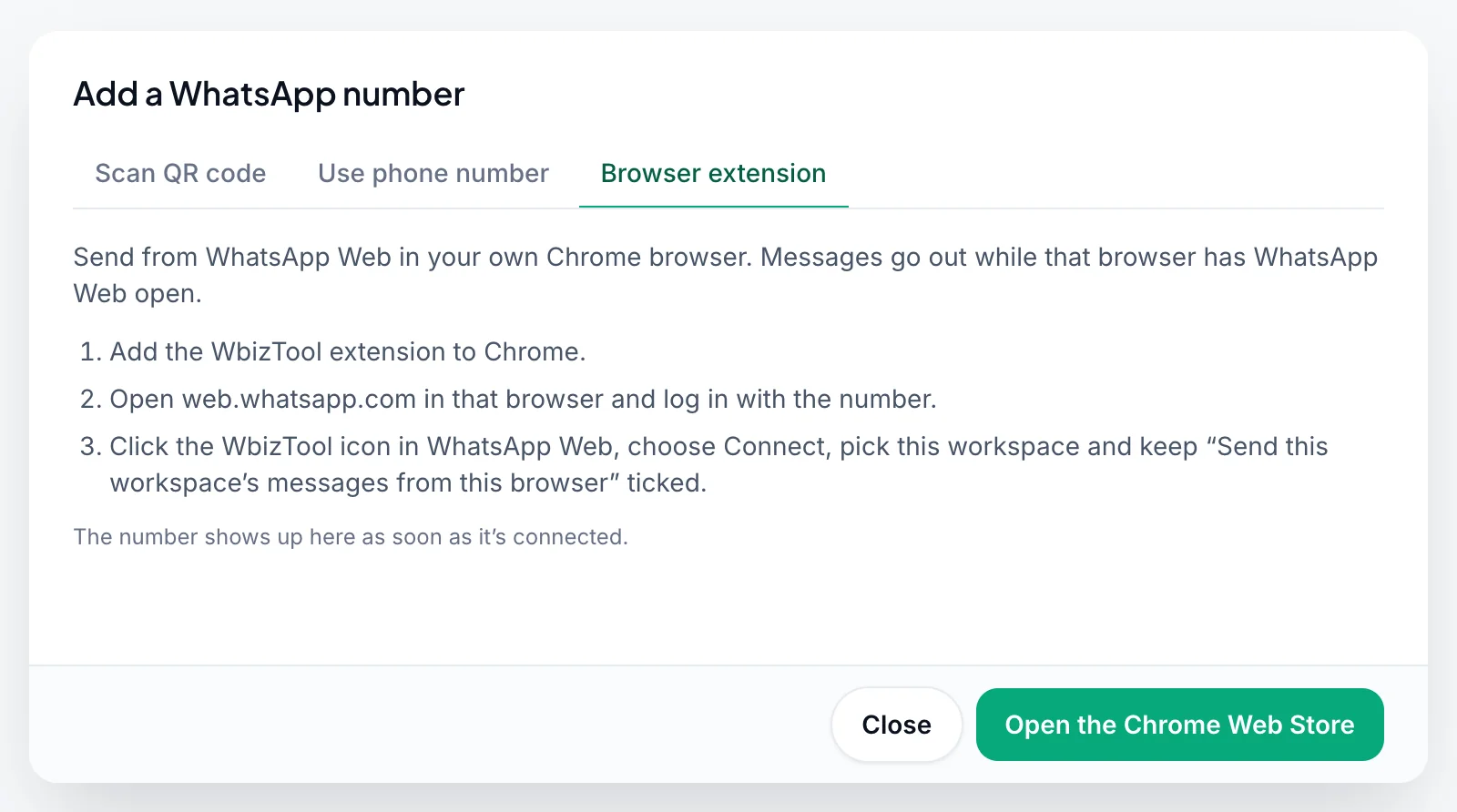
Open the Wbiztool extension in the Chrome Web Store and click Add to Chrome. In Wbiztool you also find the link under Numbers → Add number → Browser extension → Open the Chrome Web Store.
Open WhatsApp Web
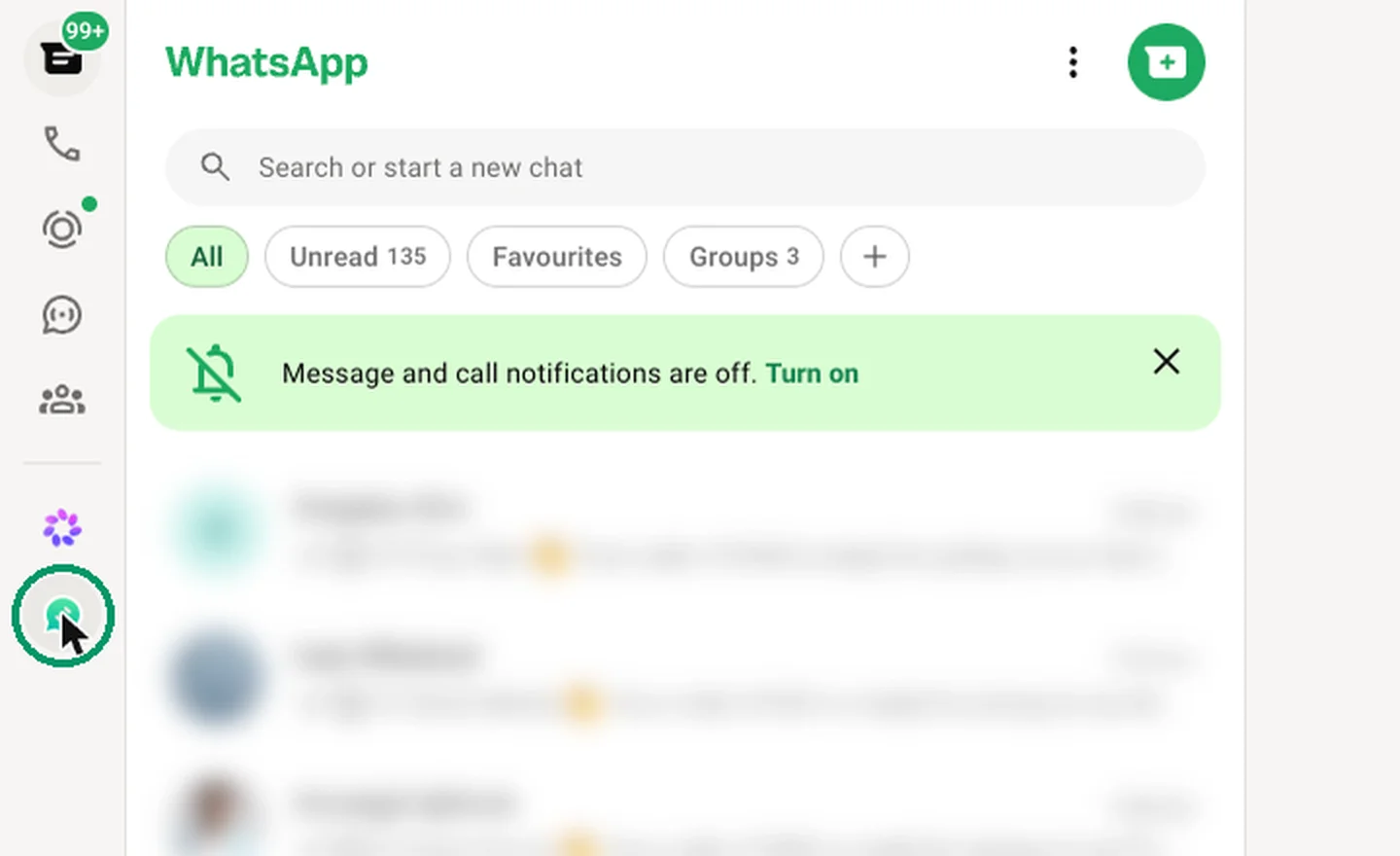
Open web.whatsapp.com in the same browser, or reload it if it was already open. The Wbiztool icon appears in WhatsApp's left sidebar, below Meta AI.
Open the panel
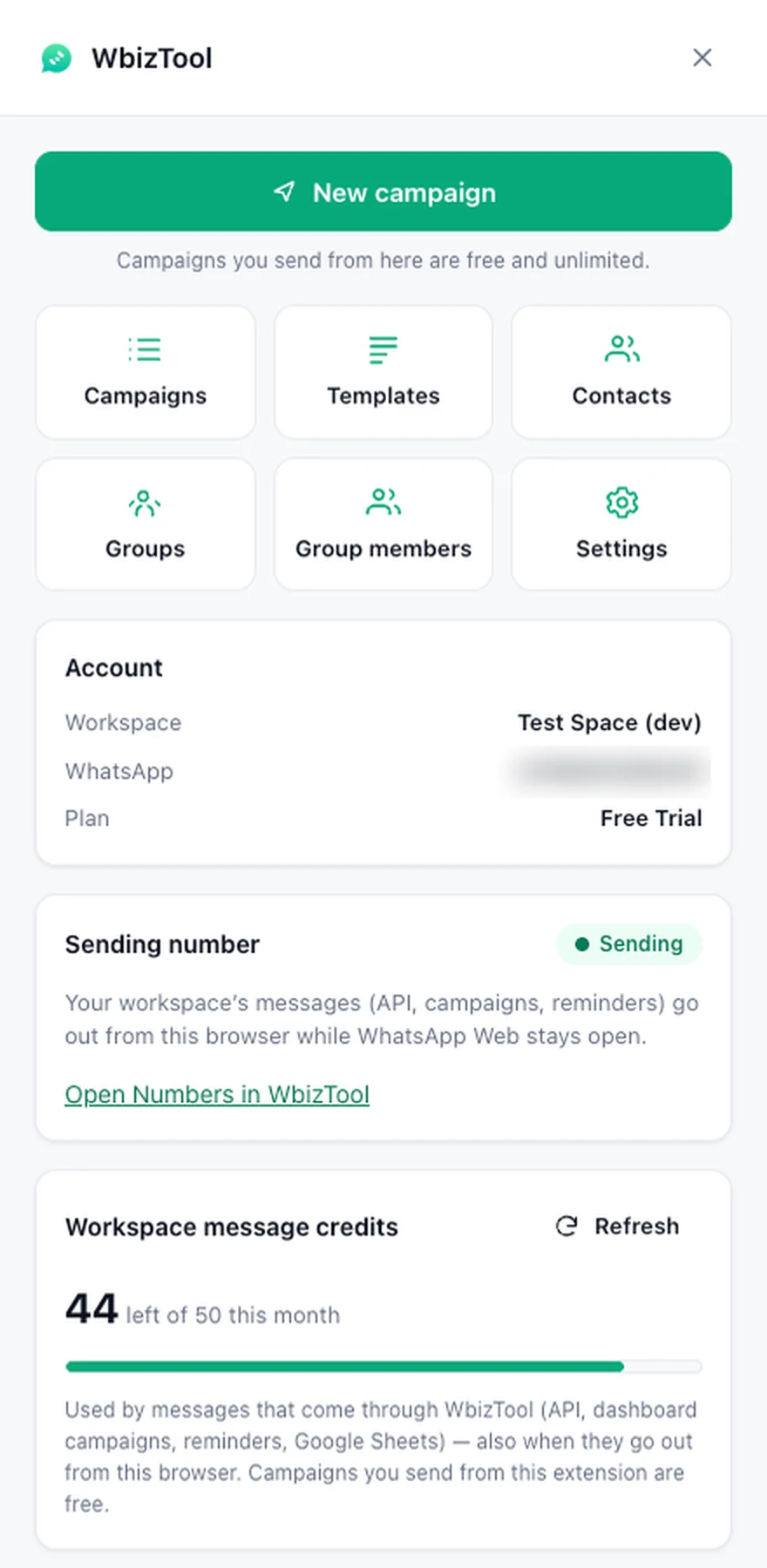
Click the icon. The Wbiztool panel opens on the right, with New campaign, Campaigns, Templates, Contacts, Groups, Group members and Settings.
The extension follows WhatsApp Web's language. To pick another one, open Settings in the panel.
Use it as your sending number#
Log in to WhatsApp Web
In the browser with the extension, log in to WhatsApp Web with the number you want to send from.
Click Connect with WbizTool
Open the panel. Under Connect to WbizTool (optional), click Connect with WbizTool. The panel says "Waiting for approval…" and a Wbiztool window opens. Log in to Wbiztool if it asks.
Approve it
In the Connect the WbizTool extension window, choose the Workspace, keep Send this workspace's messages from this browser ticked and click Connect. The window lists what the extension can do: it sees the workspace's plan and message credits, and it can't open your Wbiztool account or change its settings. The window is in your dashboard language.
Check that it's sending
The panel says "Connected to WbizTool": the Account box shows the workspace and plan, and the Sending number box says Sending. On the Numbers page the number appears as Connected with the Browser extension badge.
If the approve window can't connect the number, it says why:
| The window says | What to do |
|---|---|
| "Only owners and editors of a workspace can connect the extension to it." | Ask the workspace's owner to make you an Editor, or to connect it. |
| "Open WhatsApp Web in this browser and log in, then connect again from the extension." | Log in to WhatsApp Web first. Until then, Send this workspace's messages from this browser is greyed out. |
| "This WhatsApp number is already connected to this workspace by QR code or phone code. …" | Remove that number from Numbers first, or untick the box to connect without sending from this browser. |
| "Verify your email address first (see your inbox), then connect again." | Confirm your email address. |
| "This workspace's plan is past due. …" or "This workspace has no plan with WhatsApp numbers. …" | Fix the plan in Billing. |
| "This workspace already uses all WhatsApp numbers of its plan. …" | Disconnect a number in Numbers, or add one in Billing. |
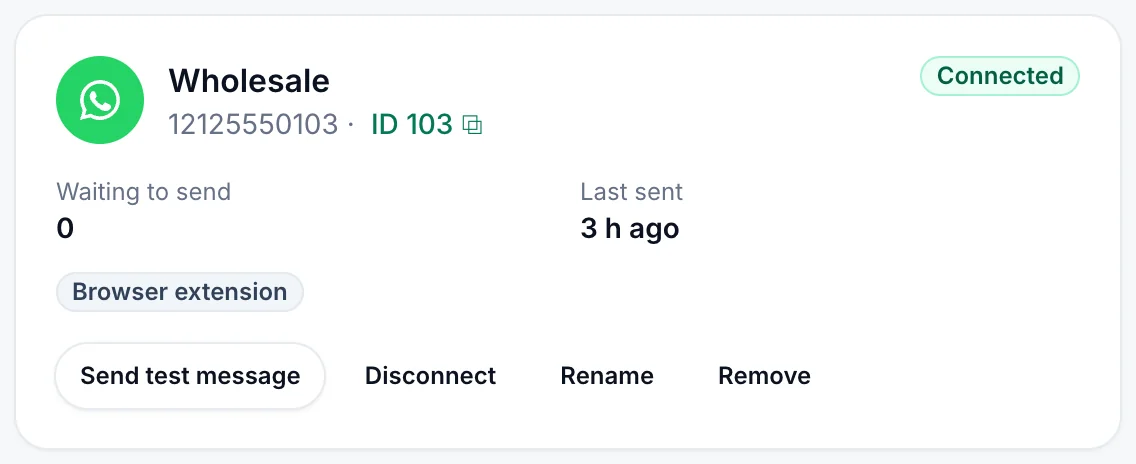
Click Send test message on the card to check that it sends. If you untick Send this workspace's messages from this browser when you approve, the extension only connects your account: it shows your credits, and the browser sends only the campaigns you start in the panel.
How sending works#
- Everything that sends through a number can use it: the API, campaigns, template messages, reminders, quick send, Google Sheets and Shopify. Pick the number like any other, or use its ID as
whatsapp_clientin the API. - Messages go out while that browser is running with WhatsApp Web open and logged in. Keep the computer on and online, with WhatsApp Web in a tab.
- When the browser is closed or WhatsApp Web isn't open, messages wait under Waiting to send and go out once it's back.
- Messages sent through Wbiztool use your workspace's message credits, as on any number. Campaigns you start in the panel are free.
When it isn't sending#
When the number isn't connected, its card on the Numbers page says why:
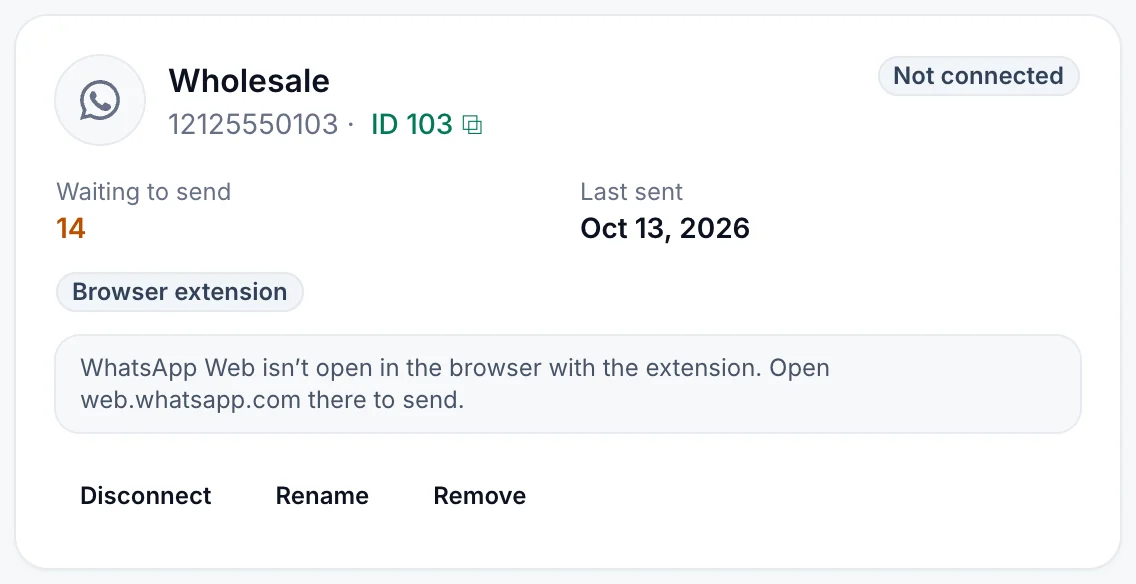
| On the card | What to do |
|---|---|
| "The browser with the WbizTool extension is closed or offline. Messages wait until it's back." | Open Chrome on that computer and check its internet connection. |
| "WhatsApp Web isn't open in the browser with the extension. Open web.whatsapp.com there to send." | Open web.whatsapp.com in that browser. |
| "WhatsApp Web is logged out in the browser with the extension. Log in there to send." | Log in to WhatsApp Web again with the same number. |
| "WhatsApp Web is still loading in the browser with the extension." | Wait until your chats have loaded. |
| "WhatsApp Web in that browser is logged in with another number. Log in with this number to send." | Log out of WhatsApp Web there and log in with the connected number. |
| "All WhatsApp numbers of your plan are in use, so this number can't connect. Disconnect one or add one in Billing." | Disconnect another number, or add a number in Billing. |
| "This browser has an old version of the WbizTool extension. Update it in Chrome to send from it." | Update the extension: restart Chrome, or click Update on Chrome's extensions page in developer mode. |
| "The extension was disconnected. Connect it again from the WbizTool extension in WhatsApp Web." | Connect it again. |
The panel's Sending number box in WhatsApp Web shows the same reasons.
An extension number has no Reconnect button: it connects again by itself as soon as WhatsApp Web is open and logged in in that browser.
Stop sending from the browser#
- On the Numbers page: click Disconnect on the card. The browser stops sending for the workspace. Click Remove to delete the card as well: its waiting messages are cancelled.
- In the panel: click Log out at the bottom of the panel and confirm. "This browser stops sending for your workspace. Your campaigns and templates stay saved here."
To send from the browser again, connect it again.
Free campaigns in WhatsApp Web#
Campaigns you start in the panel are sent by WhatsApp Web in your browser. They're free and unlimited, use no message credits and work without a Wbiztool account.
Start a campaign
In the panel, click New campaign.
Add the contacts
Type or paste numbers, or upload a
.csvor.xlsxfile (save old.xlsfiles as.xlsxfirst) with the column names in the first row and up to 50,000 rows. The phone and name columns are found for you, and numbers without a country code get the country code of the number logged in to WhatsApp Web.Write the message
Write the message and click a variable such as
{{name}}, or one of your file's columns, to insert it: it's filled in for each contact. Attach images, videos or documents (up to 16 MB each): the message becomes the caption of the first file. The preview shows the message as each contact will see it.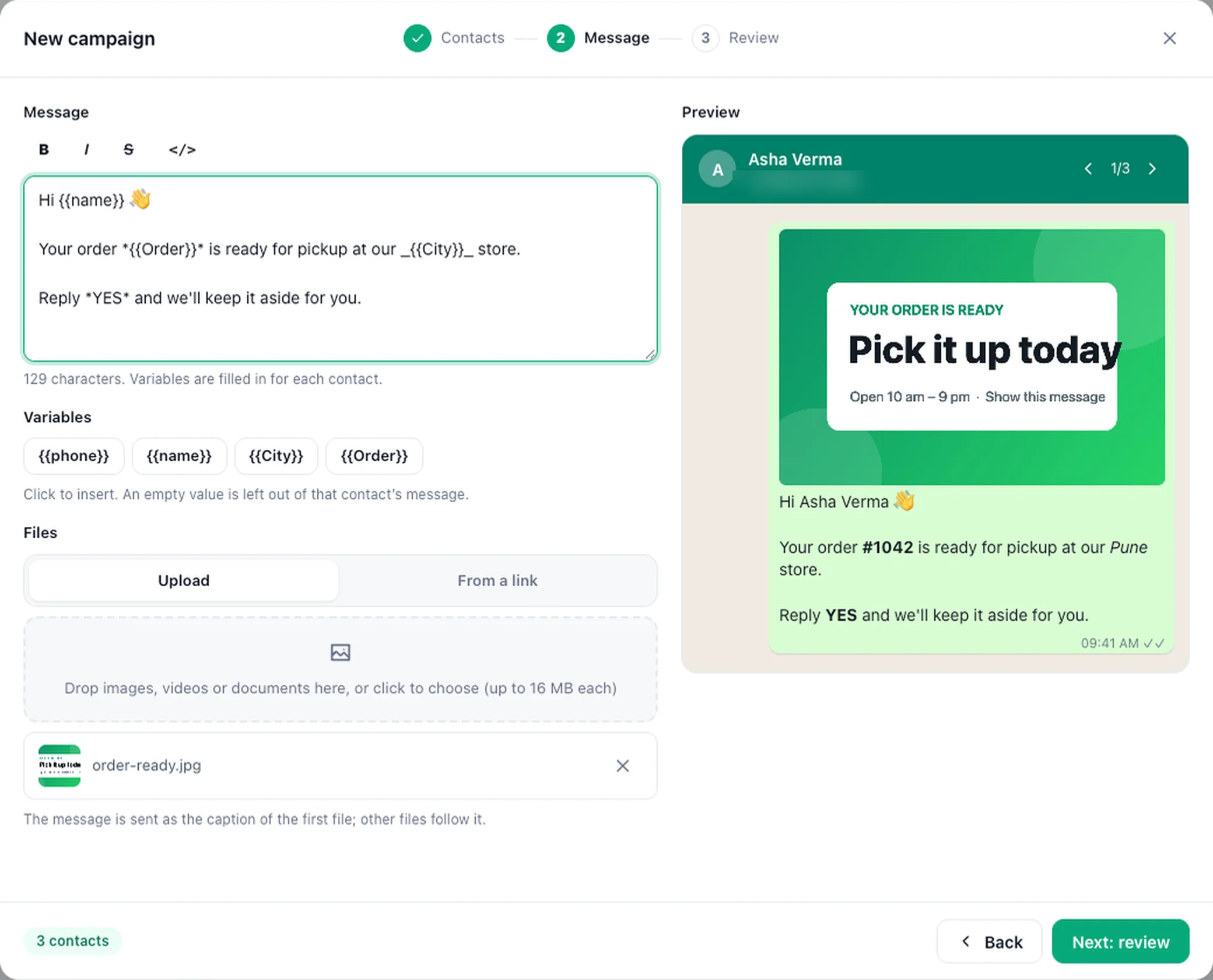
Review and send
Check the review, click Save and send, then Start sending. Keep WhatsApp Web open while it runs. Messages go out one by one, with a random pause between them.
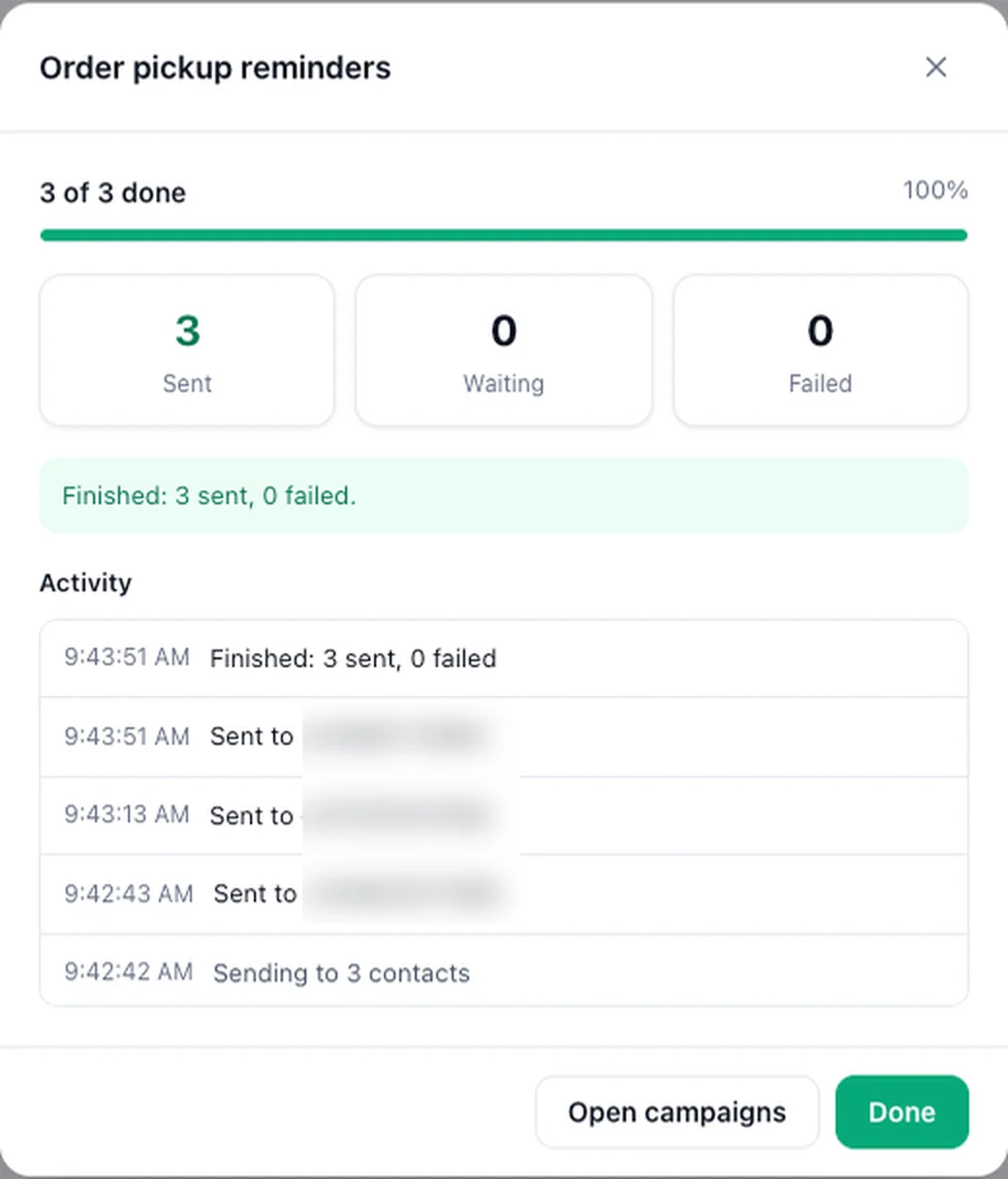
Campaigns in the panel lists your campaigns with their progress and results. You can export the results or delete a campaign.
Templates, contacts and groups#
- Templates: save messages you send often, with their variables, and start a new campaign from one.
- Contacts: your WhatsApp contacts, filtered by activity, muted, archived or unread chats. Export them as Excel or CSV, or start a campaign with them.
- Groups and Group members: your groups, and the members and admins of one group, to export or start a campaign with. Members who hide their number are counted but left out.
Templates, campaigns and settings are saved in that browser.
Good to know#
- Wbiztool messages sent by the extension appear in Message history like any others.
- The panel comes in 14 languages, right to left for Arabic and Hebrew.
- One browser sends for one workspace at a time. To switch, log out in the panel and connect again.