
Product guides
Auto-replies: answer WhatsApp messages automatically
Auto-replies answer WhatsApp messages for you, from the number the customer wrote to. A customer who asks about prices at night gets your price list, and someone writing for the first time gets a welcome message. Your team can then pick up the chat in the Unibox inbox.
Who can use it: Owners and Editors of a workspace with the Unibox add-on. Auto-replies answer chats on your inbox numbers, so a number has to be in the inbox first. See Before you start.
Click Auto-replies under Inbox in the sidebar, or go to /unibox/auto-replies/.
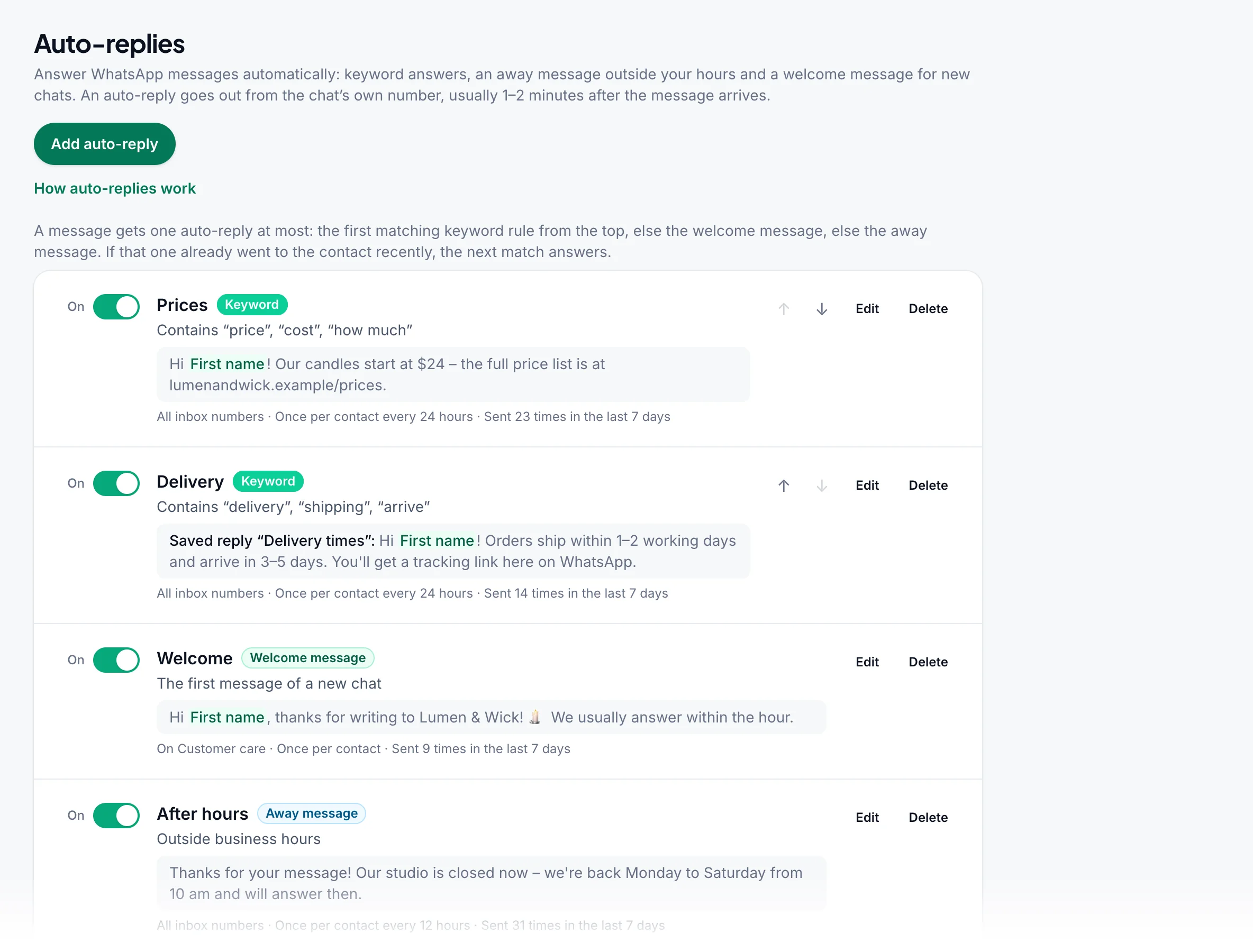
The three kinds#
| Kind | Answers | Example |
|---|---|---|
| Keyword | A message that contains one of its words or phrases, or is exactly one of them | "price, cost, how much" → your price list |
| Welcome message | The first message of a new chat: one with no earlier messages either way, so a contact you wrote to first (a campaign, a reminder) doesn't get it | "Hi! Thanks for writing to us – we usually answer within the hour." |
| Away message | Messages that arrive outside your business hours | "We're closed now – we're back at 10 am." |
A message gets one auto-reply at most: the first matching keyword rule from the top, else the welcome message, else the away message. If that one already went to the same contact recently, the next match answers: someone who asks about prices twice in one night gets the price list, then the away message. Use ↑ and ↓ to put the most specific keyword rules first.
Add an auto-reply#
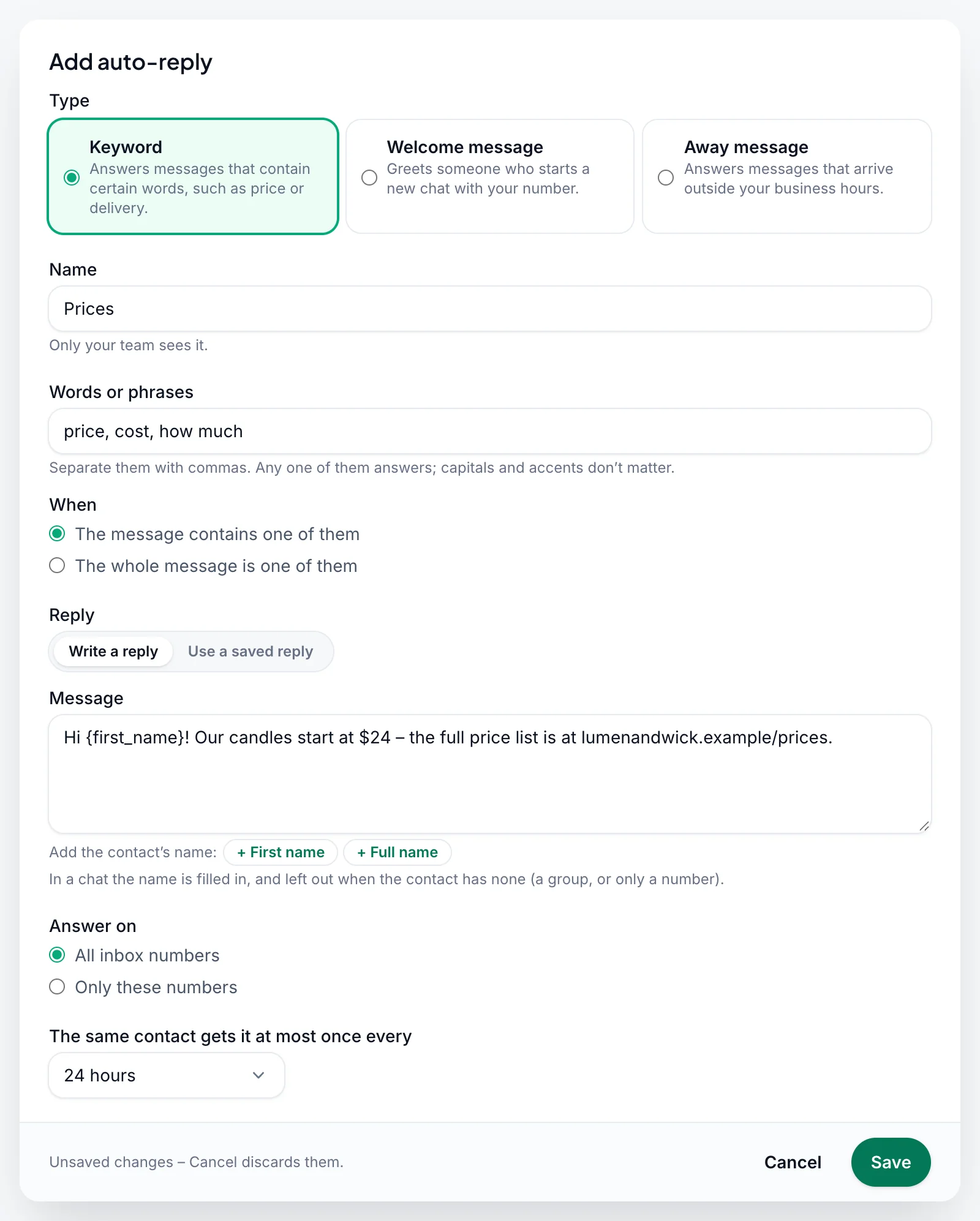
Click Add auto-reply
Pick the type: Keyword, Welcome message or Away message.
Name it
The Name is only for your team, such as "Price list".
For a keyword rule: add its words
Type the Words or phrases, separated by commas:
price, cost, how much. Any one of them answers. Capitals and accents don't matter, and a word only counts as a whole word: "rate" doesn't answer "accurate". Under When, choose The message contains one of them, or The whole message is one of them for short messages such ashoursormenu.Write the reply
Write the Message, up to 5,000 characters, or switch to Use a saved reply and pick one of your saved replies. Click + First name or + Full name to add the contact's name: it shows as
{first_name}or{name}while you write, and is left out when the chat has no name (a number only).Choose where and how often
With more than one inbox number, Answer on is All inbox numbers or Only these numbers. The same contact gets it at most once every sets how often one contact can get this auto-reply: 1 hour to 7 days (24 hours for a keyword rule and 12 hours for the away message unless you change it). A welcome message goes to each contact once.
Save
Click Save. The auto-reply is on at once. Use its switch to turn it off and on again, Edit to change it and Delete to remove it.
Business hours#
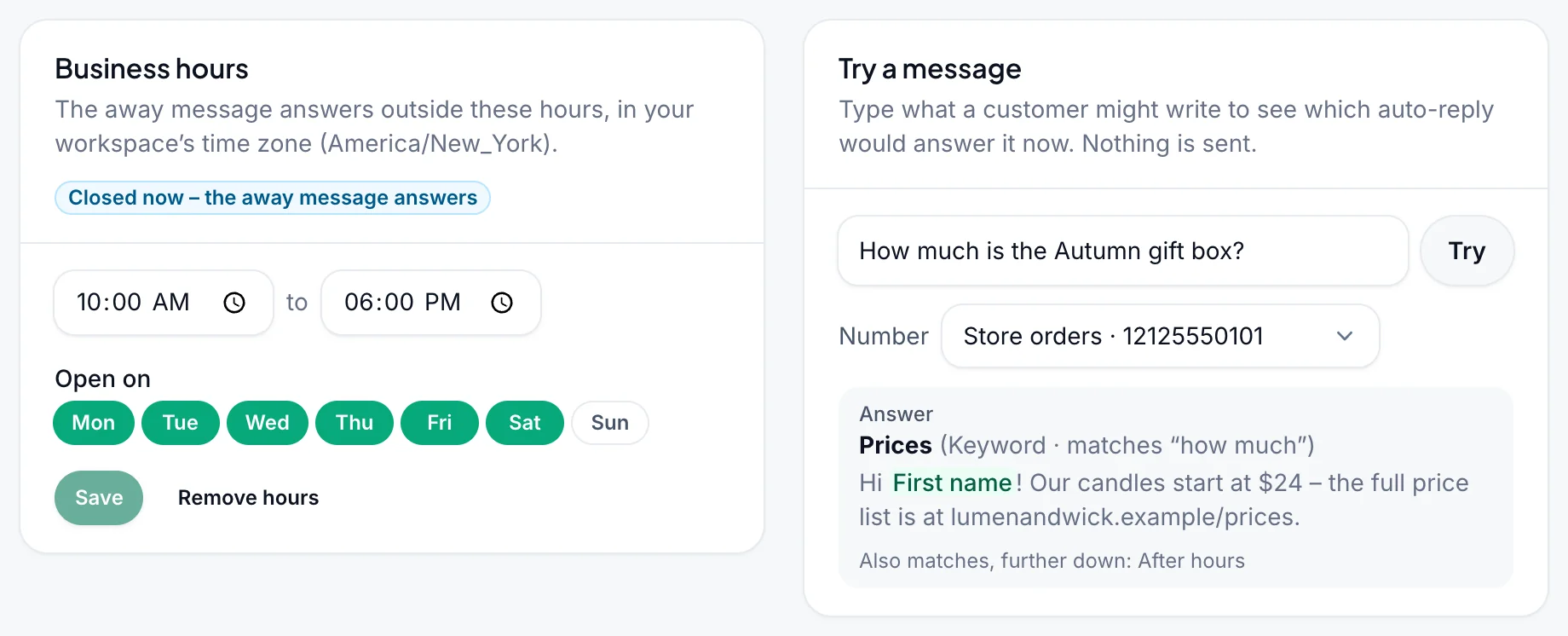
The away message answers outside your business hours. Set them on the Business hours card: the times and the days you're open, then Save. They follow your workspace's time zone, set under Workspace settings. Closing time before opening time means open past midnight, such as 22:00 to 06:00.
The card shows Open now, or Closed now – the away message answers. Remove hours asks first, because the away message then stops answering. Until business hours are set, the away message doesn't answer, and the list says so.
Try a message#
Type what a customer might write in Try a message and click Try. It shows which auto-reply would answer it now on the Number you pick, with its reply, and nothing is sent. When a new chat would get a different answer, such as the welcome message, it shows both, and "Also matches, further down" names other rules that match too.
When an auto-reply doesn't answer#
Auto-replies go out from your own WhatsApp number, so these rules are always on to protect it:
- No groups, and none of your own numbers writing to each other.
- Only new messages. A message that's more than 10 minutes old when it reaches the inbox gets no auto-reply. So turning a rule on never answers earlier chats, and a number catching up after a pause doesn't answer old messages.
- Your team comes first. No auto-reply for 30 minutes after someone on your team wrote in that chat, from the inbox or the phone.
- One at a time. A contact gets at most one auto-reply every 5 minutes, so two automatic systems can't keep answering each other.
- At most 30 an hour from one number.
- Not late. An auto-reply that isn't sent within 30 minutes, for example while the number is disconnected, is dropped.
Under the list, "Matched but not sent in the last 7 days" counts the auto-replies these rules held back, such as "someone on your team was in the chat (6)".
How fast it answers#
The inbox checks each number about once a minute, so an auto-reply usually goes out 1–2 minutes after the message. While the number is sending a campaign, it can take longer: campaigns with a pace leave gaps for it. Telegram chats are usually answered faster, as their messages arrive at once.
- An auto-reply counts as one message, like a reply from the inbox. Paid plans are unlimited; on the free plan, an auto-reply isn't sent when your messages run out.
- Your workspace's sending hours don't hold auto-replies back, so the away message goes out at night.
- In the inbox, an auto-reply shows in the chat with ⚡ Auto-reply above it.
Troubleshooting#
| Problem | What to do |
|---|---|
| No auto-reply was sent | Use Try a message to see which rule answers. Then check the rule's switch, its Answer on numbers, and "Matched but not sent in the last 7 days" under the list. |
| The away message doesn't answer | Set your business hours, and check the time zone in Workspace settings. Inside the hours, the away message doesn't answer. |
| A keyword doesn't match | It has to be a whole word: "price" doesn't match "prices". Add both, or use a shorter phrase. |
| The contact got the welcome message, not the keyword answer | Keyword rules come first, but only when the message contains the word. A first "hi" gets the welcome message. |
| A new customer didn't get the welcome message | It answers only a new chat. If you wrote to them first, for example with a campaign, the chat isn't new. |
| The same customer didn't get it again | Each auto-reply waits its "at most once every" time for the same contact. |
| An auto-reply came late or not at all | The number was busy, disconnected, or someone on your team had just written in the chat. See When an auto-reply doesn't answer. |
| Unibox add-on required | An Owner adds Unibox Phone Number on Billing & plans. See Add-ons. |
Related#
- Unibox inbox and its saved replies
- Incoming message webhooks for inbox numbers
- Workspace settings for the time zone and sending hours