
Product guides
Number verification: check which numbers are on WhatsApp
Find out which phone numbers in a list have WhatsApp before you send them a campaign. Paste the numbers or upload a CSV or Excel file, and WbizTool checks each one from your connected WhatsApp number. Nothing is sent to the numbers, and checks don't use your messages.
Who can do it: Owners and Editors start checks and download results. Analysts can open every list and see each number's result, but can't start a check or download. Number verification is part of the Standard plan and above (see Plan limits); Lite and the free trial don't include it.
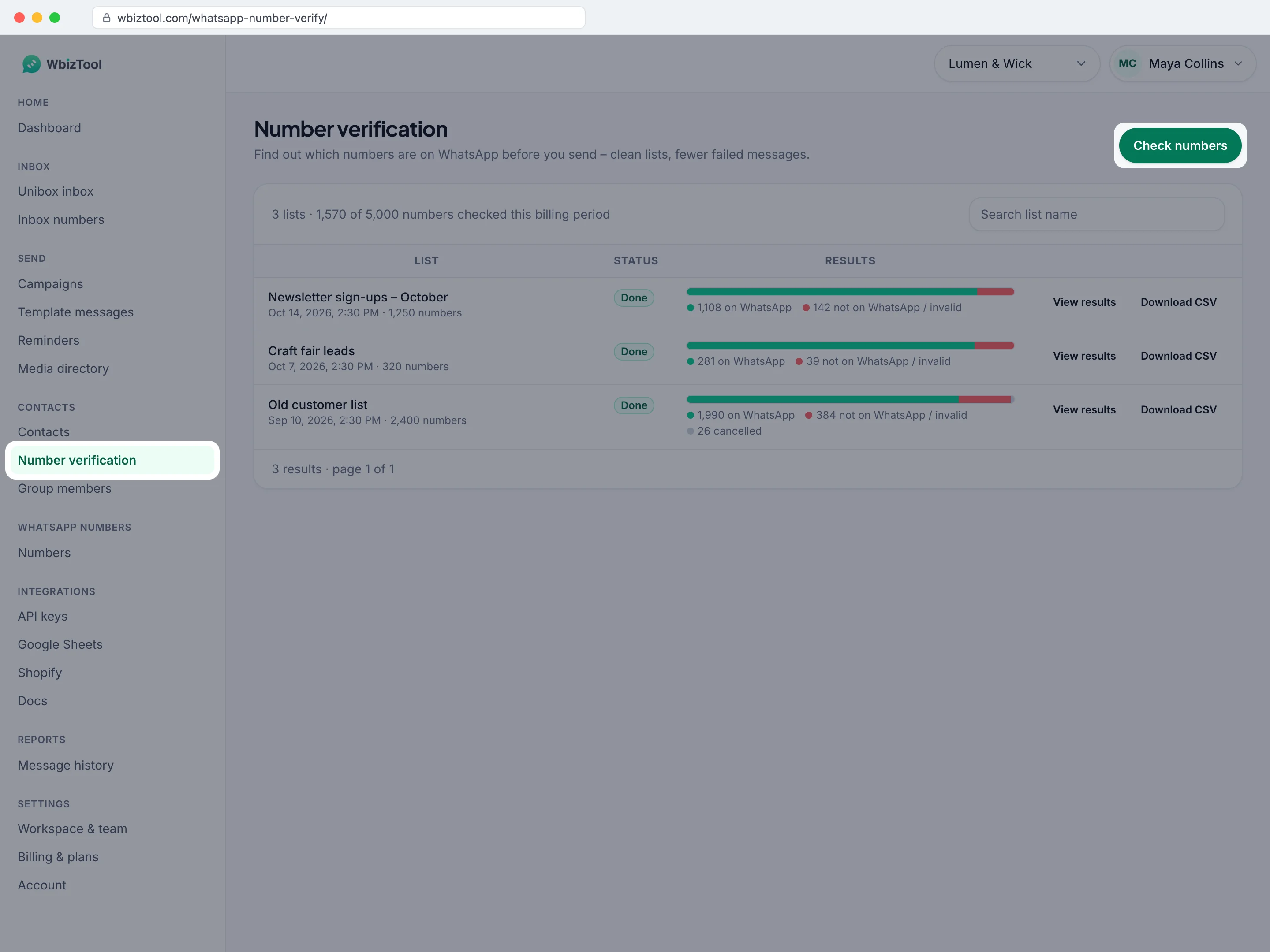
Open Number verification under Contacts in the sidebar, or go to /whatsapp-number-verify/.
Before you start#
- A plan that includes number verification, with enough checks left this billing period. The page shows how many you've used, for example "1,570 of 5,000 numbers checked this billing period".
- A WhatsApp number connected with a QR code or pairing code, showing Connected on WhatsApp numbers. The checks run from it. A number connected through the browser extension can't check numbers. See Connect your WhatsApp number.
- The numbers, such as
919876543210, in a.csv,.xlsor.xlsxfile of up to 5 MB, or ready to paste. Numbers of your workspace's country can go without their country code (see Every number).
Check a list of numbers#
Open the dialog
On Number verification, click Check numbers.
Name the list
Type a Name you'll recognise later, such as
Autumn collection launch.Add the numbers
Paste numbers under Numbers, one per line or separated by commas. Or add a file under Numbers file: drop it on the box, or click browse. You can use both: they're combined, and each number is checked once. To pick another file, click Remove. See How numbers are read.
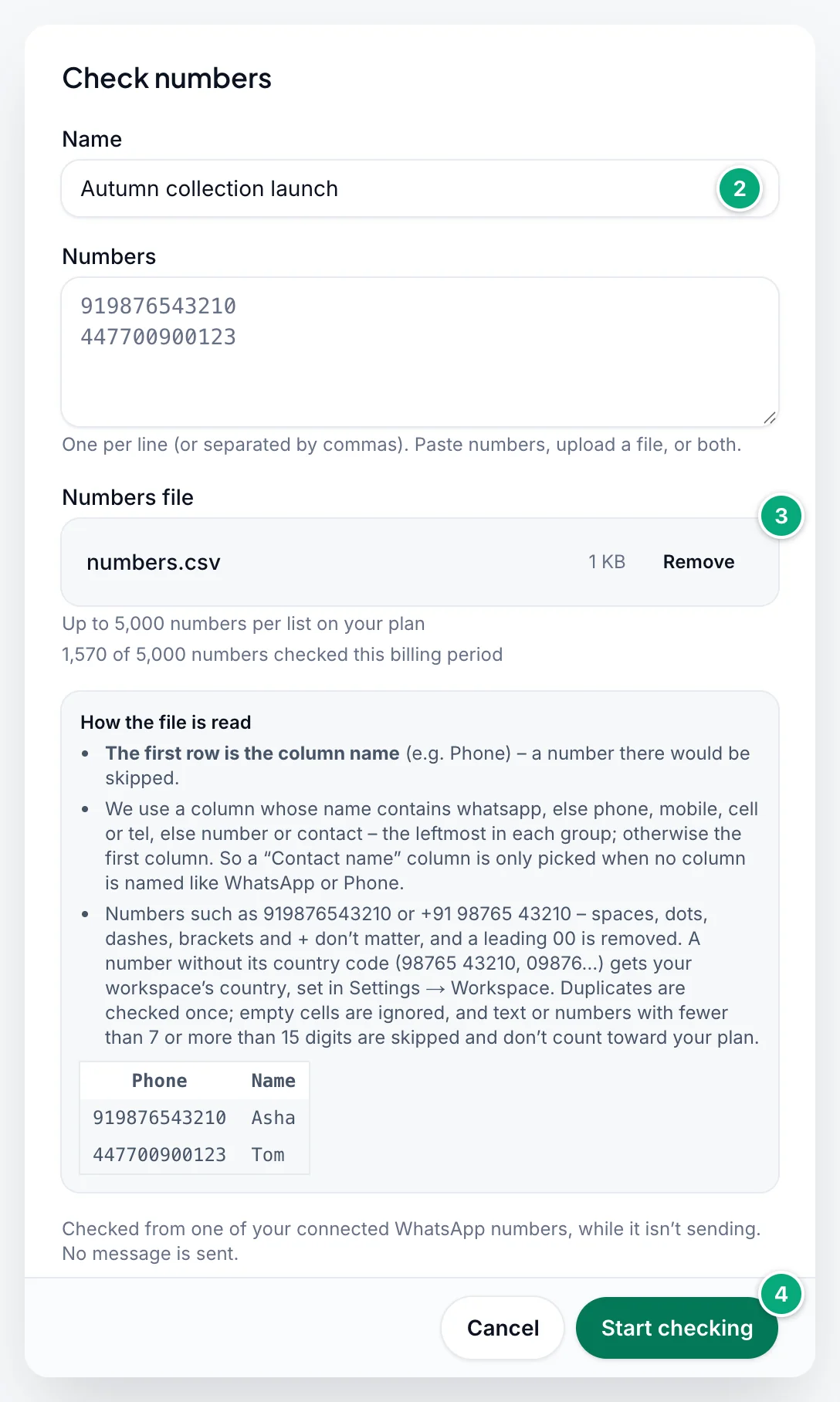
Start checking
Click Start checking. You see, for example, "16 numbers queued for checking", and the list appears at the top of the page as In progress (or Paused if none of your numbers can check it, see How checking works).
Under the file box, the dialog shows your plan's limits, such as "Up to 5,000 numbers per list on your plan" and how many numbers were checked this billing period. If the list can't be checked, nothing is queued and the dialog says why (see Troubleshooting).
The count can be lower than the rows in your file: repeated numbers are checked once, empty cells are ignored, and entries that aren't a phone number are skipped. The message then says how many, for example "16 numbers queued for checking. 2 entries skipped – a phone number has 7 to 15 digits."
Follow a list#
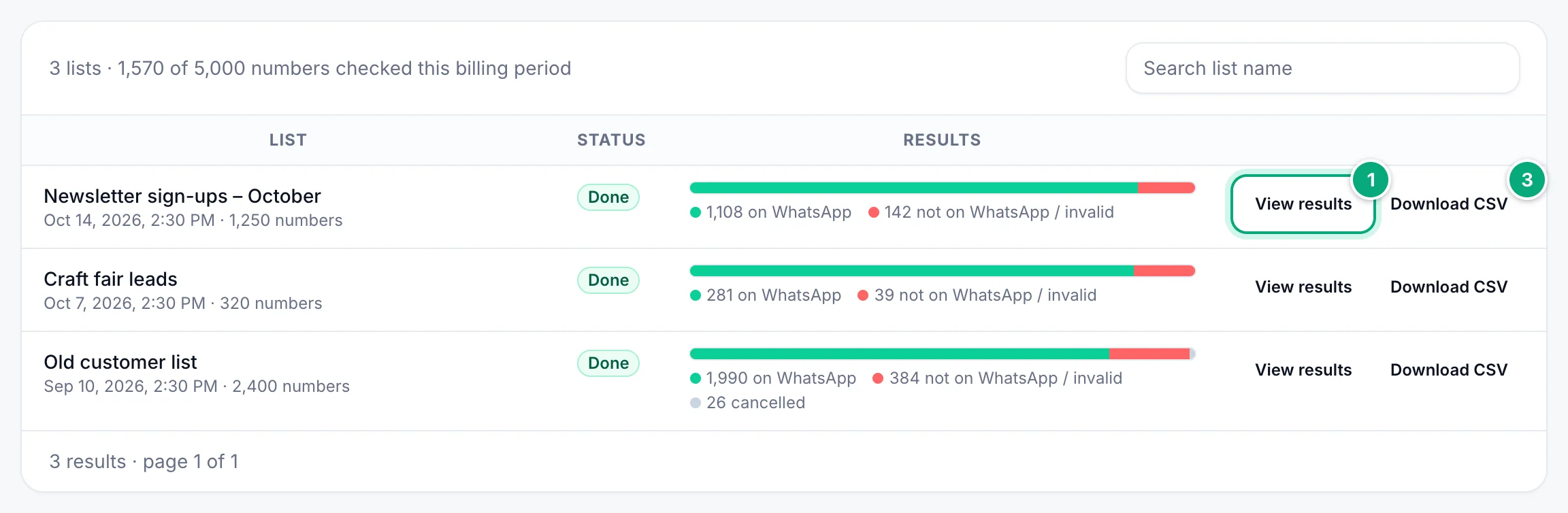
The page lists every check, newest first, 25 to a page. Each list shows its name, when it was started and how many numbers it has, its Status, and a bar with how many numbers are on WhatsApp, not on WhatsApp / invalid, still checking and cancelled. Find a list with Search list name.
While numbers are being checked, the line above the lists ends with "updates every 20 s while checking" and the counts refresh by themselves. You can close the page: checking goes on.
| Status | Meaning |
|---|---|
| In progress | Numbers are being checked. |
| Paused | Numbers are waiting, but none of your WhatsApp numbers can check them: none is connected with a QR code or pairing code. See How checking works. |
| Done | Every number has a result. Some may show as cancelled. |
| Cancelled | Every number in the list was cancelled before it was checked. |
| Empty | The list has no numbers, for example after its results were deleted. |
Checking takes a while: numbers are checked in small batches, one batch after another, from one of your connected numbers and only while it isn't sending. A list of thousands of numbers can take several hours.
Lists started with the verification API appear here too, named API Verification followed by the date and time unless the request gave a name.
See and download the results#
Open the list
Click View results on the list, or its name.
Find the numbers you need
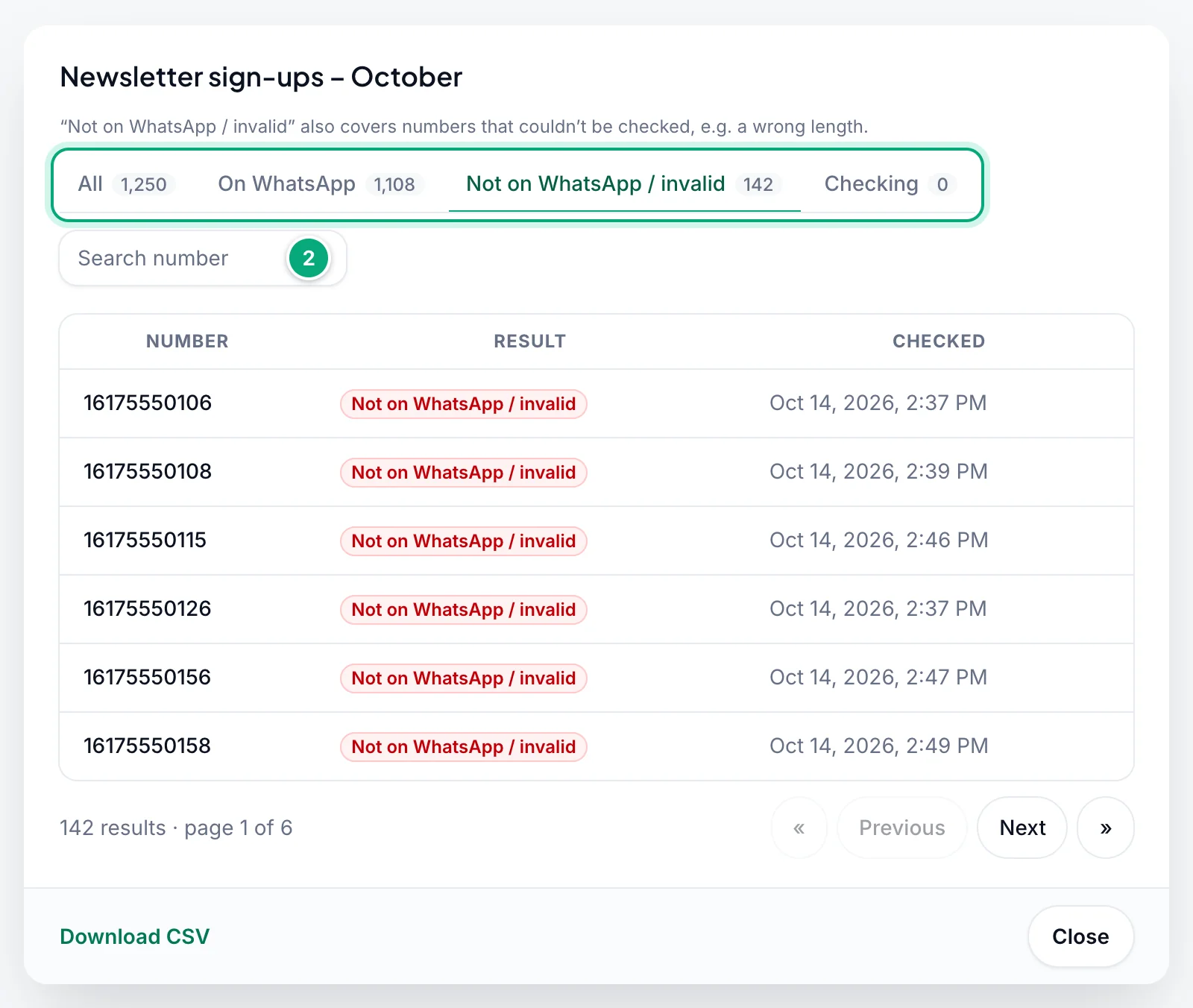
Pick a tab: All, On WhatsApp, Not on WhatsApp / invalid or Checking, each with its count (and Cancelled when the list has cancelled numbers). To find one number, type part of it under Search number. The numbers are shown 25 to a page, with when each was checked.
Download
Click Download CSV, next to the list or at the bottom of its results.
Each number gets one of these results:
| Result | Meaning |
|---|---|
| Checking | Not checked yet. |
| On WhatsApp | The number has a WhatsApp account. |
| Not on WhatsApp / invalid | The number has no WhatsApp account, or couldn't be checked, for example because its length is wrong or its country code is missing. |
| Cancelled | The check was stopped before this number. See Stop or delete a list. |
The CSV file#
The file is named after the list with the date and time of the download in UTC, such as verification_results_Craft_fair_leads_20261015_143000.csv. It has one row per number, sorted by number, and these columns:
| Column | Contents |
|---|---|
Phone Number | The number as it was checked, digits only. |
Status | Verified (on WhatsApp), Invalid (not on WhatsApp / invalid), Pending (still checking) or Cancelled. |
Checked At | When it was checked (for a cancelled number, when it was stopped), as YYYY-MM-DD HH:MM:SS in UTC, or Not checked. |
Created At | When the list was started, in the same format, in UTC. |
The page shows times in your own time zone; the file always uses UTC. The column names and status words are in English, whatever your dashboard language.
You can download while a list is still being checked: its waiting numbers show Pending and Not checked. Download it again when it's Done.
To message only the numbers on WhatsApp, filter Status to Verified in the file and copy the Phone Number column into the To column of a campaign sheet.
How numbers are read#
In a file#
The dialog sums these up under How the file is read.
- The first row holds the column names and is never checked. If your file has no header row, its first number is skipped.
- The number column: WbizTool uses a column whose name contains
whatsapp, else one withphone,mobile,cellortel, else one withnumberorcontact, in any capitals, such asPhoneorMobile number. The same words in the dashboard's other languages count too, such asTelefon,TeléfonoorNo HP. Within each group the leftmost column is used. If no column name matches, it uses the first column. - Excel files: only the first sheet is read.
- CSV files: commas, semicolons or tabs between the columns all work: the one the first row has most of is used. Files saved as UTF-8 (in Excel, CSV UTF-8) and Excel's plain CSV (Windows encoding) are both read.
An example that works:
| Phone | Name |
|---|---|
| 919876543210 | Asha |
| +44 7700 900123 | Tom |
Every number#
- Best with the country code first:
919876543210. A+, spaces, dots, dashes and brackets are removed, so+91 98765-43210and91.98765.43210work too. A leading00is removed:00919876543210is checked as919876543210. Excel's919876543210.0is read correctly. - Without a country code, a number gets your workspace's country: in a workspace in India,
09876543210and98765 43210are checked as919876543210. That's the Country for numbers without a country code in Settings → Workspace, or, while none is saved, the country of most of your WhatsApp numbers. A number that starts with0and can't be completed (no country is known, or it isn't a valid number there) is skipped. - Lists started with the Verification API aren't completed: send numbers with their country code there.
- Skipped: cells with letters or other characters, numbers with fewer than 7 or more than 15 digits, and numbers Excel rounded, such as
9.19877E+11. They don't count toward your plan, and the message after Start checking says how many were skipped. Empty cells are ignored. - Repeated numbers are checked once, also across the file and the pasted numbers.
- Pasted numbers go one per line, or are separated by commas, semicolons or tabs. Numbers separated only by spaces are read as one long number.
Plan limits#
Your plan sets one number, shown on Pricing, and to Owners on Billing & plans, as number checks:
| Plan | Numbers you can check |
|---|---|
| Lite | Not included |
| Standard | 5,000 |
| Advanced | 20,000 |
| Enterprise | 100,000 |
- Per list: a list can't have more numbers than that ("Up to 5,000 numbers per list on your plan").
- Per billing period: all your lists together can't go over it either. The count starts again with each usage period: at each monthly renewal, and every 30 days on yearly and lifetime plans.
- What counts: every number queued, after repeats and skipped entries are removed, whatever its result. Cancelled numbers and lists started with the API count too. The API doesn't check what's left this period, so an API list can use it up; the dialog then refuses new lists until the period renews.
- A list that's too big is refused whole: nothing is queued. Split it, wait for the next period, or ask an Owner to upgrade.
If your plan has no limit, the dialog and the page don't show these lines.
Without number verification in the plan, the button reads Check numbers (not in plan) and is grey (pointing at it shows "Not in your current plan"), and the page says "Number verification isn’t in your current plan. You can still view past results here; downloading them needs the plan." Owners can click See plans to upgrade.
How checking works#
- From any of your numbers: each batch is checked from a connected WhatsApp number of the workspace that isn't sending at that moment. You can't choose which. Numbers connected through the browser extension never check. No message is sent to the numbers you check.
- Sending comes first: while your numbers send messages, for example a campaign, checking waits, and the list stays In progress. While a number checks a batch, its own messages wait until the batch is done.
- Paused: if no number is connected with a QR code or pairing code, the page says "Checking is paused: it needs a WhatsApp number connected with a QR or pairing code – browser-extension numbers can’t check numbers." with a link to WhatsApp numbers, and the list shows Paused. Checking continues by itself once such a number is connected.
Stop or delete a list#
There's no button to stop or delete a list. To stop checking, contact support. Support stops every number still waiting in the workspace, in all your lists, not just one. Those numbers show as Cancelled, with the time they were stopped, and still count toward your plan.
Troubleshooting#
| Message or problem | What to do |
|---|---|
| "Give the list a name." | Type a Name. |
| "Paste some numbers or choose a file." | Add a file under Numbers file or paste numbers under Numbers. |
| "Choose a CSV or Excel file (.csv, .xls or .xlsx)." | Save the file in one of those formats. |
| "The file is too large – the limit is 5 MB." | Delete the columns you don't need, or split the file into several lists. |
| "No phone numbers found. Put them in the first column or one named Phone." | Check the header row and the number column. The cells must hold numbers of 7 to 15 digits. If the message also says entries were skipped, see Every number. |
| "This list has … numbers, but your plan allows … per list." | Split the list into smaller ones. |
| "This list has … numbers, but your plan has only … of its … checks left this billing period." | Check fewer numbers, wait until your plan renews, or ask an Owner to upgrade (See plans). |
| "Number verification isn’t in your current plan." | An Owner can upgrade to Standard or higher on Billing & plans. |
| Check numbers is grey, and pointing at it shows "Only the workspace owner or an editor can check numbers" | You're an Analyst in this workspace. Ask an Owner to make you an Editor. |
| "Only the workspace owner or an editor can start a check." | Your role changed to Analyst while the page was open. Ask an Owner. |
| "Couldn’t start the check: …" | Reload the page and try again. Contact support if it repeats. |
| No Download CSV, and the bottom of a list's results says "Download needs the verification feature on your plan and an owner or editor role." | You're an Analyst (ask an Owner or Editor to download it), or the plan no longer includes number verification. |
| Paused, "Checking is paused: …" | Connect or reconnect a number with a QR code or pairing code on WhatsApp numbers. A number connected through the browser extension can't check numbers. |
| Numbers stay Checking for hours | Large lists take hours, and checking waits while your numbers send. Make sure a number shows Connected. If the counts don't move for a day, contact support. |
| Numbers you expected on WhatsApp show Not on WhatsApp / invalid | Look at the number in the results: a number without its country code got your workspace's country (see Every number). Write numbers from other countries with their country code. |
| Fewer numbers queued than rows in your file | Repeated numbers and empty cells aren't queued, nor are skipped entries: text, 9.19877E+11, or fewer than 7 or more than 15 digits. The message after Start checking says how many were skipped. |