
Product guides
Media directory: upload a file, get a link
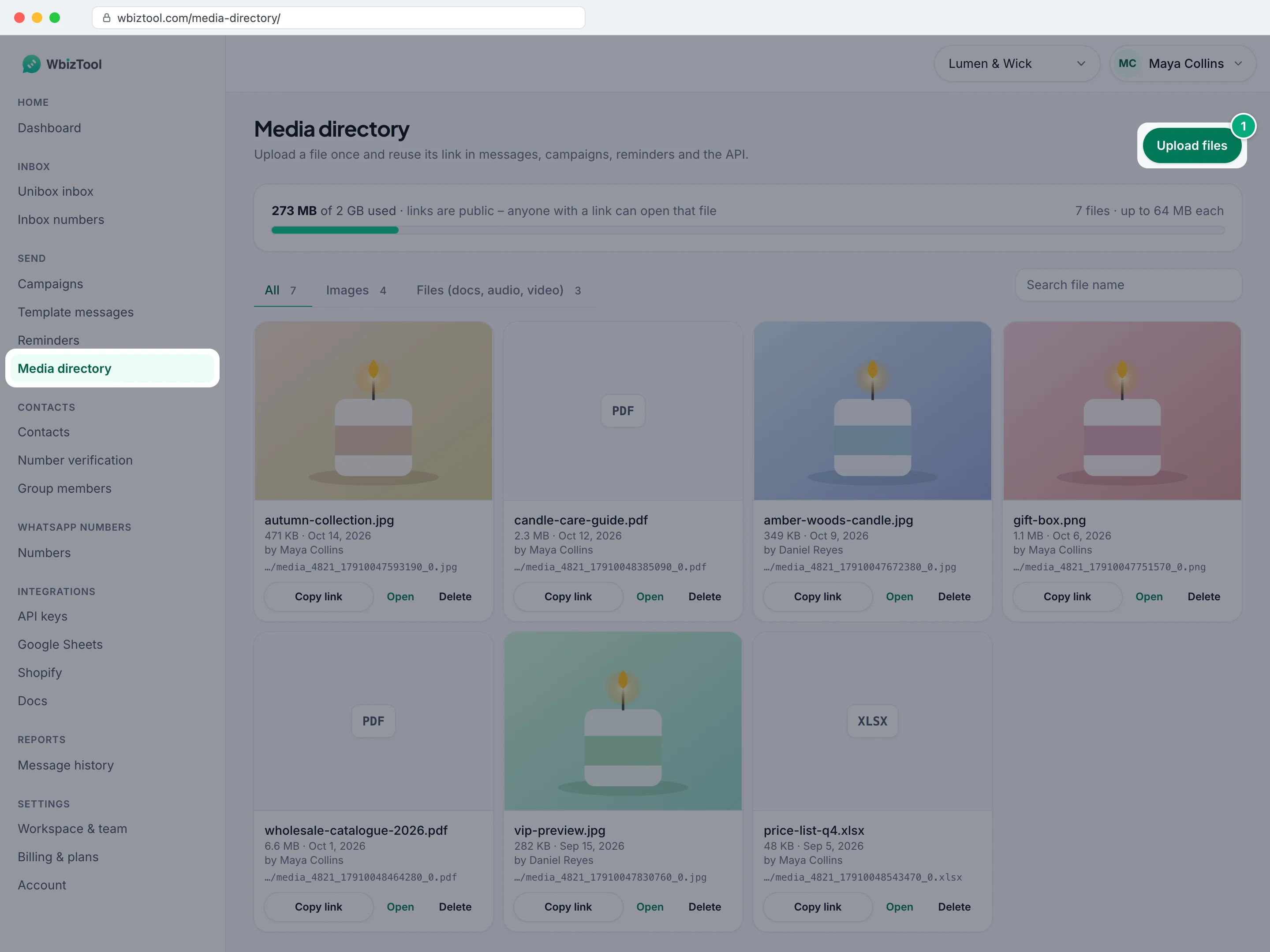
The Media directory turns a file on your computer into a link you can send on WhatsApp. Upload a product photo, a price list or a video once, click Copy link, and paste the link wherever WbizTool asks for an image or file link: quick send, campaigns, template messages, reminders, Google Sheets triggers or the API.
Who can do it: Owners and Editors upload and delete files. Analysts can open the page, find files, open them and copy their links. It works on every plan, including the free trial. Each workspace has its own Media directory, with room for 250 MB to 10 GB of files, depending on the plan (see Storage per plan).
Open Media directory under Send in the sidebar, or go to /media-directory/.
Upload a file and copy its link#
Open the upload window
Click Upload files at the top right of the page.
Choose the files
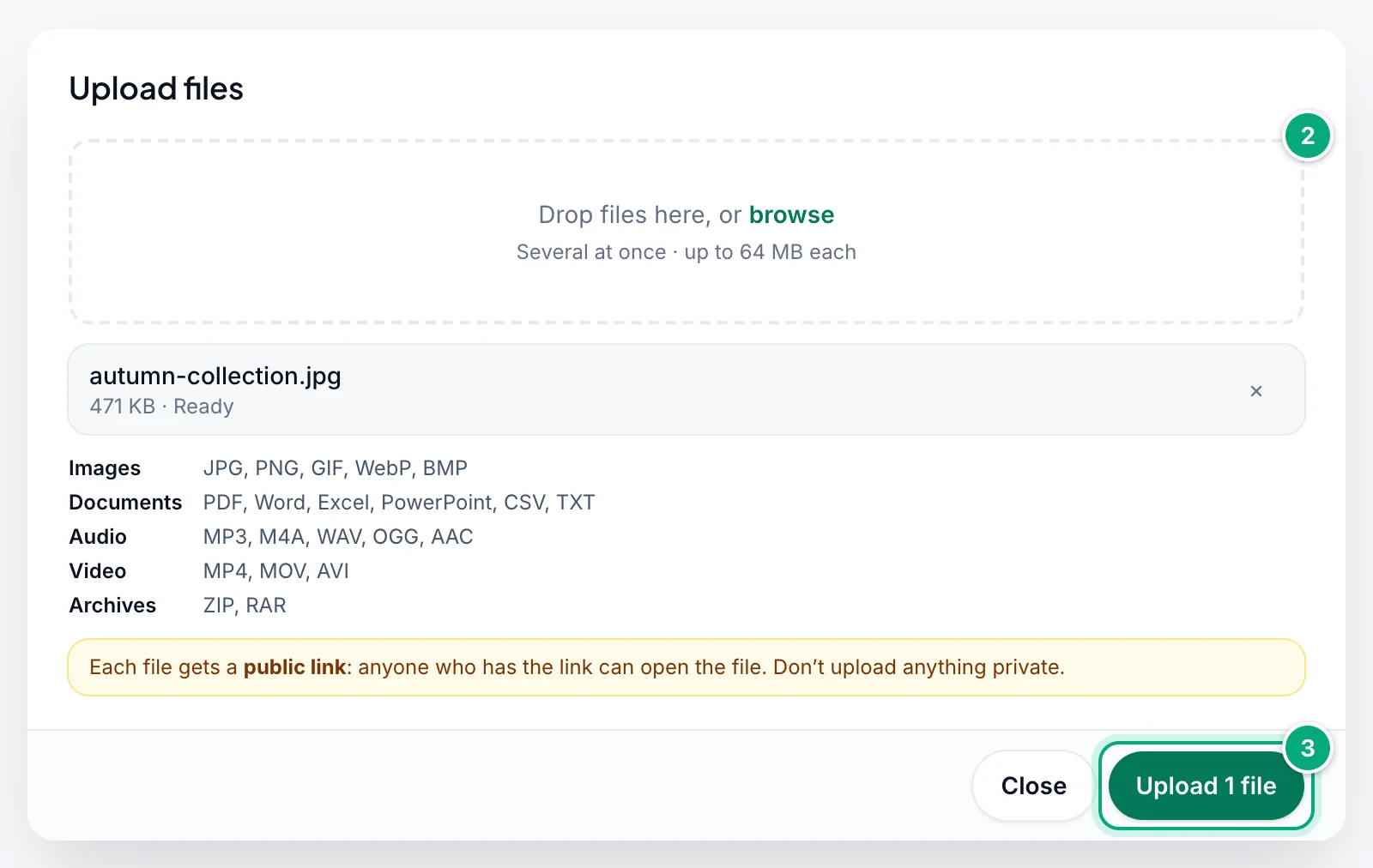
Drop files on the box, or click browse and choose them. You can add several at once, each up to 64 MB. Each file is listed with its size and Ready, or in red with the reason it can't be uploaded (see Files you can upload). To take a file off the list, click its ×.
Upload
Click the upload button. It counts your files: Upload 1 file, Upload 3 files and so on. The files go up one after another, each showing "Uploading… 42%", then "Saving…" and "Uploaded". When all of them are done, the window closes and you see "3 files uploaded".
Copy the link
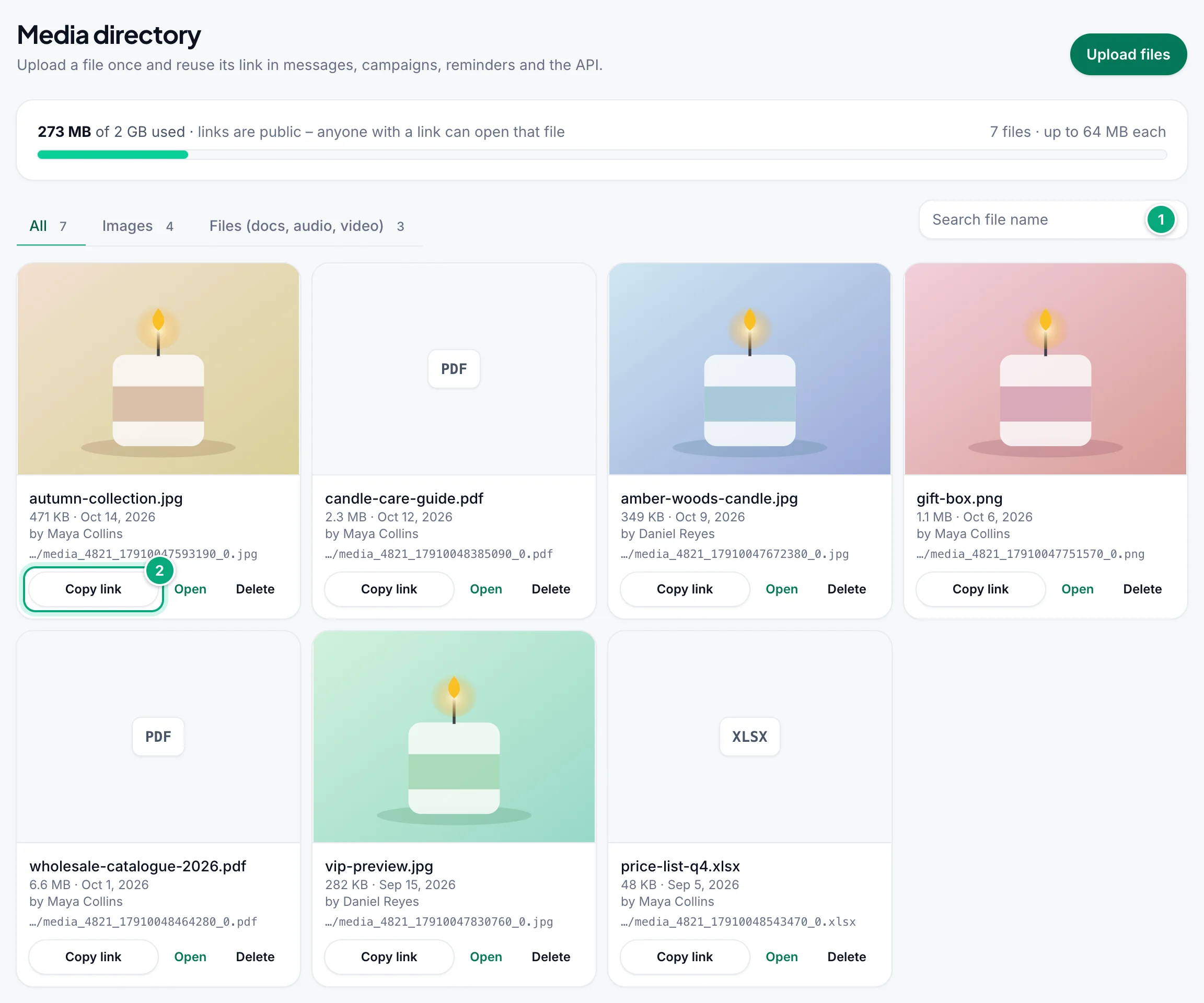
The new file is first in the list. Click Copy link on its card. The button shows Copied ✓ and you see "Link copied – paste it into a message, campaign sheet or API call. Anyone with the link can open the file."
Then paste the link where you need it: see Use a link in messages.
- You can close the window while files upload: they carry on, and the list refreshes when they finish.
- If a file fails, you see "1 file couldn’t be uploaded – see the upload window." The window stays open with the reason next to that file (if you closed it during the upload, click Upload files to see it again). Click Upload 1 file to try it again.
- Files refused before uploading (wrong type, too large, no space left) stay in the window, in red, after the others are uploaded. Remove them with ×, or click Close.
Find and copy a link#
Find the file
Files are listed newest first, 24 to a page. Click Images or Files (docs, audio, video) to see one kind, or type part of the name in Search file name. The search looks at the name the file had on your computer, and the counts on the tabs follow it.
Copy its link
Click Copy link on the file's card.
Each card shows a preview (or the file type, such as PDF), the file's name, its size, the upload date, who uploaded it and the end of its link. Click the preview or Open to open the file in a new tab and check it.
A link ends like …/media/org_4821/media_4821_17604516001234_0.jpg. Each uploaded file gets a new name, so the link doesn't contain your file's name: see What recipients see.
Use a link in messages#
Paste the link into:
| Where | Field |
|---|---|
| Dashboard → Send a message | Type → Image or File, then Image link or File link. See Send a quick message. |
| Campaigns | The Image/File Url column of your sheet. A link ending in .jpg, .jpeg, .png, .gif or .bmp goes as an image; any other (WebP, MP4, documents) as a file. See Campaigns. |
| Template messages | Attachment → Image or File, then Image link or File link. See Template messages. |
| Reminders | Message type → Image or File, then Image link or File link, or choose the file under Pick from the Media directory (it lists your 24 newest files of that kind). Sent as a File, a Media directory file keeps the name it was uploaded with. See Reminders. |
| Google Sheets triggers | Message type → Image or File, then Link to the image or file. See Google Sheets integration. |
| The API | img_url or file_url in Send message and the other send endpoints. Media directory links are sent as they are, not downloaded and stored again. |
WbizTool downloads the file from the link when each message goes out, not when you send or schedule it. That's why a file can't be deleted while messages that use it are still waiting (see Delete a file).
Files you can upload#
| Kind | Formats | Sent as a File, it arrives as |
|---|---|---|
| Images | JPG, PNG, GIF, WebP, BMP | A document |
| Documents | PDF, Word (DOC, DOCX), Excel (XLS, XLSX), PowerPoint (PPT, PPTX), CSV, TXT | A document |
| Audio | MP3, M4A, WAV, OGG, AAC | MP3, M4A, AAC: audio that plays in the chat. WAV, OGG: a document |
| Video | MP4, MOV, AVI | A document |
| Archives | ZIP, RAR | A document |
- Up to 64 MB per file. A larger file shows "Larger than 64 MB – choose a smaller file." and isn't uploaded.
- Storage per workspace, all files together, depends on the plan (see Storage per plan). The bar at the top of the page shows how much is used, for example "273 MB of 2 GB used"; it turns amber above 80% and red when full. A file that doesn't fit shows "Your workspace has used its 2 GB of media storage. Delete files you no longer need, or contact us if you need more space."
- The type comes from the extension at the end of the file name, so keep it:
price-list.pdf, notprice-list. Any other file shows "This file type isn’t accepted." - The same file picked twice is listed once.
Every format above uploads, and keeps its extension when it's sent as a File. Links to a few types the Media directory doesn't take keep theirs too: .webm, .mpga, .xlsm, .xlsb, .docm and .pptm. For size limits, audio and video, see What recipients see.
Storage per plan#
| Plan | Media storage |
|---|---|
| Free trial | 250 MB |
| Lite | 1 GB |
| Standard | 2 GB |
| Advanced | 5 GB |
| Enterprise | 10 GB |
AppSumo Plan 1 and Plan 2 have 1 GB, Plan 3 2 GB, Plan 4 3 GB and Plan 5 5 GB. Older plans, and a workspace without an active plan, have 1 GB. A workspace that's over its storage, for example after a plan change, keeps its files but can't upload more until it deletes some.
What recipients see#
Size limit when sending. Only one WhatsApp limit is below the 64 MB upload limit: an image sent as Image can be up to 16 MB. A larger one uploads fine but fails with "File exceeds WhatsApp size limit (16MB max)": compress it, or send it as a File.
The file's name. A file sent as a File arrives with the name at the end of its link, in lower case, such as media_4821_17604516001234_0.pdf, not your original name. To show a friendlier name, type a File name (optional) in the Send a message card, or pass file_name to the Send message API. Include the extension, for example price-list.pdf. Your name is sent in lower case too, and a name without an extension, or with an unusual one, gets .pdf added. A File reminder whose link is a Media directory file sends the name the file was uploaded with, also in lower case. Campaigns, template messages and Google Sheets triggers always use the name from the link.
Formats. Sent as a File, every format in Files you can upload keeps its extension, such as media_…_0.pptx or media_…_0.zip. Only a link without an extension, or with an unusual one such as .mkv, gets .pdf added to the name, and may then not open.
Audio. Sent as a File, MP3, M4A and AAC arrive as audio that plays in the chat, and the message's text follows as a separate message. WAV and OGG arrive as documents, with the text as their caption. Sent as an Image, WAV and OGG fail with "File type not supported".
Video. To send a video that plays in the chat, choose Image and paste its link. With File it arrives as a document.
Delete a file#
Click Delete
On the file's card, click Delete.
Confirm
The window Delete this file? says the file "is removed from the media directory and from storage: its link stops working for everyone who has it." Click Delete file. You see "File deleted".
- Deleting breaks the link, for good. Messages already delivered keep their copy in WhatsApp, but anyone who opens the link later, from a chat, a website or an email, gets an error. To use the file again, upload it again and use its new link.
- A file in use can't be deleted. While a waiting message, an active reminder or an active Google Sheets trigger in this workspace uses the link, you see "This file is used by 2 waiting messages, active reminders or Google Sheets triggers – remove it there first." If the waiting messages belong to a campaign, click Cancel waiting on the campaign (see Campaigns). Cancel other waiting messages in Reports (Message history in the sidebar), or let them go out. Give those reminders and triggers another link or pause them. Then delete the file.
- Paused reminders and triggers don't stop a delete. If you resume one later, its messages fail with "Image Url Error" or "File Url Error". Give it a new link first.
- Deleting frees the file's space in your workspace's storage.
Upload with the API#
The Upload media API puts files into the same Media directory, with the same 64 MB limit and file types, and returns the file's link as file_url. Files uploaded with the API count toward the workspace's storage too, and an upload that doesn't fit is refused with "Storage full: …". List media and Get media file find files and their links, including the ones uploaded on this page. There's no API to delete a file: delete it on the Media directory page.
Troubleshooting#
| Problem | What to do |
|---|---|
| No Upload files or Delete buttons | You're an Analyst in this workspace. Ask an Owner to make you an Editor (see Workspace & team). |
| "Larger than 64 MB – choose a smaller file." | Compress the file or split it. For a video, lower its resolution. |
| "This file type isn’t accepted." | Use one of the formats above, with its extension in the name. Convert other formats first, for example MKV to MP4 or HEIC to JPG. |
| "Your workspace has used its … of media storage. Delete files you no longer need, or contact us if you need more space.", or "Storage full: …" from the API | Delete files you no longer need, contact support for more space, or ask an Owner to move to a plan with more storage. |
| "Connection lost. Try again." | Check your internet connection, then click the upload button again. |
| "Couldn’t store the file. Try again." or "Upload failed. …" | Try again in a moment. If it keeps failing, contact support with the message. |
| "Only the workspace owner or an editor can upload files." or "Only the workspace owner or an editor can delete files." | Your role is Analyst. Ask an Owner to change it, or to do it for you. |
| "Couldn’t copy. Open the file and copy the address instead." | Your browser blocked the clipboard. Click Open and copy the address from the browser's address bar. |
| "This file is used by … – remove it there first." | Something will still send the file. See Delete a file. |
| "That file was already deleted." | Someone else in your workspace deleted it. |
| A message failed with "Image Url Error" or "File Url Error" | The file was deleted, or only part of the link was pasted. Open the link in a private browser window to check it, and upload the file again if it's gone. |
| A message failed with "File exceeds WhatsApp size limit (16MB max)" | The image is over 16 MB. Compress it, or send it as a File. |
| A message failed with "File type not supported" | WAV or OGG audio sent as an Image. Send it as a File, or convert it to MP3 or M4A. |
The recipient's file ends in .pdf although it isn't a PDF | The link, or the file name you set, has no extension or an unusual one. Use one of the formats you can upload, with its extension. |
The recipient sees a name like media_4821_…_0.pdf | Media directory links don't carry your file's name. Set File name (optional) in the Send a message card, or file_name in the API, with the extension, for example price-list.pdf. Reminders already use the name the file was uploaded with. |