
Product guides
Reminders: recurring WhatsApp messages on a schedule
Reminders send the same WhatsApp message to a number or a group again and again on a schedule, such as every weekday at 9:00 AM or on the 1st of every month. Use them for rent and payment reminders, team check-ins or a regular newsletter. A reminder keeps sending until you pause or delete it.
Each reminder goes to one number, one group, or everyone with a contact tag. To remind many people, send to a tag, import a sheet with one row per person, or send to a group.
Who can do it: Owners and Editors create, change, pause and delete reminders. Analysts can see the list, but its buttons are grey. Reminders are part of the Lite, Standard, Advanced and Enterprise plans: see Plans and billing. Each message a reminder sends counts like any other message (waiting and sent ones count; failed and cancelled ones don't): unlimited on a paid plan under fair use.
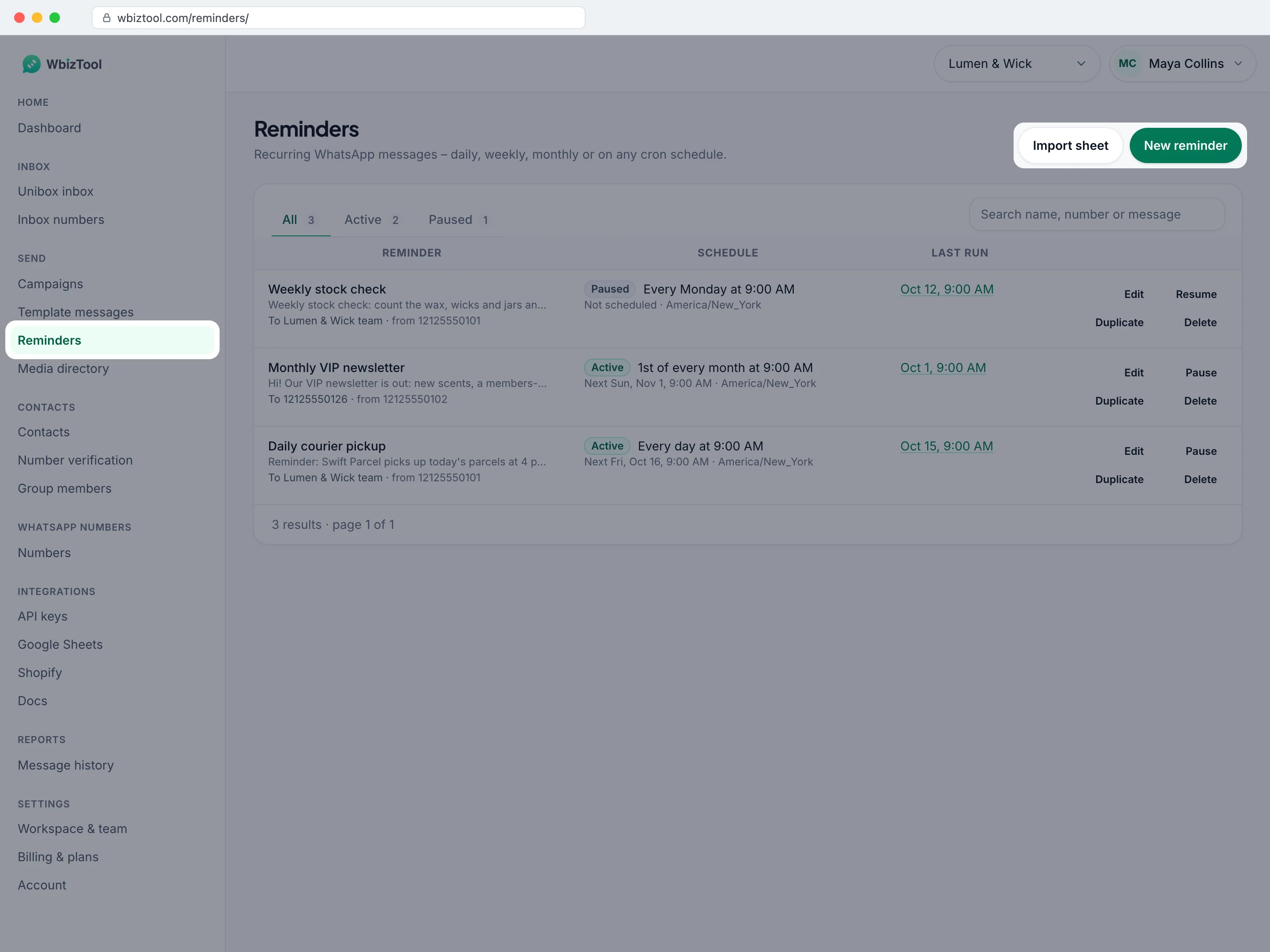
Open Reminders under Send in the sidebar, or go to /reminders/.
Before you start#
- A WhatsApp number showing Connected on WhatsApp numbers. See Connect your WhatsApp number.
- Each run is one message: it counts towards the number's daily fair-use limit of 1,000 messages in 24 hours.
- To remind a group, a number that is a member of the group and allowed to send in it.
Create a reminder#
Open the dialog
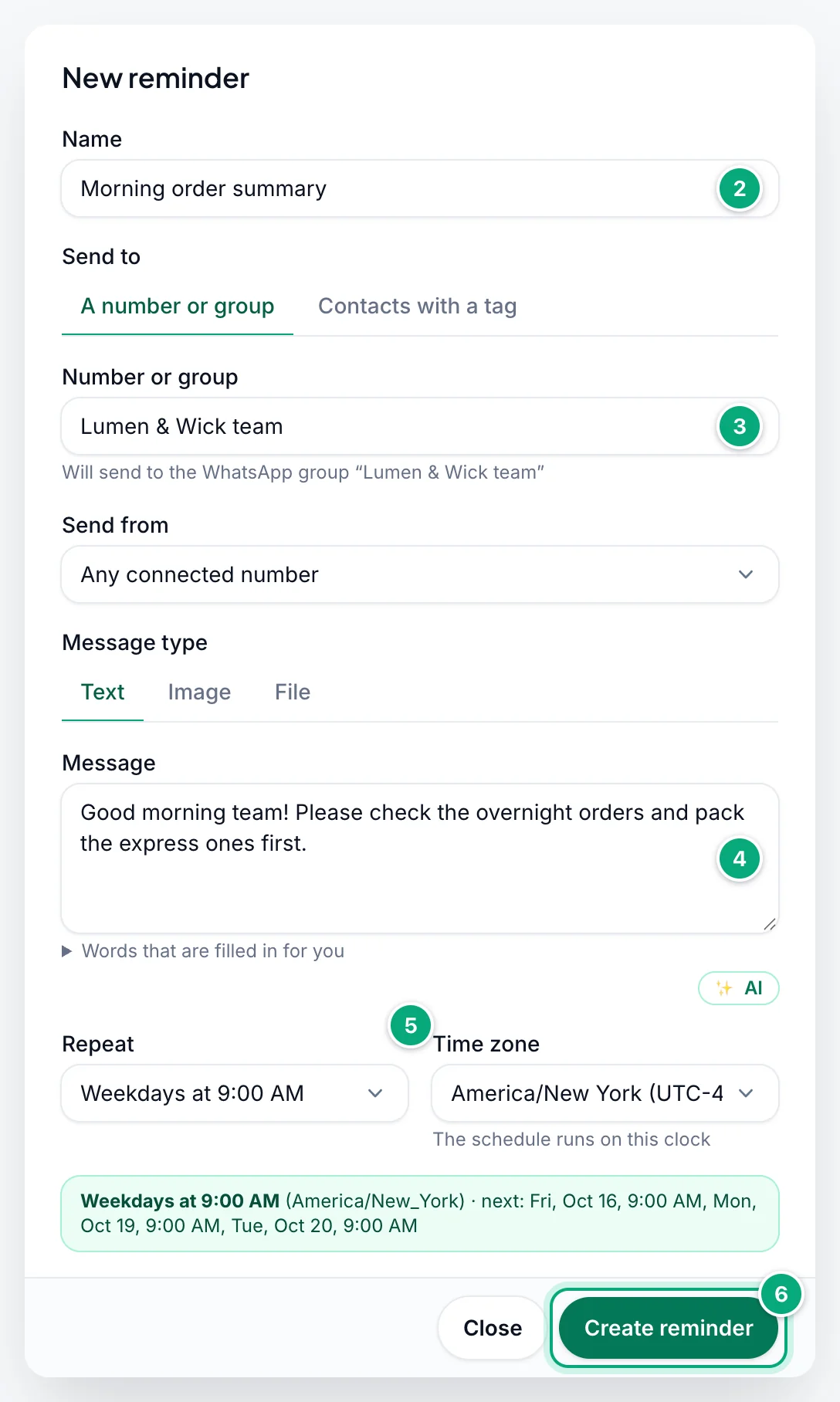
On Reminders, click New reminder.
Name it
Type a Name you'll recognise in the list, such as
Rent due. Recipients only see it if the message contains{reminder_name}.Choose who gets it
Under Send to, keep A number or group and type a number, such as
+91 98765 43210, or the exact name of a WhatsApp group. Or click Contacts with a tag and choose a tag (see Send to contacts with a tag). Under Send from, keep Any connected number or choose one of your numbers. The line under Send to shows where it goes, such as "Will send to +91 98765 43210 (India)". See Recipient and sending number.Write the message
Keep Message type on Text, or choose Image or File and add its link (see Images and files). Type the Message (up to 3,000 characters; the caption for an image or file). For dates and names that fill themselves in, see Fill in dates and names.
Set the schedule
Under Repeat, choose a preset such as Weekdays at 9:00 AM, or Custom (cron) for any other schedule. Under Time zone, choose the clock the schedule follows. See Schedules and time zones.
Check and create
The green line under the fields repeats the schedule in words, with its time zone and the next three times it will send: check them. Click Create reminder. You see "Reminder created", and the reminder is listed as Active.
For when the first message goes out, see When reminders send.
Recipient and sending number#
- Numbers:
+, spaces, brackets, dots and dashes are removed, and a leading00counts as+.+91 98765-43210is saved as919876543210. 7 to 15 digits must remain. - Numbers without a country code, such as
98765 43210or09876543210, get the country code of the Send from number. With Any connected number, they get the workspace's Country for numbers without a country code in Settings → Workspace (not the country of the number that then sends it), or, while none is saved, the country of most of your WhatsApp numbers. The reminder is saved with the full number. - Will send to: the line under Send to shows the number as it will be sent, with its country, or "Will send to the WhatsApp group “…”" for a group.
- Groups: anything that isn't a number is a group name. Type it exactly as WhatsApp shows it: a partial name, or a contact with the same name, fails with "Group not found".
- Any connected number sends from the workspace's first connected number (the one added first). For a group, choose the number that's in the group instead.
- A number you choose must be connected when you save. If it disconnects later, the reminder's messages wait until you reconnect it, and Edit shows it as "… – disconnected".
Send to contacts with a tag#
Click Contacts with a tag under Send to and choose a tag from the Contacts page, such as VIP.
- Each time the reminder runs, everyone who has the tag then gets the message, one after another as a campaign named after the reminder and the date, such as "Weekly VIP – 27 Oct 2026 09:00". Contacts tagged after you made the reminder are included in the next run.
{name}and{first_name}become each contact's name; the other fill-in words work as usual.- The campaign uses your workspace's default pace, from the Send from number (with Any connected number, the first connected one). It must be a WhatsApp number: a Telegram account can't send to a tag.
- In the list, the reminder shows "To everyone tagged VIP". Last run links to Campaigns, where each run's messages are. If a run sent nothing, it says why, such as "Last run: no one had the tag" or "Last run: the tag was deleted".
- Opted-out contacts are skipped. Reminders to a tag can't be imported from a sheet or made with the API.
Images and files#
- Choose Image or File under Message type, then paste a public link into Image link or File link (up to 1,000 characters), or choose one of your 24 newest images (or files, for File) under Pick from the Media directory. For an older one, copy its link in the Media directory.
- The link must open the file without a login. WbizTool downloads it every time the reminder sends, so keep it there while the reminder runs. The Media directory won't delete a file that an active reminder uses.
- A file from your Media directory arrives with the name it was uploaded with, any other with the last part of the link. For the
.pdfthat's added to unusual names and for size limits, see Images and files.
Schedules and time zones#
Repeat has five presets:
| Repeat | Cron expression |
|---|---|
| Every day at 9:00 AM | 0 9 * * * |
| Weekdays at 9:00 AM | 0 9 * * 1-5 |
| Every Monday at 9:00 AM | 0 9 * * 1 |
| 1st of every month at 9:00 AM | 0 9 1 * * |
| Every 6 hours (midnight, 6 AM, noon and 6 PM) | 0 */6 * * * |
Custom schedules#
For any other day or time, choose Custom (cron) under Repeat and type a cron expression in the Cron expression field that appears. It has five parts, separated by spaces:
minute (0–59) · hour (0–23) · day of the month (1–31) · month (1–12) · weekday (0–7: 0 and 7 are Sunday, 1 is Monday)
* means every value, 1-5 a range, 1,15 a list and */15 every 15th. Cron help opens crontab.guru with your expression.
| Expression | Sends |
|---|---|
30 18 * * 5 | Fridays at 6:30 PM |
0 10 1,15 * * | 10:00 AM on the 1st and the 15th |
0 18 L * * | 6:00 PM on the last day of every month |
0 9-17 * * 1-5 | Every hour from 9:00 AM to 5:00 PM on weekdays |
- If an expression sets both a day of the month and a weekday, the reminder sends on either:
0 9 1 * 1sends every Monday and on the 1st. The line under the fields and the list say so: "At 9:00 AM, on day 1 of the month or on Monday". - An invalid schedule turns the line under the fields red, for example "Not a valid schedule: It needs 5 parts: minute hour day month weekday.", and Create reminder stays grey.
- When the minute part is
*or*/1to*/9, the line warns "Runs at least every few minutes – each run sends a message."* 9 * * *sends 60 messages every morning.
Time zones#
The schedule follows the Time zone you choose, daylight saving time included: 0 9 * * * in Europe/London sends at 9:00 London time all year. Common lists 15 zones with their current UTC offset, such as UTC, Asia/Kolkata and America/New York; All time zones has the rest. A new reminder starts with the time zone you chose last in this browser, or else your computer's.
Fill in dates and names#
These words in the Message are replaced each time the reminder runs. Type them with single braces, exactly as shown. Words that are filled in for you under the message box lists all of them, with examples.
| Word | Becomes | Example |
|---|---|---|
{reminder_name} | The reminder's Name | Rent due |
{to_number} | The recipient as saved: the number or the group name | 919876543210 |
{organisation_name} | Your workspace's name | Lumen & Wick |
{client_name} | Your workspace's name too, the same as {organisation_name} (not the recipient's name) | Lumen & Wick |
{current_date} | Today's date | 2026-10-05 |
{current_date_formatted} | Today's date in English | October 5, 2026 |
{current_time} | The time it ran, 24-hour | 09:00:12 |
{current_time_12h} | The time it ran, 12-hour | 9:00 AM |
{current_datetime} | Date and time | 2026-10-05 09:00:12 |
{timezone} | The reminder's time zone | Asia/Kolkata |
{timezone_short} | Its abbreviation (some zones show an offset, such as +04) | IST |
For example, Good morning team, here's the plan for {current_date_formatted}. arrives as "Good morning team, here's the plan for October 5, 2026." Dates and times are in the reminder's time zone, at the moment it runs, even if the message then waits. {current_date_formatted} is English in every language; use {current_date} for a date without words.
Import reminders from a sheet#
To create many reminders at once, import a CSV or Excel sheet with one reminder per row and the column names in the first row. Sample CSV in the import dialog downloads an example.
| Column | Required | What to put in it |
|---|---|---|
reminder_name | Yes | The name. |
phone | Yes | A number, such as 919876543210, or a group's exact name. A number without its country code is completed as in the dialog (see Recipient and sending number). Excel's 919876543210.0 is read correctly; a number Excel rounded, such as 9.19877E+11, skips the row. |
message | Yes | The message, words such as {current_date} included. |
cron_expression | Yes | The schedule in five parts, such as 0 9 * * 1-5. See Custom schedules. |
timezone | No | A time zone name such as Asia/Kolkata. Empty means UTC; an abbreviation such as IST skips the row. |
msg_type | No | 0 text (also when empty), 1 image or 2 file. Any other value skips the row. |
img_url | For images | The image link, starting with http:// or https://. |
file_url | For files | The file link, starting with http:// or https://. |
whatsapp_client_id | No | The number to send from: its ID 1234 ⧉ on WhatsApp numbers. Empty, unknown or not connected during the import means Any connected number. |
- Spell the column names exactly like this, in lower case. Other columns are ignored. Save a CSV as UTF-8, with commas between the columns.
- Up to 1,000 rows per file: a longer file is refused as a whole, and nothing is imported. Each row is checked like the New reminder dialog: the number, the five-part schedule, the time zone, the link, and the length of the name (100 characters), the message (3,000) and the link (1,000). A row that fails is skipped; empty rows are ignored.
- The sample's links, group and
whatsapp_client_idvalues are placeholders, and it has notimezonecolumn (so its times are UTC): change them before importing.
Open the dialog
Click Import sheet.
Add your sheet
Drop a
.csv,.xlsor.xlsxfile on the box, or click browse and choose it. The box shows "Chosen:" and the file name.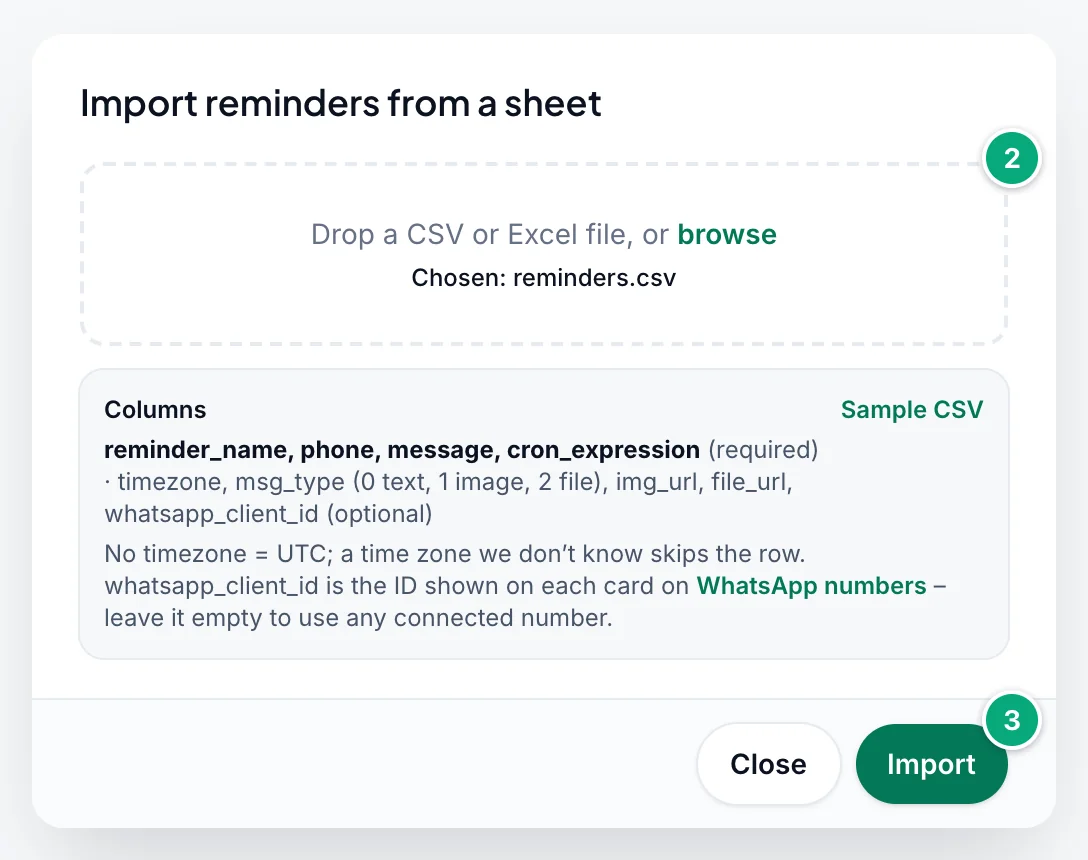
Import
Click Import. If every row was imported, you see, for example, "3 reminders imported." If some were skipped, the dialog stays open with "3 reminders imported. 2 rows were skipped:" and one line per skipped row with its number in the sheet and why, such as "Row 4 – message is empty".
Imported reminders are Active at once and send at their next time. To add the skipped rows, fix them and import a sheet with only those rows: the others are already imported, and importing them again creates them twice.
Manage reminders#
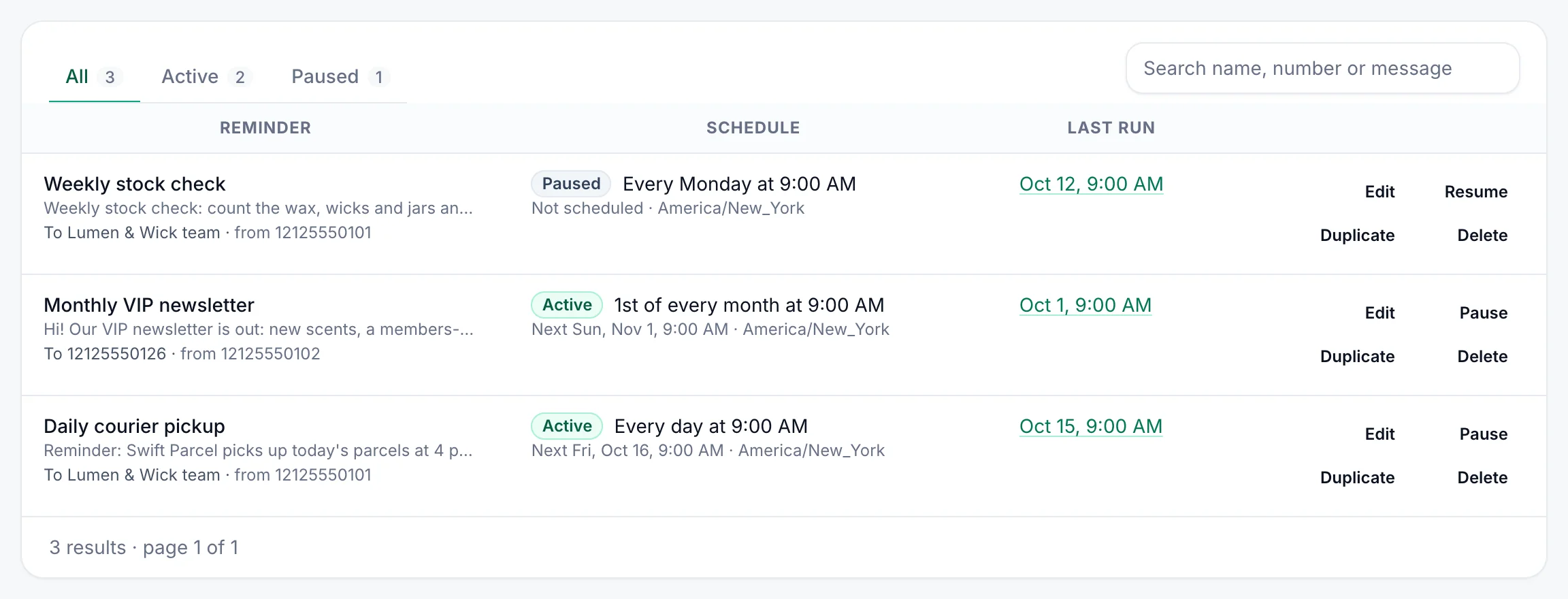
The list shows the newest reminders first, 25 to a page, including those created with the Create reminder API. Filter with All, Active and Paused, or type in Search name, number or message.
- Reminder: the name, the start of the message, who it goes to and from which number ("from any connected number" when none is chosen).
- Schedule: Active or Paused, the schedule in words, and Next with the next run in the reminder's time zone. "Not scheduled" means it won't send: it's paused, your plan doesn't include reminders, or its schedule never comes (possible for an imported one, such as 31 February).
- Last run: when it last ran, or "Not yet". It counts skipped runs too, so click it to check in Reports whether a message went to that recipient.
| Button | What it does |
|---|---|
| Edit | Opens Edit reminder with every field. Click Save changes ("Changes saved"). A paused reminder stays paused. |
| Pause / Resume | Stops or restarts it, keeping its settings: "“Rent due” paused" or "“Rent due” is running again". |
| Duplicate | Opens Duplicate reminder with the same settings and "(copy)" after the name. Change it and click Create reminder. The copy starts as Active. |
| Delete | Asks "Delete reminder?": "… stops sending and is removed from the list. This can’t be undone." Click Delete reminder. |
Pausing, editing or deleting a reminder doesn't touch a message it already created. To stop one that is still Waiting, cancel it in Reports. Resuming or editing a reminder just after one of its times can send for that time: see When reminders send.
When reminders send#
WbizTool checks reminders every minute. When a reminder's time comes, it creates one message to the recipient, which shows in Reports like any other and usually goes out within a minute. If a check runs late, the run is still made up to 10 minutes after its time (1 minute for a reminder's first run), and never twice. So a new reminder first sends at its next time, not straight away. If you resume or edit a reminder less than 10 minutes after one of its times, it sends for that time straight away, unless it already has.
A run is skipped, and not made up later, when:
- No number is connected and the reminder uses Any connected number: "Active reminders aren’t sending: no WhatsApp number is connected. They’re skipped until that’s fixed." Click Connect a number.
- The plan doesn't include reminders, for example after a plan change: "Your plan doesn’t include reminders – they’re paused until you upgrade." Until then you can only pause or delete them. After an upgrade they start again by themselves at their next time.
A run over the number's daily fair-use limit (1,000 messages in 24 hours) isn't skipped: its message shows as failed in Reports with "Daily limit reached: …".
The message waits and goes out later when:
- The reminder's own number is disconnected: "Some reminders send from a number that’s disconnected – their messages wait until it’s reconnected." Every run made meanwhile waits, counts as a message, and goes out back to back once you reconnect it: a daily reminder left disconnected for a week sends 7 copies at once. Cancel the extra ones in Reports before you reconnect.
- It's outside the workspace's sending hours with Reminders ticked. It goes when the hours start, in the workspace's time zone, which can differ from the reminder's.
- Other messages from the same number, such as a campaign, are going out first.
Troubleshooting#
| Message or problem | What to do |
|---|---|
| New reminder is grey: "Only the owner or an editor can change reminders" | You're an Analyst in this workspace. Ask an Owner. |
| Buttons are grey with "Your plan doesn’t include reminders", or saving says "… – upgrade to create, change or resume them." | Only Pause and Delete work. An Owner can upgrade on Billing & plans. |
| "That WhatsApp number isn’t connected – pick another one or any connected number." | The number under Send from disconnected, or you duplicated a reminder whose number is disconnected. Choose another number or Any connected number. |
| "That number starts with 0 and no country is set to complete it – type it with the country code, e.g. +44 7400 123456." | Type the number with its country code, or ask an Owner to choose the Country for numbers without a country code in Settings → Workspace. |
| "That number doesn’t look right – use 7–15 digits, e.g. +91 98765 43210." | Check the number: it needs 7 to 15 digits. |
| "That number was rounded by Excel (9.19877E+11), so its last digits are lost – type the full number." | Type or paste the full number. In Excel, format the column as Text first. |
| "The link is too long – it can be up to 1,000 characters." | Use a shorter link, for example upload the file to the Media directory and pick it. |
| "Not a valid schedule: …" | Fix the Cron expression: five parts, each in range, on a date that exists. |
| "Only .csv, .xls and .xlsx files can be imported." | Save the sheet as .csv, .xls or .xlsx and choose it again. |
| "The sheet is missing these columns: …" | Add those names to the first row, spelled exactly. If all four are listed, the CSV probably uses semicolons: save it with commas, or as .xlsx. |
| "The sheet has no rows to import." | Add one reminder per row under the column names. |
| "The sheet has … rows; up to 1,000 can be imported at once. Split it into smaller files." | Nothing was imported. Split the sheet into files of up to 1,000 rows and import each one. |
| "None of the … rows could be imported:" (or "The row couldn’t be imported:") and a list of rows | Fix each row as its line says, for example "Row 2 – cron_expression isn’t a valid schedule – it needs 5 parts: minute hour day month weekday", and import again. |
| "… rows were skipped:" after an import | The other rows are imported. Fix the listed rows and import a sheet with only them. |
| "We couldn’t read this file. Save it as CSV (UTF-8) and try again." | Save it again as UTF-8 CSV or as .xlsx. |
| A reminder didn't send | Check that it's Active, its Next time and the banner at the top of the page (When reminders send). Click its Last run to find the message in Reports. |
| The same reminder arrived several times at once | Its number was disconnected: every run waited and went out when it was reconnected. Next time, cancel the extra messages in Reports before you reconnect. |
| It sent at the wrong time | Check the Time zone and the hour: cron uses a 24-hour clock, so 18 is 6 PM. Sending hours can hold messages until they start. |
| It sent on extra days | The schedule sets both a day of the month and a weekday, so it sends on either. |
| Failed with "Group not found" | Use the group's exact name, and under Send from choose a number that's in the group and allowed to send. |
| Failed with "Phone number invalid" | The number is wrong or isn't on WhatsApp. Check the country code. |
| Failed with "Image Url Error" or "File Url Error" | The link isn't public, or the file is gone. Open it in a private browser window. |