
Product guides
Workspace settings, team members and roles
Everything in WbizTool belongs to a workspace: your WhatsApp numbers, contacts, campaigns, reminders, API keys, Shopify store, plan and messages. Each workspace has its own plan and its own messages, and you can invite teammates to work in it with you.
This guide covers workspaces and the Settings page. To see who can do what, go to Roles and permissions.
Workspaces#
When you sign up, WbizTool creates your first workspace. You're its creator and an Owner. You can create more workspaces of your own, and join other people's workspaces when they invite you.
You're a workspace's creator if you see the Delete workspace card in Settings → Workspace. On the Team tab, the creator's row has no Change role or Remove buttons. The creator can't be changed; to share full control, make someone else an Owner.
Switch workspace#
The workspace picker is at the top of the dashboard and shows the name of the current workspace. Open it and choose another workspace to switch to it.
The list shows every workspace you've joined. A workspace you were invited to only appears after you accept the invitation. If you have only one workspace and can't create more, the top of the dashboard just shows its name.
Everything you see and do after switching, including API keys you create and plans you buy, belongs to the selected workspace. To see your role in it, open Settings → Team.
Create a workspace#
Use a separate workspace when you want its own WhatsApp numbers, team, contacts and plan, for example for a second store or a client.
Open the workspace picker
At the top of the dashboard, open the workspace picker and choose + Create workspace.
Name it
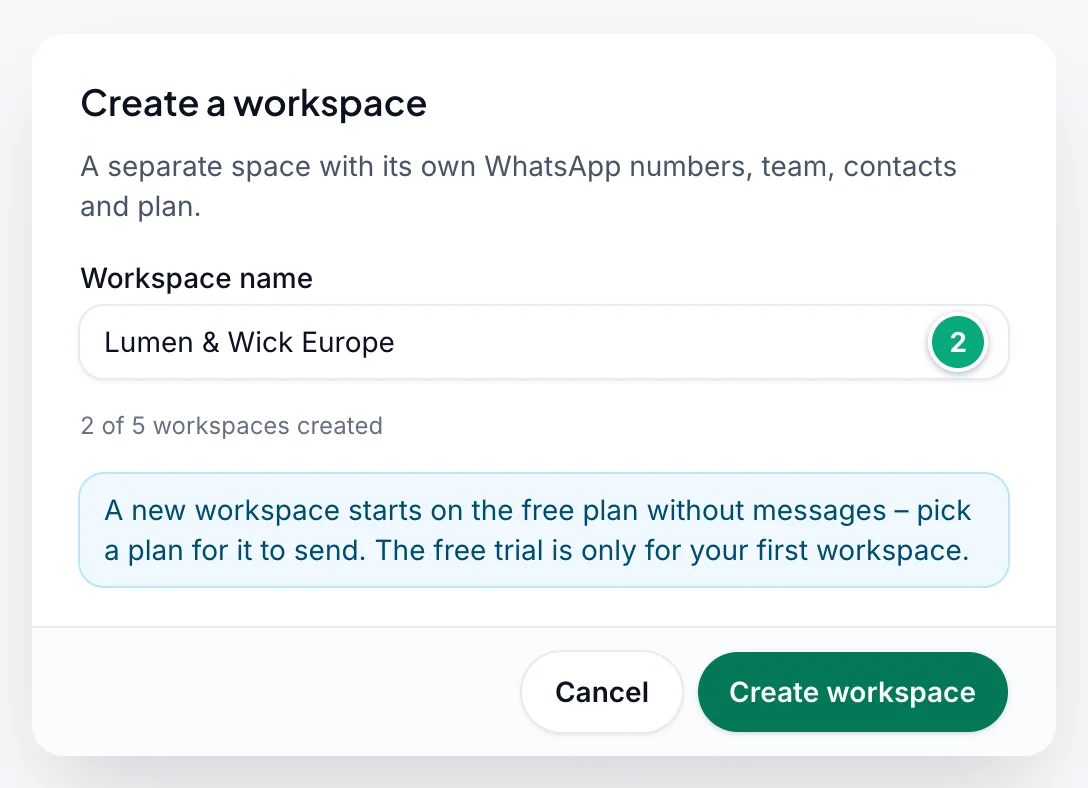
Enter a Workspace name (up to 30 characters) and click Create workspace. The dialog also shows how many workspaces you've created, for example "2 of 5 workspaces created".
Pick a plan
WbizTool switches to the new workspace and opens Billing & plans. Choose a plan there so the workspace can send messages.
You can add the company name, website, logo and billing details later in Settings → Workspace.
- Limit: you can have up to 5 workspaces you created at a time. Workspaces you were invited to don't count, and deleting one frees its place. Once you've created 5, + Create workspace no longer appears.
- Messages: the free trial's 50 messages (in any 30 days) are only for the first workspace you created. Every other workspace you create starts on the Free plan with no messages. You can set it up (connect a number, invite your team, change settings), but it can't send until you buy a plan for it.
- The demo account can't create workspaces.
Delete a workspace#
Only the person who created a workspace can delete it. Other members don't see the Delete workspace card.
Open the workspace
Switch to the workspace you want to delete, then go to Settings → Workspace.
Delete it
In the Delete workspace card, click Delete workspace.
Confirm with its name
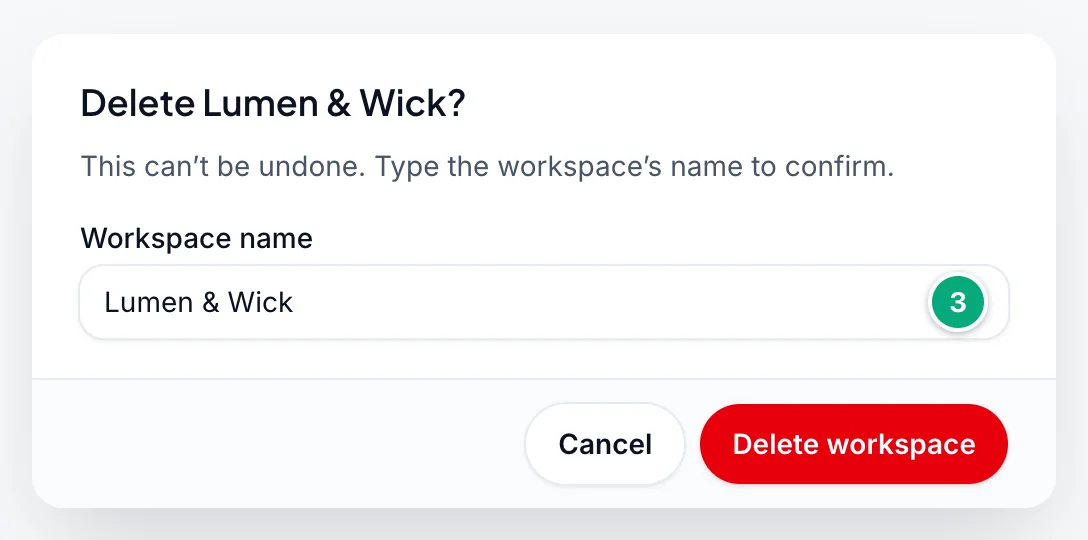
Type the workspace's name under Workspace name and click Delete workspace. You're taken to the dashboard of another of your workspaces.
You can't delete a workspace:
- That has a paid plan: a Paddle subscription, a lifetime plan or an AppSumo license. Cancel it in Billing & plans first. A cancelled subscription still counts until its paid period ends.
- If it's your last one: you always keep at least one workspace you created.
Deleting can't be undone. For everyone in the workspace:
- Members lose access to it, and get an email saying it was deleted.
- Its WhatsApp numbers and browser-extension numbers are removed, and its Unibox inbox numbers stop.
- Its API keys stop working, and its reminders and Google Sheets triggers are switched off.
- Messages still waiting to be sent are cancelled.
- A linked Shopify store is unlinked from it. The next time the WbizTool app is opened in that store's Shopify admin, or an order arrives, the store joins the oldest remaining workspace of the person who installed it.
Deleting a workspace frees its place in your limit of 5, but doesn't give you a new free trial: a workspace you create later still starts with no messages. If you delete your first workspace, the free messages don't move to another one.
Team#
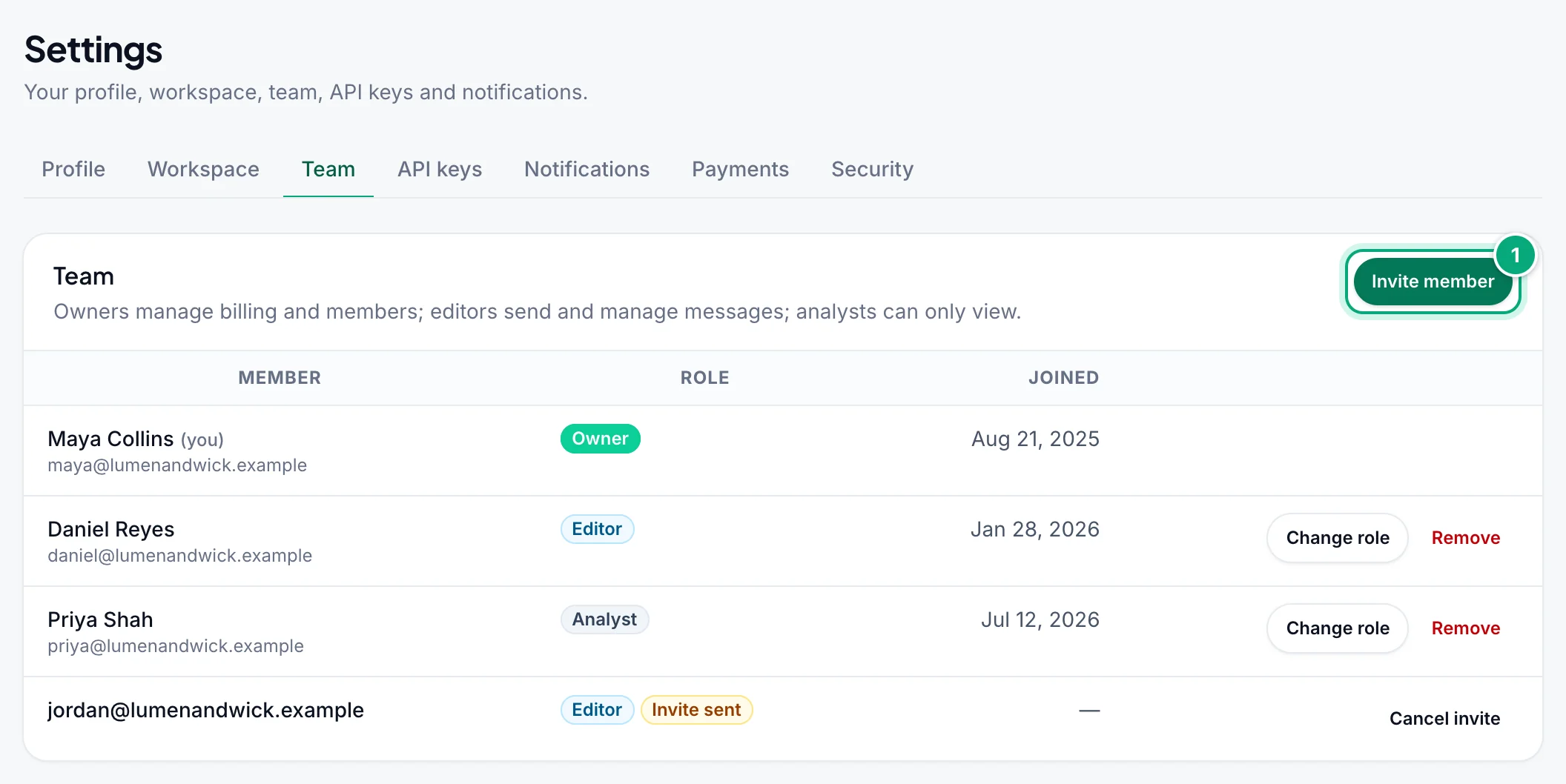
The Team tab lists everyone in the workspace, with their Role and when they Joined. People who haven't accepted their invitation yet are marked Invite sent. Everyone can see the list. Only Owners can invite and manage members.
Invite a team member#
Open the Team tab
Go to Settings → Team and click Invite member.
Enter their email and role
Type the person's Email and pick a Role. Editor is selected by default. Owner is only offered to the workspace's creator.
Send the invitation
Click Send invite. WbizTool emails them a link to join. If the email has no WbizTool account yet, one is created for it. If they haven't accepted after 3 days, they get one reminder.
How many members a workspace can have depends on its plan: Lite includes 1 (just you), Standard 3, Advanced 10 and Enterprise a custom number, plus any Extra Team Member add-ons. Everyone counts towards the limit, including you and people who haven't accepted yet. Check your usage on Billing & plans.
To withdraw an invitation, click Cancel invite on that person's row, then Cancel invite again to confirm. The link in their email stops working.
Accept an invitation#
Open the invitation email
Open the email "… invited you to … on WbizTool" and click Accept the invitation.
Log in with the invited email
If you're not logged in, log in with the email address the invitation was sent to. New to WbizTool? The email has a Choose my password button instead: set a password (the link works for 7 days), then log in. If the link has expired, use Forgot password.
Start working
WbizTool opens the dashboard of the new workspace and shows "Invitation accepted – you’re now working in …". From then on it's in your workspace picker. The workspace's Owners get an email that you joined.
If you see "This invitation isn’t valid.", you're logged in with a different email, or the invitation was cancelled, or the workspace was deleted. If you're already a member, you see "You’re already a member of …".
Roles and permissions#
A workspace has three roles:
- Owner: manages billing, team and settings.
- Editor: sends and manages messages.
- Analyst: can only view.
The workspace's creator is always an Owner and can't be removed. Only the creator can make someone an Owner, change an Owner's role or remove an Owner. Other Owners manage Editors and Analysts.
| Action | Owner | Editor | Analyst |
|---|---|---|---|
| View the dashboard, campaigns, reminders, template messages, media, WhatsApp numbers and message history | Yes | Yes | Yes |
| Send messages: quick send, campaigns and template messages | Yes | Yes | No |
| Create, edit, pause and delete reminders | Yes | Yes | No |
| Upload and delete media | Yes | Yes | No |
| Cancel waiting messages | Yes | Yes | No |
| Connect, rename, disconnect and remove WhatsApp numbers | Yes | Yes | No |
| Contacts | Yes | Yes | No |
| Start number verifications and group member exports, and download the results | Yes | Yes | No (can view the results) |
| Unibox inbox and inbox numbers (with the Unibox add-on) | Yes | Yes | No |
| Google Sheets and Shopify | Yes | Yes | No |
| Disconnect the Google account on Google Sheets | Yes | No | No |
| Edit workspace and billing details | Yes | No | No |
| Change sending hours and the country for numbers without a country code | Yes | No | No |
| Invite, change roles, remove members and cancel invites | Yes | No | No |
| API keys | Yes | No | No |
| Billing & plans and Payments | Yes | No | No |
| Edit your own profile, password and notifications | Yes | Yes | Yes |
| Leave the workspace | Yes, except the creator | Yes | Yes |
| Delete the workspace | Creator only | No | No |
The sidebar hides API keys and Billing & plans from Editors and Analysts, and Unibox inbox, Inbox numbers, Contacts, Google Sheets and Shopify from Analysts. An Editor or Analyst who opens Billing & plans sees "Only the workspace owner can manage billing."
Change a member's role#
Only Owners can do this. On the member's row, click Change role, choose the new Role and click Save. The creator's role can't be changed. The member gets an email about their new role, unless they've turned off Team changes in their notifications.
Remove a member#
Only Owners can do this. On the member's row, click Remove, then Remove again to confirm. They lose access to the workspace straight away and get an email (unless they've turned off Team changes). You can invite them again later. What they created, such as campaigns and messages, stays in the workspace.
You can't remove the creator or yourself: to remove yourself, leave the workspace.
Leave a workspace#
On the Team tab, click Leave workspace, then Leave. You lose access to its numbers, messages and settings until an Owner invites you again, and you're moved to your own workspace.
The creator can't leave the workspace they created, so they don't see Leave workspace. To get rid of it, delete it instead.
The Settings page#
Workspace & team in the sidebar opens Settings on the Workspace tab, and Account on the Profile tab.
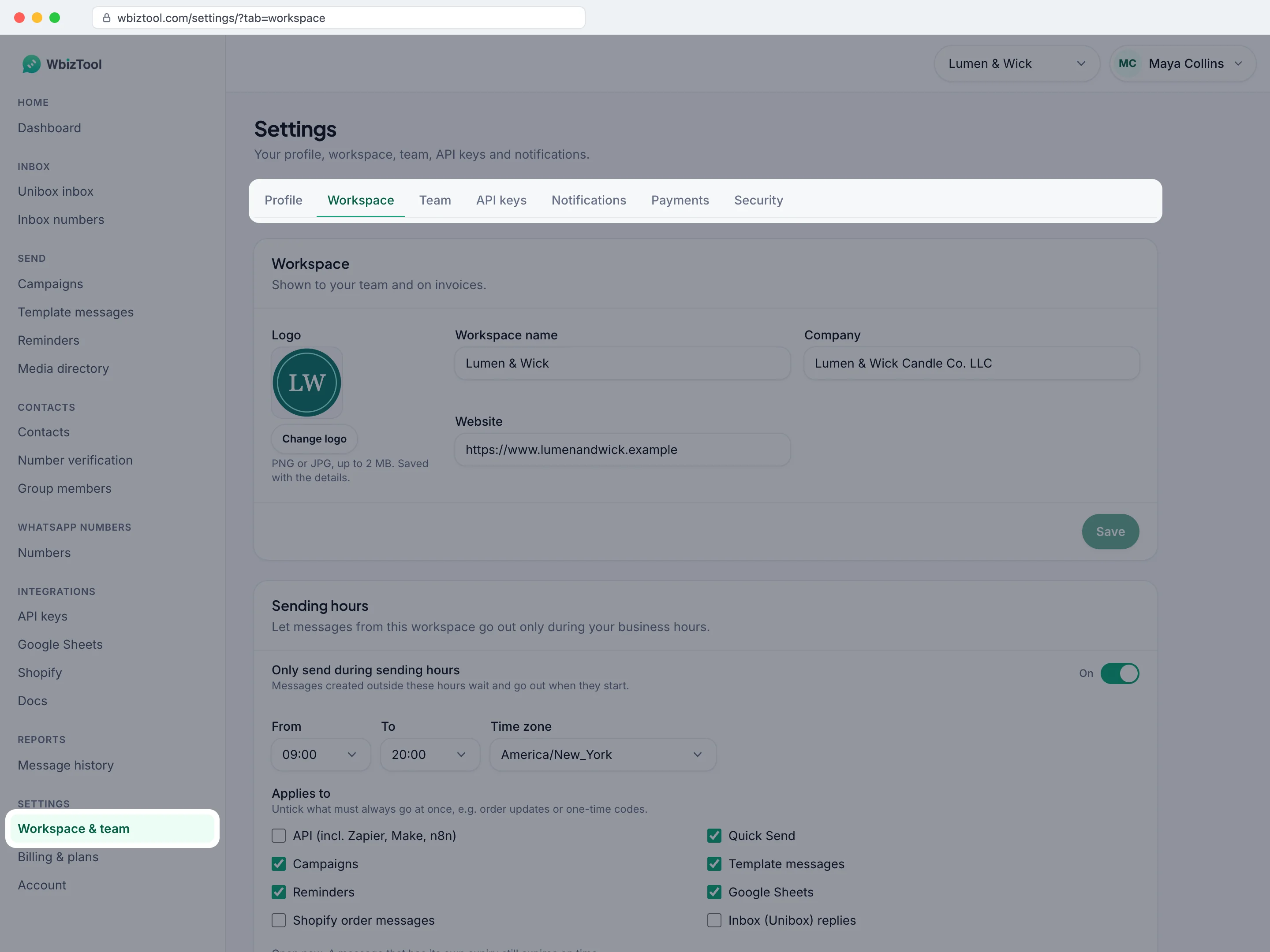
The page has these tabs:
| Tab | What it's for | Who sees it |
|---|---|---|
| Profile | Your name and phone number. Applies to you in every workspace. | Everyone |
| Workspace | The workspace's name, company, website and logo, its billing details, sending hours and country for numbers without a country code, and Delete workspace. | Everyone. Only Owners can edit the details, only Owners see the billing details, and only the creator sees Delete workspace. |
| Team | Members, invitations and roles. | Everyone (only Owners can manage) |
| API keys | Your Client ID and API keys. See the API keys guide. | Owners only |
| Notifications | Which alerts you get for this workspace, and tips and offers for your whole account. | Everyone (the alerts depend on your role) |
| Payments | Past payments and invoices. | Owners only |
| Security | Change your password. | Everyone |
You can link straight to a tab, for example /settings/?tab=team or /settings/?tab=notifications. If you're not an Owner, a link to API keys or Payments opens Profile.
Profile#
The Profile tab (Your profile) holds:
- First name (required) and Last name, up to 150 characters each.
- Email: your login email. It can't be changed here.
- Phone: your own number, with the country code, e.g. +91 98765 43210. Use only digits, spaces and
+ ( ) -. WbizTool sends your WhatsApp alerts to this number (see Notifications). If you leave it empty, you get no WhatsApp alerts.
Click Save to save.
To change the dashboard language, use the menu with your name at the top of the dashboard. WbizTool's emails and WhatsApp alerts to you use the same language.
Workspace details#
The Workspace tab shows the workspace's details. Only Owners can change them. Other members see them read-only, marked Owner only.
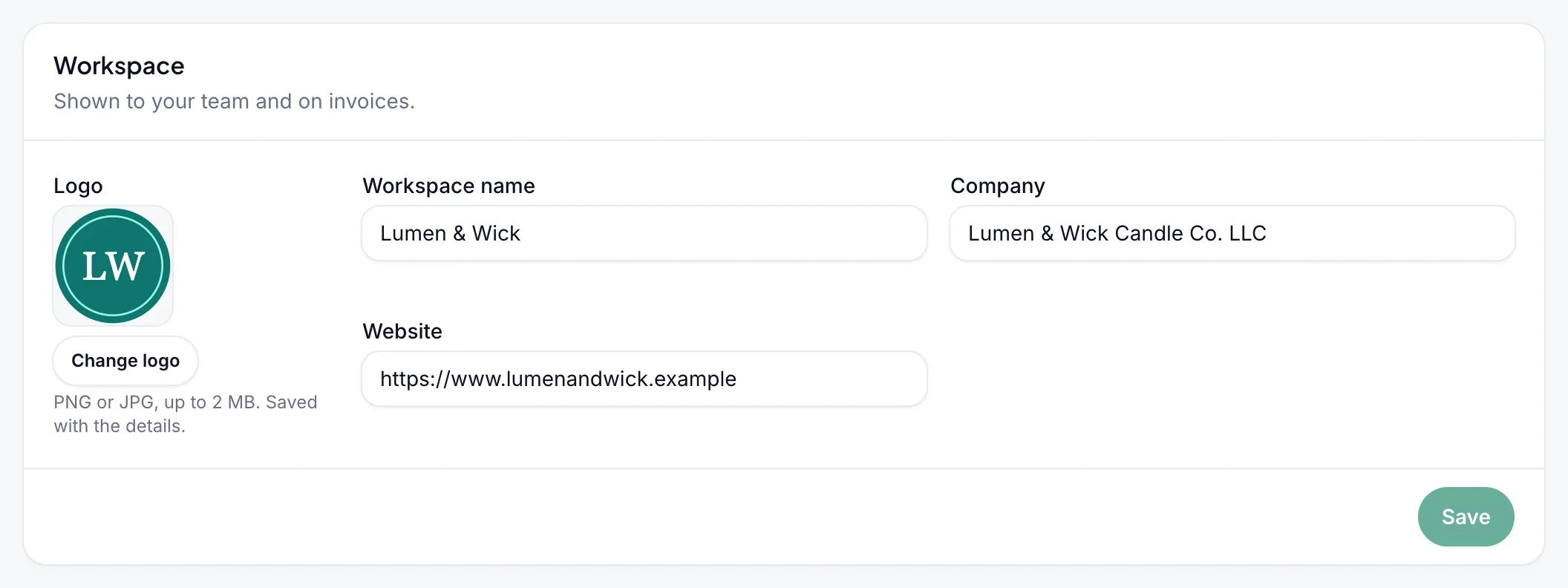
- Logo: click Change logo and pick a PNG or JPG image up to 2 MB. It's saved with the other details.
- Workspace name: shown in the workspace picker and to your team (required, up to 30 characters).
- Company and Website: optional, up to 100 characters each.
Click Save to save, or Discard changes to undo your edits.
Billing details#
Owners also see the Billing details card on the Workspace tab. These details are printed on your invoices: Legal business name, Tax ID (GST / VAT), Address, City, State, Postal code and Country (required). Click Save to save.
If the workspace has already paid through WbizTool's checkout, the updated details are also sent to Paddle, WbizTool's payment provider.
To change your plan, go to Billing & plans. See Plans and billing. To delete the workspace, see Delete a workspace.
Sending hours#
Owners can let the workspace's messages go out only during business hours. Everyone sees the Sending hours card on the Workspace tab; other members see "Only the workspace’s owners can change sending hours." Sending hours are off until an Owner turns them on.
Turn them on
On Settings → Workspace, turn on Only send during sending hours.
Choose the hours and time zone
Choose From and To (whole hours, the same every day; hours across midnight, such as 20:00–06:00, work too) and the workspace's Time zone. If the workspace has none yet, it's filled in from the browser of the first Owner who opens the dashboard (sending hours stay off until you switch them on); change it here if it's wrong. The daily chart in Reports counts days in this time zone too.
Choose what waits
Under Applies to, tick the kinds of messages that should wait for the hours: API (incl. Zapier, Make, n8n), Quick Send, Campaigns, Template messages, Reminders, Google Sheets, Shopify order messages and Inbox (Unibox) replies. Untick what must always go at once, such as order updates or one-time codes. Then click Save.
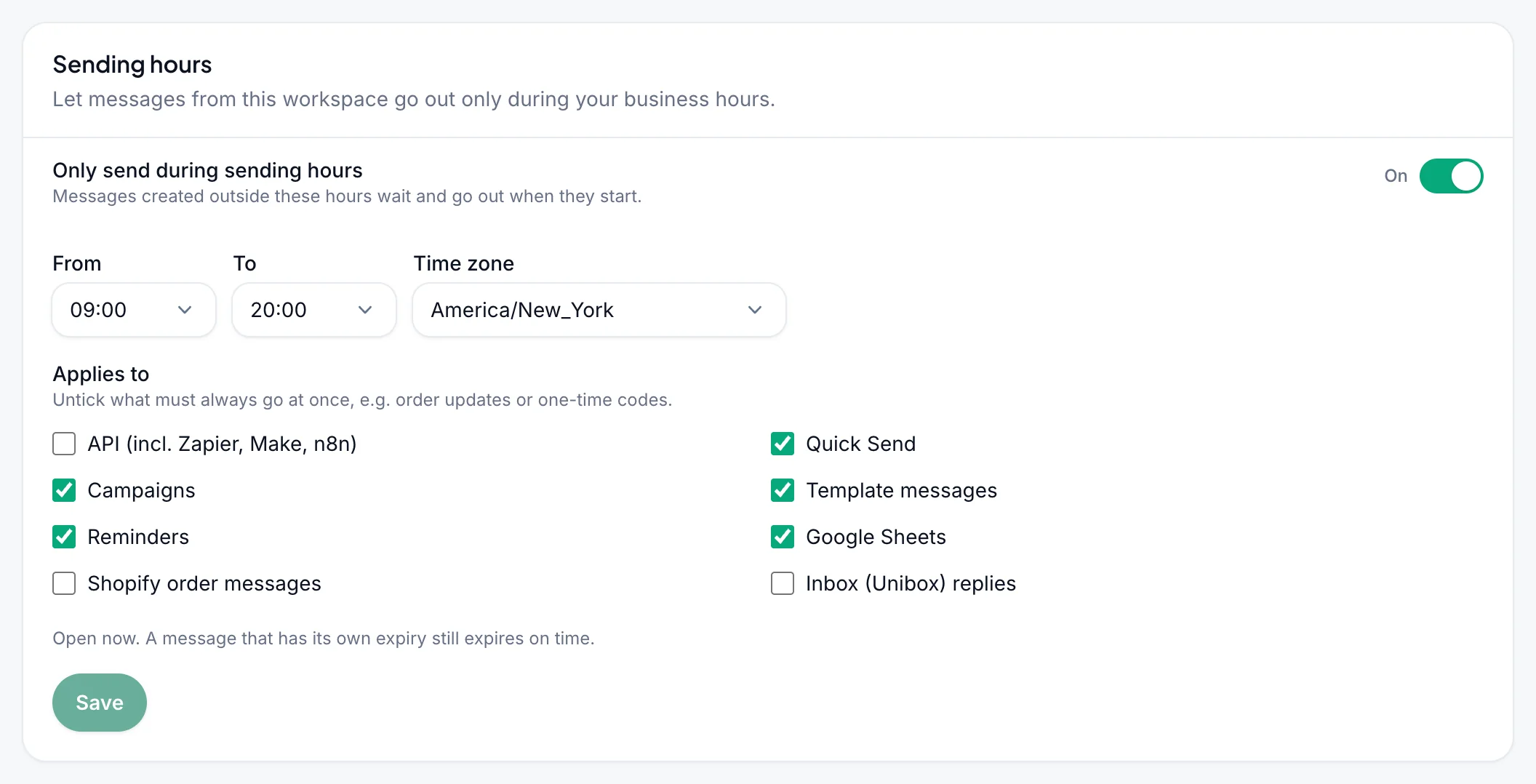
A message of a ticked kind that is created outside the hours stays Waiting in Reports and goes out by itself when the hours start, usually within a minute. Campaigns and other long queues wait too, because the hours are checked just before each message is sent. The card says "Open now." or when waiting messages go out. A message that has its own expiry, such as an API message sent with an expiry time, still expires on time and shows as Expired. WbizTool's own alerts to you don't follow these hours: they follow your WhatsApp alert hours.
Country for numbers without a country code#
A number typed without its country code, such as 98765 43210 or 07400 123456, gets the country code of the WhatsApp number that sends it. The Country for numbers without a country code card on the Workspace tab sets the country used when there's no such number to go by:
- reminders sent from any connected number,
- number verification,
- any message whose sending number's country can't be told.
A number that already starts with a valid country code, or with + or 00, is never changed.
This applies in the dashboard. The API's send endpoints don't complete numbers: send country_code there (see Send message). Reminders created with the API are completed when they run, like the ones made here.
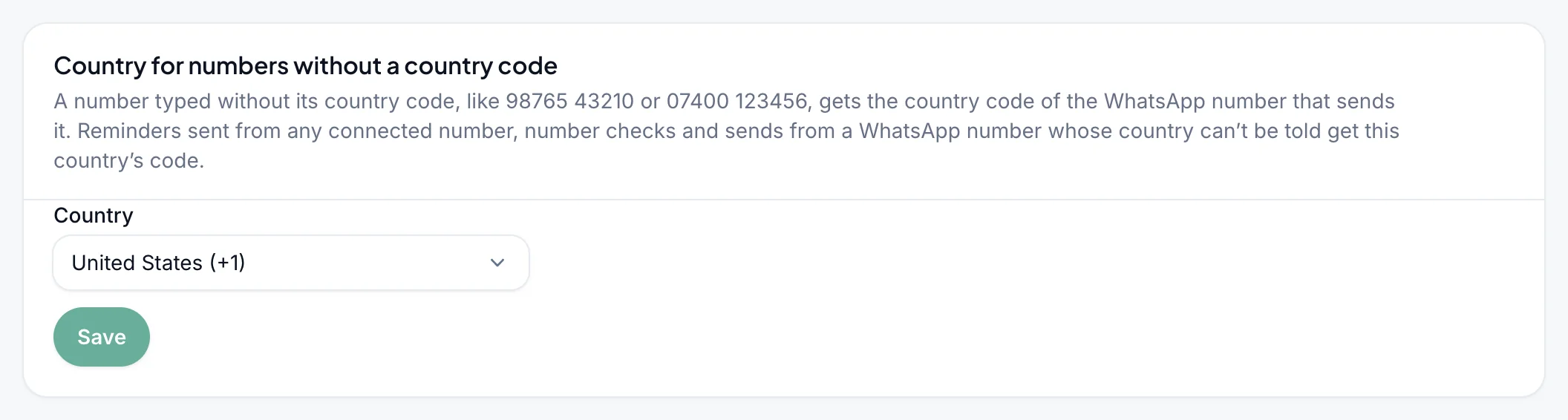
Only Owners can change the card; other members see "Only the workspace’s owners can change this." Choose the Country and click Save. Until an Owner saves one, the card is prefilled with the country of most of the workspace's WhatsApp numbers, and that country is already used: "Not saved yet – India is used for now, the country of most of your WhatsApp numbers. Save to keep it." If no country is known, numbers that start with 0 can't be sent to or checked in those places until an Owner chooses one. Numbers without a 0 are then sent or checked as written, so their first digits may be read as a country code: 9876543210 may be read as an Iranian (+98) number.
Notifications#
The Notifications tab sets which alerts you get. Each member has their own choices, and they're separate for each workspace you belong to. Switches save as soon as you flip them.
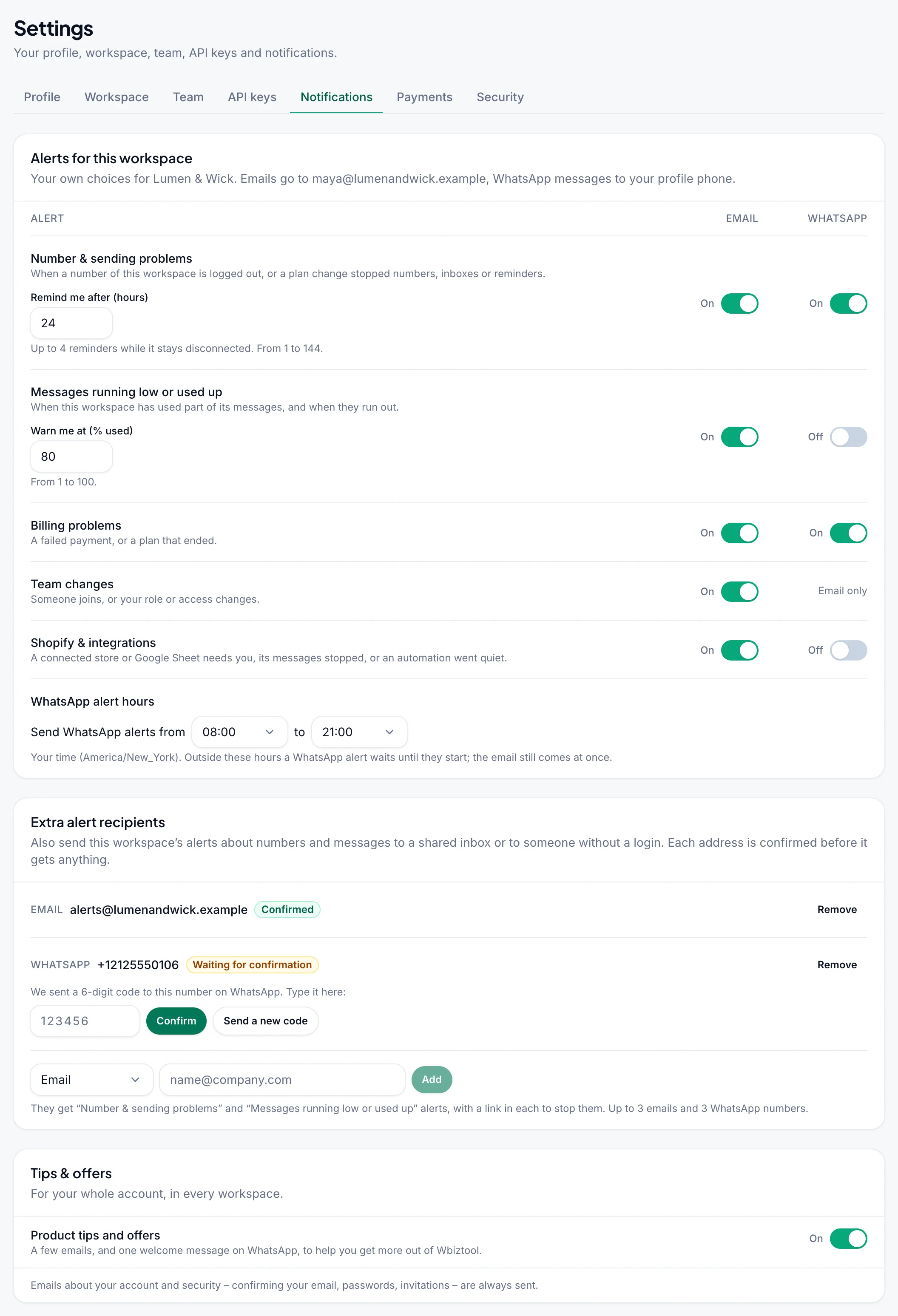
Alerts for this workspace has an Email and a WhatsApp switch for each kind of alert. Emails go to your login email, WhatsApp messages to the Phone in your Profile. You only see the alerts your role gets:
| Alert | What it's about | Who gets it | Setting |
|---|---|---|---|
| Number & sending problems | A WhatsApp number of the workspace is logged out, or a plan change stopped something (numbers over the limit removed, Unibox inboxes stopped, reminders paused). | Owners and Editors | Remind me after (hours): 1 to 144, 24 by default |
| Messages running low or used up | The workspace has used a share of its free messages, and when they run out (free plan only: paid plans are unlimited). | Owners | Warn me at (% used): 1 to 100, 80 by default |
| Billing problems | A failed payment, or a plan that ended. | Owners | – |
| Team changes | Someone joins, or your role or access changes. Email only. | Everyone | – |
| Shopify & integrations | A connected Shopify store or Google Sheet needs you, its messages stopped, or an automation went quiet. | Owners and Editors | – |
To change a setting, type the new number and click the Save button that appears next to it.
WhatsApp alert hours sets when WbizTool's WhatsApp messages may reach you: choose the hours under Send WhatsApp alerts from and to, in your own time zone (08:00–21:00 by default; hours across midnight, such as 20:00–06:00, work too). Outside them a WhatsApp alert, a billing message or the welcome message waits until your hours start, and isn't sent at all if the problem is gone by then. Emails always come at once. The hours apply to your whole account, in every workspace. Use the default (08:00–21:00) puts them back. If WbizTool doesn't know your time zone yet, WhatsApp messages aren't held; it takes the zone from your browser the next time you open the dashboard.
Tips & offers has one switch, Product tips and offers: a few emails that help you get started, and sometimes a personal offer. It's on by default and applies to your whole account, in every workspace. These emails only come in your daytime (8:00–20:00 in your time zone), at most one a day and three a week.
Emails about your account and security (confirming your email, passwords, invitations) are always sent.
Every alert email has an unsubscribe link at the bottom: it turns off that alert's email switch for that workspace. In a tips email, it turns off Product tips and offers.
Extra alert recipients#
Owners can also send the workspace's alerts to people who don't log in to WbizTool, such as a shared inbox ([email protected]) or a colleague's WhatsApp. In the Extra alert recipients card on the Notifications tab, choose Email or WhatsApp, type the address (a WhatsApp number with its country code, e.g. +91 98765 43210) and click Add.
Each address is confirmed before it gets anything:
- An email address gets a link. It's confirmed when someone opens the link and clicks Yes, send me these alerts. The link works for 7 days; Send again sends a new one.
- A WhatsApp number gets a 6-digit code from WbizTool's number. Type it in the card and click Confirm. A code works for 15 minutes; Send a new code sends another.
Confirmed addresses get the Number & sending problems and Messages running low or used up alerts: "running low" at 80% used, and reminders about a disconnected number every 24 hours. WhatsApp alerts to them come between 08:00 and 21:00 in the workspace's time zone. Every alert has a link that stops them, and an Owner can click Remove at any time. A workspace can have up to 3 extra email addresses and 3 extra WhatsApp numbers.
WhatsApp disconnect alerts#
When a connected WhatsApp number in the workspace is logged out, WbizTool alerts the workspace's Owners and Editors:
- By email, with the subject "WhatsApp number … is disconnected", if your email switch is on and your email address is confirmed.
- On WhatsApp, from WbizTool's own number, if your WhatsApp switch is on. It goes to the Phone in your Profile.
The first alert comes about 10 minutes after the logout, because a number often reconnects by itself. Numbers that drop at the same time come in one email. While a number stays disconnected, reminders follow every Remind me after hours (24 by default), at most 5 alerts in all. Alerts stop when the number reconnects, and after 30 days. You aren't alerted about a number someone disconnected or removed on purpose.
Emails WbizTool sends#
Account, security and plan emails are always sent: confirming your email (with one reminder) and the welcome email, invitations (with one reminder after 3 days), password resets (the link works for one hour) and password changes, a number's first connection (to the creator), a deleted workspace (to its other members), and a plan or add-ons bought, changed, set to end or renewing soon (to Owners). They only go to a confirmed email address, except the confirmation email itself.
These follow the switches on the Notifications tab:
| Alert | |
|---|---|
| A WhatsApp number is disconnected (with reminders), or a plan change stopped numbers, inboxes or reminders | Number & sending problems |
| … has used …% of its messages, and … is out of messages | Messages running low or used up |
| A payment failed (with reminders), or your plan has ended | Billing problems |
| Someone joined, you were removed, or your role changed | Team changes |
| A Shopify store or Google Sheet needs you, an order message wasn't sent, or no messages were sent for 2 days | Shopify & integrations |
| Tips for getting started, and personal offers | Product tips and offers |
"Out of messages" is sent when the API, Google Sheets, Shopify or a reminder can't send because the workspace has no free messages left, at most once every 3 days for each workspace.
Payment history and invoices#
The Payments tab lists the workspace's last 20 transactions from Paddle. Only Owners can see it.
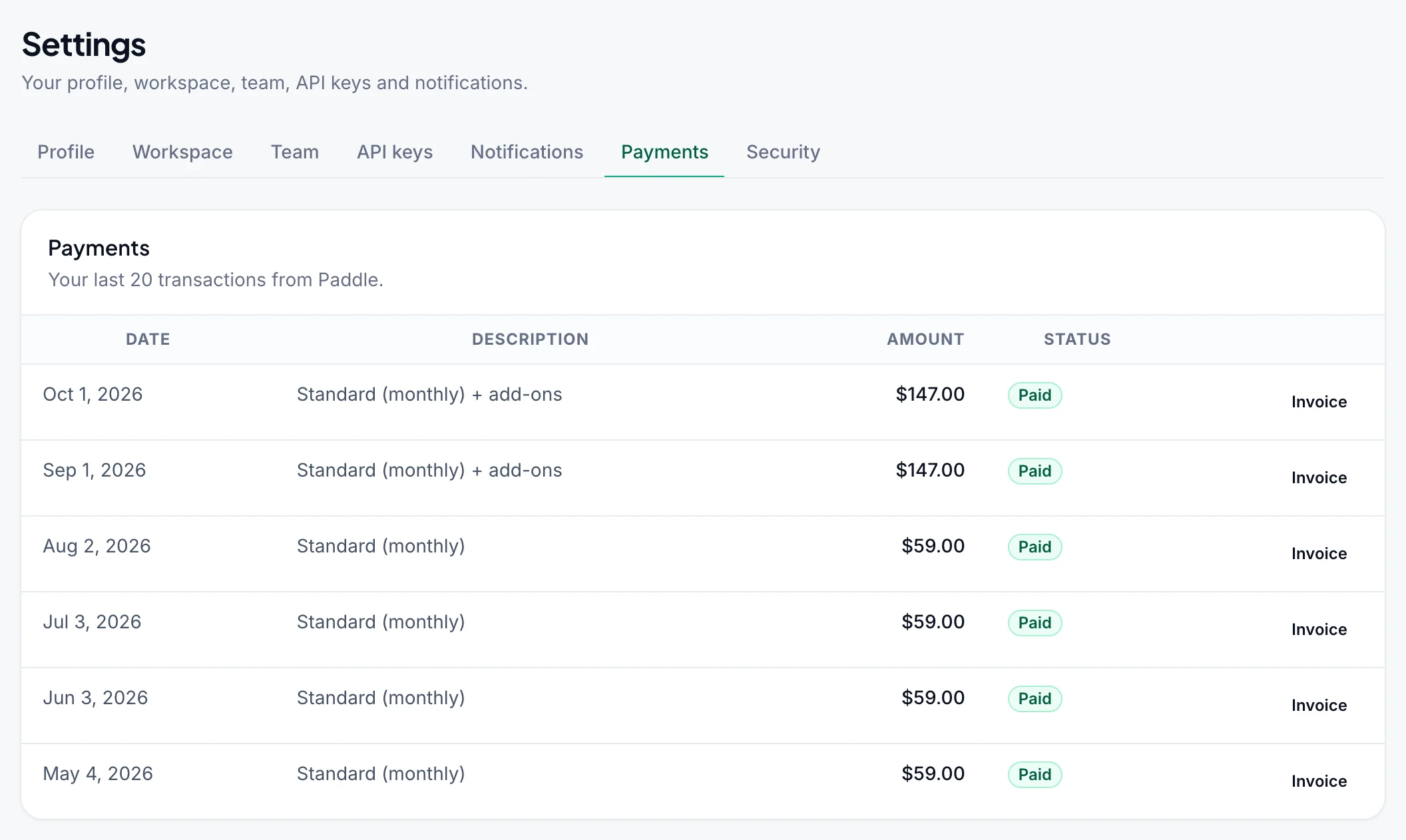
| Column | Meaning |
|---|---|
| Date | When the payment was billed. |
| Description | The plan or add-on paid for. |
| Amount | The total charged, in the payment currency. |
| Status | Paid, or another Paddle status such as Ready, Canceled or Past due. |
Click Invoice on a row to open its invoice PDF in a new tab, when Paddle has issued one.
Checkouts that were opened but never paid aren't charges, so they're hidden. To see them, click Show … unpaid checkouts. They're marked Unpaid checkout.
If the workspace has never paid through checkout, you see No payments yet (with "Only unfinished checkouts so far – nothing was charged." if a checkout was opened but not paid). AppSumo purchases aren't listed here: find those in your AppSumo account.
Security#
On the Security tab, fill in Current password, New password (at least 8 characters) and Confirm new password, then click Change password. You stay logged in on this device, other devices are logged out, and you get an email that your password was changed.
If you signed up with Google and never set a password, the tab says You sign in with Google. Click get a link by email: on the Forgot password page, ask for a link and set your password with it.
After too many attempts, wait 15 minutes and try again.
Troubleshooting#
| Problem | What to check |
|---|---|
| No + Create workspace in the workspace picker | You've already created 5 workspaces, or you're using the demo account. Delete a workspace you no longer need to free a place. |
| "You’ve created 5 workspaces – the most you can have. Delete one to create another." | Same as above. Workspaces you were invited to don't count. |
| New workspace can't send messages | Workspaces after your first start with no messages. Pick a plan on Billing & plans. |
| "This workspace has a paid plan. Cancel it in Billing first – a cancelled plan still counts until its paid period ends." | Cancel the subscription, lifetime plan or AppSumo license first, and wait until a cancelled subscription's paid period ends. |
| "This is your only workspace, so it can’t be deleted." | You always keep at least one workspace you created. |
| No Delete workspace card | Only the person who created the workspace sees it. If you just want to stop using it, leave the workspace. |
| Delete workspace stays grey in the dialog | Type the workspace's name exactly as it's shown. |
| No API keys or Payments tab | Only Owners see them. |
| Can't edit workspace details or manage the team | You're not an Owner in this workspace. |
| "Your plan allows … team members, including invites. Upgrade or add seats to invite more." | Pending invitations count too: cancel ones you don't need, or add Extra Team Member add-ons on Billing & plans. |
| "This email is already in the workspace or invited." | That person is already a member or has a pending invitation. |
| "Only the workspace creator can add, change or remove owners." | Ask the creator to make the change. |
| Invited person didn't get the email | Check their spam folder. To send it again, Cancel invite and invite them again. |
| "This invitation isn’t valid." | Log in with the exact email address that was invited, then open the link again. The invitation may also have been cancelled, or the workspace deleted: ask for a new one. |
| "Use digits, spaces and + ( ) - only, with the country code." | Fix the Phone on your profile. |
| "Your current password isn’t right." | Use Forgot password if you don't know it. |
| Messages stay Waiting and go out later | Sending hours are on for this workspace and it's outside them: the Sending hours card says when they go out. Untick the kinds that must go at once. |
| "Choose two different hours." or "Tick at least one kind of message." | Sending hours need two different hours and at least one ticked kind of message. |
| No disconnect alerts | You're an Owner or Editor, the Number & sending problems switches are on for this workspace, your email address is confirmed, and (for WhatsApp) your profile has your phone number. The first alert comes about 10 minutes after the logout, and a WhatsApp alert waits for your WhatsApp alert hours. |
| No emails from WbizTool at all | Confirm your email address, and check your spam folder. Alert emails only go to a confirmed address. |
| No payments yet on Payments | The workspace hasn't paid through WbizTool's checkout yet. |