

Answer WhatsApp chats with Claude or ChatGPT
Published
You can answer your unread WhatsApp chats with Claude or ChatGPT, from your own number in Chrome. Ask "show my unread WhatsApp chats", read one, and have the assistant reply. It works through the WbizTool Chrome extension: your number stays logged in to WhatsApp Web in your browser, and the AI app talks to WbizTool's MCP server. Before any message goes out, WbizTool gives the assistant a preview to show you.
This guide takes you through it in four steps, then shows five prompts and what each one does. It also covers where your messages go and what doesn't work. The short version is on the WhatsApp AI assistant page.
What you need#
- A paid or lifetime WbizTool plan. AI apps need a paid plan (from $25 a month at US list prices) or a lifetime plan. Free trials are refused. See pricing.
- The Unibox Phone Number add-on, to read and reply to chats. It costs $20 a month or $200 a year per number at US list prices. Sending a new message doesn't need it; listing, reading and answering chats does.
- Google Chrome on a computer, with WhatsApp Web open. Log in to WhatsApp Web with the number you want to use. It can be WhatsApp or WhatsApp Business on your phone.
- The WbizTool extension, version 1.2.0 or later. The inbox needs it to receive your messages. It's free to install.
- The right role. An Owner or Editor can connect the extension. Only the workspace's Owner can connect Claude or ChatGPT.
- A confirmed email address for your WbizTool account.
The extension's number uses one of your plan's WhatsApp numbers, and one of your add-on's inbox numbers.
Step 1: install the extension and link your number#
- Open the WbizTool extension in the Chrome Web Store and click Add to Chrome.
- Open web.whatsapp.com and log in with your number, or reload it. The WbizTool icon appears in WhatsApp's left sidebar.
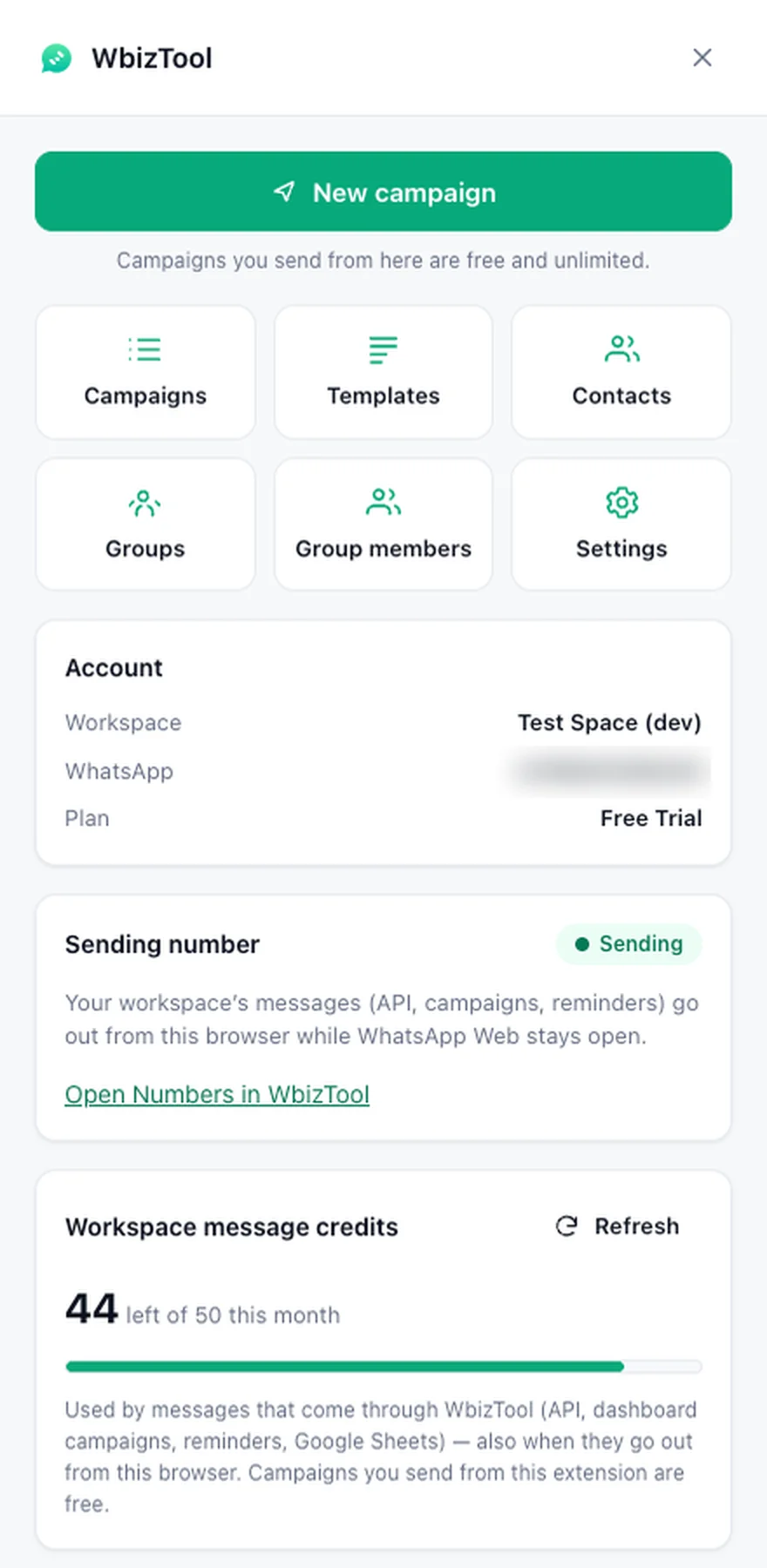
- Click the icon to open the panel. Under Connect to WbizTool (optional), click Connect with WbizTool. Log in to WbizTool if it asks.
- In the Connect the WbizTool extension window, choose your workspace, keep Send this workspace's messages from this browser ticked and click Connect.
The panel now says "Connected to WbizTool", and the Sending number box says Sending. On the Numbers page your number shows as Connected with the Browser extension badge. Click Send test message on its card to check it.
If the same number is already linked to your workspace with a QR code or pairing code, remove it from Numbers first. The Chrome extension guide explains every message the window can show. Its section Use it with an AI assistant sums up what an assistant can do with your number.
Step 2: add the number to the inbox#
The AI app reads chats from the Unibox inbox, so your number has to be in it.
- Add the Unibox Phone Number add-on on Billing & plans (Owner only; see Add-ons), if you don't have it yet.
- Open Inbox numbers, click Add number to inbox, choose your number and click Add number.
- On the number's card, under Browser extension inbox, check the switches. Receive messages must be on; the extension also asks for your OK in Chrome.
The other three switches are off at first. We suggest you leave them off while you try it:
- Group chats. Off: only person-to-person chats are kept.
- Messages sent from the phone. Off: what you send from your phone, campaigns or the API isn't kept in the inbox. Replies sent from the inbox always show.
- Attachments (photos, documents, voice notes, videos). Off: only each file's type, name and size. On: files up to 25 MB are saved.
Turn them on later if you want your assistant to see more. Changes reach the browser within a minute.
The inbox starts empty. Chats appear as people write to you, or as your number writes to them. The Unibox inbox guide has the details.
Step 3: connect Claude or ChatGPT#
In WbizTool, Integrations → AI assistants has the address with a Copy button and short steps for each app. The address is https://mcp.wbiztool.com/mcp.
In Claude (claude.ai and the desktop app):
- Open Plugins → Your plugins, click Add and choose Add custom connector.
- Name it WbizTool, paste the address and click Continue. On Claude's Team and Enterprise plans, an organisation Owner adds the connector first.
In ChatGPT:
- Turn on Developer mode in Settings → Apps & Connectors → Advanced.
- Create a connector with the address and OAuth as its authentication.
Menu names in these apps change from time to time. Look for "connectors" or "custom connector".
Then, in both apps:
- The app opens WbizTool's sign-in page. Sign in with the account that owns the workspace.
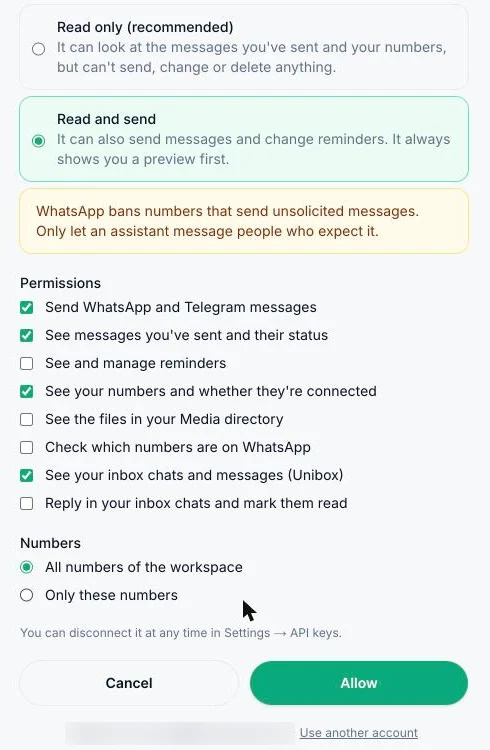
- On the approval page, pick the workspace. Choose Read and send if the assistant should reply; Read only lets it look but never send.
- Keep See your inbox chats and messages (Unibox) ticked, even before you have the add-on. Once the add-on is active, the inbox tools appear in a new chat. With Read and send, Reply in your inbox chats and mark them read and Send WhatsApp and Telegram messages are both ticked for you. Untick Send WhatsApp and Telegram messages if the assistant should only answer inbox chats. You can also limit it to some of your numbers.
- Click Allow. In Claude, switch the WbizTool connector on from the tools menu of a chat.
Ask "What's my WbizTool account?" to test it. It should answer with your workspace's name and plan.
Connected an app before 24 November 2026, or without the inbox permissions? Connect it again. If you added the add-on later, a new chat is enough. To connect again in Claude, open Plugins → WbizTool, click ⋯, choose Disconnect, then Connect. In ChatGPT, delete the connector and add it again. The MCP guide has the full steps, including Claude Code, Cursor and VS Code, and everything else an assistant can do, such as scheduling messages, reminders and message status.
Step 4: ask#
Here are five prompts and what happens with each one.
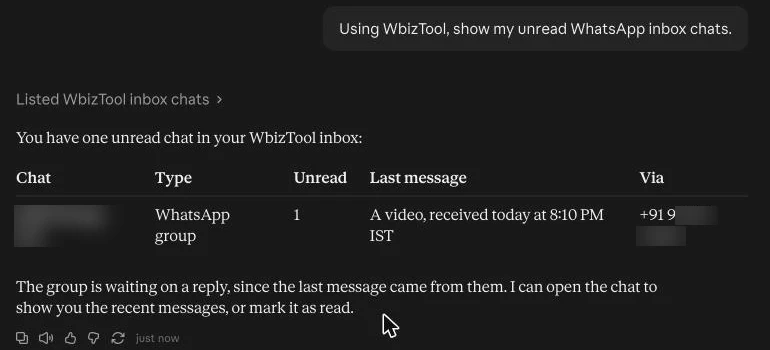
1. "Show my unread WhatsApp chats"#
The assistant lists your inbox chats with their unread counts and last messages, newest first. It can also show only the chats waiting for your reply (the customer wrote last), the chats of one number, or search by name, by a number with 4 or more digits, or by 4 or more characters of message text from the last 30 days.
2. "Read my chat with Priya"#
It reads that chat's latest messages, oldest first, up to 50 at a time. Photos and files show their type, name and size. Reading a chat doesn't mark it read.
3. "Draft a reply to Priya: yes, we deliver on Saturdays. Show me the preview first."#
The assistant writes the reply and asks WbizTool for a preview. The preview shows which number it goes from, to whom and the exact text. Nothing is sent yet. When you say yes, the reply goes out from the chat's own number, and the chat shows in your inbox as answered and read.
If your browser is closed, the preview says the number is waiting for its browser. The reply goes out when WhatsApp Web is open again.
On an extension number, the assistant can also reply to contacts whose number WhatsApp hides.
4. "Mark the chat with Tom as read"#
The chat is marked read for your whole team, in the inbox too. Read state is shared: a chat also becomes read when someone opens it in the inbox or replies to it.
5. "Send +44 7700 900789 a message: your order is ready for pickup."#
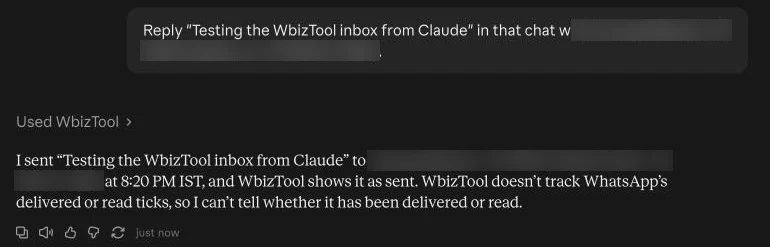
This is a new message, not an inbox reply, so the assistant needs the Send WhatsApp and Telegram messages permission (ticked for you with Read and send). Give the phone number in international format, with the +. Again, the assistant gets a preview first and sends after your yes. If you have more than one connected number, say which one to send from.
The message's status stops at sent: WbizTool doesn't record WhatsApp's delivered or read ticks. With Messages sent from the phone off, the message itself isn't kept in the inbox, but when the person answers, the chat appears there.
What happens to your messages#
- Your WhatsApp login stays in Chrome. You don't link WhatsApp on a WbizTool server, and WbizTool's machines never hold the login.
- Messages pass through WbizTool's server. Messages you send are stored there and handed to your browser, which sends them. Received chats are kept for the Unibox inbox, and inbox messages are deleted 90 days after they were sent or received.
- What the AI app reads goes to its provider. Chats, names and numbers the assistant sees go to Anthropic for Claude, or OpenAI for ChatGPT, under their terms. WbizTool's MCP server logs which tool was used, never message text.
- The preview is shown by the assistant. See the note under prompt 3.
- A retry never sends twice. If the assistant repeats a send it already made, WbizTool answers with the message it sent.
- Text from other people is marked as data. Messages and names from outside reach the assistant marked as untrusted, and it's told never to follow instructions inside them.
- You can stop it at once. Disconnect the app on Integrations → AI assistants. An app nobody uses for 60 days is signed out by itself.
More on this in how sending stays safe.
Limits#
- The browser must be open. Your number sends and receives only while Chrome runs with WhatsApp Web logged in. Messages received while it's closed arrive when it's open again, up to 7 days back.
- Replies wait up to 24 hours. An inbox reply written while the browser is closed waits, then expires after 24 hours. A new message waits up to 48 hours after it was due, then is marked Expired.
- Nothing from before. Chats from before you added the number to the inbox are never imported.
- No automatic replies. The assistant acts only when you chat with it. For answers that go out on their own, such as an away message or keyword answers, use auto-replies.
- WbizTool's own limits apply. 60 requests a minute, and at most 1,000 messages per number in any 24 hours. Each reply counts toward that 1,000; paid and lifetime plans have no monthly message count, under fair use.
- Ban risk is real. WhatsApp bans numbers that send unsolicited or bulk messages, and no tool can stop that. Read each preview, and only message people who expect to hear from you.
Questions people ask#
Does it use my own WhatsApp number?#
Yes. It uses the number you're logged in with on WhatsApp Web. Messages go out from that number, so people see them as coming from you.
Can my AI read all my chats?#
No. It reads only chats in your Unibox inbox, on numbers you added to it, and only if you gave it the inbox permission. Chats from before you added the number aren't there, and with the default switches group chats aren't kept either.
Can Claude or ChatGPT reply to customers by itself?#
No. It acts only when you ask it in a chat, and each reply starts as a preview, which the assistant is told to show you (say "show me the preview" to be sure). For replies that go out on their own, see the auto-replies guide.
What if my computer is off?#
Then nothing goes out. Messages wait and leave when Chrome is open again with WhatsApp Web logged in. Inbox replies wait up to 24 hours; new messages up to 48 hours after they were due, then they're marked Expired.
Do I need the WhatsApp Business API or Meta's approval?#
No. It uses your WhatsApp Web session in your own Chrome, so there are no templates and no approval to wait for.
Get started#
Add the Chrome extension, link your number, add it to the inbox, then connect your AI app on AI assistants. Plans and the Unibox add-on are on the pricing page.